
InterServer Nameservers

Interserver is a prominent web hosting provider that offers various products like shared hosting, cloud hosting, dedicated servers, quick servers, and many more. This company serves all types of customers including individual freelancers and big companies, both international and domestic.
Every organization that wants to bring their business online to spread information regarding their products and services must host their website. Below you can find some details regarding Interserver Nameservers and other hosting-related details.
What is Nameserver?
If you have registered domains, every domain you own needs a nameserver for web hosting.
A nameserver helps in connecting URLs with the IP address of web servers. It is an essential part of the Domain Name System.
You can easily create a nameserver with the web hosting provider and point the domain to it.

Interserver Nameserver
The default nameserver created by Interserver is known as the Interserver Nameserver. When you log in to Interserver as a client, you can add a nameserver to every domain you register.
Under the nameserver section, you can set a default nameserver given by Interserver or add a custom nameserver.
InterServer provides the following nameservers by default.
cdns1.interserver.net
cdns2.interserver.net
cdns3.interserver.net
Firstly let’s see how interserver nameservers and DNS management systems work. To know about it, keep scrolling further.
Also Read: A2Hosting Login Account | Client Area Sign in
How to do Interserver Nameservers and DNS Management System Works?
Here, we have listed a set of simplified steps to explain how Interserver nameservers and DNS management works:
Finally, the IP address is returned to the user’s browser, allowing it to establish a connection with the appropriate server hosting the website.
With that being said, let’s now see by swiping the screen down how we can successfully register nameservers in Interserver.
How to Set up Nameservers in Interserver?
Registering Nameservers in Interserver will become a piece of cake for you once you follow the stated instructions below:

Where can I find my Nameservers?
If you want to view your nameserver, first, you must log in to the Interserver account.
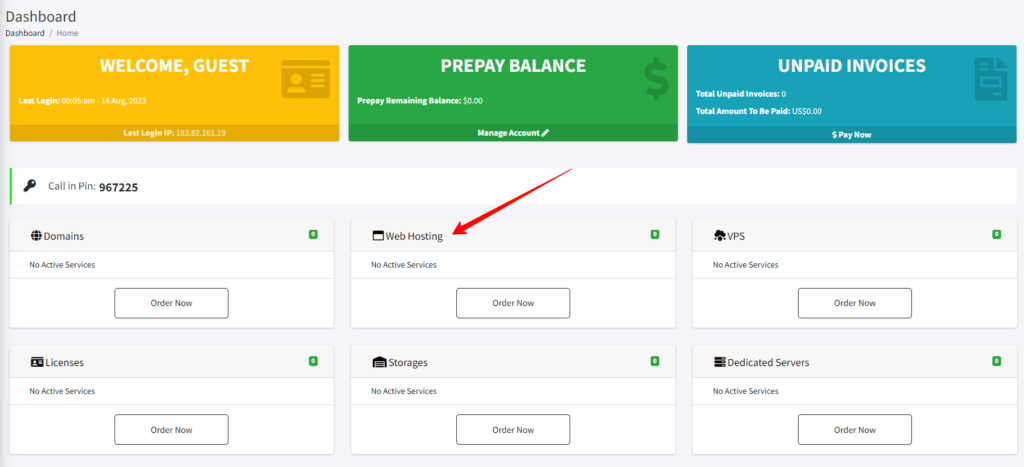
Wait for the changes to update. DNS changes usually take some time to propagate over the internet. During this time, your domain will start pointing to the Interserver nameservers.
How do I point my domain to the Interserver?
Pointing your existing domain to the interserver after you get your hosting services transferred from one to another provider is as follows:

Also Read: TMD Hosting Login: cPanel, Webmail, Get Promo Code.
How to Change Nameservers from GoDaddy to Interserver?
Changing nameservers from one host to another host is possible. If you have created name servers with GoDaddy and if you want to change it to Interserver, follow the steps mentioned below:
How to Setup Interserver VPS Nameservers?
To register or set up Interserver VPS nameservers, check out the steps given below:
How do I check and verify Updated nameservers?
To check and verify the updated nameservers, it is better to use third-party applications to get quicker results. The best one is the Googiehost Whois checker tool, which is not only prompt but also less complex for users to use.
The steps to follow are:
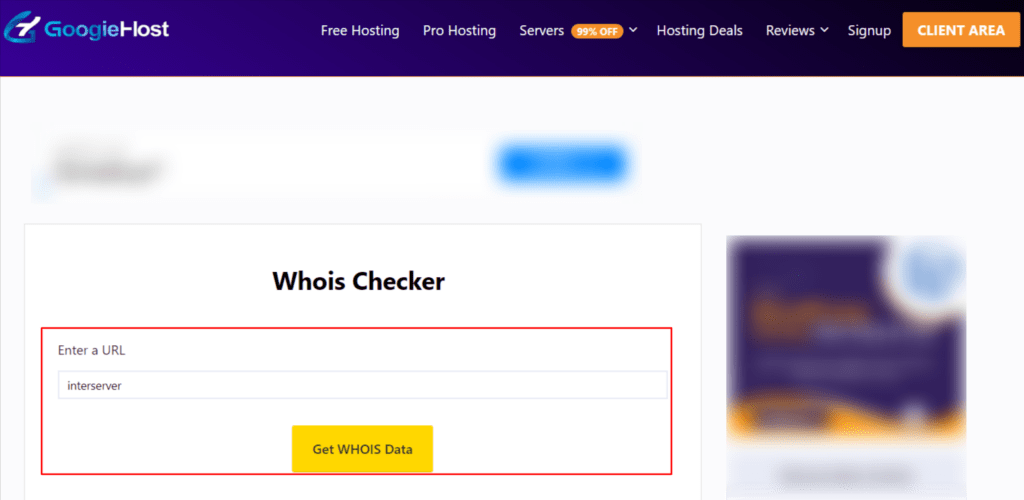
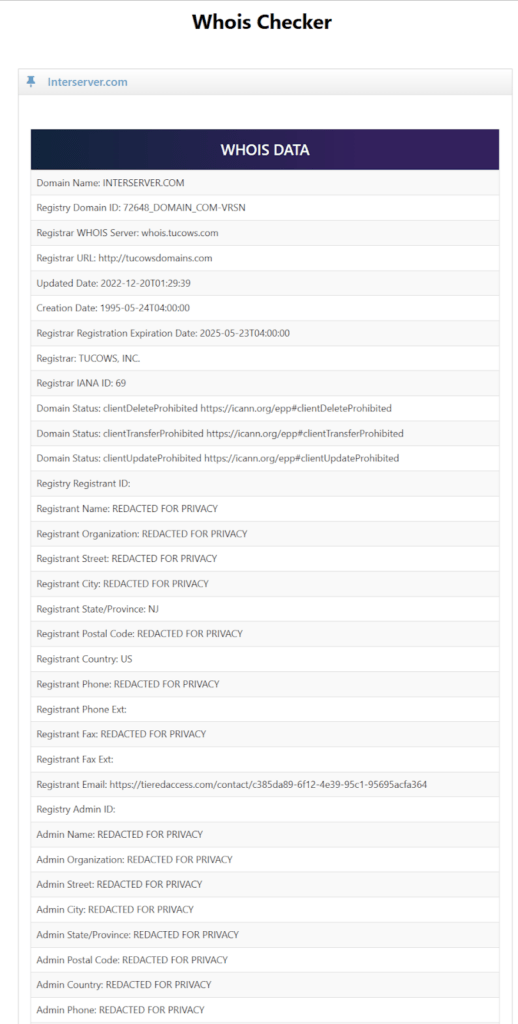
With the help of this incredibly helpful Googiehost tool, a user can effortlessly get access to his domain information for free.
Sometimes, the nameservers do not get updated due to some grave issues, so in that case it is advisable for the users to contact the tech support team for seeking resolutions.
How to contact Interserver support if my nameservers are not working?
On occasion of issues cropping up while pointing nameservers to domains or issues on nameserver updates, you can reach the tech support executive by opening the ticket system of Interserver. The steps to open a ticket are as follows:
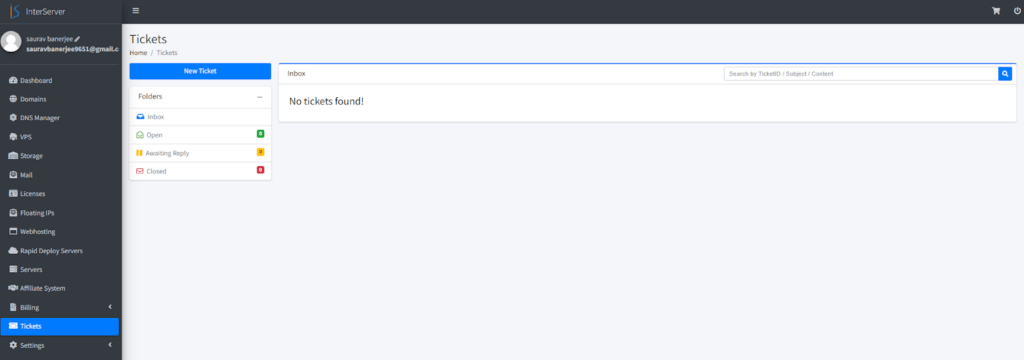
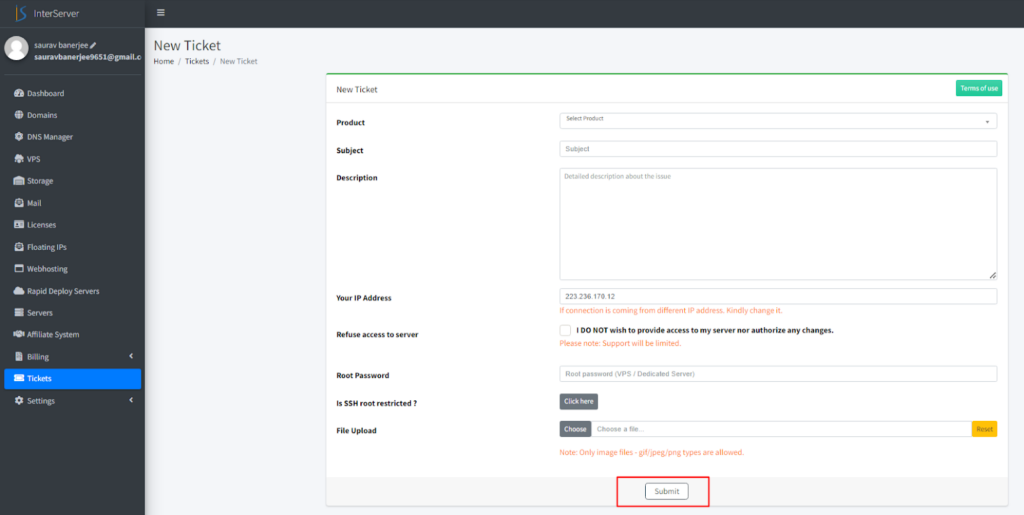
On submitting the ticket, you are provided with a unique ticket number for future reference.
Therefore you also came to know how to tackle the nameserver issue by contacting the support team experts to resolve it.
Conclusion
These are some of the details that you need when you are using Interserver web hosting. Creating a domain, setting nameservers, and hosting your website is not a very difficult task. With the help of Interserver, you can set all these up quickly.
Always remember that if you want to increase the traffic to your website, it is necessary to host your website. Only through a web hosting service will your website be available on the internet.
Interserver can make your web hosting service unique and valuable for your business.