
DomainRacer Login

Have you heard about this amazing web hosting company, DomainRacer? We are writing about login to your DomainRacer hosting account to access your dashboard and the control panel of DomainRacer. Further on, we’ll even tell you about resetting the password of your account and even tell you about creating a ticket for the login issues, if you face any.
So get on with reading the article 🙂
How to Login DomainRacer?
Starting the article with DomainRacer Login, a brief but informative introduction to the world of hosting.
Presented to you is the login guide to make your login so much easier.
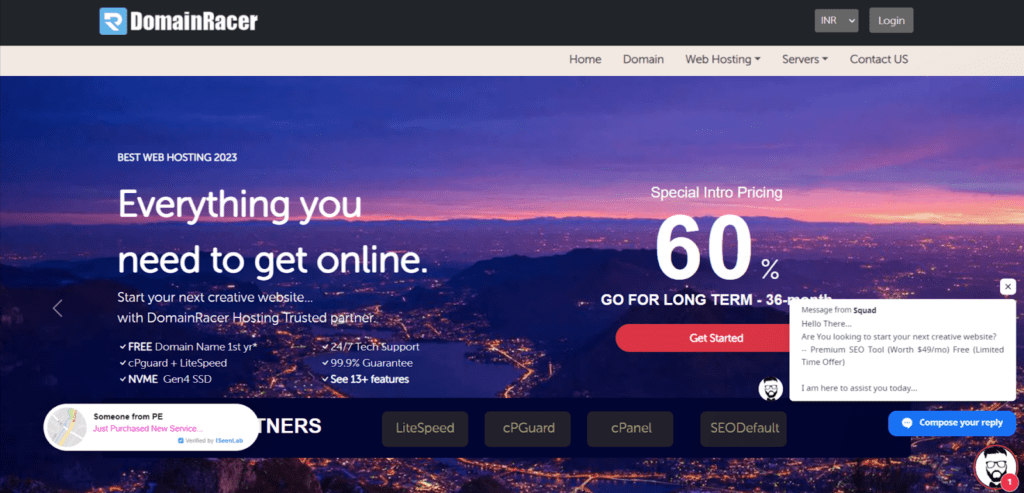
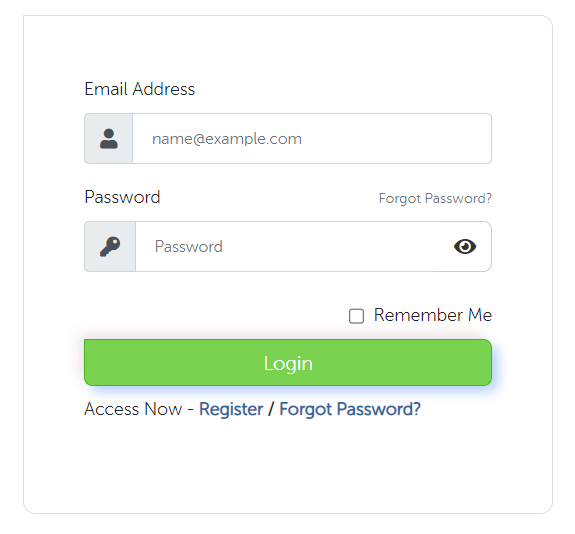
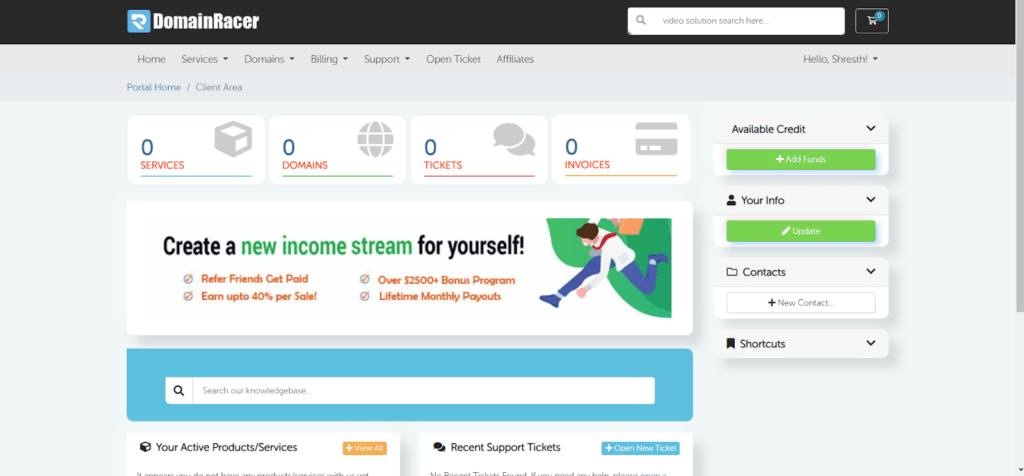
Let’s continue our learning in the next section, where we will cover the login procedure of the control panel of DomainRacer.
Also Read: About DomainRacer Nameservers
How to login to the Control Panel of DomainRacer?
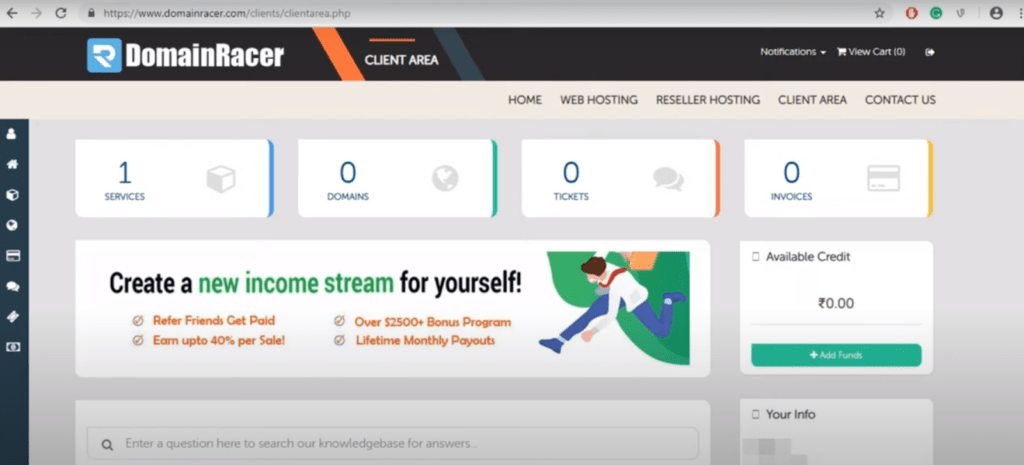
Are you looking for a login to the control panel because you want to edit your website? Please refer to the procedures below, where you will find everything you need to successfully and smoothly log into your control panel.
We have found 2 methods you can use to complete your login to the control panel, and it all goes through your dashboard.
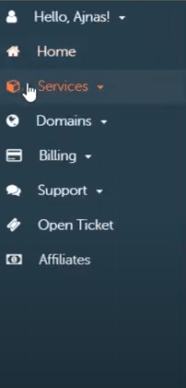
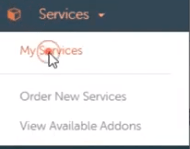
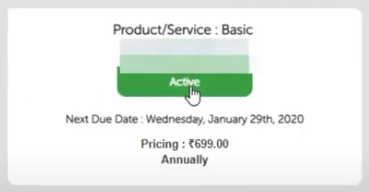
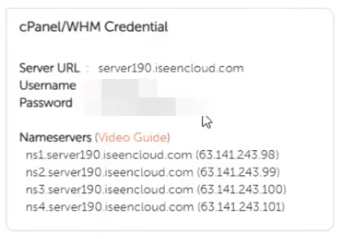
Manual method
Automatic method
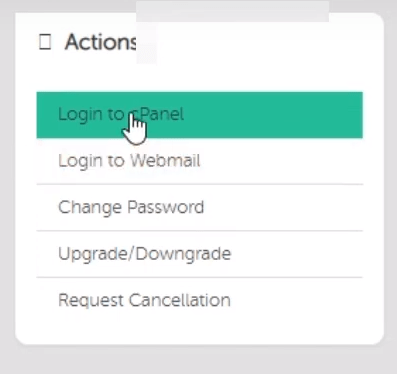
Have you completed your both the login process of, the dashboard and the control panel? Great !!
Allow us to cover in the next section the password resetting procedure for if you need any help regarding changing your password.
How to Reset the Password of DomainRacer Accounts?
Do you have a habit of changing your password or are you someone who tends to change your password more often? Bringing to you are the steps which can help you to do the same in very easy steps.
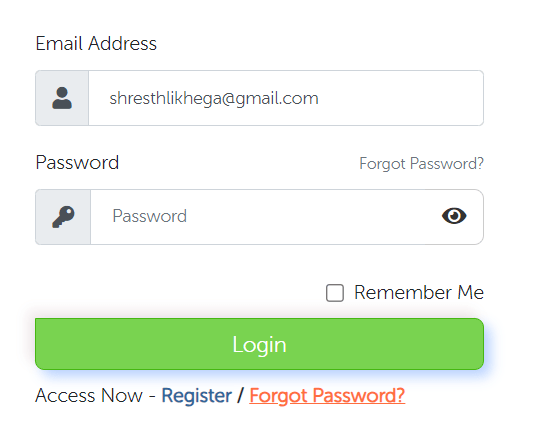
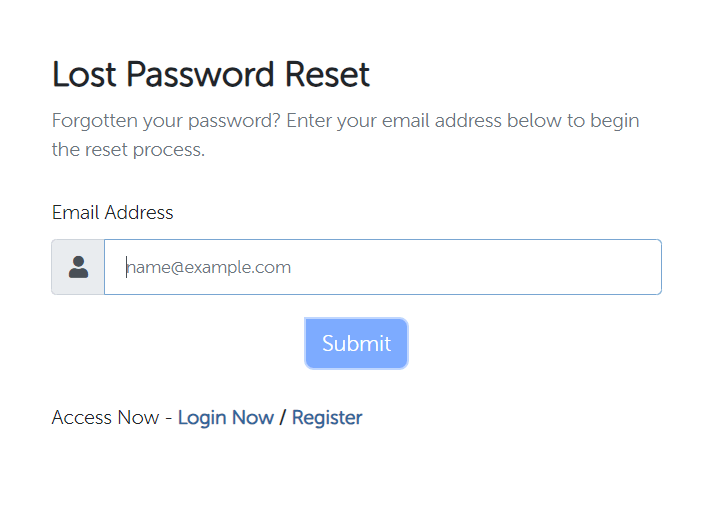
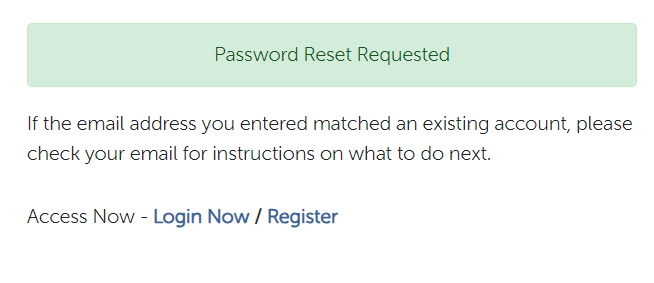
Okay following our way to learn about creating a support ticket.
How to open a DomainRacer Support ticket for Login issues?
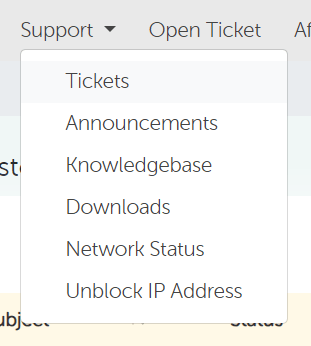
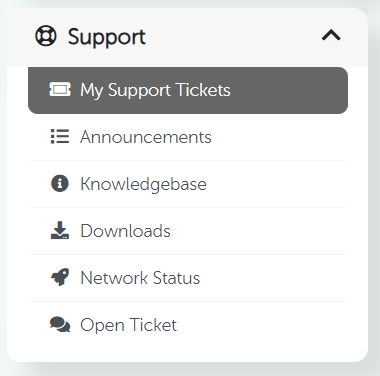
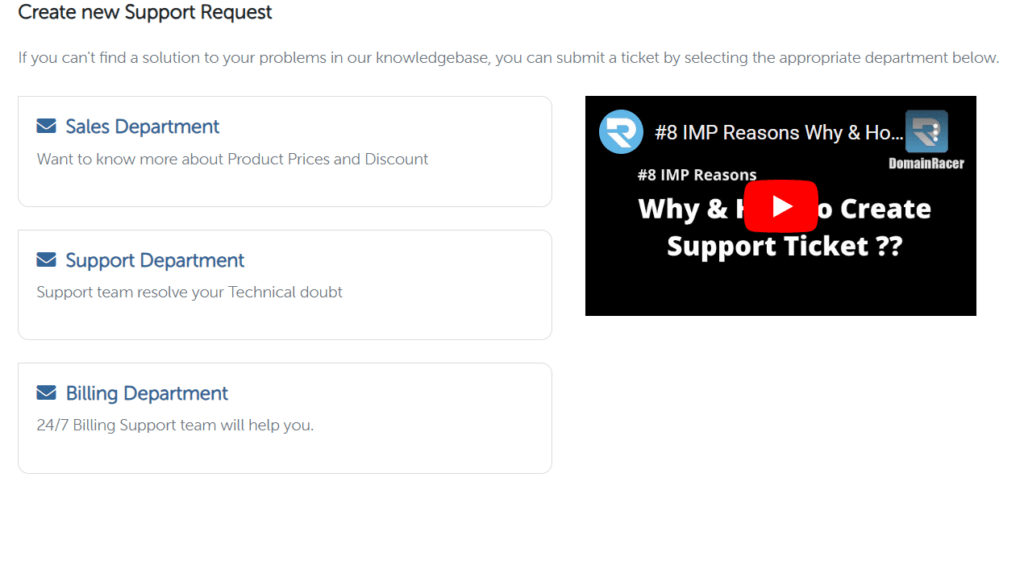
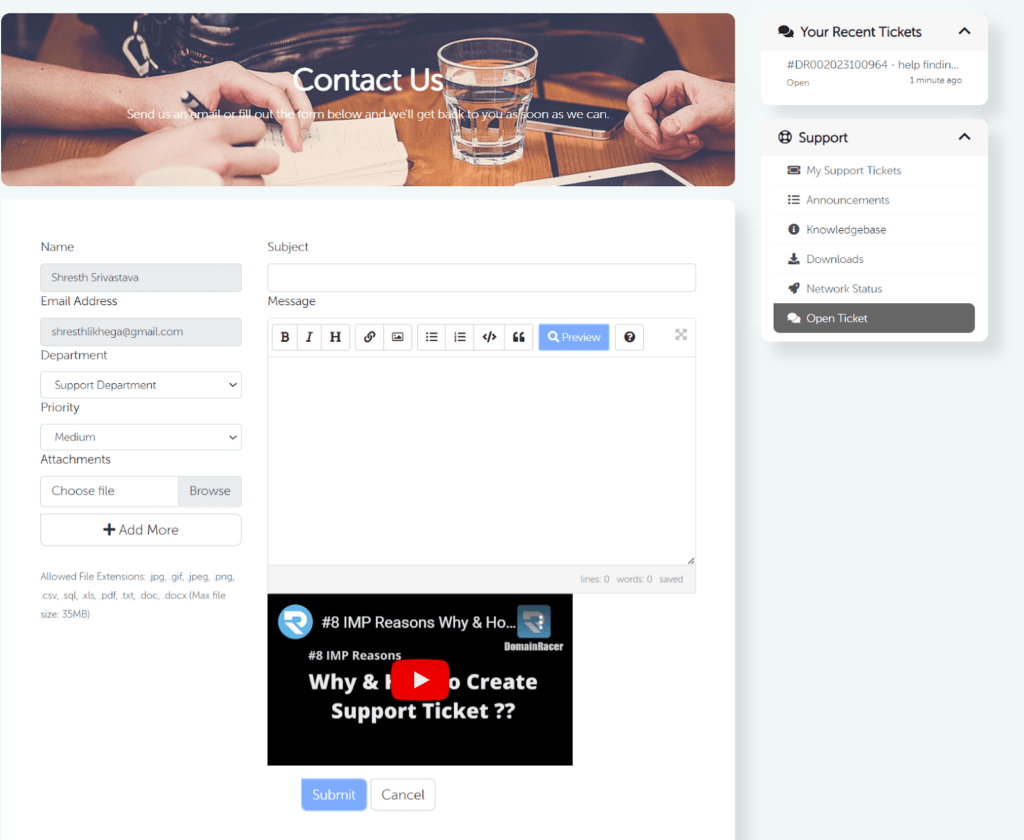
Are you facing an issue regarding the login? Allow us to help you create a support ticket.
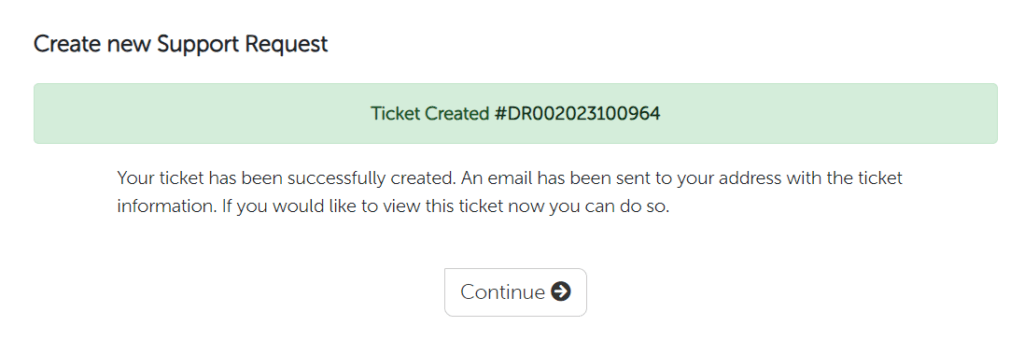
All good things must come to an end, so is this article, so concluding the article in the next section.
Conclusion – DomainRacer Login
Finally, we’ve covered everything that is there to be covered on the DomainRacer Login, everything from the dashboard login to its control panel login. We even covered changing the password if you forget it by any chance or want to change it anyway.
Plus, you can even create a ticket by yourself; hurray!!
Want to continue your reading spree? Follow us to the other articles we have on DomainRacer support, where we have for you all the support channels this company offers its users and how to connect with them over these, also read our other article where we have covered this company’s review.
Have any suggestions for us, comment down below in the comment box and as always, Happy Hosting 👍