
Kinsta Login

Kinsta Login: Kisnta lays out flawless WordPress hosting services for its customers. Whether it is a small or large website, Kinsta fully manages your site with ultimate speed. It backs up your data frequently and provides full support 24*7.
Its client area is known as the ‘MyKinsta dashboard’ and provides all the control features one needs to manage their site. It has a powerful WordPress hosting tool with an easy-to-manage area.
Here get to know how to log in to the Kinsta client area, Transfer the site to another company, how join the Kinsta affiliate program, and how install a wildcard SSL certificate.
How To Login To The Kinsta Client Area?
Here is the step by step for the Kinsta login guide are:
Step 1: Open the homepage of the Kinsta web hosting provider. Click on the Login option beside the search icon.

Step 2: This will open the Kinsta Login page where you need to fill in your registered admin credentials.
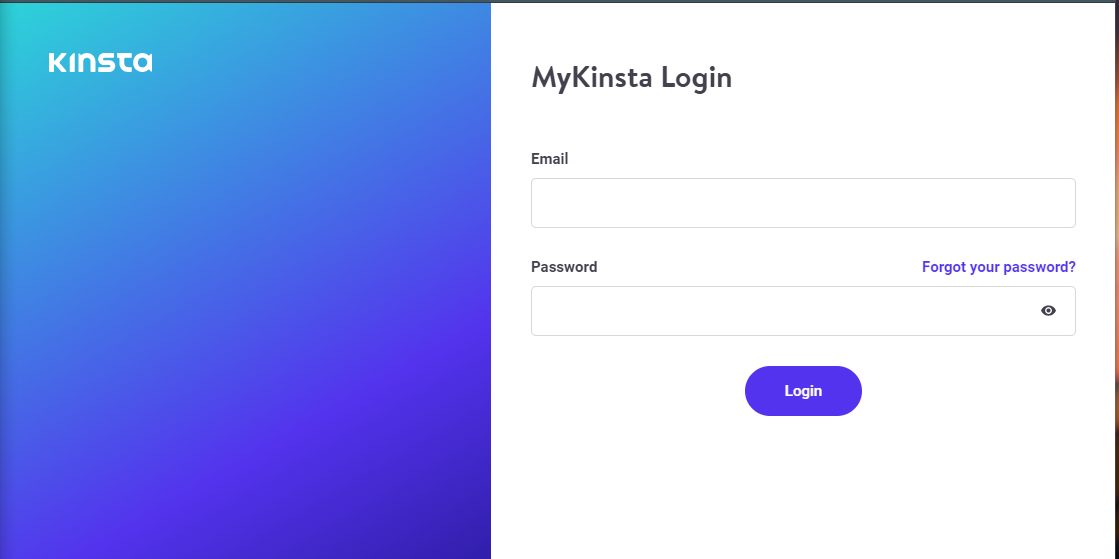
Step 3: Enter the email and password in the appropriate text bars.
Step 4: Click on the Login button below.
This will open the Kinsta client area dashboard.
Also Read: How to order hosting from Kinsta.
How to Transfer a Site to Another Company in MyKinsta?
Transferring a site to another company from MyKinsta is quite simple with Kinsta’s site transfer tool. Follow the steps given below to transfer your site:
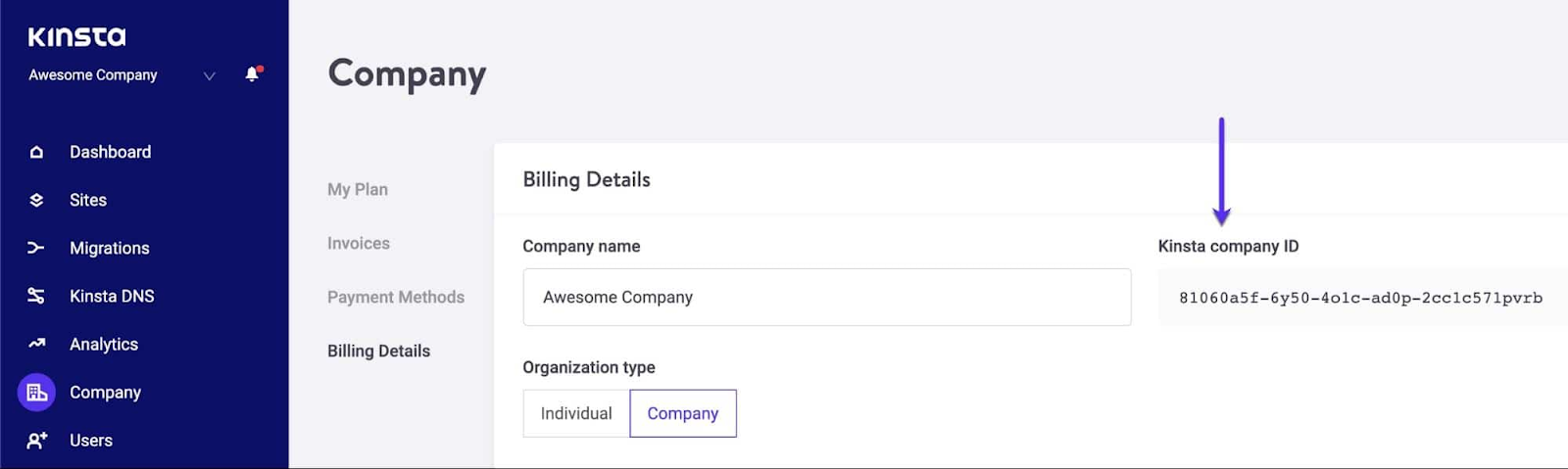
Step 1: Get the company ID of the company you need to transfer the site. You can find the Kinsta Company ID in the Kinsta dashboard.
Click on the Company option in the left option bar. You will see the Kinsta Company ID on the right.
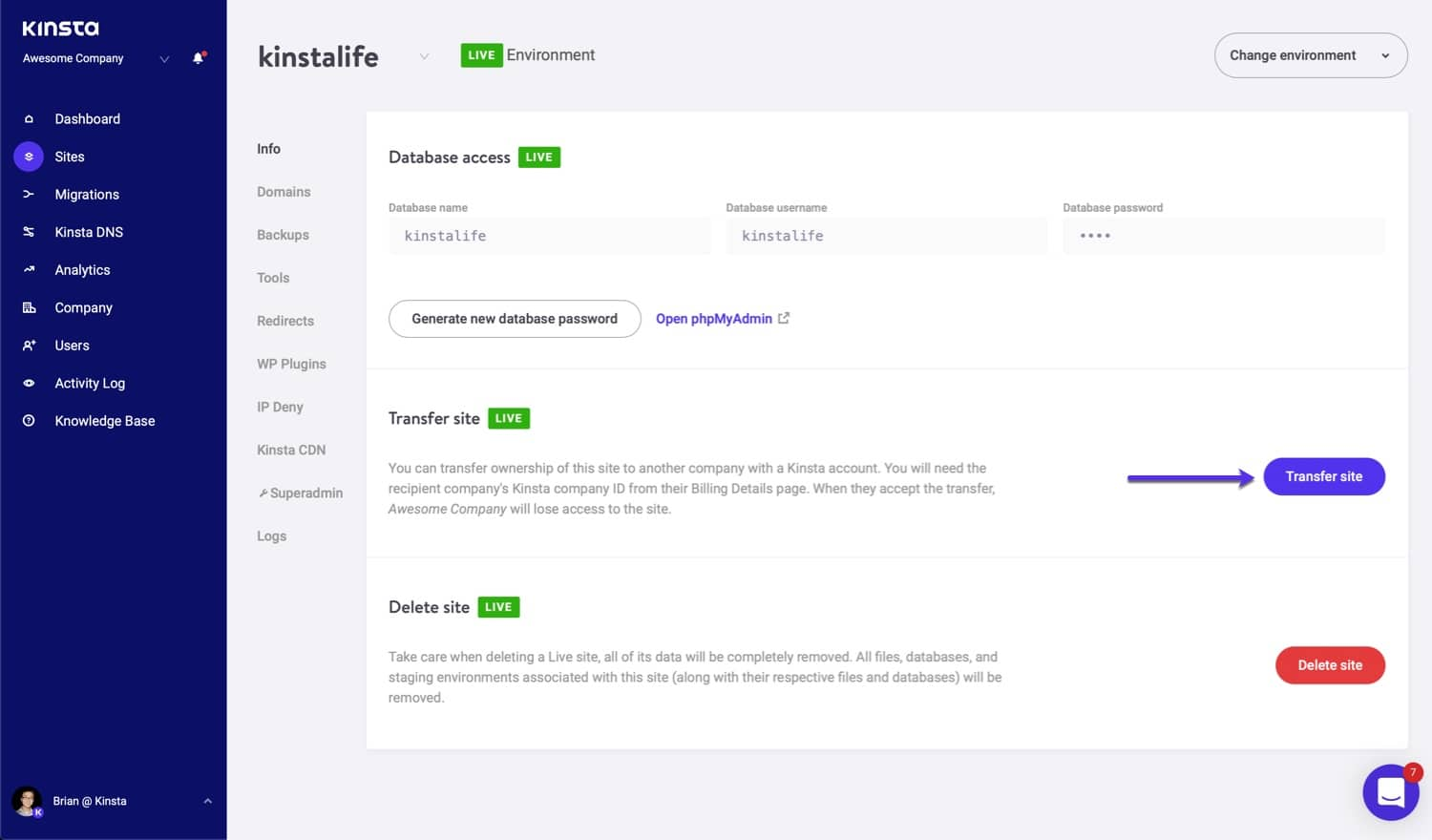
Step 2: Now go to the sites option from the left navbar of the Kinsta dashboard, to start the transfer of your site. In the Transfer Site, select the transfer site option.
Step 3: Now you will get the option to fill in the transfer details. In the field labeled as Kinsta company ID to transfer to, add the company ID that you acquired in the first step.
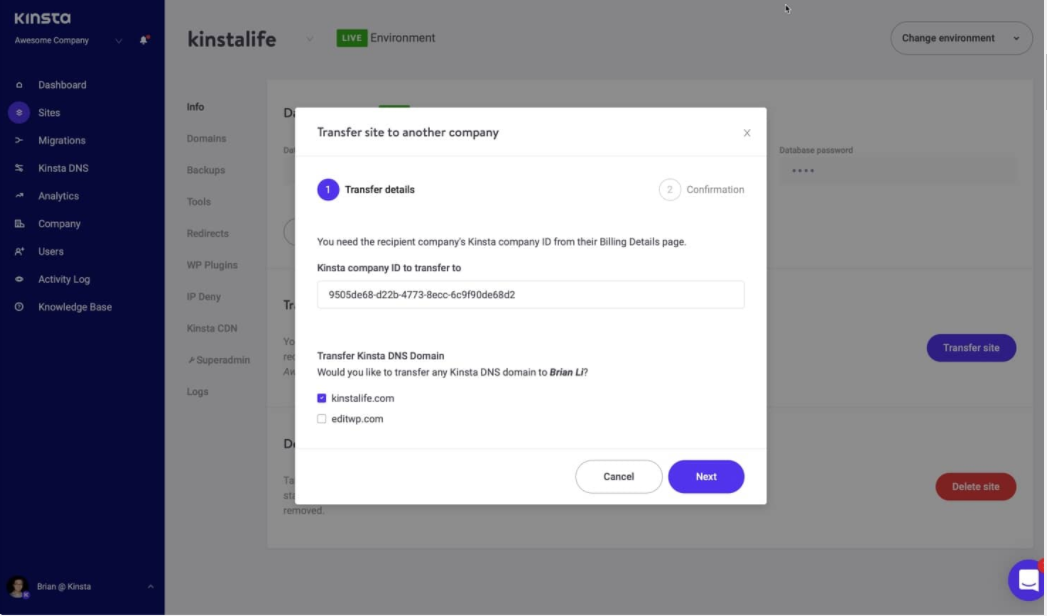
If you need to also transfer the Kinsta DNS domain, select the checkbox against it. Click on the Next button.
Step 4: Now you will get a confirmation dialog box to confirm the site transfer. Enter the required info and click on the ‘Transfer Site’ button.
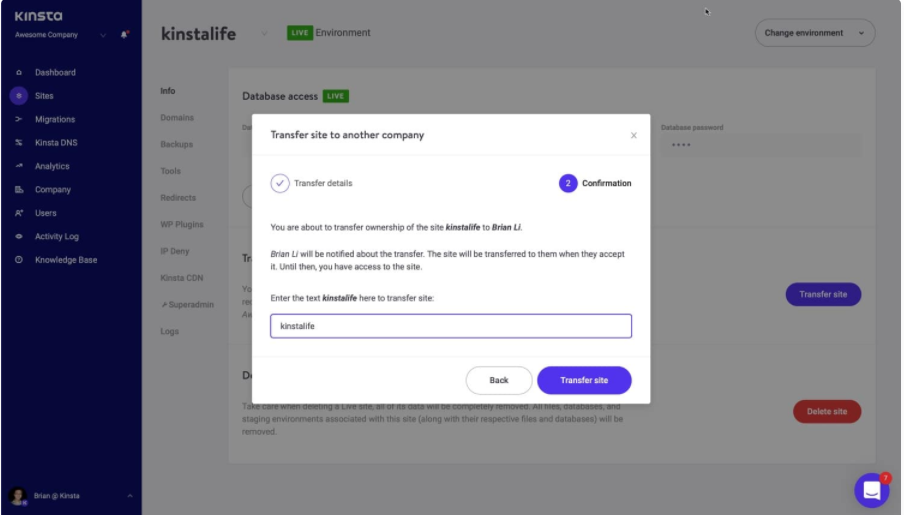
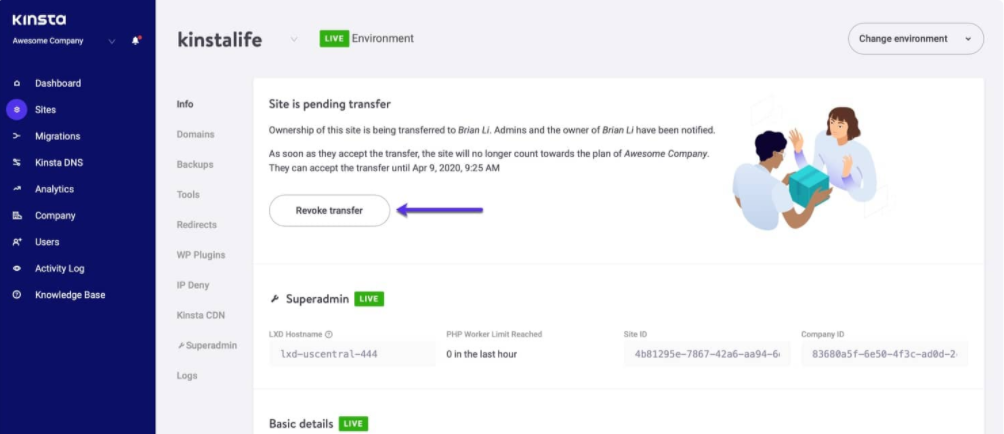
Step 5: You will see the site transfer as Pending Transfer after this.

Step 6: You can anytime Revoke the Transfer as well.
Step 6: Once the destination company has initiated the transfer, the company owner will receive an email regarding it. Click on the Accept Transfer and it will bring you to your Kinsta Dashboard, click on the Accept Transfer button.

How To Join The Kinsta Affiliate Program?
Step 1: Enter the following URL link into the address bar of your internet browser:
https://affiliate.kinsta.com/register
Step 2: You will be directed to the Kinsta affiliate portal. Here you will be shown the Kinsta Affiliate register form.
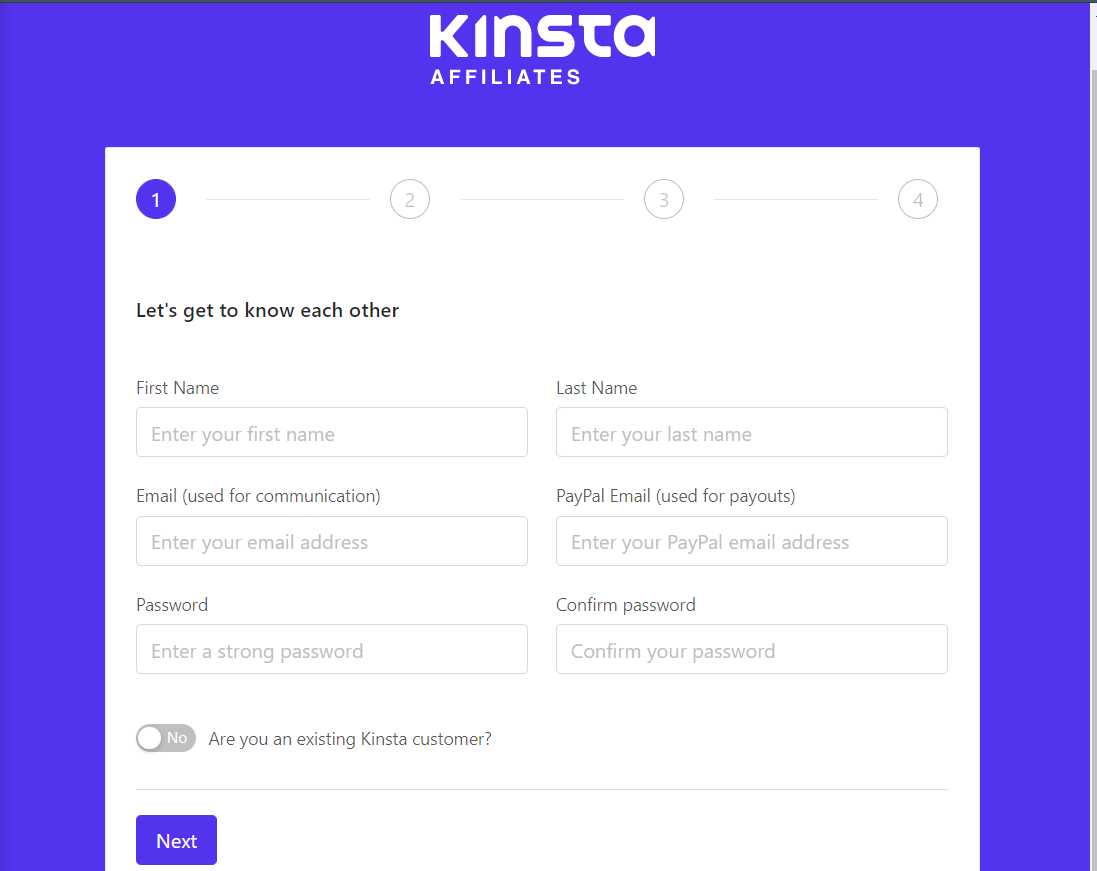
Step 3: Enter all the required information to successfully sign up as a Kinsta affiliate.
Step 4: Click on Next and follow all the required steps. Your application will shortly be reviewed by The Kinsta team and you will be an official affiliate member.
How To Enable The Kinsta CDN On Your WordPress Site?
To enable the Kinsta CDN on your WordPress Site, follow the steps below:
Step 1: Log in to your Kinsta client area portal. In your MyKinsta dashboard, click on the Sites option in the left pane.
Step 2: Select the WordPress website to enable the Kinsta CDN. On left, click on the Kinsta CDN option.
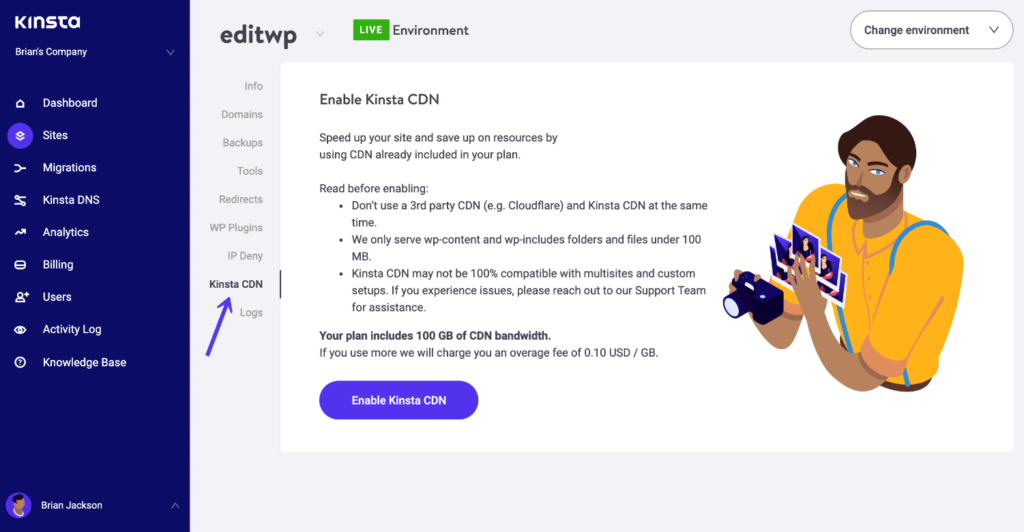
Step 3: Now click on the Enable Kinsta CDN button below and in about 15 minutes, your CDN cache zone will be deployed. You will receive a CDN domain such as:
Abcd1234.kinstacdn.com

After the CDN installation process is completed, CDN will successfully be enabled on your WordPress sites.
Also Read: Kinsta Nameservers.
How To Install A Wildcard SSL Certificate On Your WordPress Site?
Installing a Wildcard SSL certificate is very crucial to ensure the safety of your site. This way your data is encrypted and you can serve securely on an HTTPS connection.
To install a Wildcard SSL Certificate on Your WordPress site, follow the below options:
Step 1: Firstly, purchase a Wildcard SSL certificate. Choose the one you find the most optimal for your website. In this process, you may be asked to type of server. In the case of Kinsta, you can select ‘Nginx’, ‘Apache’, or ‘Other’.
Step 2: Generate a private key and CSR (Certificate Signing Request) Code by completing the form on the following link:
https://www.ssl.com/online-csr-and-key-generator/

Step 3: After filling in all the required details, click on the Generate Button. You will get the following screen after that:
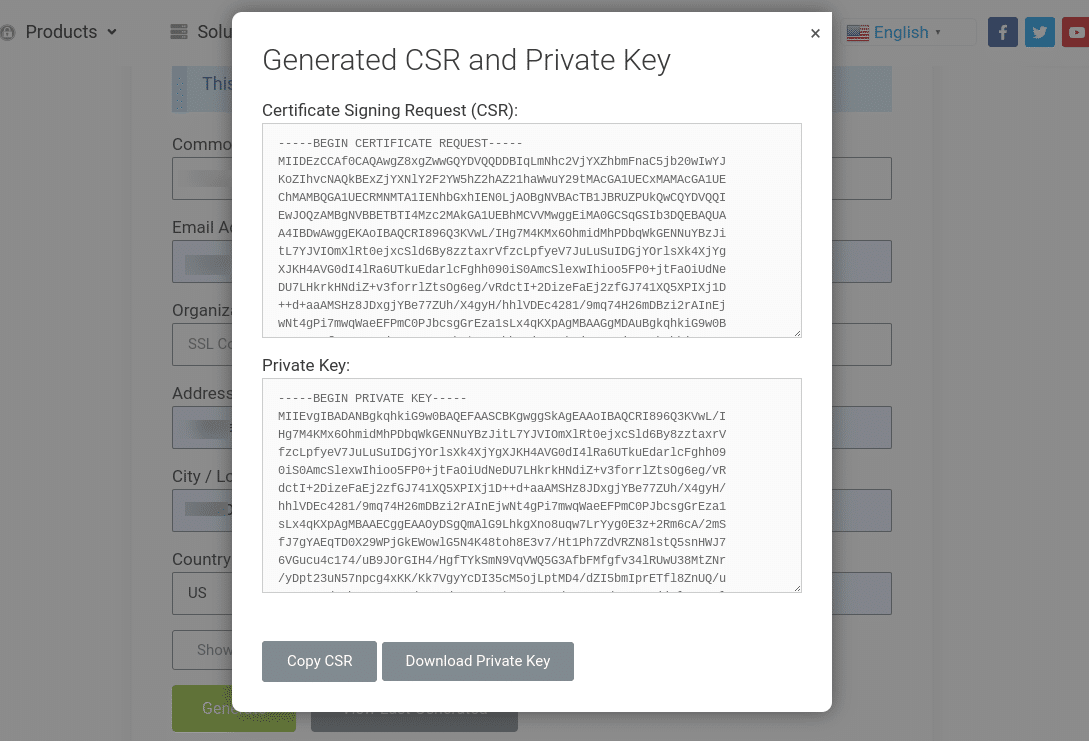
Step 4: Copy or save this information by clicking the appropriate buttons. Now in your SSL provider, upload the CSR and your SSL file be generated successfully.
Step 5: Now the next step is to upload the CSR and private key to your server. Log in to the Kinsta client area from your browser and click on the Site option and then go to the Tools tab.
Step 6: Click on the Enable HTTPS button and select the Add custom SSL certificate option.

Step 7: Add your private key and certificate information on the pop-up that appears. Click on the Add Certificate button.