Hostens Login
Performing any action like ordering hosting for Hosten or configuring Hosten nameservers to point it to your existing domain, you’ll first be required to have a Hostens login account. If you are a new user, then we must imply that login is the first initial step you need to take before you make any configuration related to the purchased Hosten plan.
In this article we will be discussing the login process in great detail and will also help the amateur users to login to cPanel account and at times when you forget your password, then what steps you need to take to reset a new password.
Since the topics make you curious, let’s not delay more and start off with the Hostens Login Process.
How to Login Hostens?
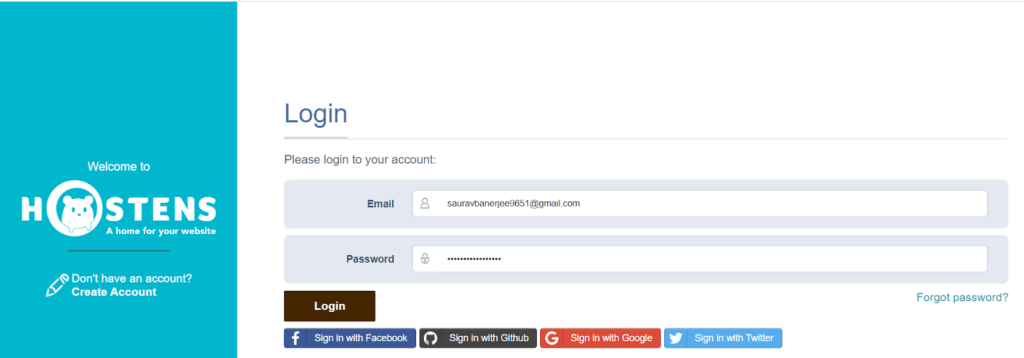
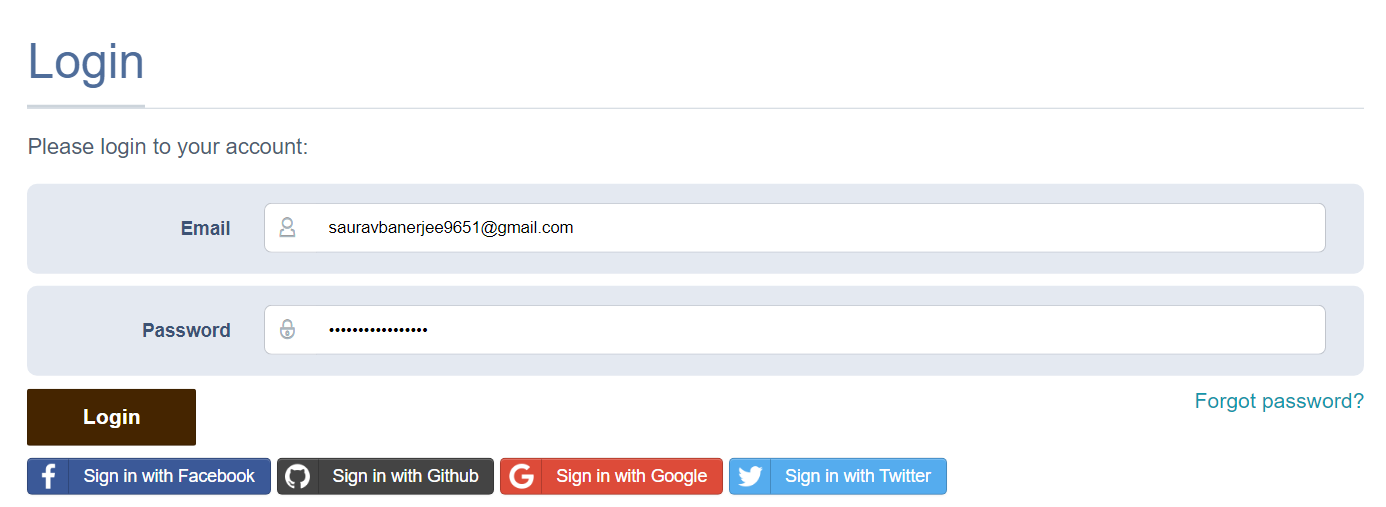
For existing users who already have their account registered with Hostens, can easily login to their account with their registered email address and password.
For Existing Users
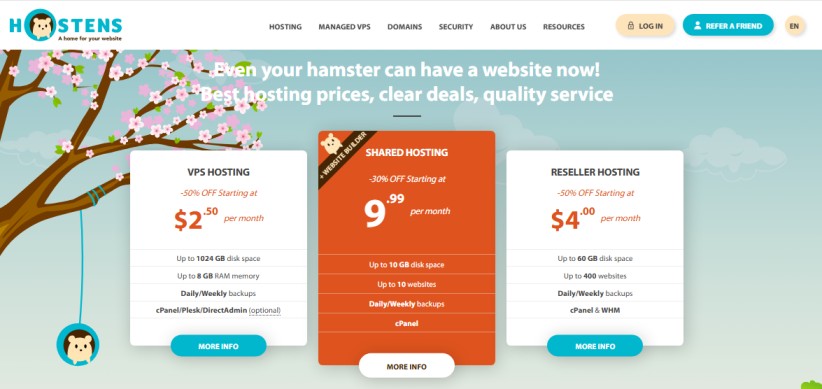
If you are a newcomer and do not have an account registered with Hostens, you need to create an account by following the stepwise procedure mentioned below.
For New Users
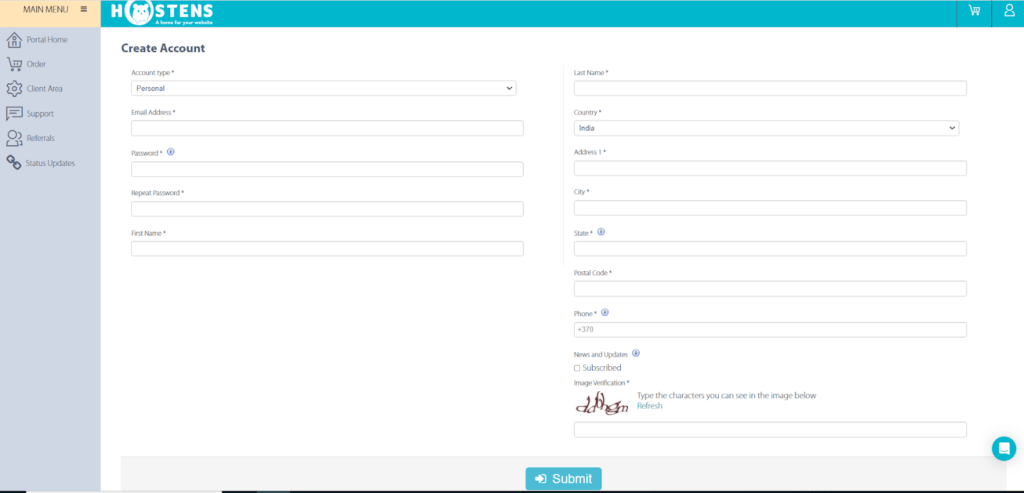
Note down your registered email id and password to initiate the Login process in Hostens to avail various services offered by them, one of them being accessing Hostens support ticket option.
After successfully logging into your account and effortlessly ordering hosting from Hostens, you need to get access to your control panel to make necessary configurations related to your domain, website.
How to login to the Control Panel of Hostens?
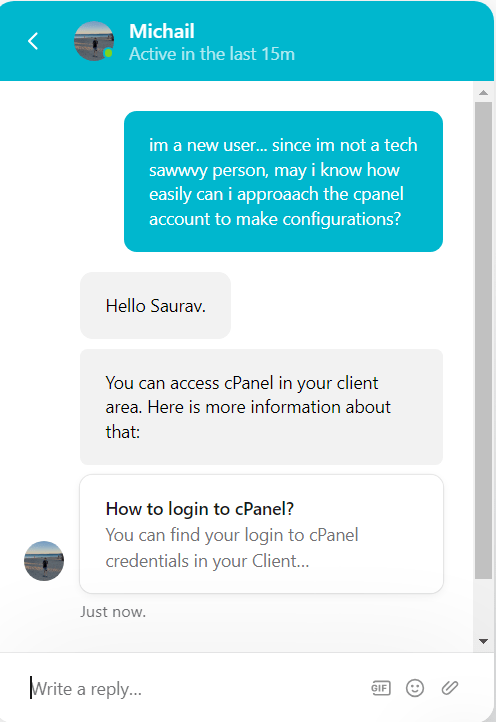
The stepwise instructions given below can prove useful to the users, trying to log in to their Hostens cPanel account. So, here are the detailed steps to login to cPanel via the client area.
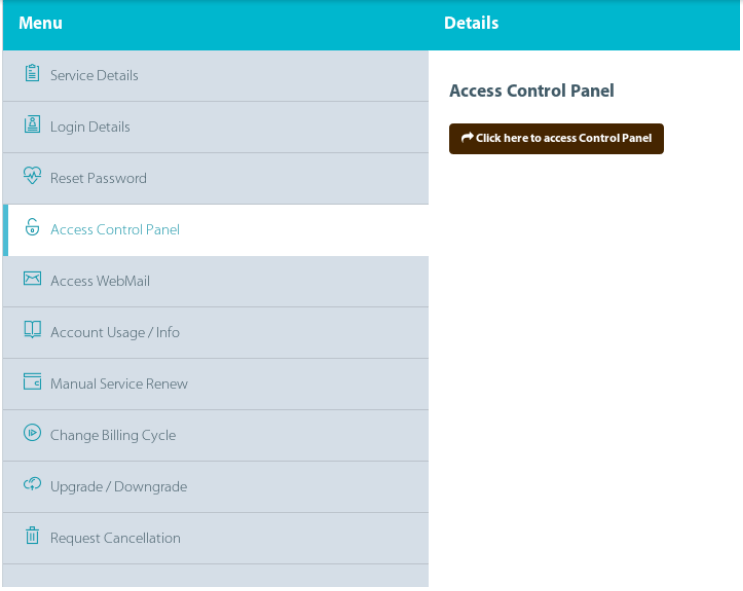
With the above steps logging into your cPanel will be smooth and effortless. At times it happens that you tend to forget the login credentials of your account. In that scenario, what can be done to retrieve the password? Read out further to know about it in detail.
How to Reset the Password of Hostens Accounts?
In case you forgot your password and you are trying to retrieve it.
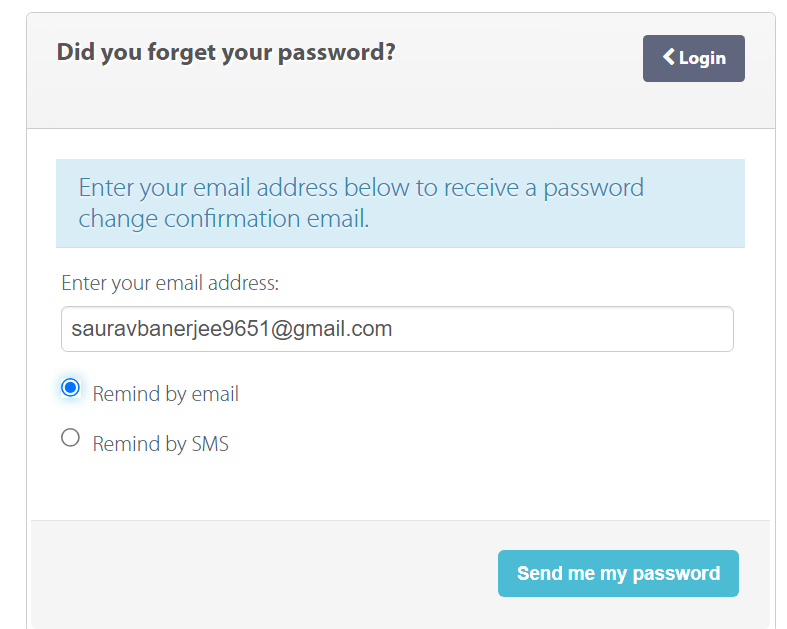
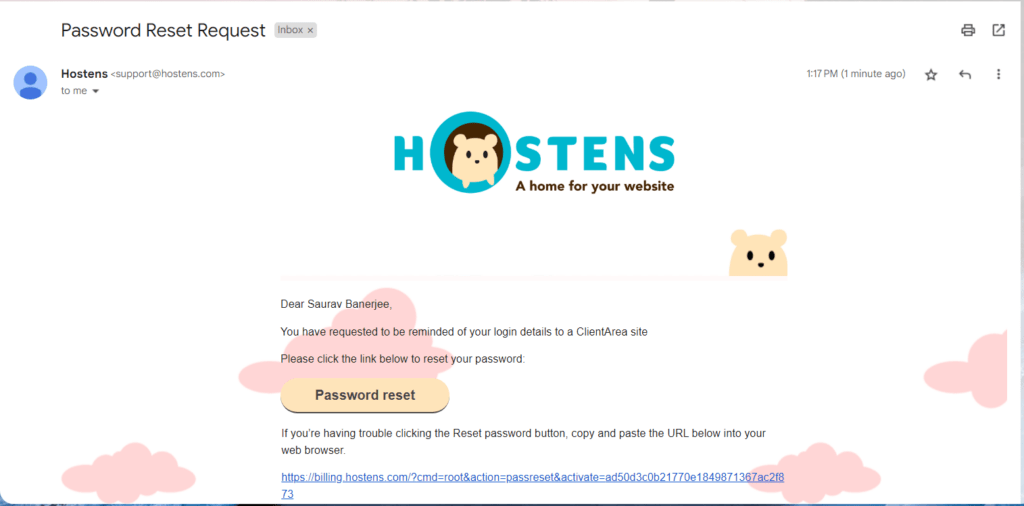
In case you want to reset your password to ensure no one bypasses your secured account.

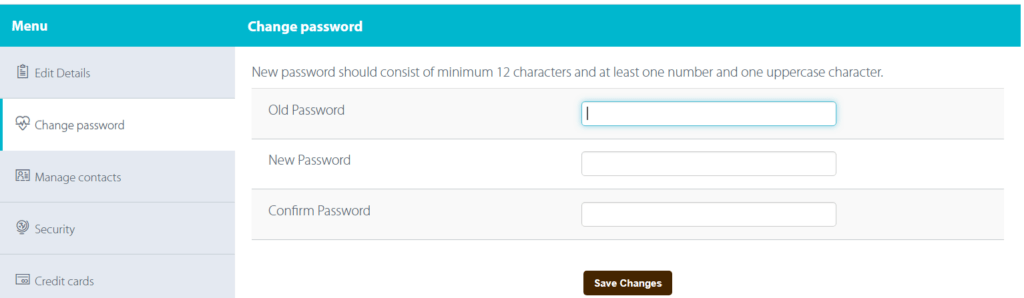
When suffering from consistent login troubles or any further issues related to cPanel login, what options are available to the users then?
How to open a Hostens Support ticket for Login issues?
Contacting Hostens support is the one and only fruitful medium to get issues related to login or password troubles resolved. Users can approach the support team for their login issues via:
To get detailed information about how to establish contact with the support team, click here to acquire further information.
Conclusion – Hostens Login
Through this article you can comprehensively learn about how to login to your Hostens account and if you are a new user, how you can easily create a new account. Moreover, we also discussed the procedure involved in resetting the password.
In case you have any issues to discuss with us, we will be happy to hear from you at support@googiehost.com
It is your warmth and compassion that get reflected in your comments which keeps us motivated to make more tech related articles like these.