
ProHoster Login
Clicked your way through the internet to reach this page to find a guide on ProHoster login. Don’t worry, we’ve got you sorted with a complete login guide on ProHoster. Also included in the article is how to login in control panel in ProHoster.
That’s not all; we’ve also brought you a password reset guild if you have any problems while resetting your password.
Right after, we will tell you about all the support channels this company offers for if you have any problem with any step as such.
Otherwise, we are here for you in the comment box down below. 🙂
Starting with the spicy details of ProHoster login, let’s go 👍
How to Login ProHoster?
Starting our journey, we have for you the detailed process on how you will log into the ProHoster dashboard.
Exclusively for you, we will also create an account with you on ProHoster, helping you to learn everything about ProHoster login.
Mentioned below are the steps, lets follow along :
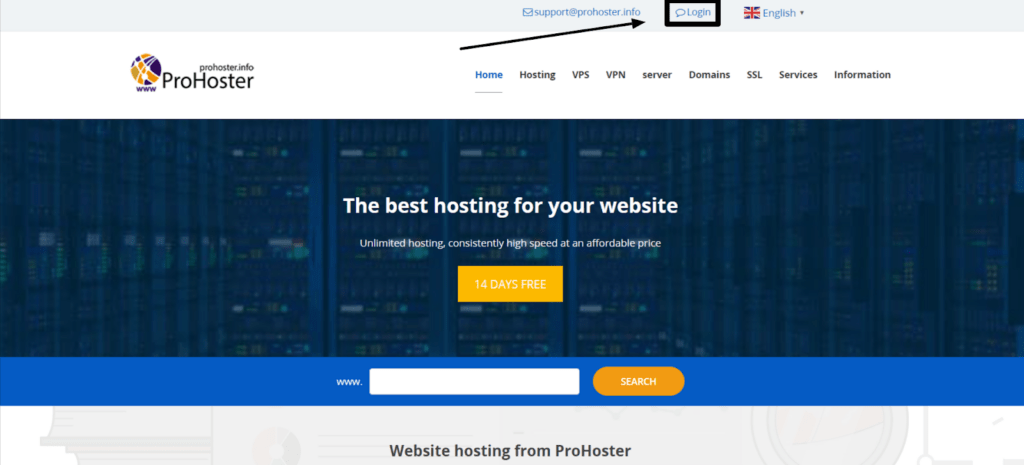
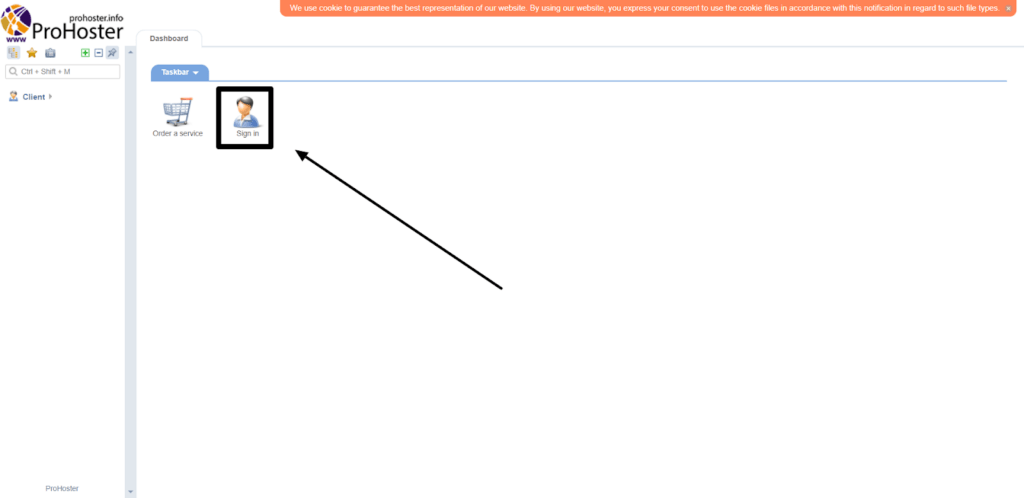
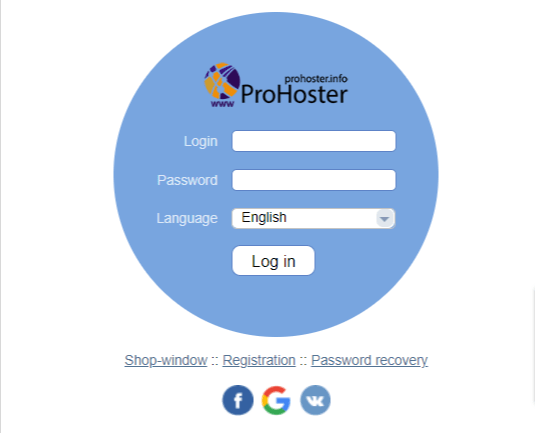
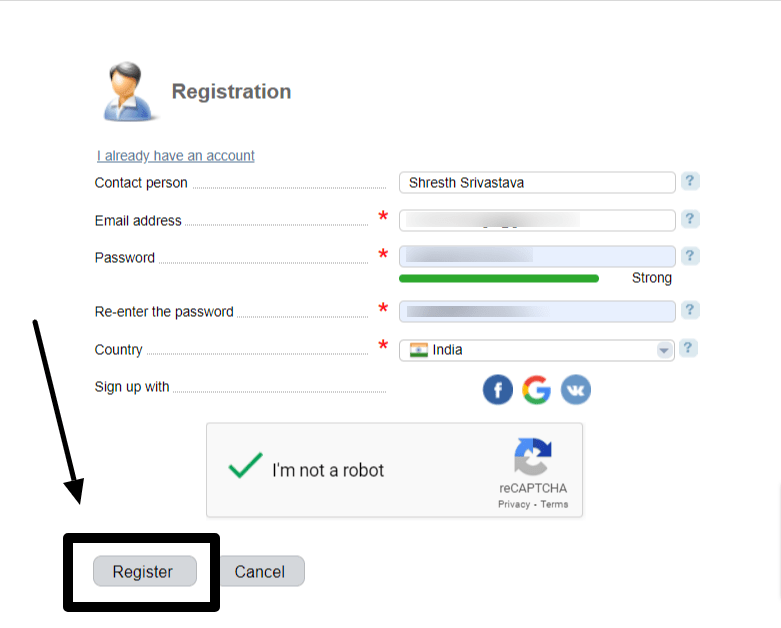
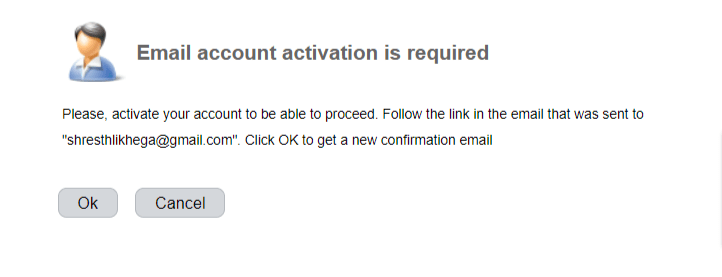
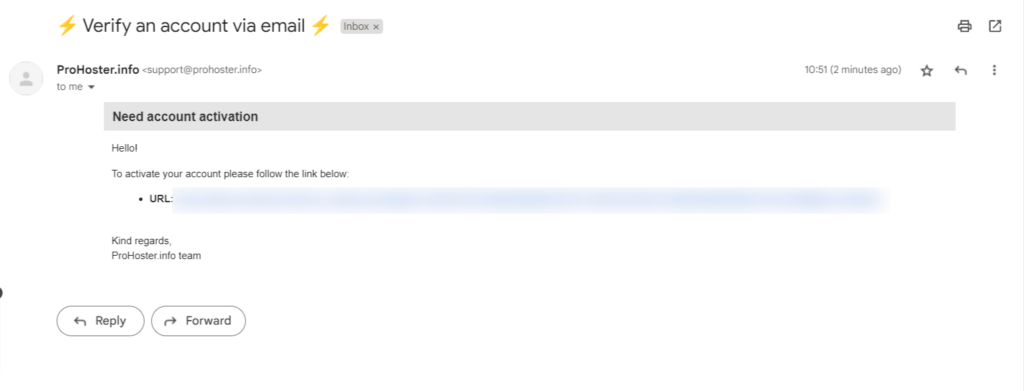
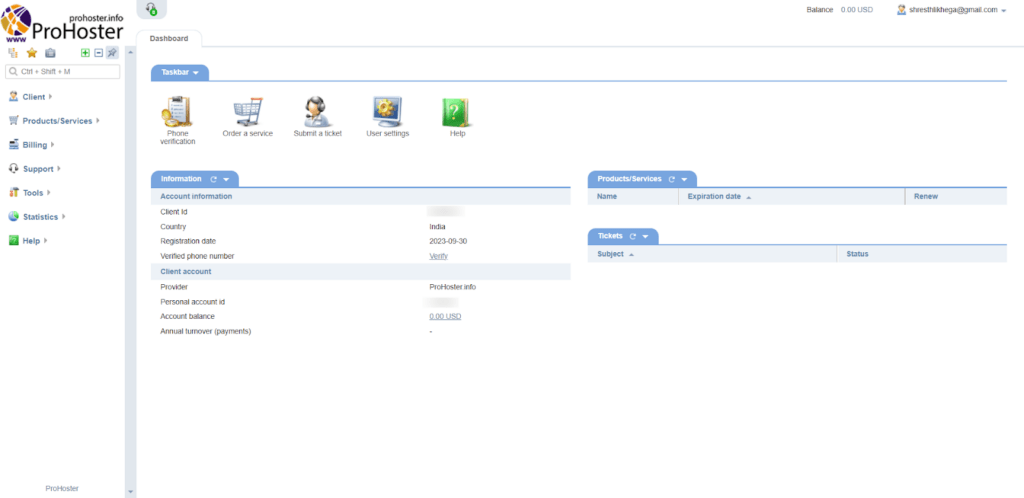
Okay, we’ve learned the complete process with detailed steps on ProHoster login, let’s continue our learning curve over to Login process of control panel of ProHoster.
Also Read: How to order hosting from ProHoster?
How to login to the Control Panel of ProHoster?
As learned through our research on ProHoster, we came to know all about the control panel this company offers.
This company offers two types of control panel with their plan; cpanel and ISPmanager.

Mentioned below are the steps to help you direct you to the login page of the control panel of ProHoster
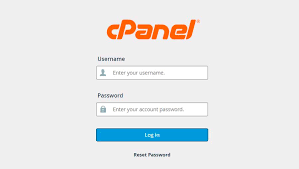
You now know everything about logging in to ProHoster’s dashboard and its control panel.
Are you having a hard time remembering passwords, too?
Follow the article further to find a remedy for resetting the passwords of ProHoster account.
Also Read: How to Configured ProHoster Nameservers.
How to Reset the Password of ProHoster Accounts?
Gone through the above login guide thoroughly, have you?
Let’s help you even further if you’ve forgotten your password and looking forward to changing it.
The below mentioned are the steps follow them along carefully 👍
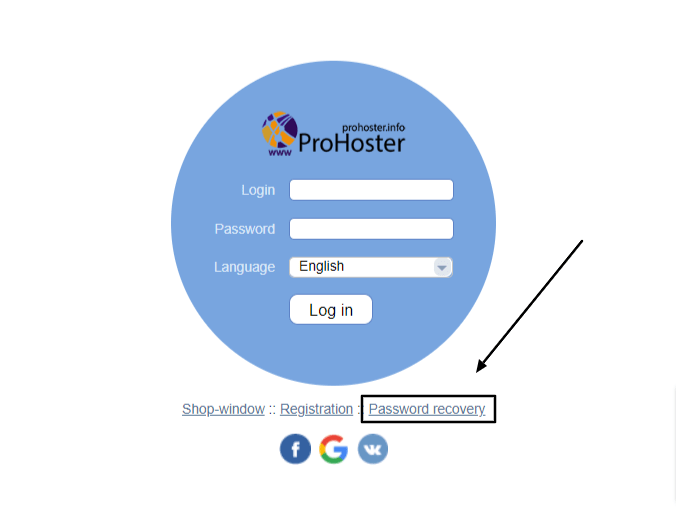
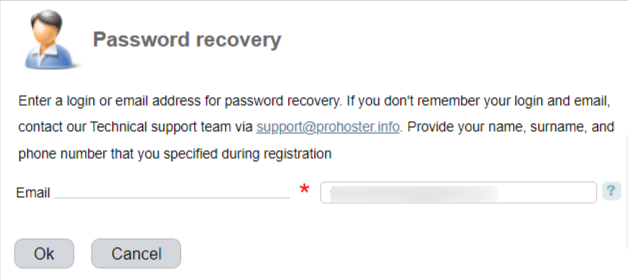
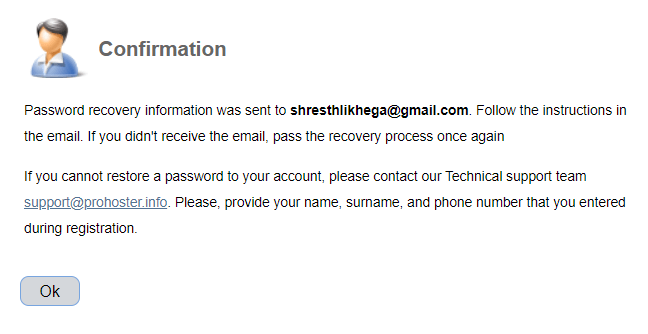
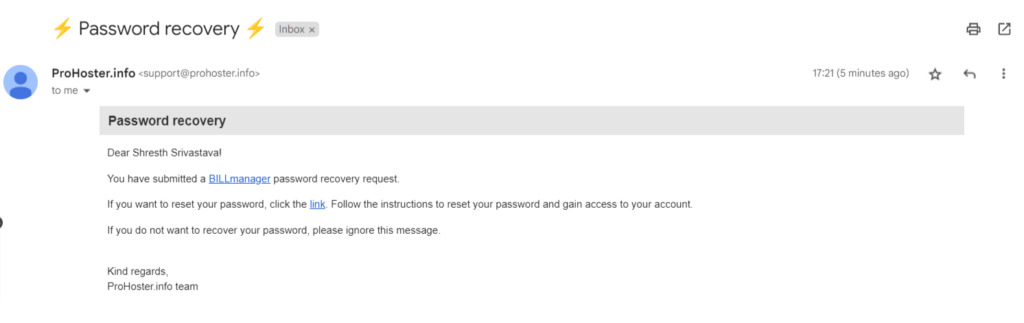
This will direct you to the password reset portal < set your desired password and you’re done.
Have you gone through this section on how to change your password? Awesome 👏
Let’s continue this article to learn about creating a support ticket for login issues on ProHoster.
How to open a ProHoster Support ticket for Login issues?
Need help creating a support ticket on ProHoster? Allow us to help you create a ticket with detailed steps to help you along the way.
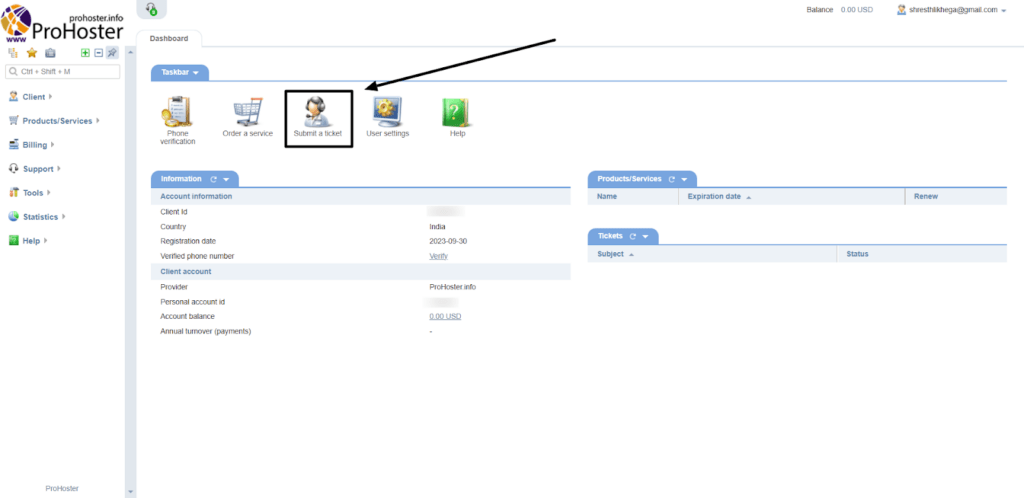
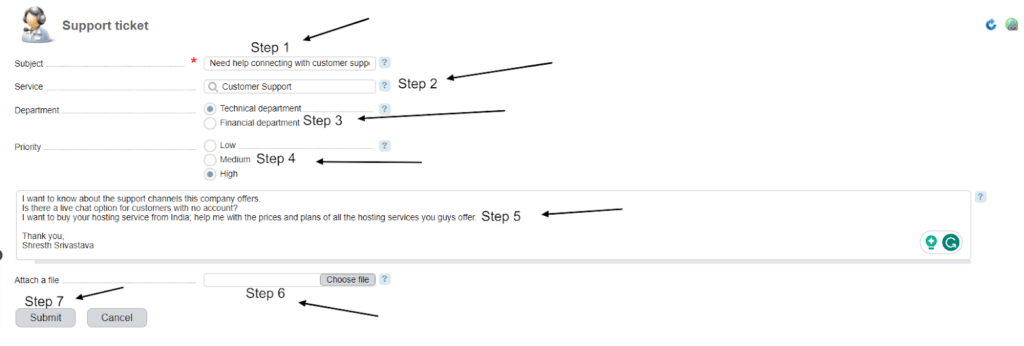
You have successfully created a ticket for yourself; wait for the appropriate response time from the team and get your query answered by Prohoster’s dedicated team.
However, we are about to come to an end as all wonderful things must.
Conclusion – ProHoster Login
You now know everything ProHoster dashboard login and control panel login. You even know about resetting passwords, if you avidly forget password and tend to change them due to security reasons. Besides, you also know about creating a support ticket to directly consult the ProHoster team for any of the aforementioned issues.
Did you find our article helpful? Comment down below a positive response to improve our day.
Type in any suggestions you have for us to improve upon. As always, Happy Hosting. 👏