
ChemiCloud Login
Are you having trouble signing in to your Chemicloud hosting account? The initial step for a user, who wants to purchase Chemicloud hosting products after learning about its favorable reviews is to login. However, it’s totally usual to run into a number of problems, the Chemicloud login procedure being one of them.
This post will teach you how to properly login to your Chemicloud account, how to login cPanel/WHM and Webmail and even how to contact customer care if you run into login-related issues.
In order for you to clear up your confusion, the topic of changing your account password has also been covered with appropriate navigation. Without further ado, let’s start.
We strongly advise you to read this article to the end, where we’ll cover not only the process of logging in but also the entire registration process for an Chemicloud account as well as some other related issues, in order to receive satisfactory answers to the questions raised above. Let’s Read further 👍
How To Login to My ChemiCloud Account?
Readers who are keen enough to enjoy the hosting services from Chemicloud need to register themselves with Chemicloud first. Thereafter, the users can easily login to their account using their login credentials.
The step wise process to login to the hosting account of chemicloud are mentioned as under:
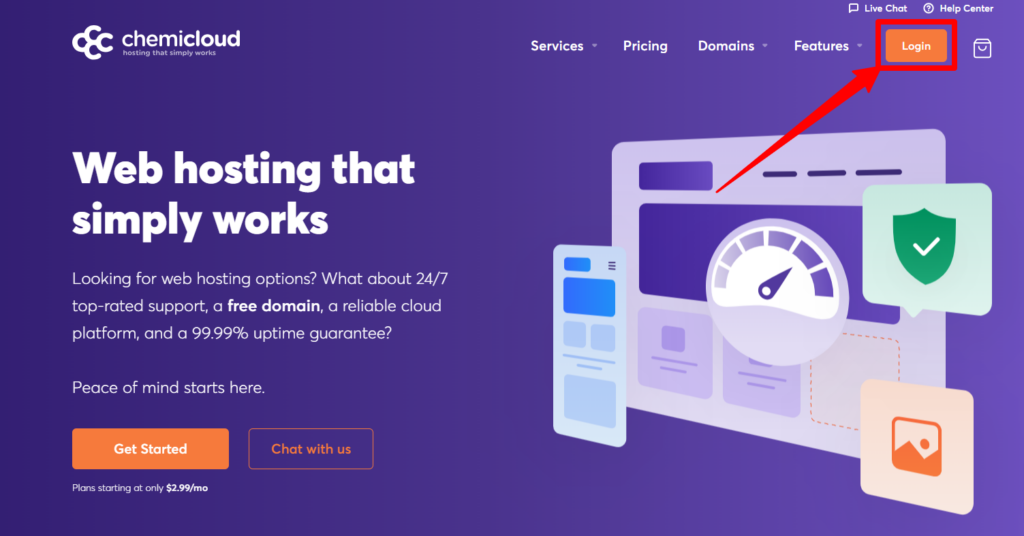
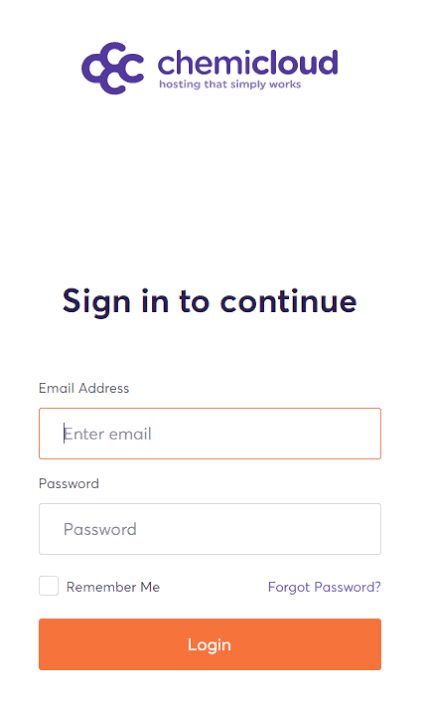
See! The login process is not that difficult, Right? Now let’s see how one can easily login to the cPanel of the hosting services to manage the website efficiently.
How to Login to cPanel?
As far as all the hosting services providers are concerned, even Chemicloud makes two ways available to the users to login to the cPanel of the hosting services.
Via Client Area
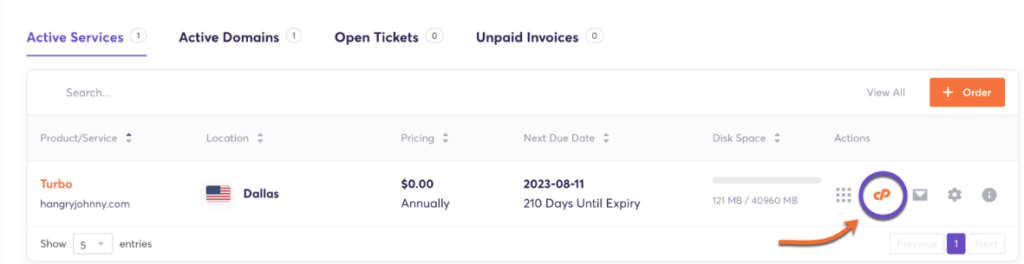
Directly via URL
Let’s say that logging in to your hosting account isn’t convenient. In such a case, you can refer to the guidelines stated below to directly access the cPanel of your hosting account:
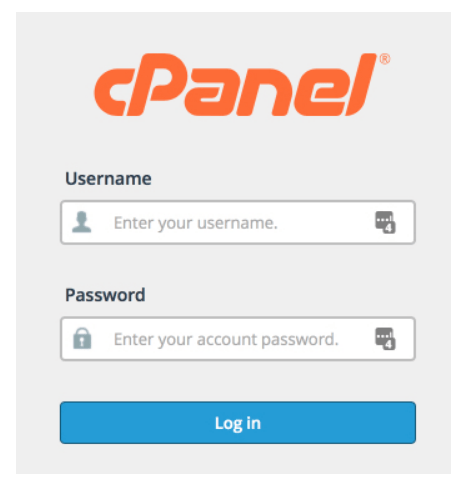
By using the above option, you can easily login to your cPanel that in turn enables you to effectively manage the websites.
How to Log into WHM?
There are two ways by which a user can easily login to WHM. They are discussed stepwise as under:
Via Client Area
The steps given below will enable you to directly access your WHM from your client area, without using your username and password.
Directly via URL
For users who find logging into the Hosting account difficult, they can use the following procedure:
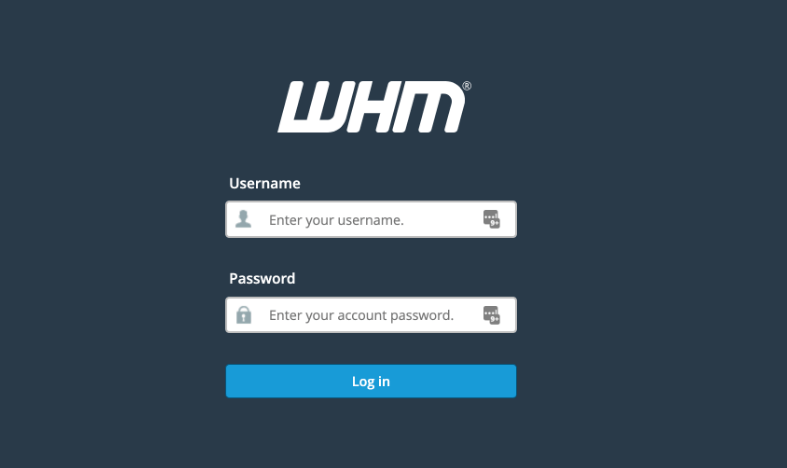
Note For Users: Users can find their cPanel/WHM username and password in the “Account Setup Information” email which was sent at the time of account registration.
How to Access Chemicloud Webmail?
To access the webmail feature of Chemicloud (to read & write email messages) one can follow the stepwise instruction given as under:
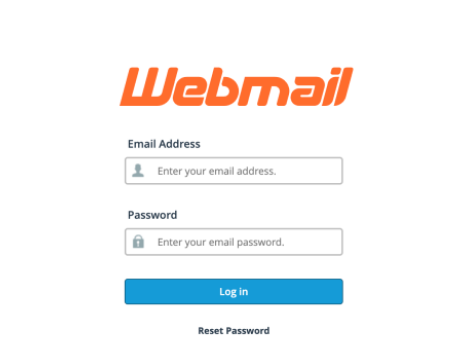
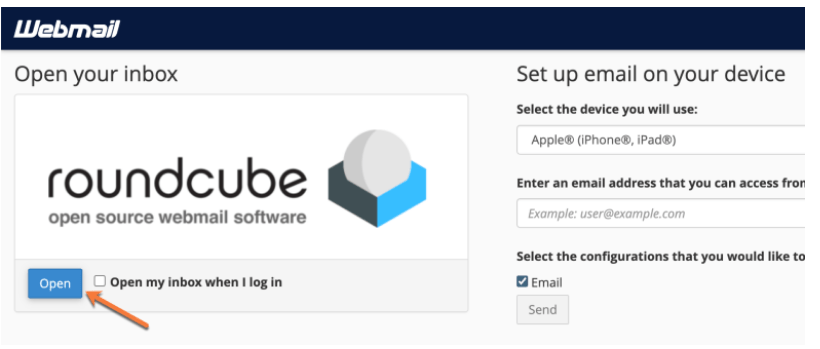
This is how easily you can access the webmail to read and compose an email from your web browser.
How To Reset My ChemiCloud Account Password?
To reset the Chemicloud Account Password, one needs to follow the instructions given as under:
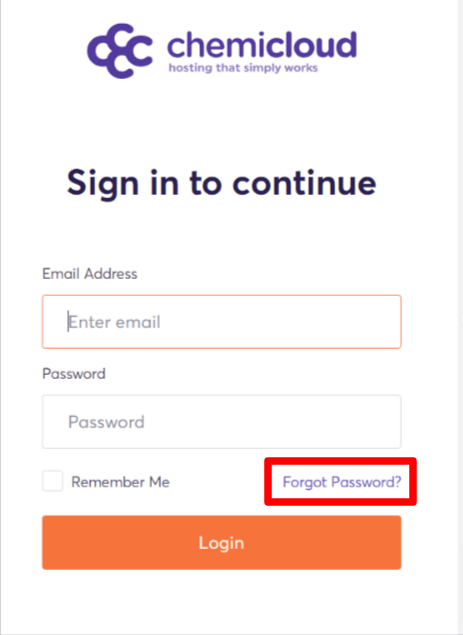
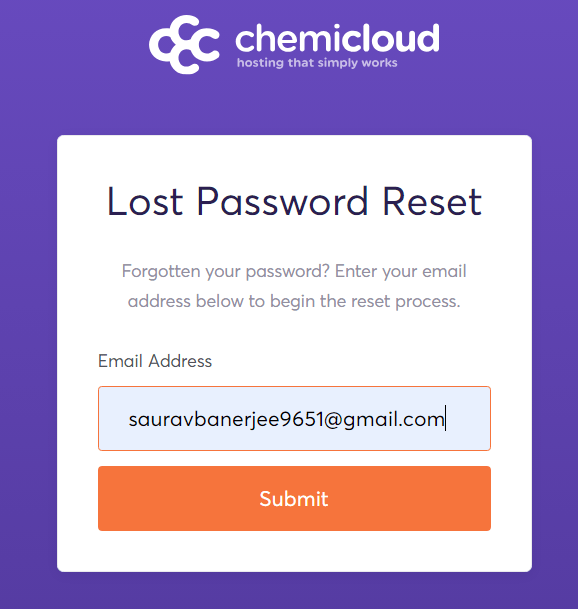
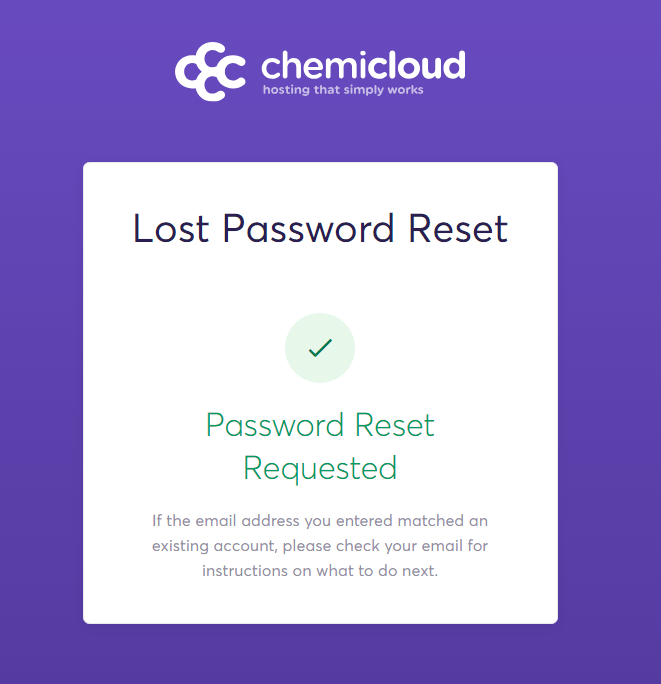
Your Password gets successfully changed. You can easily use this new password to login to your hosting account.
How to join Chemicloud Affiliate Program- Chemicloud?
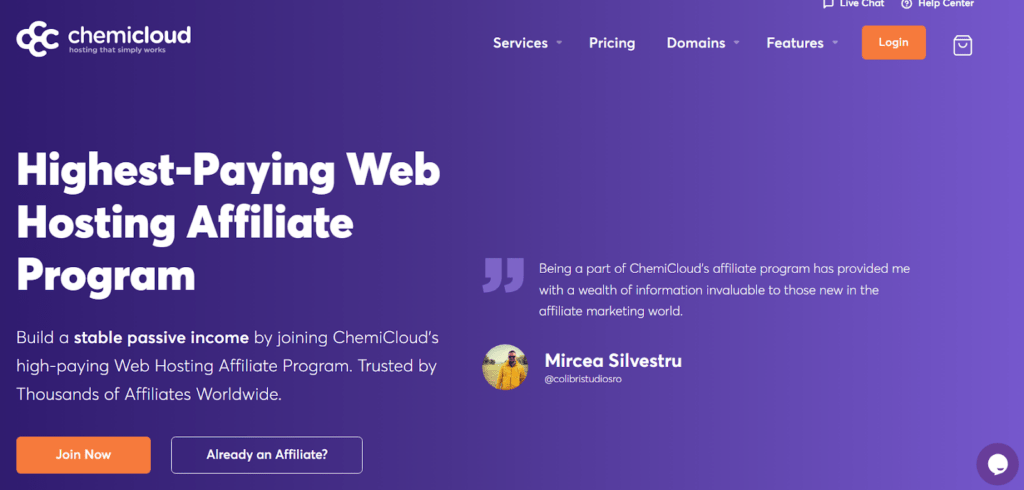
To avail the incredible marketing plan ($125 for every new customer), join the Affiliate Program of Chemicloud. Want to become a part of the Affiliate Program? you need to Sign up first.
So, initially we’ll be telling you how you can register yourself with the affiliate program of chemicloud and then guide you with the login process. The interested users can adhere to the stepwise instruction given below:
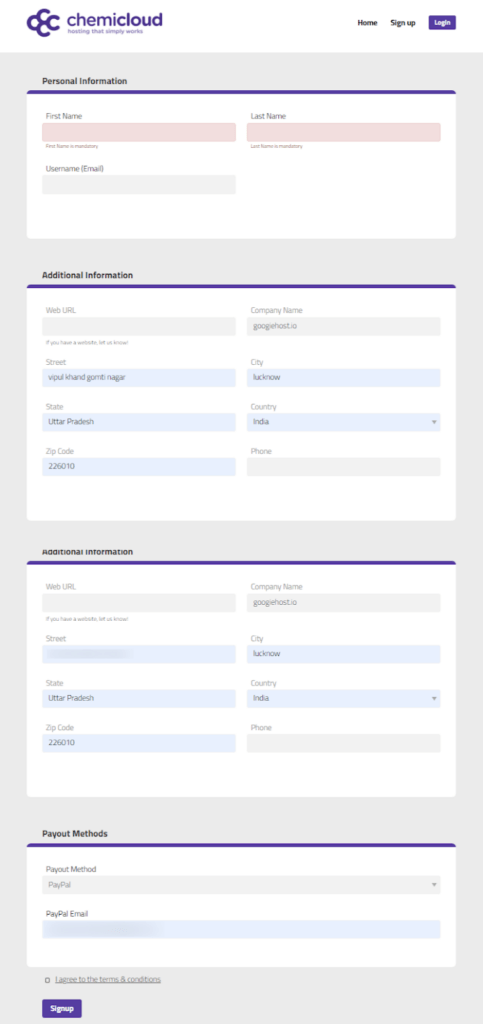
Now as you have successfully registered yourself with the Affiliate Program of Chemicloud, you can effortlessly login to your client Area by following the way provided as under:
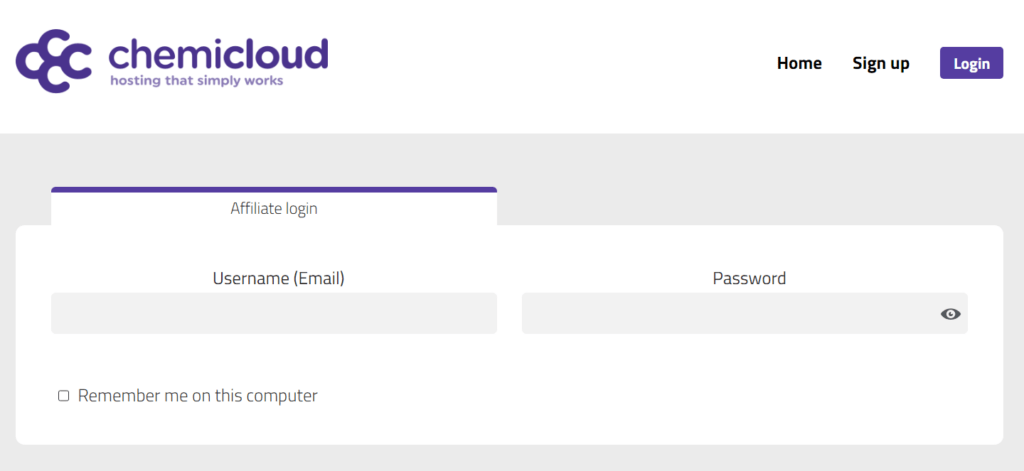
Logging into your Affiliate program account was that easy! But sometimes the logging procedure becomes difficult. It may be due to technical glitches or internet connection problems.
However in such a situation, You’ll be in a safer side if you try contacting the support team of Chemicloud.
How to open a support ticket for Login issues?
To create a support ticket for login issues, you need to follow the given instruction:
Need to Know: How to Configure Chemicloud Nameservers?
You may even address the login issue instantly with the help of knowledgeableBase and tutorials provided in the official website of Chemicloud.
You can use the articles offered in your dashboard to resolve the login issue if the support staff is running behind schedule or not responding to your ticket.
Conclusion
With all efforts, you have a good understanding of how to log in to either the Chemicloud Dashboard or cPanel by now. Furthermore, you know what to do if you need to reset the password for your Chemicloud account and how to get in touch with customer service to handle login-related problems.
We truly believe that the guidance we’ve given you here might be useful. Your valuable comments and the act of sharing this post to your close ones would not only mean a great deal to us, but would also encourage us to produce more tech related articles.