
StableHost Login

Facing problems in logging related issues in your Stablehost account? As a new user, it is completely normal to get yourself entangled with various issues, the Stablehost login process being one of them.
By means of this article, we will be tutoring you about how to log in to your Stablehost account successfully and even contacting the Stablehost support team on having login-related troubles.
Resetting your account password has also been discussed with proper navigation for you to get your doubts clarified. Let’s begin without any unnecessary delays.
To get satisfactory answers to the questions addressed above, we highly recommend you to keep reading this article further, where we’ll be discussing not only the process of logging in but also the complete procedure involved in registering for a Stablehost account and some other related problems as well. Let’s explore 👍
How to Login StableHost?
As a new user, it’ll be good if we first discuss the process of registering or creating a new account in Stablehost.
As you create an account, ordering hosting from Stablehost becomes handy, as all information becomes accessible in the Dashboard itself, from where not only ordering hosting services but also configuring Stablehost nameservers and approaching the Stablehost support team becomes easy.
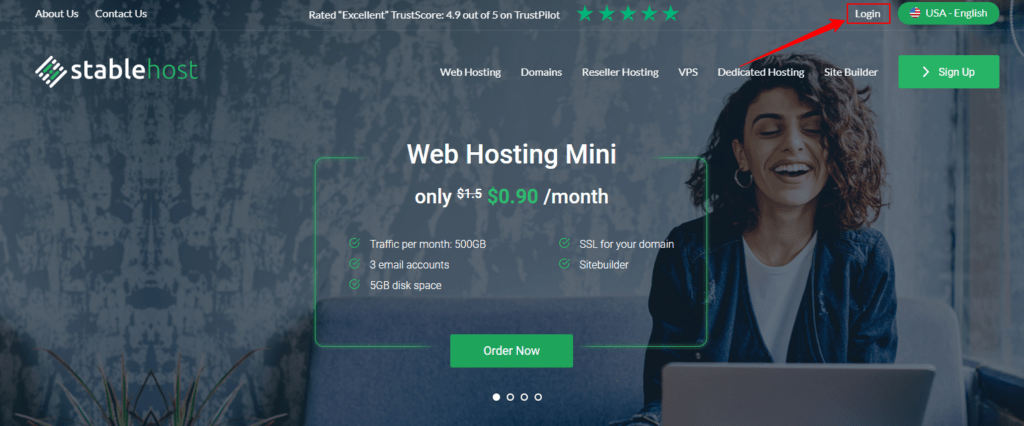
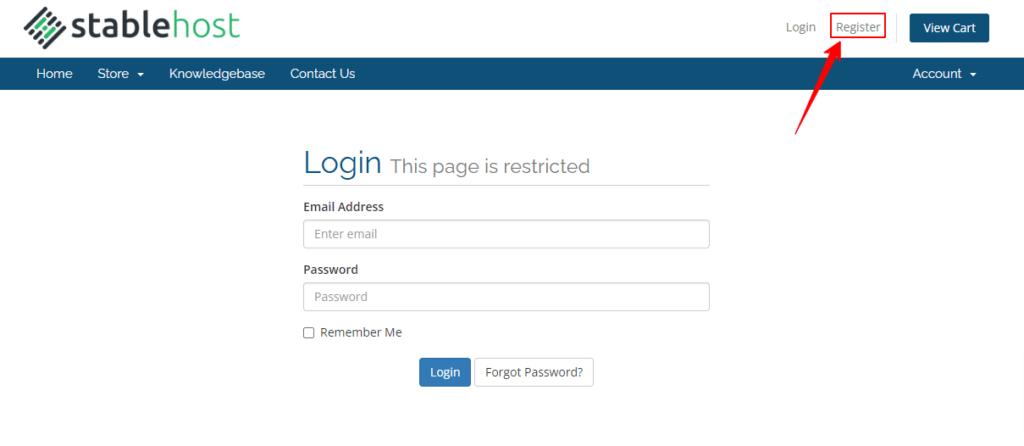
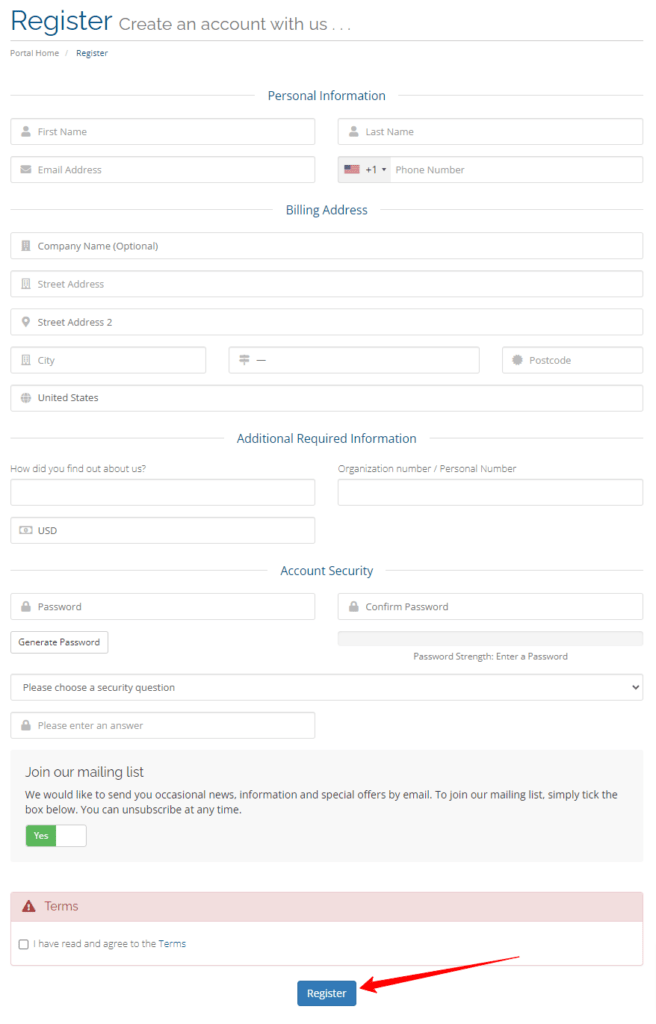
The registration process is initiated right after you click the Register button. Once registered, your account gets successfully created.
The logging process, unlike registration, is not that complex. For logging into your Stablehost account, you require only your registered email id and password.
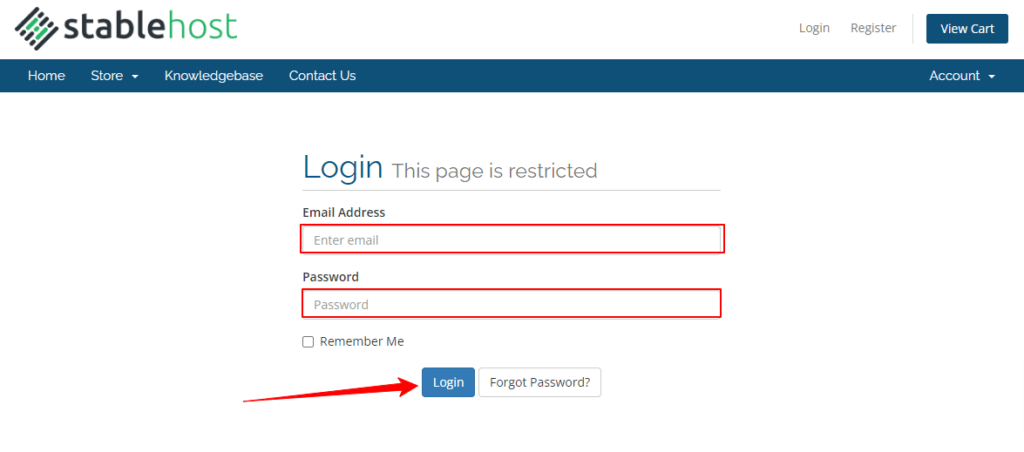
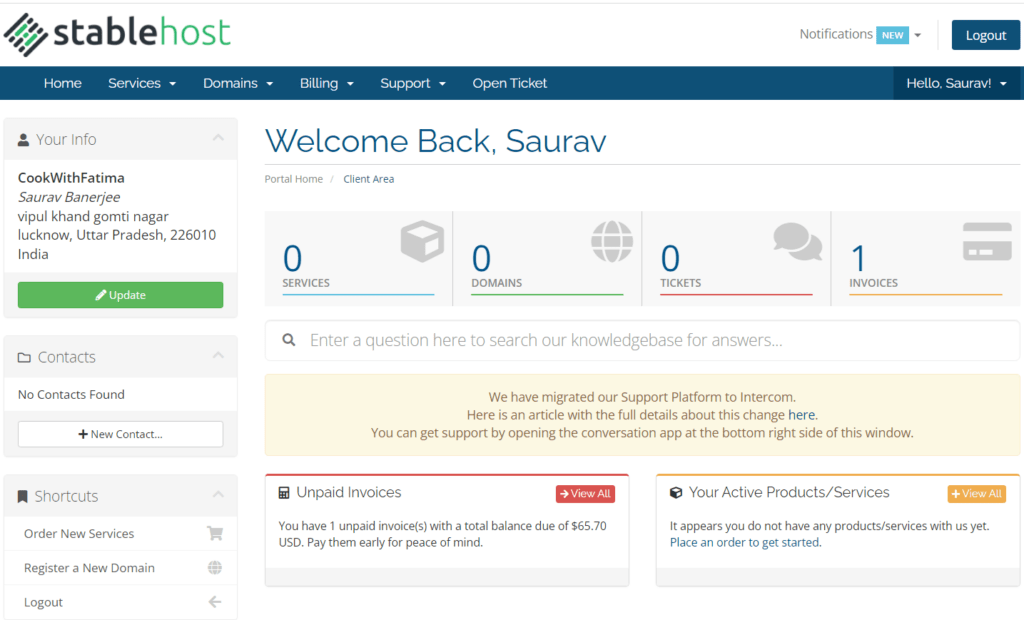
Let’s say that after logging into your account you want to manage your web files and make small changes in your hosting account. Doing so would require you to log in to your cPanel. Let’s see the process of accessing the cPanel in Stablehost.
How to log in to the Control Panel of StableHost?
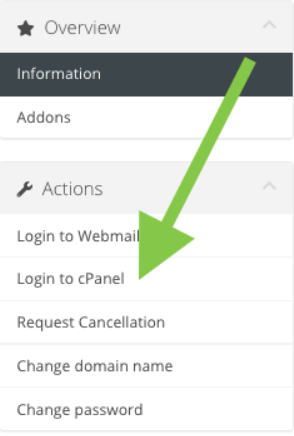
For cPanel login, the user has two ways to get access to it. The first and the most simple technique is by going to http://(your website)/cPanel. This URL will grant direct access to the cPanel of your website.
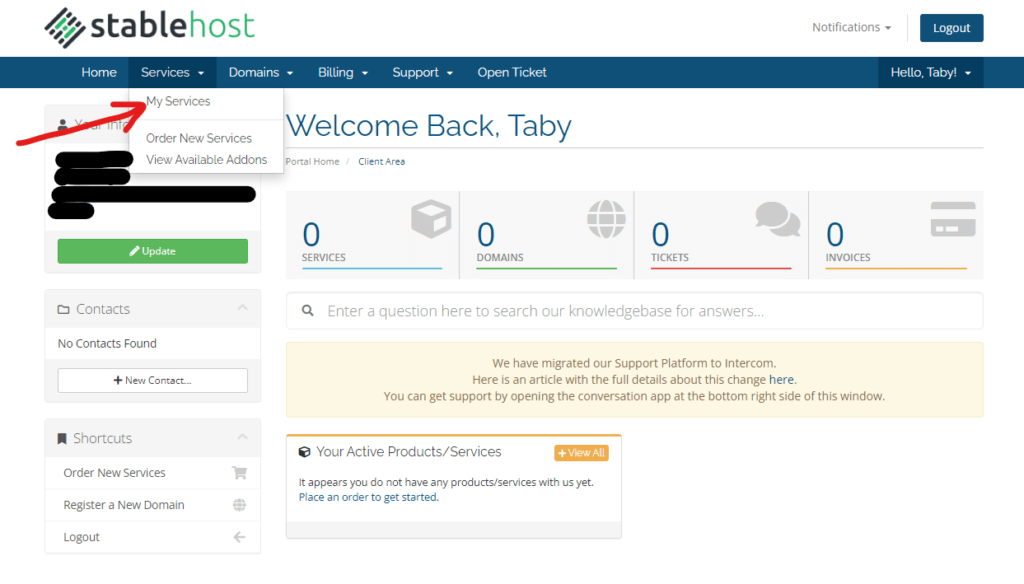
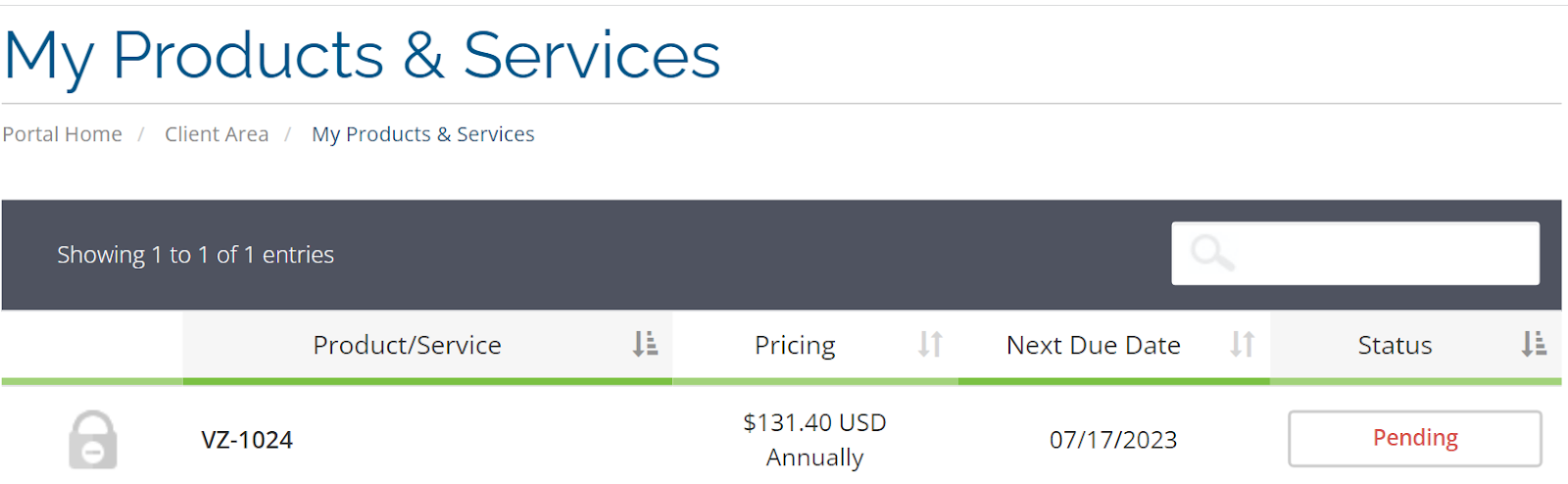
You can also access cPanel from the client area of Stablehost. The procedure adopted is as follows:
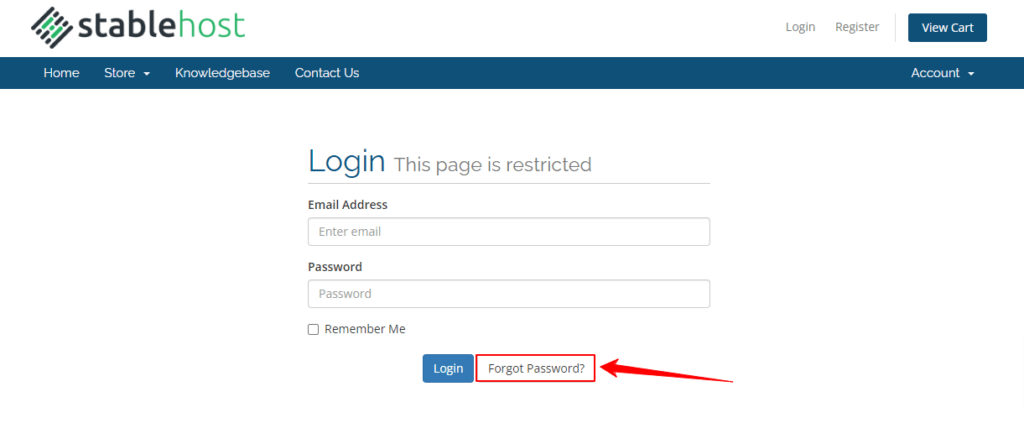
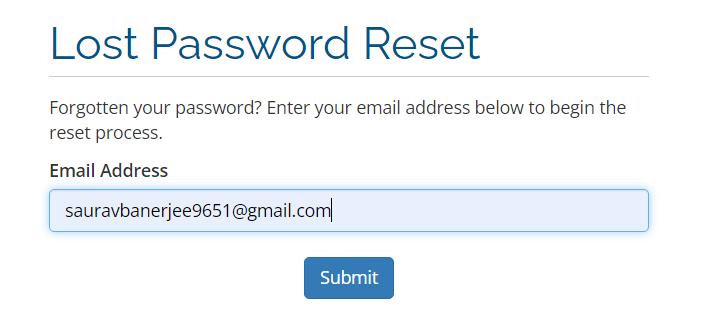
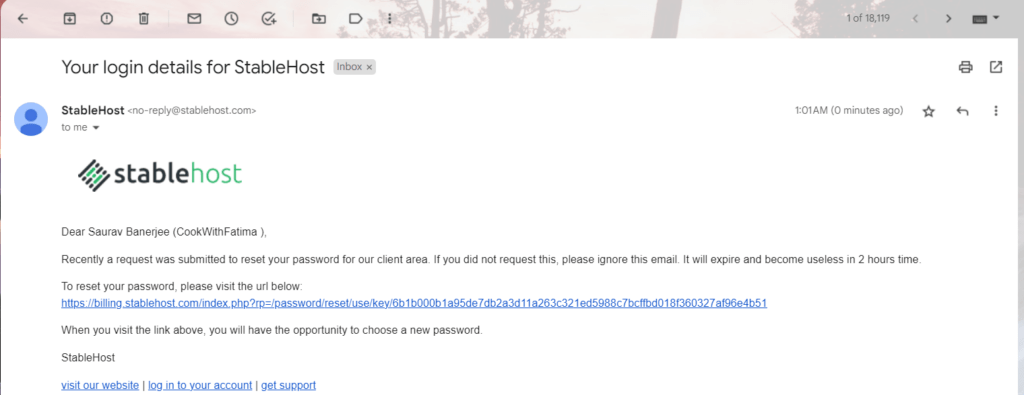
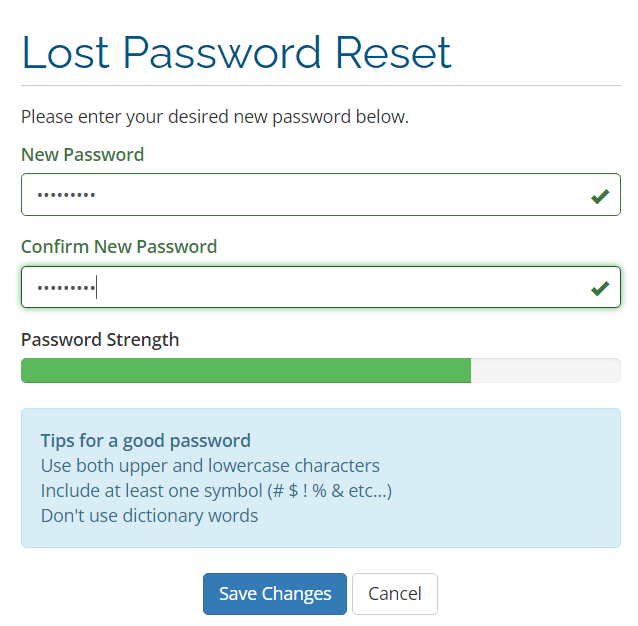
How to Reset the Password of StableHost Accounts?
Owing to security reasons, users should reset their passwords from time to time. Users even tend to forget the passwords at times, so resetting the password becomes crucial.
Let us discuss how we can effortlessly reset the password of Stablehost accounts.
How to open a Support ticket for Login issues?
At times, when logging becomes too troublesome, accessing the support team to address the Stablehost login issue becomes the only way of redemption.
So in that case, following the directions stated below might help you successfully contact the Stablehost support team to help you with the login issues:
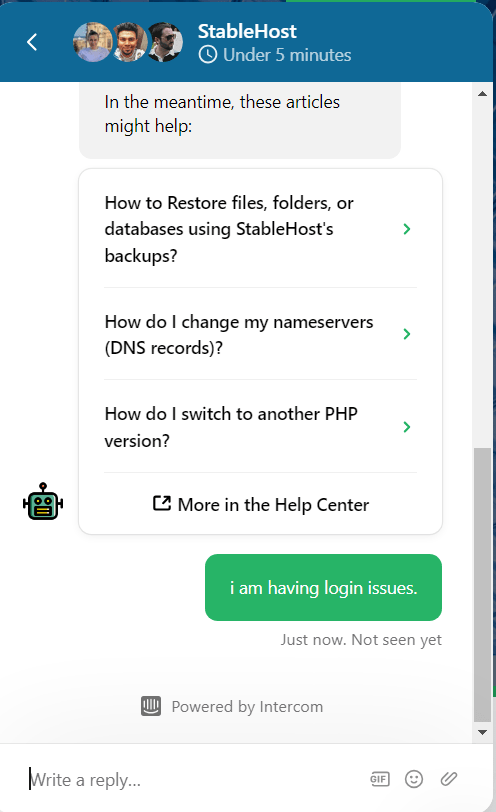
The customer care service team enables you to get the login issue resolved much quicker and with expert guidance. In case of any delay, by the support team, you can refer to the articles provided in the chat box to rectify the login issue.
Conclusion: StableHost Login
Hopefully, you may have clearly understood well about the login process, be it in the client area or in cPanel. You have also been able to know what you should do in case of resetting the password of your Stablehost account and the manner to contact the support team to get login issues resolved.
We believe that the information shared with you above may prove helpful. Your valuable comments and the act of sharing this article with your close ones, would not only make a lot of difference to us but also motivate us to write more tech-related articles. Feel free to drop us a mail at support@googiehost.com in case any issue pops up, we’ll be happier to weed it out.