How to install OpenClaw on VPS Server in 2026

If you’ve been running OpenClaw on your own laptop, you’ve probably noticed the biggest limitation pretty quickly. Everything works great… until you close the lid.
The moment your system goes to sleep, your AI agent disappears with it. No background tasks, no automation, nothing. It’s fine for testing, but not good if you actually want an always-on assistant.
That’s exactly why moving OpenClaw to a VPS is such a smart upgrade, it keeps your setup running 24/7, independent of your personal device.
In this guide, we’ll walk through how to install OpenClaw on both Linux and Windows VPS servers in a clear, step-by-step way. Our best team has been behind making this entire step by step guide.
Let’s say you’re comfortable with a Linux terminal or prefer working inside a Windows Server environment, you’ll find here practical instructions and code snippets. We’ll also cover the important things you need to get everything running smoothly, from initial server prep to accessing your OpenClaw dashboard.
This tutorial is designed for developers, freelancers, and self-hosting enthusiasts who want a dependable AI assistant that doesn’t shut down when their computer does.
Let’s dive in!
What is OpenClaw?
OpenClaw is a free, open-source autonomous AI agent that you run entirely on your own hardware.
Think of it as your personal AI control center that stays under your control while still being powerful enough to automate real work.
Instead of building everything from scratch, OpenClaw gives you a ready-made system that can think, respond, and take actions based on your setup.
What makes it interesting is how you interact with it. OpenClaw doesn’t force you into a custom dashboard, instead, it plugs into platforms you already use like WhatsApp, Telegram, Discord, Slack, and many more.
It even connects to large language models like Claude, OpenAI GPT, or DeepSeek, acting as a control layer rather than the AI itself.
In simple words,
- OpenClaw is the interface and orchestration engine, it sends requests to your chosen LLM and returns intelligent responses.
- It also stores your configuration and conversation history locally, so it becomes more context-aware and consistent over time.
- Another big strength is its modular “skills” system. Each capability is organized as a simple directory with a SKILL.md file, making it easy to customize without messing with the core system.
One important thing to understand: the always-running part you’ll install on your VPS is the Gateway daemon, it’s what keeps OpenClaw alive 24/7 and connected to your messaging platforms and AI models.
Supported Operating Systems
OpenClaw is designed to work seamlessly on modern OS, primarily Windows and Linux. This makes it accessible, if you’re using a personal PC or even a remote VPS environment.
The ability to run it on a VPS is especially useful for users who want a solid setup or remote access without depending on the local device.ai
Who Should Use OpenClaw on VPS
OpenClaw on a VPS is a good option for
- Gamers who want a stable, always-available setup,
- Developers who are interested in experimenting with or modifying the engine,
- Testers who need a controlled environment for debugging or performance checks.
A VPS setup also allows for remote access, making it easy to run and manage it from anywhere without using your local machine.
Why Use a VPS for OpenClaw?
If you’re serious about using OpenClaw as a real AI assistant (not just a local application), a VPS solves a lot of hidden limitations in one go.
- 24/7 availability
When OpenClaw runs on your laptop, it’s only alive as long as your system is on. The moment you shut down, everything stops. On a VPS, it’s always running in the background, which means your AI assistant is available anytime, day or night. That “always-on” factor is what makes it actually useful for automation.
- Always-on Gateway daemon
OpenClaw runs through a Gateway daemon that keeps everything connected, your messaging platforms, APIs and AI models. On a VPS, this daemon is set to restart automatically (using system services like systemd), so even if the server reboots, your setup comes back online without manual intervention.
- Your home IP stays private
When you host locally, you’re exposing your own network to the internet, which isn’t good from a security point of view. A VPS acts as a link, your OpenClaw instance runs on the server’s IP, not your personal one. This keeps your home network private.
- Multi-channel simultaneously
One of the biggest advantages is running multiple platforms at the same time. Instead of juggling separate setups, your single VPS can handle WhatsApp, Telegram, Discord, Slack, and more, all from one OpenClaw instance. You get a centralized AI assistant that responds across all your channels.
- Remote access from anywhere
With a VPS, you’re no longer dependent on one device. You can SSH (securely access) into your server from your laptop or any system and manage OpenClaw instantly. Let’s say you’re traveling or just away from your desk, your setup is always within reach.
- Cost-effective setup
You don’t need expensive infrastructure to get started. A basic VPS capable of running OpenClaw typically costs around $3 to 5 per month, which is surprisingly affordable for a 24/7 hosted AI system. Compared to the value of having a constantly available assistant, it’s a small investment with a big benefit.
- Better performance with dedicated resources
Running OpenClaw on a VPS gives it its own CPU, RAM, and network bandwidth instead of sharing with your daily apps. Your AI agent runs more reliably, handles multiple requests smoothly, and avoids slowdowns caused by your local machine being overloaded.
- Multi-user accessibility
A VPS setup makes it easy to let multiple people interact with the same OpenClaw instance through platforms like Telegram or Discord. In practice, this means teams and collaborators can all use the same AI assistant without needing separate installations.
- Real-world use cases (instead of gaming)
Instead of LAN gaming scenarios, OpenClaw on a VPS shines in automation and communication workflows, like running a customer support bot on WhatsApp, managing internal team queries on Slack, or automating repetitive tasks via Telegram. It’s less about “hosting sessions” and more about building, always-available AI assistant.
System Requirements for OpenClaw
Before you jump into the main installation, it’s important to make sure your VPS actually has enough resources to run OpenClaw smoothly.
See! It’s pretty lightweight for basic use, but if you plan to connect multiple channels or run heavier workflows, you’ll want a bit more headroom.
Minimum Requirements
If you’re just getting started or running a personal setup, these specs will get OpenClaw up and running without issues:
| Resources | Minimum Specs | Notes |
| CPU | 1vCore CPU | Single-core is enough for basic usage |
| RAM | 512MB to 1GB | 1GB recommended for smoother performance |
| Storage | 5GB SSD NVMe | Enough for OS, OpenClaw, and logs. |
| OS | Ubuntu 22.04 / Debian 12 / Windows Server 2019+ | Ubuntu 22.04 LTS is the safest choice |
| Node.js | Node 22.16+ (Node 24 Recommended) | Required runtime before installing OpenClaw |
| Network | Stable Internet + Open Ports | Port 18789 is used by the Gateway |
Recommended Requirements (Multi-channel / Heavy Use)
If you want to run OpenClaw across multiple platforms or handle more heavy tasks, upgrading your VPS makes a noticeable difference:
| Resources | Recommended Specs | Notes |
| CPU | 2vCore CPU | Handles multiple requests simultaneously |
| RAM | 2GB RAM | Better for multiple skills and API calls |
| Storage | 10GB+ NVMe SSD | Faster performance for logs and execution |
| OS | Ubuntu 22.04 | Most stable and widely supported |
| Node.js | Node 24 (Latest) | Best compatibility and performance |
| Network | Low-Latency datacenter connection | Reduces delay in AI responses |
In short, we can say that the more channels and automation you run, the more these upgraded specs will pay off in speed and stability.
Prerequisites Before Installation
Before you jump into installing OpenClaw, it’s worth taking a few minutes to prepare everything properly.
Most installation issues don’t come from the setup itself, they come from missing one small requirement. Think of this section as your checklist to avoid frustration later.
For Linux VPS
- A VPS running Ubuntu 22.04 or Debian 12
This is your remote server where OpenClaw will live. If you’re new, you can get a VPS from providers like YouStable, DigitalOcean, AWS, and choose Ubuntu 22.04 LTS during setup, it’s the most beginner-friendly option.
- Root or sudo user access (SSH key)
You need permission to install software and make system changes. Most VPS providers give you a “root” user by default, or a normal user with sudo access (which lets you run admin commands). We’ll discuss the steps later in this guide.
- SSH client (Terminal / PuTTY / Windows Terminal)
SSH is how you connect to your VPS.
On Mac/Linux: use the built-in TerminalOn Windows: use Windows Terminal or PuTTY
You’ll use this to type commands directly into your server.
- Your VPS IP address and login credentials
After buying a VPS, your provider gives you an IP (something like 123.45.67.89) and a password or SSH key. You’ll need these to log in.
- Node.js 24 (we’ll install it in the next step)
OpenClaw runs on Node.js, which is the engine that executes the code. Don’t worry if you don’t have it yet, we’ll install it together step-by-step below in this guide.
- LLM API key (Claude, OpenAI, or DeepSeek)
OpenClaw itself isn’t the AI, it connects to external AI models.
You’ll need an API key from a provider like:OpenAI (for GPT models)Anthropic (for Claude)DeepSeek
This key acts like your authentication to use their AI services.
- Messaging platform token (Telegram / Discord / WhatsApp)
This is how you’ll actually talk to OpenClaw. For example:
Telegram Bot Token
Discord Bot Token
WhatsApp Business API credentials
Without this, OpenClaw won’t have any interface to interact with you.
For Windows VPS
- Windows Server 2019 or 2022 VPS with RDP access
Instead of a command-line environment, you’ll get a full Windows desktop hosted on a remote server.
- Administrator account credentials
These are your login details to access the server. You’ll need admin rights to install software like Node.js
- RDP client (Remote Desktop Connection / Microsoft Remote Desktop)
RDP lets you log into your VPS like a normal Windows PC.
On Windows: use Remote Desktop Connection On Mac: use Microsoft Remote Desktop
- Node.js 24 for Windows
Just like Linux, OpenClaw needs Node.js to run. You’ll download and install it like any normal Windows application.
- Same API keys as Linux (LLM + messaging platform)
Regardless of OS, OpenClaw still needs:
An AI provider API key
A messaging platform token
Newbie Tip (Important):
Start with Telegram, it’s by far the easiest platform to set up. Just open Telegram >> search for @BotFather >> follow the prompts to create a bot >> copy the token it gives you >> Keep that token safe, you’ll use it during installation to connect OpenClaw to your bot.
If you have all of the above ready, you’ve already avoided 90% of common setup issues. The actual installation will feel much smoother from here.
How to Choose the Right VPS for OpenClaw
Picking a VPS, and that too a perfect VPS for our needs, is the most difficult thing as it involves time and effort. But for OpenClaw, you actually don’t need anything too powerful or expensive. The main aim is simple: to choose a server that’s fast enough for your use case.
Let’s break down what matters:
RAM (Memory)
At minimum, you should go for 1GB RAM, which is enough for basic usage like running a single Telegram bot. But if you can stretch a little, 2GB RAM is a much better choice. Why? Because OpenClaw handles API calls and skills in the background, extra memory helps everything run smoothly.
Node.js Support & Virtualization
OpenClaw runs on Node.js, so almost any modern Linux VPS will support it. However, try to avoid OpenVZ-based VPS plans, as they can have limitations. Instead, go for KVM virtualization, which gives you better performance and full control, especially useful when running background services like the OpenClaw Gateway.
Server Location (Latency)
This is something many beginners ignore. Choose a VPS close to your target users or where you’ll access it from. For example, if you’re in India or your users are mostly in Asia, pick a nearby datacenter. This reduces delay (latency), so your AI responses feel faster and more real-time.
Pricing (Don’t Overspend)
Here’s the good part! OpenClaw is lightweight. You don’t need a high-end server. A basic VPS in the $3 to $5 per month range is more than enough to get started. You can always upgrade later if your usage grows.
Operating System Choice
Go with Ubuntu 22.04 LTS if you’re unsure. It’s the most widely used, well-documented, and tested OS for OpenClaw setups. Most tutorials (including this one) are written with Ubuntu in mind, so you’ll face fewer compatibility issues.
Recommended VPS Providers for OpenClaw
Here are some reliable VPS providers you can consider. Each one has its own strengths depending on your budget and needs:
| VPS Providers | Starting Price | RAM | Best For |
| YouStable | $3.99 per month | 1GB+ | Great for Indian users, budget-friendly, NVMe SSD |
| Vultr | $2.50 per month | 512MB+ | Developers, global locations, flexible hourly billing |
| DigitalOcean | $8 per month | 1GB+ | Beginners, clean interface, excellent documentation |
| Contabo | $5.99 per month | 4GB+ | High RAM needs, heavy workloads |
| Kamatera | $6 per month | 1GB+ | Flexible pricing, pay-as-you-go setups |
If you’re just starting out and want something affordable with good performance, YouStable is a solid option, especially for users in India.
It offers NVMe storage and decent pricing, which works well for OpenClaw without overcomplicating things. That said, you can pick any provider you’re comfortable with, OpenClaw isn’t tied to a specific platform.
Managed vs Unmanaged VPS
Unmanaged VPS is the best option for this guide.
- You get full control over the server, including root access, and you install everything yourself (like Node.js and OpenClaw). It’s cheaper and gives you flexibility, which is perfect if you’re following a step-by-step tutorial.
In case of Managed VPS service, the provider takes care of things like OS updates, security patches, and maintenance.
- It’s easier if you don’t want to deal with server management, but it usually costs more. For OpenClaw, it’s not necessary unless you’re completely uncomfortable with basic server commands.
If you keep things simple, Ubuntu + 1 to 2GB RAM + a reliable provider, you’ll have a solid foundation to run OpenClaw smoothly without wasting money.
Installing OpenClaw on Linux VPS (Step-by-Step)
This is the most important part of the guide, so take it slow and follow along step by step.
Even if you’ve never used a VPS before, don’t worry, just copy the commands exactly and read the explanations to understand what’s happening.
Before starting the process, we believe that you have already signed up for a VPS server and have its login credentials. If not, then we recommend you to buy YouStable’s OpenClaw VPS hosting! It offers 99.99% uptime, quick VPS deployment in 60 seconds and even offers LiveChat support as well
Please Note: We have put all the codes in boxes so that you can easily copy paste them and add it to your terminal. We’ve also explained to you what each code does so that you know what you’re doing.
Step1) Buy a VPS
First thing, you need to buy an OpenClaw VPS hosting! For that, we’ve chosen YouStable’s OpenClaw VPS hosting.
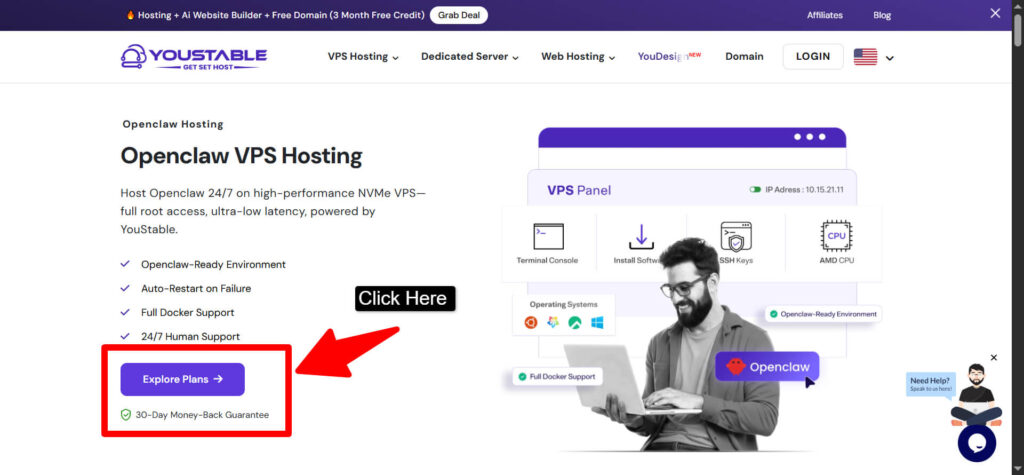
- Visit the official website
- Scroll down >> click the Order Now Button
- Choose the annual billing plan to save more >> press the checkout button >> you’ll be redirected to the payment page
- Make the payment and wait for confirmation email (that also contains your VPS login credentials)
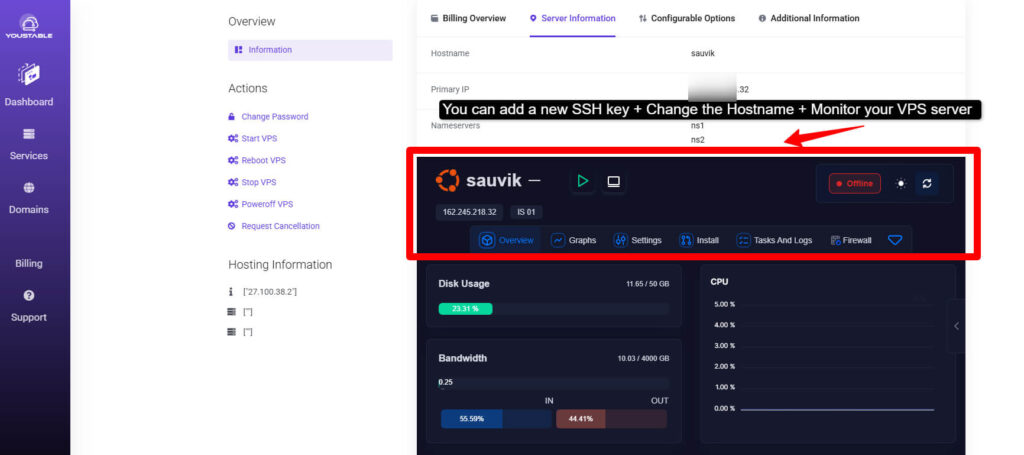
This is where everything begins!
Step2) Connect to Your VPS via SSH
Before doing anything, you need to “enter” your VPS. Think of SSH as a remote control that lets you access your server from your computer.
- Open Terminal (Mac/Linux) or Windows Terminal / PuTTY (Windows)
- Use the IP address your VPS provider gave you
Command:ssh root@YOUR_VPS_IP
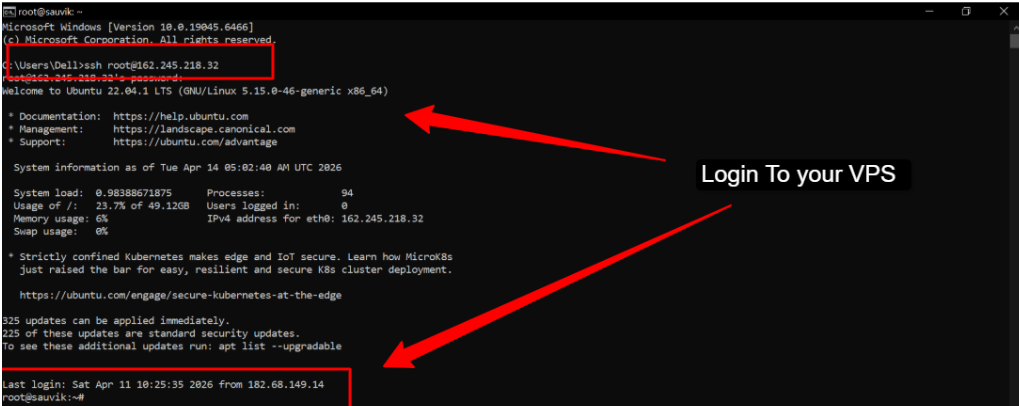
What’s happening here:
- ssh = secure connection tool
- root = admin user (full control)
- YOUR_VPS_IP = your server’s address
When you put the first codes, you’ll see:
Are you sure you want to continue connecting (yes/no)?
Type yes and press Enter.
Then enter your password (it won’t show while typing, that’s normal).
Step3) Update System Packages
Now that you’re inside your VPS, the first thing you should always do is update it.
Command:sudo apt update && sudo apt upgrade -y
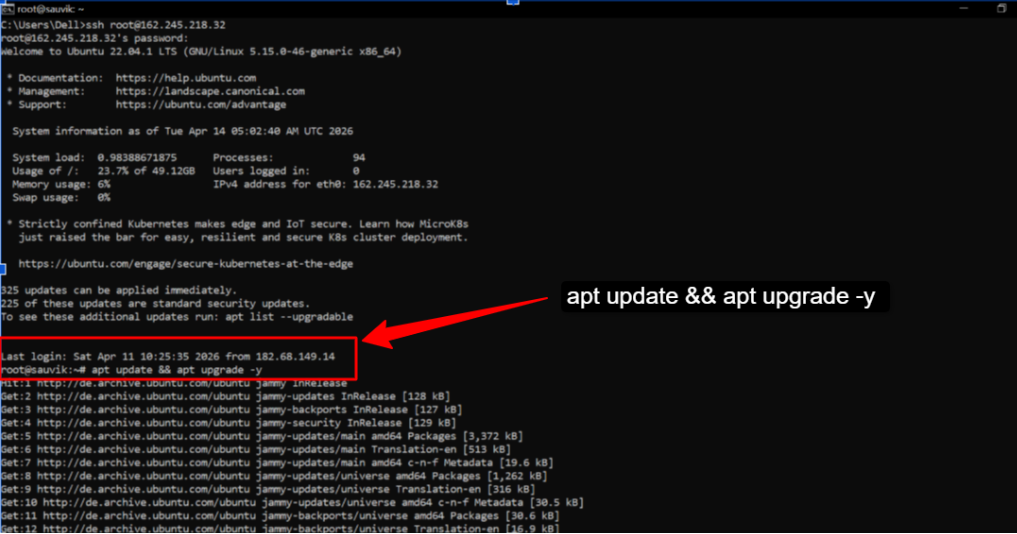
What this does:
- apt update → refreshes the list of available software
- apt upgrade → installs the latest updates
You might see a lot of text scrolling, that’s normal. Just wait until it finishes.
Step4) Install Node.js 24
OpenClaw runs on Node.js, so this step is required.
Command:curl -fsSL https://deb.nodesource.com/setup_24.x | sudo -E bash -sudo apt install -y nodejsnode – versionnpm – version

What’s happening:
- First line → adds Node.js 24 repository
- Second line → installs Node.js
- Last two commands → check if installation worked
If you see versions printed, you’re good to go.
Step5) Install OpenClaw Globally
Now we install OpenClaw itself.
Command:npm install -g openclaw@latestopenclaw – version

What this does:
- Downloads and installs OpenClaw
- -g means “global” → you can run it from anywhere
The second command checks if it’s installed correctly. If you see a version number, installation is successful.
Step6) Run OpenClaw Onboard Setup
This is where OpenClaw sets everything up for you automatically.
Command:openclaw onboard – install-daemon

This will start an interactive setup (you’ll see questions on screen).
During setup, OpenClaw will:
- Create a workspace folder
- Configure the Gateway (main service)
- Ask for your API keys
- Let you connect messaging platforms
- Install a daemon (auto-start service) What is it? It’s a background service that runs automatically, even after reboot.
You’ll need:
- Your LLM API key (OpenAI / Claude)
- Your Telegram / Discord token
Just follow the prompts carefully, it’s like filling a form.
Step7) Start the OpenClaw Gateway
The Gateway is the “brain hub” that keeps everything running.
Command:openclaw gateway – port 18789 – verbose

What this does:
- Starts the OpenClaw server
- Uses port 18789 (default)
- Shows detailed logs ( – verbose)
Please Note:Keep this terminal open if running manuallyIf you installed the daemon in Step 6, it may already run automatically
When running correctly, you’ll see logs updating in real time.
Step8) Connect Your First Channel (Telegram Example)
Now let’s connect OpenClaw to a messaging app so you can actually use it.
Telegram is the easiest option.
If not done during onboarding, run:
Command:openclaw channel pair – type telegram – token YOUR_BOT_TOKEN

Replace YOUR_BOT_TOKEN with your actual token from @BotFather
What happens next:
- OpenClaw links to your Telegram bot
- It becomes ready to receive messages
Test it now! Open Telegram >> Send a message to your bot >> You should get a reply.
Step9) Verify Everything Is Working
Finally, let’s check if everything is set up correctly.
Command: openclaw doctor

This command checks:
- Node.js installation
- Gateway status
- Connected channels
- Skills and configuration
What you want to see:
- All checks marked OK / Green
If something fails, it will tell you what’s wrong.
The final result is this!
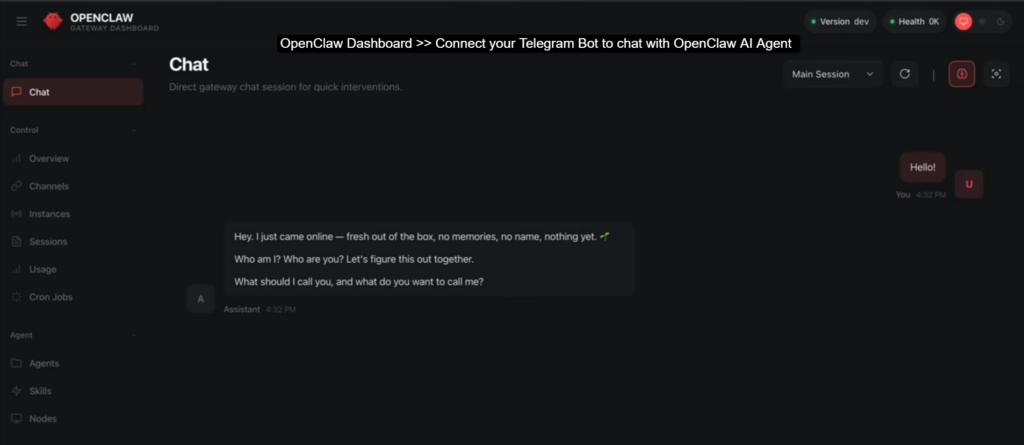
If you’ve completed all steps successfully, your OpenClaw setup is now:
- Running on your VPS
- Accessible anytime (24/7)
- Connected to your messaging platform
- Ready to respond and automate tasks
At this point, you’ve built your own self-hosted AI assistant, and it’s always online.
Installing OpenClaw on Windows VPS (Step-by-Step)
If you’re more comfortable with Windows than Linux, this method will feel much easier. Instead of using SSH and terminal commands, you’ll work inside a full Windows desktop using Remote Desktop (RDP). Just follow along step by step.
Step 1: Connect to Your VPS via RDP
First, you need to access your Windows VPS.
On Windows: open Remote Desktop ConnectionOn Mac: use Microsoft Remote Desktop
- Enter your VPS IP address >> Click Connect
- Log in using your Administrator username and password
After logging in, you’ll see a normal Windows desktop, just like your own computer, but running remotely.
Important tip:
Enable clipboard sharing in RDP settings so you can copy-paste commands from this guide directly into your VPS. It makes things much easier.
Step 2: Install Node.js 24 for Windows
Now you need to install Node.js, which OpenClaw depends on.
- Open a browser inside your VPS (Edge/Chrome) >> Go to the official Node.js website
- Download the Node.js 24 LTS (64-bit Windows installer) >> Run the installer and keep all settings as default.
The installer automatically:
- Adds Node.js to your system
- Sets up npm (Node Package Manager)
- After installation >> Open PowerShell as Administrator
Run the following:
Command: node – versionnpm – version

You should see:
- Node version like v24.x.x
- npm version number
If both show up, Node.js is installed correctly.
Step 3: Install OpenClaw via PowerShell
Now let’s install OpenClaw.
Open PowerShell as Administrator
Command:npm install -g openclaw@latestopenclaw – version

What this does:
- Downloads and installs OpenClaw globally
- Makes the openclaw command available system-wide
If you see a version number, installation is successful.
Step 4: Run OpenClaw Onboard Setup
Just like Linux, OpenClaw has an interactive setup.
Command:openclaw onboard – install-daemon

What happens here:
- OpenClaw sets up everything automatically
- Creates your workspace
- Configures the Gateway
- Connects messaging platforms
- Installs a Windows Service (instead of Linux systemd)
During setup, you’ll be asked for:
- Your LLM API key (OpenAI / Claude)
- Your Telegram/Discord bot token
Just follow the prompts, it’s straightforward.
Tip: On Windows, the installer will automatically choose Windows Service for the daemon.
Step 5: Install OpenClaw Windows Companion (Optional but Recommended)
This step is optional, but useful, especially if you don’t like using PowerShell all the time.
The Windows Companion App gives you:
- A System Tray icon (like apps near the clock)
- Easy controls to start / stop / restart OpenClaw Gateway
- Integration with tools like PowerToys Command Palette
To install, Go to the OpenClaw Windows companion GitHub repo >> Download the latest release >> Run the installer
Why this helps:
Instead of typing commands every time, you can manage OpenClaw with simple clicks.
Step 6: Connect Channels & Verify
Now it’s time to actually use OpenClaw.
Connect a messaging platform (Telegram recommended):
Command:openclaw channel pair – type telegram – token YOUR_BOT_TOKEN

Replace YOUR_BOT_TOKEN with your actual Telegram bot token.
To test it, Open Telegram >> Send a message to your bot >> You should get a reply >> Now verify everything:
Command:openclaw doctor
This checks:
- Gateway status
- Node.js installation
- Connected channels
- Skills and setup
All checks should show OK / Green
At this point, your OpenClaw setup on Windows VPS is fully ready. You’ll have a fully working, always-on AI assistant running on your Windows VPS.
How to Run OpenClaw GUI on Linux VPS
By default, a Linux VPS doesn’t have a graphical interface, it’s command-line only. But if you want a GUI for easier management or visual tools, you can set one up using the methods below.
Option 1: Use X11 Forwarding (Lightweight Method)
This lets you run GUI apps from your VPS and display them on your local computer.
Steps:
- ssh -X root@YOUR_VPS_IP
- Then run any GUI-based app, and it will appear on your local screen.
Option 2: Install Lightweight Desktop (XFCE)
If you want a full desktop environment, XFCE is a good lightweight choice.
Install XFCE! Run the Codes:
- sudo apt update
- sudo apt install xfce4 xfce4-goodies -y
These codes install a full desktop interface & keeps resource usage low, which is important for VPS
After this, you’ll need a way to access it (like VNC below).
Option 3: Use VNC Server (Full Remote Desktop)
VNC lets you access your VPS like a remote desktop.
Install VNC Server:
- sudo apt install tightvncserver -y
Start VNC:
- vncserver
Set a password when prompted and then connect using a VNC viewer (like RealVNC Viewer) from your local machine.
Please Note: Uses more RAM, so a 2GB+ VPS is recommended
Option 4: Use Wine (If Needed)
If you want to run Windows-based tools alongside OpenClaw:
Command:
- sudo apt install wine -y
Wine lets you run some Windows applications on Linux.
This is optional and only needed for specific use cases.
Keeping OpenClaw Running 24/7 on Your VPS
You don’t need to keep a terminal open forever, OpenClaw is designed to run in the background as a service, so it can automatically start, restart, and stay online even after a reboot.
Option 1: Systemd Daemon (Recommended for Linux)
If you used openclaw onboard – install-daemon, this is already set up.
What is systemd?
It’s Linux’s built-in service manager that keeps applications running in the background automatically.
Why is systemd useful?
It’s because it starts OpenClaw when your VPS boots. It even restarts OpenClaw if it crashes and there’s no manual work needed after the setup.
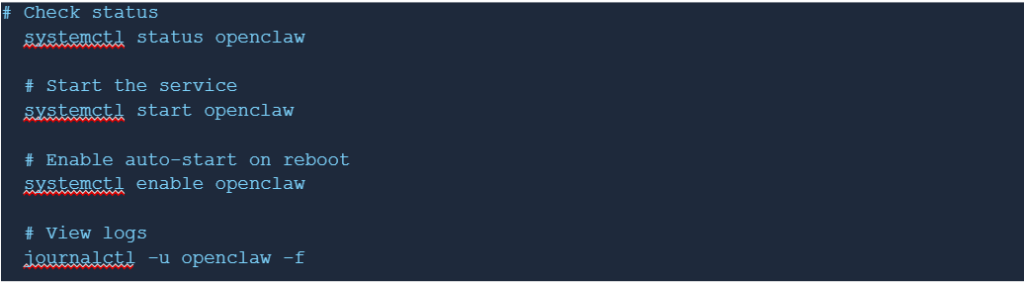
Commands to Manage OpenClaw
Check status: systemctl status openclawStart manually: systemctl start openclawEnable auto-start on reboot (important): systemctl enable openclawView live logs: journalctl -u openclaw -f
For most users, this is the best and simplest option.
Option 2: PM2 Process Manager (Alternative)
PM2 is a popular Node.js tool used to keep apps running.
Use this if you already use PM2 & if you want more control over multiple Node apps
Setup Commands
- npm install -g pm2
- pm2 start openclaw – gateway – port 18789
- pm2 startup
- pm2 save
- pm2 status

What are the benefits of these commands? The OpenClaw auto-restart on crash. You can easily monitor it and it’s good for managing multiple services.
If you’re a beginner, you can skip this and stick with systemd.
Option 3: Windows Service (Windows VPS)
On Windows, OpenClaw runs as a Windows Service automatically after onboarding.
That means:
- It runs in the background
- Starts automatically on reboot
- No need to keep PowerShell open
PowerShell Commands
- Check status: Get-Service -Name OpenClaw
- Start service: Start-Service -Name OpenClaw
- Enable auto-start: Set-Service -Name OpenClaw -StartupType Automatic
You can also manage it visually from Services (services.msc).
How to Update OpenClaw on Your VPS
Keeping OpenClaw updated is important because new versions bring bug fixes, performance improvements and new features.
The update process is simple and only takes a few seconds.
Update Commands:
Update to the latest stable version (recommended):openclaw update – channel stable
To Verify after updating, make sure to follow these commands:
- openclaw – version
- openclaw doctor
After running these, make sure:
- The version number has changed (if a new update was available)
- openclaw doctor shows everything working correctly
OpenClaw provides three update channels depending on how stable or experimental you want your setup to be:
| Channel | Command | Who Should Use It |
| stable | openclaw update – channel stable | Recommended for everyone, especially VPS and production setups |
| beta | openclaw update – channel beta | Early adopters who want to test new features before release |
| dev | openclaw update – channel dev | Developers contributing to OpenClaw or testing cutting-edge changes |
Common Errors & Fixes
Even with a proper setup, you might run into a few common issues. The table below helps you quickly identify the problem and fix it.
| Error | Likely Cause | Fix |
| Gateway Not Starting | Port 18789 already in use | Run lsof -i :18789 to find the process, then stop it or use a different port |
| Channel Pairing Fails | Invalid or expired token | Regenerate your bot token (Telegram/Discord) and run the pairing command again |
| Node Version | Node.js version too old | Reinstall Node.js 24 using NodeSource (see installation steps) |
| Permission Denied | Running commands without proper permissions | Use sudo before commands or fix npm global permissions |
| openclaw: Command Not Found | npm global path not in PATH | Run export PATH=$PATH:$(npm bin -g) or reinstall Node.js |
| LLM API Errors | Missing or incorrect API key | Check API key in ~/.openclaw/config or re-run openclaw onboard |
| Skills Not Loading | Incorrect SKILL.md format or folder structure | Ensure each skill has its own folder with a properly formatted SKILL.md |
First Step for Any Error
Before troubleshooting manually, always run:openclaw doctor
This command automatically checks your setup and highlights the most common issues along with suggested fixes.
Security Best Practices for OpenClaw on VPS
OpenClaw is powerful, but that power comes with responsibility. It can access your messaging platforms, APIs, and potentially sensitive data depending on how you configure it. If your setup is exposed or misconfigured, it can become a security risk. So it’s important to lock things down properly from the start.
Firewall Configuration
Your VPS shouldn’t be fully open to the internet. By default, you should block everything except what’s absolutely needed.
Only expose port 18789 if required, and preferably restrict it to trusted IPs
Never leave unnecessary ports open
Basic UFW setup (Ubuntu):sudo ufw enablesudo ufw default deny incomingsudo ufw allow sshsudo ufw allow from YOUR_HOME_IP to any port 18789sudo ufw status
What this does:
- Blocks all incoming traffic by default
- Allows SSH (so you don’t lock yourself out)
- Allows OpenClaw access only from your IP
This is one of the most important steps to prevent unauthorized access.
If you plan to access OpenClaw remotely (for example, via browser or dashboard), you should always protect it with a strong token.
Command:export STUDIO_ACCESS_TOKEN=your-strong-secret-token
Why this matters:
Without an access token, anyone who reaches your OpenClaw instance could potentially interact with it. A strong token acts like a password layer.
Prompt Injection Awareness
OpenClaw processes messages from external sources like Telegram or Discord. That means it can receive malicious or unexpected inputs.
Best practices:
- Only connect channels you fully control
- Avoid adding OpenClaw to public groups or unknown communities
- Be cautious about what commands or instructions it executes
Also, regularly review your installed skills:
Remove any skills you didn’t install yourself
Avoid using untrusted or unknown skill packages
This reduces the risk of someone trying to manipulate your AI agent.
Keep OpenClaw Updated
Security vulnerabilities can be fixed in updates, so staying up to date is important.
Command:openclaw update – channel stable
Best practices:
- Run updates regularly
- Stick to the stable channel for reliability
- Follow the OpenClaw GitHub releases page for important updates and security fixes
A secure setup doesn’t take much extra effort, but ignoring it can cause serious problems. If you:
- Restrict access with a firewall
- Use strong tokens
- Avoid untrusted inputs
- Keep everything updated
then your OpenClaw VPS will remain both powerful and safe to use.
Pros & Cons of Running OpenClaw on a VPS
Running OpenClaw on a VPS gives you a lot more flexibility and reliability compared to running it locally, but it’s not completely hands-off. You get full control, better uptime, and more power, but in return, you’re also responsible for setup, security, and maintenance.
Here’s a clear breakdown so you know exactly what to expect.
+Pros
- Your AI assistant never goes offline, even if your personal device is turned off
- Our VPS acts as a secure layer between you and the internet
- Run multiple messaging channels simultaneously: Telegram, Discord, and more from one setup
- OpenClaw starts automatically after reboot or crashes
- Runs comfortably on a $3 to $5 per month VPS
- Open-source and self-hosted, no platform lock-in
- Manage everything remotely via SSH or RDP
-Cons
- Requires a monthly VPS cost
- Initial setup requires some terminal/CLI familiarity
- Security configuration is your responsibility
- API key management adds complexity
A VPS setup is good if you want a powerful, always-on OpenClaw instance and don’t mind handling a bit of technical setup and maintenance.
Use Cases of OpenClaw VPS
OpenClaw on a VPS opens up a lot of practical, real-world use cases. Since it’s always online and accessible from anywhere, it becomes more than just a tool, it turns into a reliable assistant that fits into your daily workflow.
Personal AI Assistant: Always On
When OpenClaw is hosted on a VPS, it’s available 24/7, so you can message it anytime through Telegram or WhatsApp and get instant responses. Be it setting reminders, answering quick questions, or automating small daily tasks, it works even when your laptop is turned off. This makes it feel like a real always-on assistant rather than just a local tool.
Freelancer & Small Business Automation
If you’re a freelancer or running a small business, OpenClaw can handle repetitive tasks like lead research, replying to common queries, or updating simple records. Instead of manually doing the same work every day, you can automate these workflows using skills and messaging commands. This frees up your time so you can focus more on client work and growth.
Developer Workflow Automation
Developers can use OpenClaw as a command center directly from chat. You can connect it to tools like GitHub, trigger deployments, review code snippets, or query databases without switching between multiple dashboards. It simplifies your workflow by bringing everything into one conversational interface.
Multi-Channel Bot Management
Instead of managing separate bots for Telegram, Discord, and WhatsApp, OpenClaw lets you handle all of them from a single VPS instance. You set it up once, and it responds across multiple platforms simultaneously. This is especially useful if you’re managing different communities or audiences.
Team AI Agent (Small Teams)
For small teams, OpenClaw can act as a shared AI assistant accessible through Slack or Discord. Team members can ask questions, automate internal tasks, or retrieve information without needing separate tools. It becomes a central assistant that helps everyone stay more productive and organized.
FAQs
Is OpenClaw free to use?
Yes, OpenClaw itself is completely free and open-source under the MIT license. You can install and run it on your own VPS without paying anything for the software. However, you will still have costs for your VPS and any LLM API usage (like OpenAI or Claude), which are billed separately.
Can I run OpenClaw on a low-end VPS ($3–4/mo)?
Yes, OpenClaw is lightweight and works well on a basic VPS with 1GB RAM for simple use cases like a single Telegram bot. If you plan to run multiple channels or heavier automation, upgrading to 2GB RAM is a better choice for smoother performance.
Which messaging platforms does OpenClaw support?
OpenClaw supports a wide range of messaging platforms including Telegram, Discord, WhatsApp, Slack, Signal, and more. This allows you to interact with your AI assistant from platforms you already use daily, without needing a separate interface.
Do I need a GPU VPS for OpenClaw?
No, you don’t need a GPU. OpenClaw doesn’t run AI models locally, it connects to external APIs like OpenAI, Claude, or DeepSeek. That means even a basic CPU-based VPS is enough to run it efficiently.
How do I fix OpenClaw not launching?
Start by running: openclaw doctor This will automatically check your setup and point out common issues. Also verify that Node.js is installed correctly, the Gateway service is running, and port 18789 isn’t being used by another process.
Can I run multiple OpenClaw instances on one VPS?
Yes, but it requires careful configuration. You’ll need to run each instance on a different port and possibly separate environments. For beginners, it’s recommended to start with a single instance and expand later if needed.
How do I update OpenClaw on my VPS?
You can update OpenClaw using:
- openclaw update –channel stable
- Or via npm:
- npm install -g openclaw@latest
After updating, always verify with:
- openclaw –version
- openclaw doctor
Conclusion
By now, you’ve gone through the complete process of installing OpenClaw on both Linux and Windows VPS, setting it up for 24/7 uptime, securing your instance, and handling common issues. The biggest takeaway is simple: with a small investment of under $5/month, you can run a fully self-hosted, always-on AI assistant that’s accessible from your favorite messaging apps anytime, anywhere.
If you’re just getting started, keep it simple, launch an Ubuntu 22.04 VPS, install Node.js 24, and run the openclaw onboard command. You can have everything up and running in under 30 minutes. For beginners, providers like YouStable or Vultr are solid starting points with affordable plans and easy setup.
From here, the real value comes from exploring OpenClaw’s skills system and customizing it for your workflows. Check out the official GitHub repository to discover new capabilities and expand what your AI assistant can do.



Table of Contents
- What is OpenClaw?
- Who Should Use OpenClaw on VPS
- Why Use a VPS for OpenClaw?
- System Requirements for OpenClaw
- Prerequisites Before Installation
- How to Choose the Right VPS for OpenClaw
- Recommended VPS Providers for OpenClaw
- Installing OpenClaw on Linux VPS (Step-by-Step)
- Installing OpenClaw on Windows VPS (Step-by-Step)
- How to Run OpenClaw GUI on Linux VPS
- Keeping OpenClaw Running 24/7 on Your VPS
- How to Update OpenClaw on Your VPS
- Common Errors & Fixes
- Security Best Practices for OpenClaw on VPS
- Pros & Cons of Running OpenClaw on a VPS
- Use Cases of OpenClaw VPS
- FAQs
- Conclusion