
DreamHost Login

DreamHost Login: DreamHost is a Los Angeles-based company that is connecting the world with its reliable web hosting service. Along with domain name registration, they offer various other web hosting solutions.
Currently, they are DreamHost login hosting 1.5 million websites and serving over four hundred thousand customers. It is one of the best companies for sharing digital content over the web.
| Sitename | Dreamhost |
| Service | Hosting and Domain |
| Provider | Interserver International Ltd |
| Hosting | Shared, WordPress, Cloud, and VPS Hosting |
| Available | Worldwide |
| Official website | Dreamhost.com |
How to Sign Up for a DreamHost Account?
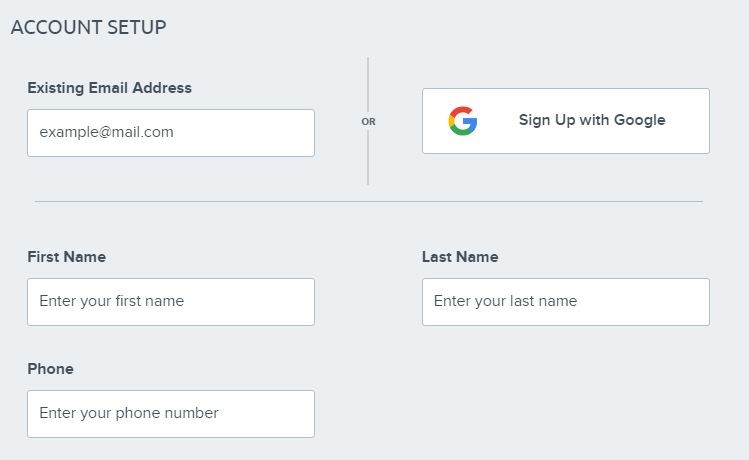
DreamHost login offers users three types of accounts. These are Email Plans, Hosting Plans, and WordPress Hosting Plans. For all of these accounts, you need to choose the appropriate plan first.
If Also you want to know about How To Resellerclub Login
How to Login And Navigate the DreamHost Panel:
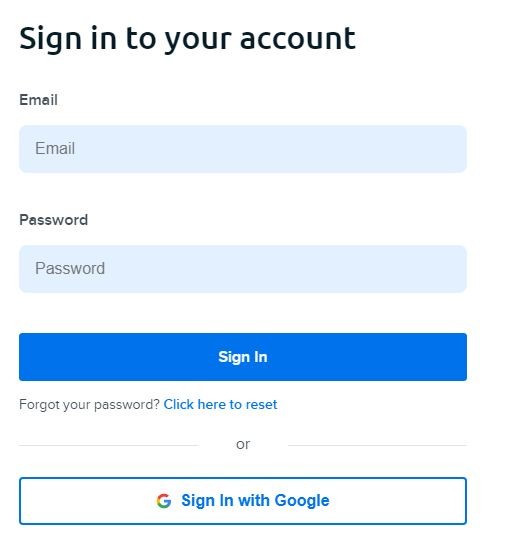
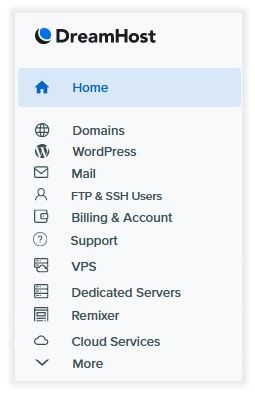
DreamHost login into DreamHost Panel is very easy. The user has to visit this link https://panel.dreamhost.com/ and log in with his credentials.
Also Read:- How To cPanel Hostinger Login
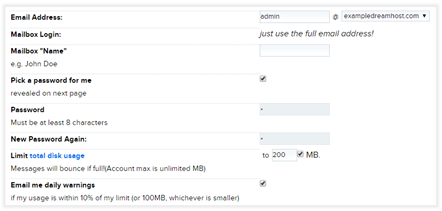
How to Create WebMail In DreamHost?
The user must have a paid email add-on plan or active hosting plan for DreamHost webmail. Besides the Shared Starter, All hosting plans get the opportunity to use the webmail service.
How to Login Into Your WordPress Site?
With the DreamHost service, you can easily access your WordPress site in two ways. The first way is very simple. Open the browser and enter http://example-site-name.com/wp-login.php. Now replace the example-site-name.com with your WordPress site name and press enter.
The second option is auto-login through the DreamHost panel. In the DreamHost panel on the top right corner, you will find the “Managed WordPress” tab, clicking this tab will also give you access to your WordPress Site.
How to Login to Your DreamPress Site via SSH:
By default, DreamPress makes every user account SFTP. For SSH access you need to make some modifications to the account.
For DreamHost login, choose your terminal application and open it. On the blank page, type ssh, then type the Shell username, then add an @ sign, then include your website address. In the end, it will look something like this.

If you want to know about DreamHost Nameservers.
How do I Contact The DreamHost Support Team?
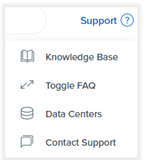
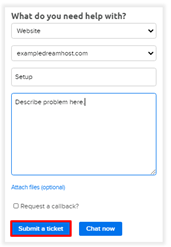
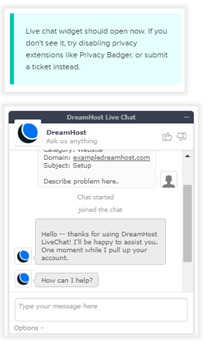
DreamHost has one of the best technical support teams in the world. They offer their service through four venues. These are email, live chat, call-back, and contact forms. For technical questions, you can go to the “Contact Support” page and click the “Contact Support” box.
Helpful Info
| DreamHost Nameservers | https://googiehost.com/blog/hostingloginguide/dreamhost-nameservers/ |
Important Links
If you Want to know about Related post: