Hostround login
Hostround login:- Hostround is a platform with the best features to create your Hosting experience. Having the advantage of customizing and easy accessibility, it is an easily favored medium for both beginners and professional developers.
With their efficient tech support, Hostround web hosting server helps users create a site for any purpose and attract people to them.
As a trusted global provider, we provide you with a guide to Login Client login in Hostround login for the best results:
What are Hostround login Client Area and cPanel?
To access the client area, follow the given steps:
Step 1: First access the main page of Hostround LLC
Step 2: Then click on the Sign-in button.
Step 3: You will be presented with a login page.
Step 4: Type your email or username and password on the email and password bars.
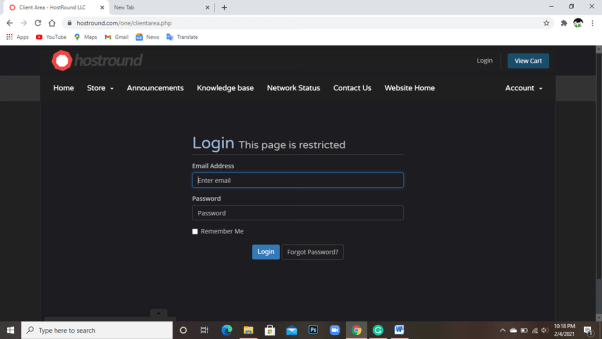
Step 5: A reCaptcha will shortly arrive where you must click on the I am not a robot option. This is for security measures.
Step 6: Simply click on the Login button to be logged in to your client area.
You can also simply use https://www.hostround.com/one/clientarea.php this link to log in to your Client area.
Your client area will only allow registered customers only therefore, you need to make sure that you are registered.
Make sure you have signed in properly, recheck your email and password and change your password if you have forgotten it by using the ‘Forgot password’ option.
Also Read:- How to cPanel DomaiNesia login
How To Access Hostround cPanel?
There are more than one ways to login to your cpanel. The following are some of the ways you can log in:
Cpanel login from AMP
Step 1: To log in to your Hostround cpanel account, simply log into your AMP account first.
Step 2: After logging in you will find a cpanel button under your account name. Pressing it will redirect you to your cpanel automatically.
If you have trouble with your password, you can reset your password with the Reset password option given
Cpanel logs in from Customer Area:
You can access cPanel from Customer Area which is also known as One Portal
Stepp 1: The first step you need to take is to log in to your customer area.
Step 2: From the navigation menu click on Services.
Step 3: Click on My Services from the many tab options
Step 4: Click on the Service name.
Step 5: You only need to find the cpanel login link in the sidebar.
Cpanel logs in from the browser address bar:
You can also access cPanel directly using your domain or server IP in the following way:
Step 1: Go to the address bar of your desired browser like Google, Firefox etc.
Step 2: Type the following in your address bar https://domain.com:2083 or https://server.ip:2083.
Step 3: Make sure you use your actual domain name in place of domain.com
Step 4: Your browser may show a security warning related to SSL certificate when you try to login with the server IP, you can safely ignore this warning. Do not be alarmed this is entirely for security purpose.
If Also you want to know about Verpex Hosting Login: Easy Way to cPanel Login, Webmin
Where is Hostround SSH Your cPanel Account?
This Hostround login guide will help you to know how to SSH your cPanel account using SSH Key. To begin with, Login to cPanel and search for Terminal.
Step 1: The first thing you need to do is log in to cPanel
Step 2: Then search for SSH and click on it
Step 3: Find the Manage SSH Keys button and Click on it.
Step 4: Click on Generate a New Key button
Step 5: Enter a key name and enter a strong password twice and click Generate Key button
Step 6: A new key has been created. So, click on Go Back
Step 7: Under the Public keys section, click Manage and then click ‘Authorize’ button. Then click Go Back
Step 8: Under the Private Keys section, click View/Download
Step 9: Scroll down to see Convert the “keyName” key to PPK format, and enter ssh key password that you’ve entered earlier
Step 10: Click on the ‘Convert’ button
Step 11: Now PPK file has been created, scroll down and click ‘Download Key’ button
Step 12: Use putty to SSH your hosting account and import the key to Putty
Can You Use Hostround PHPMyAdmin Outside cPanel?
You cannot use your phpMyAdmin outside cpanel because the phpMyAdmin tool available in cPanel is bundled with it and can be used only if you are already logged into cPanel.