Inmotion Login
InMotion Hosting login is a web hosting provider with a secure website hosting offering with optimized servers. All hostings: WordPress hosting, VPS hosting, shared hosting at one place with 24*7 customer support and high security.
Using and accessing various accounts in your hosting service can be tricky. Here we will guide you in simple steps to log in to various accounts in Inmotion Hosting login.
How To Inmotion Login To Webmail?
InMotion Hosting login provides you with the reliable feature of Webmail that assists you in seeing your important emailsgmail from anywhere.
Follow the below instructions to log in to Webmail:
Step 1: Visit the following URL from your web browser:
www.yourdomain.com/webmail
NOTE: Replace yourdomain.com with your website name.
Step 2: Now you will receive a webmail login window. Enter your Webmail Email Address and password.
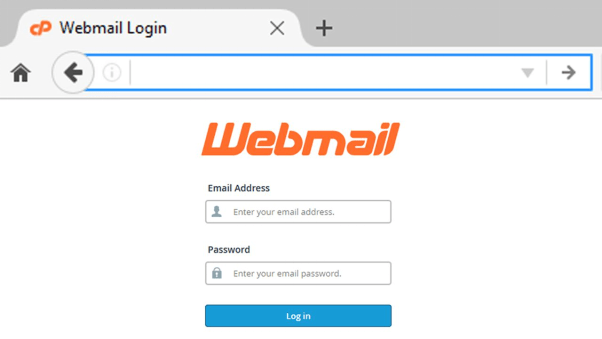
Step 3: Click on the Log In button to access your webmail.
Also Read:- How to Hostgator Login: Client Area, Control Panel
How To Inmotion Login BoldGrid?
Follow the steps below to log in to your BoldGrid website and access your BoldGrid admin dashboard.
Step 1: Visit the following URL from your internet browser:
yourdomain.com/wp-admin
Note: Replace ‘yourdomain.com’ with your actual website name.
Step 2: You will be redirected to the BoldGrid login window.
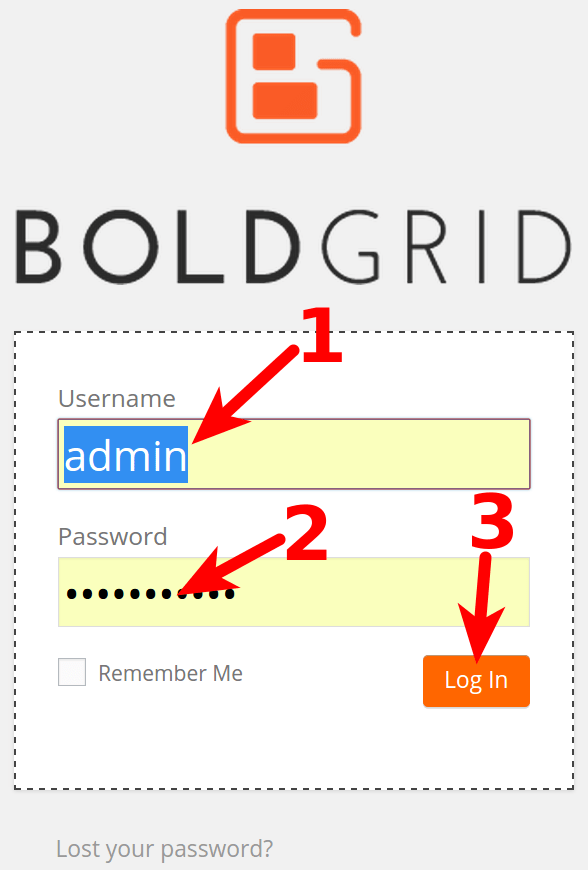
Step 3: Click on the Login button below.
Now you will be able to see your BoldGrid dashboard.
If Also you want to know about How to Qwords Login Client area, Account
How To Setup And Login To AMP In Inmotion?
Account Management Panel – AMP is the client area of InMotion. It provides a single platform to users to handle all the hosting features and services the customer has purchased from InMotion Hosting. You can register domains, update your billing information, access cPanel, access Website Creator Account, and much more via AMP.
Firstly, you need to set up your AMP. Follow the below steps to setup an account for AMP.
Step 1: When you purchase any service from Inmotion hosting, you will receive an email labeled ‘Welcome to InMotion Hosting’. Open that email and click on the button attached to it labeled as ‘To Get Started, Set Your Password here’.
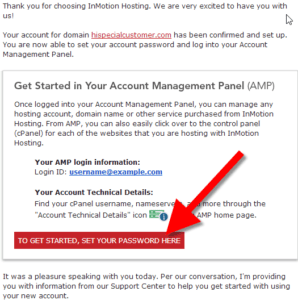
Step 2: By clicking on that button, you will be redirected to fill in your new AMP password. Set up a new password, you are ready to log in and use your AMP.
You have successfully set up your AMP account. Now to log into AMP, follow the steps given below:
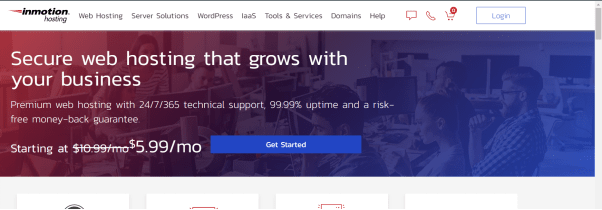
Step 1: Go to the InMotion Hosting homepage. Follow the following link for the same:
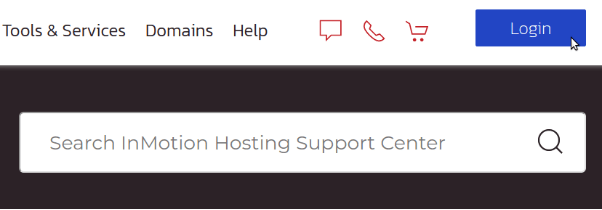
Step 2: At the top right corner, you will see a Login button redirecting you to the AMP login page.
Step 3: Here on the Login Page, enter your email address and the password that you set up in the previous steps.
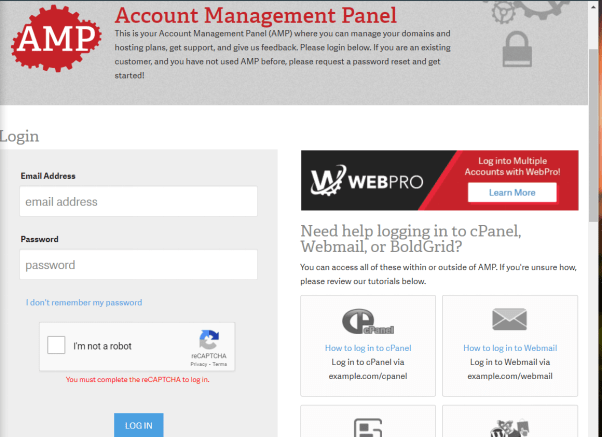
Step 4: Click on the Log in button below to access your AMP.
Also Read:– How To WPX Hosting Login Cpanel And Webmail
How To Inmotion Login To cPanel?
To login to the cPanel of your website, follow the steps given below:
Step 1: Log in to your AMP as you learned in the previous section.
Step 2: In the AMP dashboard, you will find the icon of cPanel below your account name. Click on it.
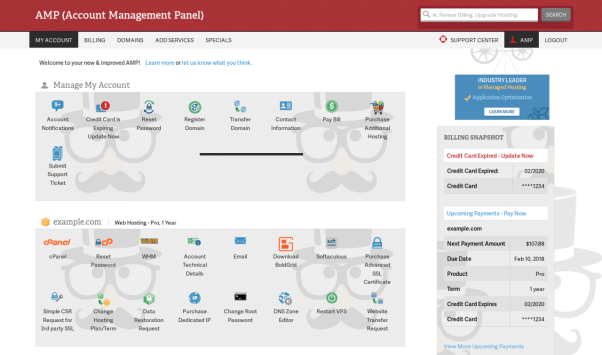
Step 3: You will be directed to your cPanel dashboard through here without the need to fill in the login details.
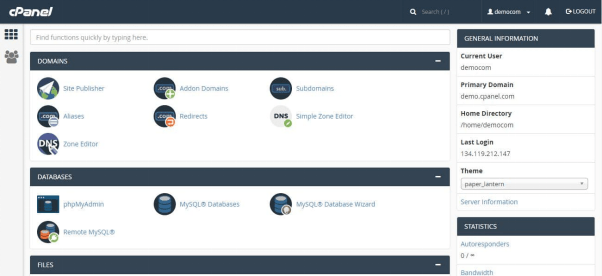
Inmotion Login To cPanel Through Your Browser Address Bar:
The most common way to log into the cPanel is through your browser address bar. Follow the below-mentioned steps to log in to cPanel through your browser address bar:
Step 1: OPEN BROWSER AND ADD LINK
In your web browser address bar, enter the following link:
yourdomain.com/cpanel
OR
cpanel.yourdomain.com
OR
yourdomain.com:2083
(Replace yourdomain.com with your website domain.)
Step 2: FILL IN LOGIN DETAILS
In the window that now appears after following the above link, enter your cPanel username and password.
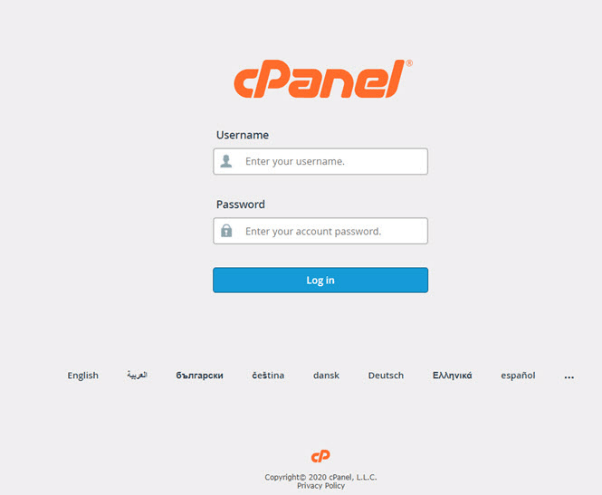
Step 3: LOG IN
Click on the login button to access your cPanel.
How To Login Your Website Creator Account?
Log in to your Website Creator Account is made easy by InMotion Hosting using its Account Management Panel (AMP).
Follow the steps below to login and access your Website Creator Account through InMotion AMP:
Step 1: Log in to your InMotion AMP. You can take references from the above section for the same.
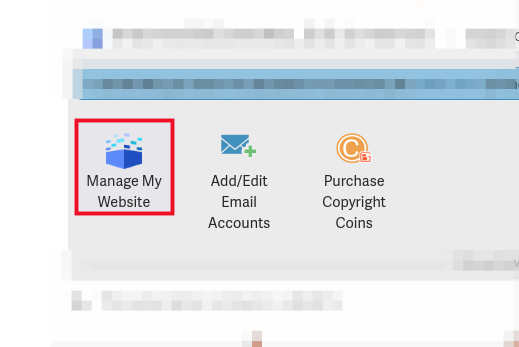
Step 2: After you see the AMP dashboard, locate the icon with the ‘Manage My Website’ label. Click on it.
Step 3: Now you will see the website Creator Login page. Enter your email address and password regarding the same.
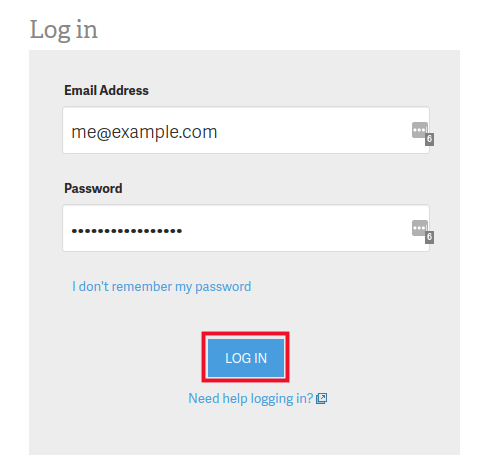
Step 4: Click on the ‘Login’ button.
You will successfully be able to access your Website Creator Account in InMotion Hosting.