Unlimited Hosting, Unmatched Performance
Start at $0.01 Now

GoogieHost Nameservers

4 min read
GoogieHost Nameservers

GoogieHost is a web hosting service provider offering clients many features and hosting packages. You can choose between free hosting and paid hosting from GoogieHost.

You will be able to find discounts on various products of GoogieHost, so keep an eye on the website to get the details about the same. Below you can find more information regarding GoogieHost nameservers, their DNS management, and more.

What is Nameserver?

The server element of the Domain Name System (DNS) is called the Nameserver. These GoogieHost nameservers support connecting URLs with the IP address of web servers.

It is an integral part of the DNS, which most people call the phonebook of the internet. 

What are Private Nameservers, and How Do I Set them up?

The domains you created are pointed to private nameservers, so the clients will not see the host’s name on the account. If a private nameserver is not created when a client checks for nameservers, the domain will look like ns1…com and ns2…com.

But when you set a private nameserver, the domain will look like showns1.yourdomain.com. This means that the default nameservers will not be shown on the domain. If you want to set up a private nameserver with GoogieHost, you can contact the registrar to set it up.

What are GoogieHost Nameservers?

The nameserver created by GoogieHost is known as GoogieHost Nameservers. These nameservers will have the name GoogieHost. For example, free1.googiehost.com.

Where can I find my Nameservers?
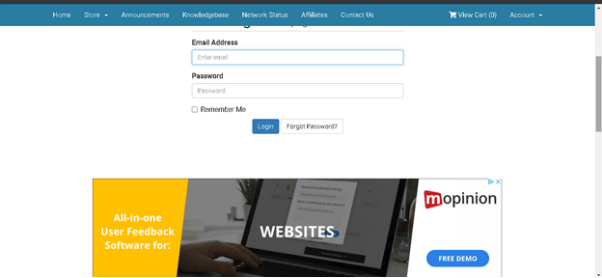
  • Log in to your account if GoogieHost
googiehost nameservers
  • Click Services
  • From the drop-down menu, click on My Services
  • Now you can see your domain
  • Click on Manage Product
  • You will now see another page in which all the details regarding your name, nameservers, username, IP address, etc, will be mentioned.

How to Change DNS for a Domain?

  • Log in to your GoogieHost Account
  • Click on Services
  • From the drop-down menu, click on My Services
  • Now you can see your domain
  • Click on Manage
  • Scroll down to see the tab DNS Management and click on it
  • You can now see your domain. Then click on the Settings icon
  • You can see all your products there and click on the edit button to change the DNS for a domain.

My Domain name server does not work

Know that DNS propagation may take 24 to 48 hours when you change your name servers for your domain name. Even after that, if your Domain nameserver is not working, there might be some problem at the user end.

It may be because of a poor internet connection or network, an invalid browser, or misconfigured DNS settings.

How to Change DNS for a Domain Using cPanel?

If you want to change DNS for a domain using cPanel, see the steps given below and follow:
  • First, you must Log In to your cPanel account
  • Enter the correct username and password to log in
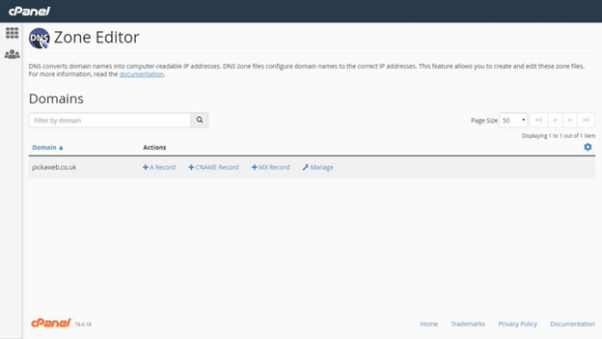
  • Now type DNS in the search bar on top
  • Click on Zone Editor
  • Select Domains
googiehost nameservers
  • Click on Advanced DNS Zone Editor
  • Click on the Edit button that can be seen on the right side of the corresponding DNS record
  • Make the changes you want
  • Click Save Changes

How to point your GoDaddy Domain to GoogieHost Nameservers?
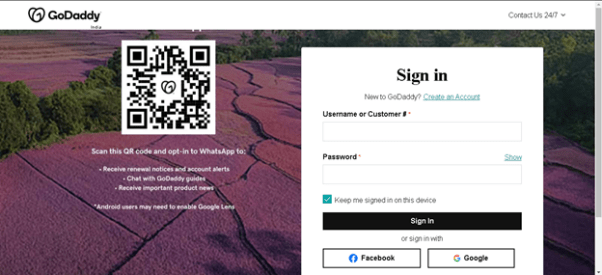
  • Log in to GoDaddy Domain Control Center
googiehost nameservers
  • Pick your domain to access the Domain Settings page.
  • Select Manage DNS under Additional Settings and select Change( Nameservers section)
  • Now select one option that works best for you. You can choose between connecting your domain to a website you have created, using default nameservers, or You can even enter your nameservers
  • In this case, you have to select custom nameservers and add the GoogieHost Nameserver in the space provided
  • Select Save or Connect.
  • Tick the box next to the consent message.

How to Order a Hosting Package from Googiehost?

If you want to order a hosting package from GoogieHost, check out the following guidelines.
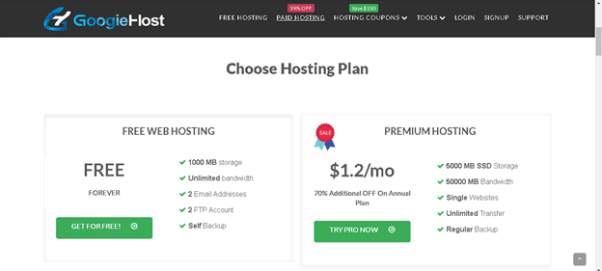
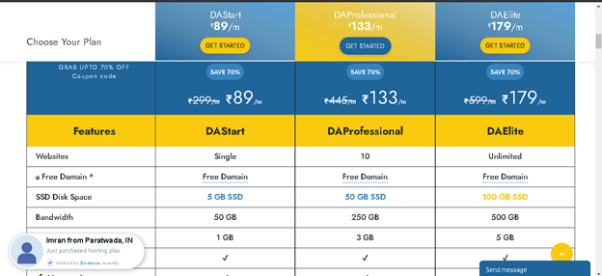
  • Visit the website of GoogieHost – https://googiehost.com/You can choose either free hosting or paid hosting services. The paid hosting will take you to the YouStable website.
googiehost nameservers
  • Check the features of each hosting package and choose one
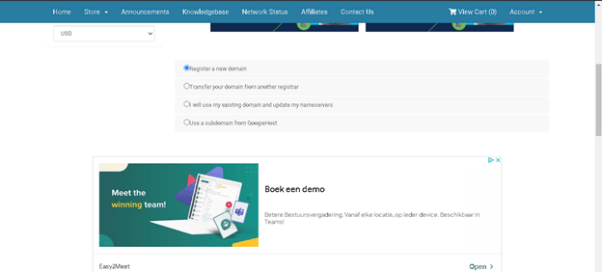
  • Once you have selected a hosting package, click on Buy Now. If free hosting clicks on getting for free, you will be directed to the following page for free hosting.
googiehost nameservers
  • Now you can select one option given on the screen and click enter
  • Give all the information asked on the form and complete your order
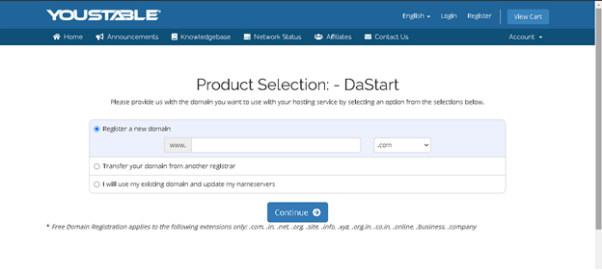
  • If using paid hosting, then you will get the following page on the screen
googiehost nameservers
  • Select an option
  • Click Continue
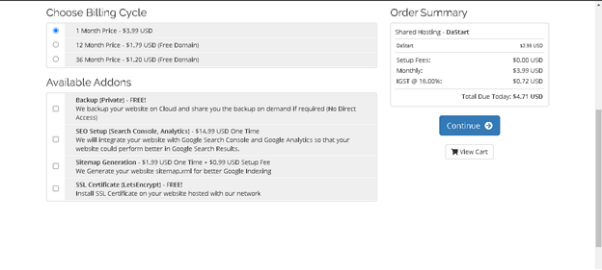
  • Now you choose the billing cycle and can select add-ons if required
googiehost nameservers
  • Then click on Continue
  • Enter your details
  • Add the payment details
googiehost nameservers
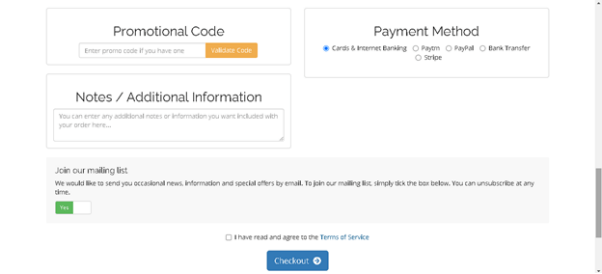
  • Check the box given above for checkout
  • Click on Checkout

Conclusion

GoogieHost has several hosting packages of YouStable apart from the free hosting that GoogieHost offers customers. Hope you are clear about the products and services of GoogieHost.

Moreover, after reading this article, you will know how to change the nameservers and manage DNS.


Leave a Reply

Your email address will not be published. Required fields are marked *

Scroll to Top