
How to Set Up a Staging Environment on Cloudways for WordPress

Want to check if your website is performing 100% before it goes live? If so, then let’s talk about the staging environment. A staging environment is like a clone or in other words a copy of your live website, allowing you especially the developers of the website to test changes, updates and new features without affecting the working of the live site. This practice is important for finding and resolving issues, ensuring that the live website remains untouched and the user experience of the customer is also not disrupted.
Normally when developers update plugins or themes, test new codes and implement redesings, they can create a staging site of the live website to see and check the changes before actually pushing the changes to the live site.
Let’s say you don’t create a staging site! What bad could happen? See! It’s like if you update a plugin directly on a live site, it can at times lead to compatibility issues or create unexpected problems, ruining customers’ UX. So, by first applying these updates in a staging site, a developer can see and even solve the problems before it impacts the live site. Likewise, when introducing new features or redesigning a website, the staging environment allows you to thoroughly test the changes, ensuring that the final output is error-free.
Now as we’re talking about the staging environment feature, where can we get that? We highly recommend Cloudways as it simplifies the process of creating and managing staging environments for WordPress websites. Cloudways offers a one-click staging feature, enabling developers to create a copy of the live site easily. Plus, Cloudways also allows you to push the changes from staging to live. This makes Cloudways a valuable tool for WordPress developers.
So, let’s learn in this blog, more about staging environment and how CloudWays helps you create a staging environment for WordPress 👍
What Is a Staging Environment?
Look! A staging environment is a clone or an exact copy of your live website or application, used for testing new features, updates and configurations before they’re put to live for your visitors to see. It mirrors the production environment for hardware, software and network settings, allowing developers to identify and fix issues in a controlled setting.
It serves as a safe area to test changes without affecting the interface and the performance of the live site. It also enables developers to run a quality assurance, ensuring that new features work properly. By catching errors before going live, staging environments help maintain a nice user experience and reduce the risk of costly post-deployment fixes.
For those still not getting what’s the difference between Staging environment and Live Environment, Here is a small table that can help you get a clear picture about it.
| Staging Environment | Live Environment |
| Used for testing new codes, plugins, themes and new features | Used for visitor access and 24/7 user interaction |
| Private or password-protected | Publicly accessible on the internet |
| Zero-risk environment for experimentation | High-risk if errors occur, as it affects your visitors |
| Often uses dummy or copied data | Uses real user data and transactions |
| No impact on user experience if issues occur | Issues directly impact business performance and reputation |
Maybe now you might have gotten the idea that a staging environment is used for testing and fixing issues before pushing the changes to the real website. Whereas a real website is a place where you’re actually interacting with your end-users and you can’t afford to mess the interface up at any cost.
You might be thinking to whom staging environment offers benefits, to whom is it useful? See! Staging site feature is important to everyone having a website:
- Agencies can use this feature and showcase updates to clients for approval before going live, ensuring client satisfaction and reducing any chances of issues.
- Developers can test integrations, perform load testing and identify performance in the staging environment, leading to more reliable results.
- Now, for businesses that rely on continuous uptime, staging environments help prevent disruptions by allowing thorough testing of new features, payment gateways and security updates before they affect customers.
Why Use Cloudways for Staging WordPress Sites?
If we talk about a one-click staging environment, easy push changes from staging to live site, then in that case, Cloudways is the best web hosting provider that offers a user-friendly staging environment for WordPress sites, making it a perfect choice for developers and site owners who want security and performance.
One of the most important things that CloudWays is famous for is the process of creating a staging environment in just a single click, which is available across all plans at no extra cost. This feature allows users to clone their live WordPress site into a staging environment, doing safe testing of new themes, plugins or code changes without affecting the live site. Once you’re satisfied with the modifications, you can simply push the changes to the live site with just a single click.
CloudWays’ staging environment is completely separated from the live site, ensuring that any changes or tests conducted don’t affect the live website. This isolation is important for developers to experiment freely, test new features and troubleshoot issues without the risk of disrupting the UX of the live site.
Want to know what tools Cloudways offers to the staging environment? See! The staging site by default comprises the same performance booster and security tools as the live environments. It includes features like built-in caching mechanisms (Varnish, Memcached, Redis), free SSL certificates, dedicated firewalls and regular security patches.
By maintaining back-to-back performance standards in both staging and live environments, Cloudways ensures that the testing environment accurately mirrors the live site, leading to more reliable deployments.
Things you should keep in mind before setting up staging site
Now, before setting up a staging environment for your WordPress site hosted on Cloudways, it’s important to ensure that few things are in place. These preparations will ensure a smooth staging setup, allowing you to test changes without affecting your live site.
- You should have a WordPress Website on CloudWays: Ensure that your WordPress site is already hosted on the Cloudways platform. Cloudways offers an easy process to create a staging environment by copying your existing application.
- You should have Admin Access to Your Cloudways Account: Full admin access to your Cloudways account is important to create and manage staging environments. With admin access, you can navigate to the Applications tab, select your desired application, and initiate the staging process.
- Your server should have Enough Web Resources like NVMe SSD Disk Space and RAM: Before setting up a staging environment, check if your server has enough resources, like NVMe SSD storage, DDR5 RAM, AMD EPYC CPU cores and unlimited Bandwidth. Staging sites are clones of your live site, so they require additional storage and memory.
We recommend you to have at least 2GB of RAM for production sites, while 1GB is enough for staging purposes. Regularly monitor your server’s resource usage through the Cloudways Platform to ensure optimal performance.
Are you ready with the things discussed above? If yes, then let’s create a staging environment for WordPress website on CloudWays 👍
How to Create a Staging Environment on Cloudways?
Here, we’re gonna tell you step-by-step how you can create a staging environment for your WordPress website on CloudWays. Along with that, we’re gonna provide you with the necessary screenshots to help you get proper visuals and enhance clarity. So, let’s get started right away👍
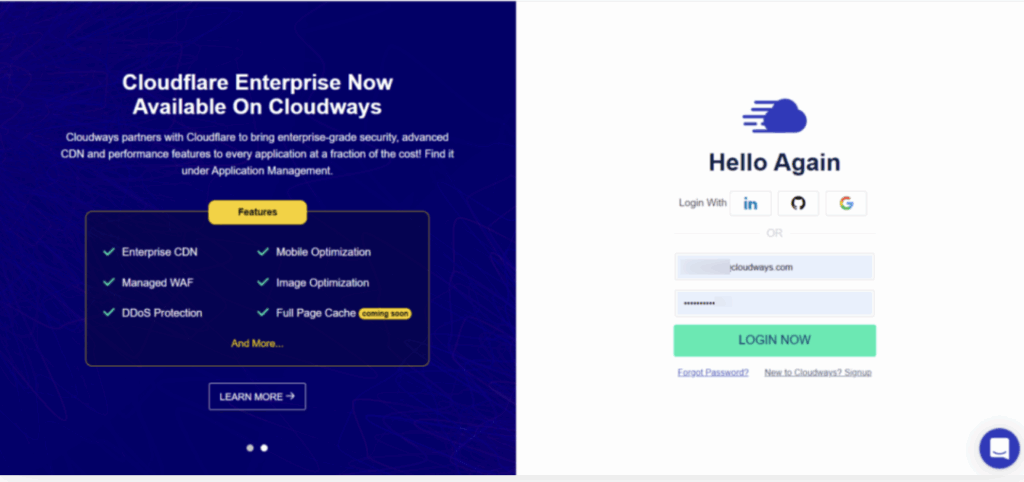
- Step1) Log in to the CloudWays Platform >> If you don’t have one, then create a new account (you can even register for a 3 days free cloud server trial of CloudWays)
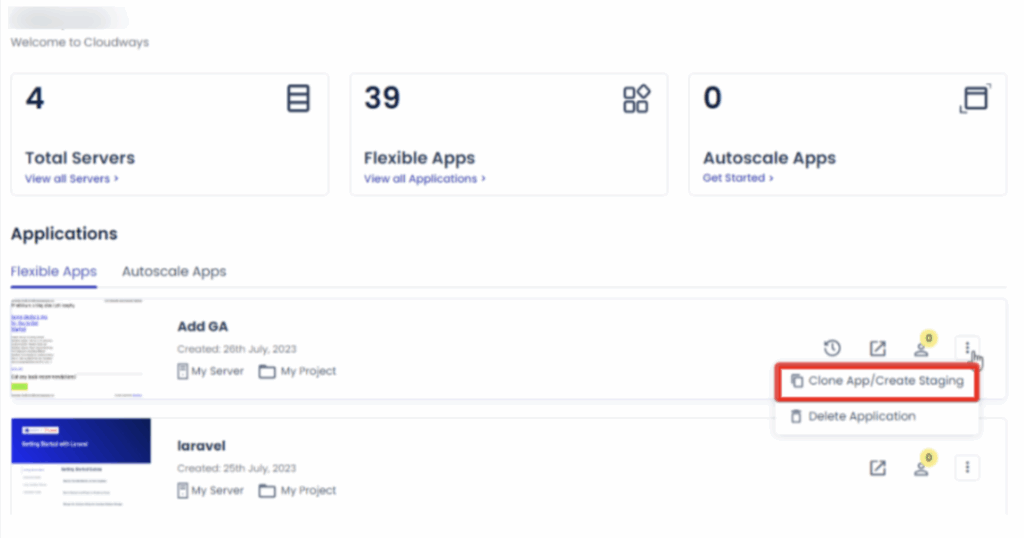
- Step 2) Now, to create a Staging environment >> Go to the Application Tab >> Select the WordPress site you want to create the staging environment for >> Click the vertical dots >> Select create staging option.
- Step 3) Once you have clicked on the create staging button >> you;ll be redirected to select a staging server >> Select an existing server or a new server from the dropdown menu >> Now, tick the Create as Staging option >> Click Continue button.
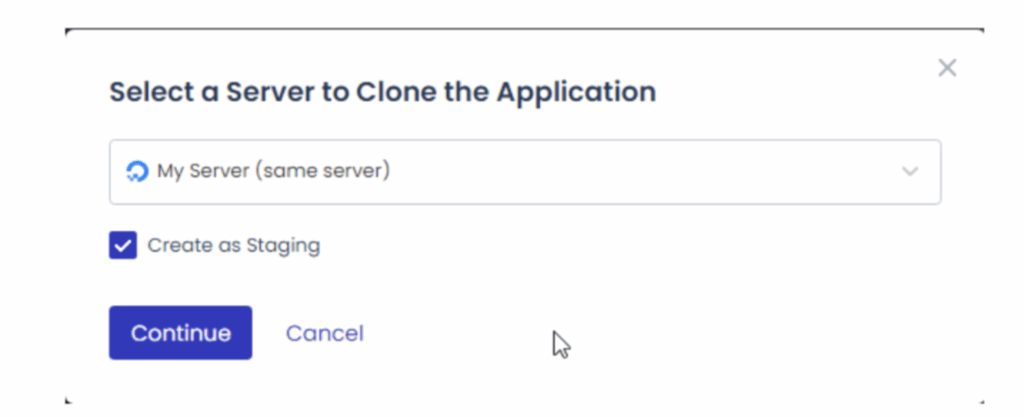
Creating a staging application can take some time.
- Step 4) Once the staging application is created >> You can see the Staging tag beside the website name under the Applications tab.
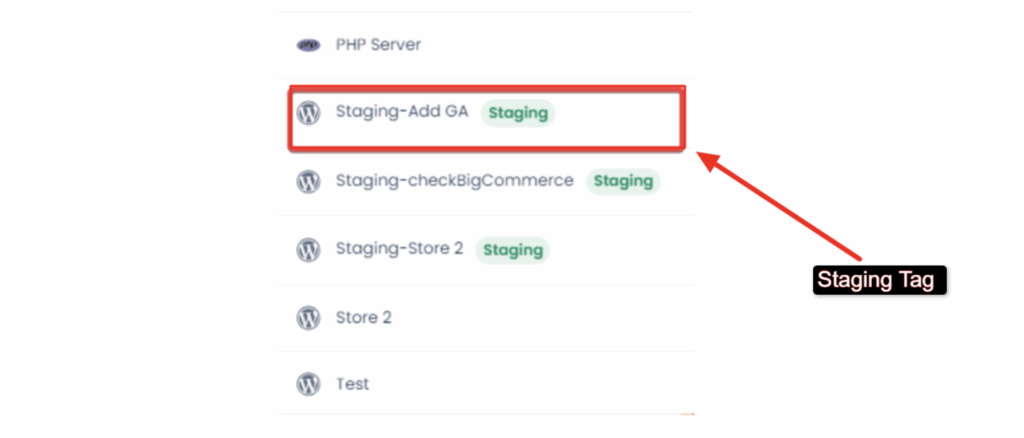
Wow! Your staging website is ready. You can safely make the changes to your website without worrying about the live website.
What Can You Do in the Staging Environment?
A staging environment is like a private sketchbook for your website. It’s where you can safely make changes, test features, redesign the website look and fix problems without touching your live site. Here’s what you can do in the staging environment:
You can Test Plugin or Theme Updates Without touching the Live Site
Before updating any plugin or theme on the real website, it’s important to test them in a staging area. Why? Because sometimes updates can crash your website or cause bugs due to compatibility issues. In staging, you can check if everything works well after the update, without risking your real website. If it looks good, you can push the changes to your live site.
You can Debug big technical Issues
If there’s something that’s not working properly on your website, you can use the staging environment to find the error and fix it. Let’s say it’s a plugin issue or a broken feature, you can easily troubleshoot in staging sites without disturbing your visitors UX on the real website. It’s the perfect place to experiment and fix things.
You can Try New Page Designs to boost the website’s look
Let’s say you want to launch a fresh look or a cool new feature, staging site can be your best drawing book where you can try all sorts of designs. You can build new layouts, test menus, change colors or add new sections. Once you’re happy with how everything looks, you can push the changes live.
You can optimize performance and test speed
See! You must know that website speed matters the most. In the staging environment, you can test different ways to speed up your website like enabling caching, optimizing images or minifying code. Check how fast your site loads and make sure it runs smoothly before applying changes to your live site.
How to Push Changes from Staging site to Live site?
Now that you’ve made all the possible changes on the staging site! It’s time to put it live. How to do that? Below, we’ve mentioned a proper guide on how you can make the changes live in just a single click. Let’s learn how 👍
- Step 1) Go to the Staging Application >> Then, go to the Staging Management >> Here, select push to publish the changes made in the staging site to the live website.
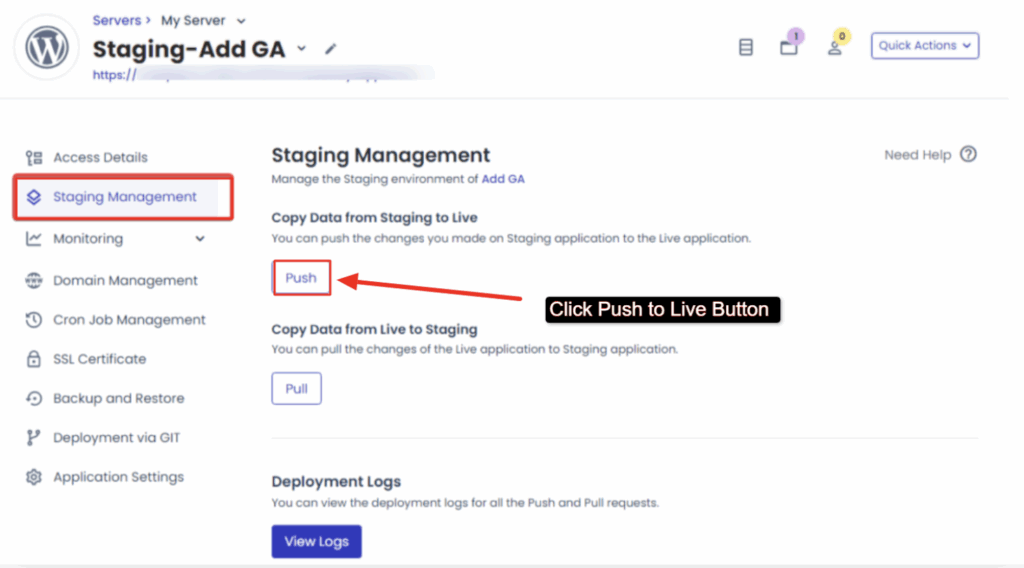
- You also have a choice to take a file and database backup >> Tick the checkbox to create backup of the website >> We recommend you to take a backup so that you can restore your original website in case of any issue.
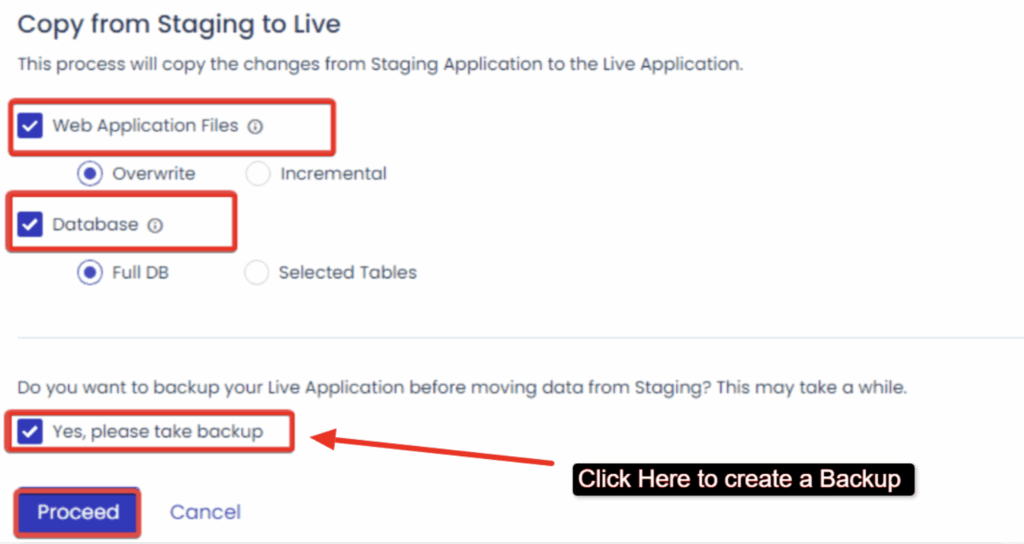
As you press the Proceed button >> All the changes that you put on the staging site will automatically push to the live site on the action of the single click.
Best Practices When Using Staging on Cloudways
When you use a staging environment on Cloudways, you can safely develop, test and deploy updates to your website. By following the best practices, you can ensure an easy transition from staging to live sites while maintaining the performance of your site.
Before doing anything, it’s important to create backups of both environments. Cloudways ensures this by offering both server-level and application-level backup options, including on-demand backups. This step allows you to easily restore your site as it was earlier in case of issues during the push process.
Other than backing up original data, testing the changes in the staging environment is also important as well. This includes verifying the responsiveness of your site across various devices, ensuring all things are working as planned and checking the payment and the checkout process if you’re using WooCommerce. It helps in identifying and fixing issues before they affect your live site.
Cloudways also provides a built-in password protection for staging sites. This feature restricts unauthorized access and prevents Google from indexing your staging site, thereby avoiding duplicate content issues.
Troubleshooting & Tips
If you’re facing issues with your staging environment, fixing them is easy. Let’s know how:
Let’s say your staging site isn’t syncing properly, the first thing you need to check is file permissions. Sometimes, certain files don’t have the right access settings, which can prevent proper syncing. Make sure your staging files have the right permissions so everything can move smoothly.
If you’re running low on space, you can simply upgrade your storage plan to get more space or do a quick cleanup by removing old backups or unused files. Regular cleanup not only frees up space but also helps your site run faster.
And if you’re getting SSL errors on your staging site? Then don’t panic. This usually happens as your SSL certificate needs a little refresh. Try to reissue the SSL certificate on your staging environment. This often fixes the problem and gets your site back to secure browsing.
These quick tips can save you hours. Just a few checks, and you’re good to go!
Before troubleshooting performance issues, learn How to Clear Cache in WordPress to ensure you are viewing the latest version of your website. Cached files can often prevent recent updates, design changes, or plugin modifications from appearing correctly.
Conclusion
Let’s wrap it up now! See! Cloudways’ staging tool is incredibly easy to use and super powerful, especially for WordPress users. If you’re a newbie beginner or a pro developer, the tool helps you create an exact copy of your live site in just a few clicks.
The biggest advantage is that You get a safe space to develop, test and troubleshoot without touching your live website. If you want to try out a new plugin, or need to change your theme design, or maybe you want to fix a bug, you can do it all on the staging site. This way, you avoid the risk of interrupting your live site and keep your visitors happy.
So, register for Cloudways account and get a staging site today. It’s the smart way to build, test, and grow your website, without the fear of going live with mistakes.



Table of Contents
- What Is a Staging Environment?
- Why Use Cloudways for Staging WordPress Sites?
- Things you should keep in mind before setting up staging site
- How to Create a Staging Environment on Cloudways?
- What Can You Do in the Staging Environment?
- How to Push Changes from Staging site to Live site?
- Best Practices When Using Staging on Cloudways
- Troubleshooting & Tips
- Conclusion