Table of Contents
- Secure Hosting Architecture
- Enable Free SSL with One-Click Installation
- Activate the Web Application Firewall (WAF)
- Use Two-Factor Authentication (2FA)
- Set Up IP Whitelisting for SSH and SFTP Access
- Regular Backups & Safe Rollbacks
- Keep Your Applications Updated
- Bot Protection & Login Security
- Monitor Security Logs & Use Cloudways Monitoring Tools
- Follow Coding & User Management Best Practices
- Conclusion



Enhancing Website Security with Cloudways: Best Practices 2026
Security is important, be it your physical Adidas store in New York or your online e-store. The way you secure your shop from thieves, similarly you need to protect your website from hackers.
So, what threats websites are prone to? See! Your website has data that includes customer’s payment details, owner’s personal details and more. What hackers do is that they carry out malicious login attempts, data breaches and direct DDoS traffic attacks to weaken your website’s server or crash it, thereby making the site environment vulnerable and it becomes easy for them to steal the data.
That’s why the security of your website is important as it protects the boundary of your site from cyber attacks and doesn’t allow any sort of unauthorised access to the site’s data. So, how to get rid of this issue? What should we do to protect the site from cyber attacks?
In this post, we’re gonna answer all your questions and even tell you about CloudWays, a leading managed cloud hosting platform, that offers a complete set of security features to secure websites against multiple threats.
Before we begin talking about the advanced website security features of CloudWays in great detail, let’s tell you in brief how it makes security setup easy for different users like for bloggers, developers and agencies.
See, first off CloudWays eliminates the manual configurations or third party tools and instead of that, it deploys automated security features like dedicated firewalls (filters out malicious traffic and prevent unauthorised access), regular security patches (automatically apply security patches), 2FA (adds extra layer of security to your accounts), bot protections and malware protection, powered by Imunify360.
So, let’s learn more about the security features offered by CloudWays. 👍
Secure Hosting Architecture
First,let’s talk about Cloudways’ security framework. It’s amazing! It integrates multiple layers of protection to ensure the safety of your applications or websites, which includes malware scanning, automated security patching and proactive threat detection.
CloudWays employs Imunify360’s firewall to guard against malicious traffic and unauthorized access. Plus, it also offers Fail2Ban that monitors login attempts, blocks suspicious activities to prevent server attacks.
We have an exclusive note for WordPress users! The CloudWays’ Patchstack-powered Vulnerability Scanner provides instant notifications about vulnerabilities in plugins and themes, enabling timely fixing.
Cloudways also implements server-level firewalls powered by Imunify360, offering 100% protection against various threats. What these Firewalls do is that they filter out malicious traffic, block unauthorized login attempts and defend against DDoS attacks.
So, we see CloudWays offers dedicated resources for each application, ensuring better isolation and enhanced security. This approach prevents the “noisy neighbor” from affecting others in shared hosting environments, where one application’s issues can impact others.
By allocating dedicated CPU, RAM, and storage, Cloudways ensures that each application operates independently, reducing the risk of performance issues.
Enable Free SSL with One-Click Installation
To boost website’s security and to make your site reliable among the visitors, CloudWays offers free LetsEncrypt SSL certificates that encrypts the connection between the site and the visitors ensuring no data leakage.
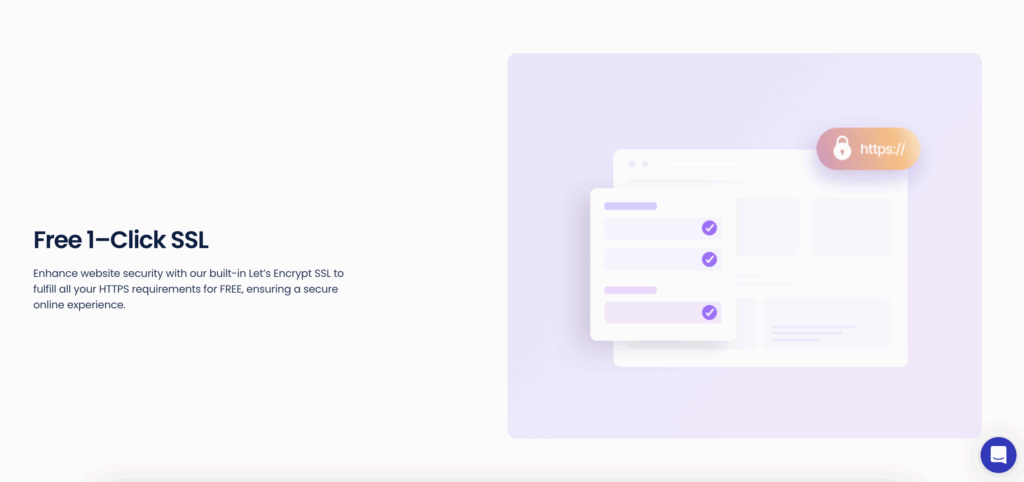
So, how does SSL protect Data? See! SSL encrypts the data transmitted between a user’s browser and your website, ensuring that sensitive information such as login credentials, personal details and payment information remains secure from cyber threats.
By installing SSL, your website changes from HTTP to HTTPS, signaling to visitors that the connection is 100% secure. This not only protects data but also enhances your website’s reliability, as modern browsers often display a lock icon to show that a site is secured with SSL.
Plus, if you’ve ever done SEO of a website, you must be knowing that Google always considers HTTPS as a ranking factor, improving site’s visibility in search results.
SSL is important to boost a website’s security! Now to help you get free SSL on your site, we’ve laid down step-by-step guide to enable Let’s Encrypt SSL via Cloudways:
- Log in to your Cloudways account >> Navigate to the Applications tab from the top menu.
- Now from the Application Management area >> Click on the SSL Certificate section >> Select the Let’s Encrypt option.
- Enter your email address and the domain name you want to secure
For multiple domains or subdomains, you can add them accordingly.
- Click on Install Certificate >> The installation process will initiate >> Upon completion, your website will be secured with HTTPS >> After installation, you can enable the HTTPS option to ensure all traffic is redirected to the secure version of your site.
See how easy it’s to install free SSL onto your website. The steps are easy to carry out, thanks to the user-friendly interface of CloudWays.
Now, what about the auto-renewal? What to do if I want to prevent any sort of expiry issue? If that’s what you’re thinking then let’s tell you that Let’sEncrypt SSL certificates are valid for 90 days.
By default, Cloudways enables auto-renewal for Let’s Encrypt certificates 30 days before its expiration date, ensuring continuous security without any manual interruption.
Activate the Web Application Firewall (WAF)
Another feature that CloudWays offer to boost website security is WAF. What WAF actually does is that it acts as a shield between your website and incoming traffic, filtering out hackers’ requests and allowing the good ones to pass through.
Cloudways’ WAF, powered by Imunify360, checks HTTP traffic to detect and block malicious activities such as SQL injections, cross-site scripting and bot attacks. This approach ensures that threats are resolved before they can impact your website’s performance or steal sensitive data.
It’s a server level protection that includes platform-level firewalls, bot protection and malware scanning, all made to keep your applications safe from various threats. Plus, Cloudways offers the Cloudflare Enterprise AddOn, which boosts security of your site.
Is WAF important for web applications like WordPress, WooCommerce and Laravel? The answer is yes! They’re popular targets for cyberattacks due to their widespread use and potential vulnerabilities.
Implementing a WAF is important for these platforms to prevent unauthorized access, data breaches and service disruptions. Cloudways’ WAF provides protection for these applications, ensuring that common threats are quickly mitigated.
Use Two-Factor Authentication (2FA)
CloudWays account also adds an extra layer of security to your website even if someone else knows your passwords, thanks to the 2FA protection model. By enabling 2FA you can ensure that unauthorised users’ access are blocked even if they know the right password.
It’s like there’s an in-built authenticator app (you need to set it up) that generates an OTP which you’ll need to verify to complete the access to your account securely.
Now, the question is how to enable this 2FA on your CloudWays account? Below, we’ve guided step-wise right from the login process. So, let’s get started:
- Start by logging into your Cloudways account >> Once logged in, Go to the Account section.
- Within the Account section >> Click on the Security tab >> Here, you’ll find the option to activate Two-Factor Authentication >> Click on Activate TFA to begin the setup process.
[After this, you’ll need a Time-based One-Time Password (TOTP) authenticator app on your mobile device. Install the appropriate app from your device’s app store.]
- After clicking Activate TFA >> A popup will appear displaying a QR code and a key >> Open your authenticator app and scan the QR code.
- See, if you want, you can manually enter the provided key into the app >> This links the app to your Cloudways account.
- The authenticator app will generate a six-digit verification code >> Enter this code into the popup on the Cloudways site >> Click Verify to complete the setup.
Look! It’s important for all your team members (if you’re having a corporate network or a business) to enable 2FA to maintain the security of your projects. Each team member can activate 2FA by following the same steps outlined above.
This setup simply adds an essential layer of protection to your work (keeping your projects safe from unauthorised access).
Set Up IP Whitelisting for SSH and SFTP Access
There’s one more thing that you can do to increase website security with CloudWays. You can ensure that only a set of authorised users can connect to your server, reducing harmful unethical access by possible hackers, thanks to IP whitelisting for SSH and SFTP access provided by CloudWays.
It’s like you add a list of IPs (you want to access the server) to the server ensuring secure access only by the users you want. This way you can be 100% sure that no unauthorized user can get into your servers as his IP isn’t listed in the database.
Let’s learn how to whitelist IP for SSH & SFTP access:
- First off, Log in to your Cloudways Platform >> Go to the Servers tab from the top menu Now, Select your desired server >> Click on the Security option >> Choose the Shell Access tab.
- Here, you’ll find two options: Allow all IP addresses except those blocked by the Cloudways security system / Block all IP addresses except those on the Whitelist (it means a list of Recommended IPs).
- You need to Select the second option to ensure only whitelisted IPs can access SSH and SFTP >> Add IP Addresses to Whitelist >> Under the whitelist section >> Enter the IP address you wish to allow.
- Click Add >> Then, Save Changes >> Repeat this process for any additional IPs you want to grant access.
There’s no limit to the number of IPs you can whitelist.)
You can also whitelist IP subnets (like this, 192.168.1.0/24) to allow a range of IP addresses. If your ISP provides a dynamic IP, consider using a VPN service that offers a static IP to maintain consistent access.
Did you know about a common threat where attackers try using various username and password combinations to get into the server? This type of attack is called Brute-force attacks.
How Cloudways secures your servers from such attacks is that it employs multiple strategies to eliminate such threats:
- Automatic Protection with Fail2Ban: Integrates Fail2Ban, a secure tool that monitors login attempts and bans IPs showing suspicious behavior, such as multiple failed login attempts.
- Bot Protection: It offers bot protection that identifies and blocks malicious bots attempting to exploit login endpoints.
- Strong Password Policies: Enforcing strong, complex passwords reduces the risk of successful brute-force attacks.
By using these security measures, Cloudways ensures that your server and applications are well-protected against brute-force attacks and other malicious activities.
Regular Backups & Safe Rollbacks
Backup is as important as any other security feature to protect the website’s data from accidental loss. If something goes wrong, let’s say a cyber attack or a system crash, you can easily restore your site.
What CloudWays offer is regular backup that happens to be a critical component of server security. By keeping copies of your data, you reduce the risk of downtime and data loss, which can be harmful to your business and reputation.
- You get a user-friendly interface that helps you schedule automatic backups for your applications and servers easily.
- You can even choose how often backups occur, like every 1, 3, 6, or 12 hours, depending on your needs.
- Cloudways even allows you to retain backups for a period from 1 to 4 weeks.
- For extra security, you can enable off-site backups, which store your data in a separate, secure location. It reduces the risk of data loss due to server issues.
If in case there’s a cyber attack issue, Cloudways provides a restoration feature. This allows you to revert your application or server to a previous backup point with just a few clicks.
Keep Your Applications Updated
To maintain security, performance and compatibility of your website, keeping your applications updated and regular updates are important. If you have an outdated system, then in that case it can expose your site to a lot of issues and even under-perform.
CloudWays offers timely updates to ensure that your website runs smoothly and securely. But how? See! CloudWays offers SafeUpdates, an AddOn, designed to automate WordPress updates safely. This tool performs a series of steps before applying the updates.
- First, it takes a fresh backup of your site to allow easy rollback if needed >> Then, it sets up a temporary staging site that looks just like your live site.
(It conducts visual regression testing, performance tests, HTML checks, browser console monitoring and network error detection on the staging site)
- It applies the selected updates in the staging environment >> Then repeats the testing procedures again to ensure everything works correctly after the updates.
- And then if all tests pass >> The updates are applied to your live site.
The entire process mentioned above ensures that updates don’t disrupt your WordPress site’s functionality or appearance.
What about apps that are built-on the Laravel platform? For Laravel applications, keeping dependencies updated is important for security and performance. Cloudways recommends to use Git and Composer for this purpose:
- First off, clone your Laravel project repository to your Cloudways server.
- Then use Composer to manage dependencies >> Run composer update to update the dependencies to the latest versions.
Regularly updating your Laravel application’s dependencies ensures compatibility with the latest features and security patches.
OK, What if you don’t update your plugins? See! Outdated plugins and themes are entry points for attackers.
so we, on behalf of the entire CloudWays team, advise you to keep all plugins and themes updated to their latest versions, Delete any plugins that are no longer in use to reduce risk of attacks and don’t use pirated plugins as they often contain malicious code.
Bot Protection & Login Security
There’re hackers out there who use bots to unethically access your website. To help you out to eliminate this, we’re gonna talk about CloudWays’ in-built bot protection feature, powered by MalCare, that’s specifically made to secure your website from malicious bots.
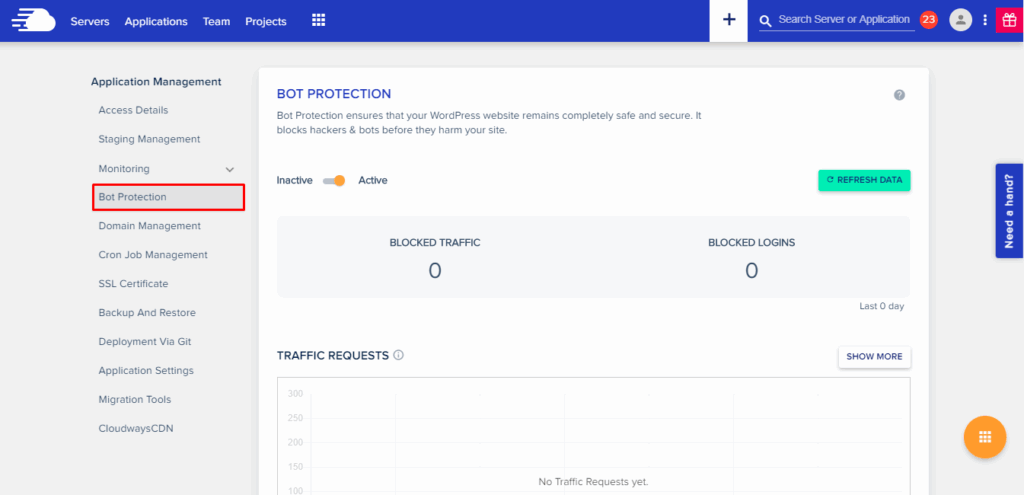
What this bot protection does is that it identifies traffic patterns, blocks harmful bots and reduces server resource usage. By doing so, it safeguards your site against brute force attacks and DDoS attacks, ensuring high performance and good security.
As far as securing WordPress admin is concerned, Cloudways highly recommends you to change the default login URL to a custom one, making it harder for attackers to find. Plus, 2FA adds an extra layer of security, requiring users to provide two types of identification before accessing the main admin panel.
To further enhance login security, Cloudways lets you use plugins that limit the number of login attempts. These plugins prevent attackers from guessing your password by restricting the number of failed login attempts from a single IP address.
Monitor Security Logs & Use Cloudways Monitoring Tools
Now, to monitor and analyse your application security and performance, CloudWays offers tools that logs errors, do real-time health metrics and even alerts you in case of an issue.
Cloudways provides detailed access and error logs for your applications, enabling you to track and investigate any suspicious activities. Access logs record all incoming requests to your server, including visitor IP addresses, HTTP status codes, timestamps, and requested assets.
These logs are available for PHP, Apache and NGINX components, offering insights into your application’s interactions.
Error logs, on the other hand, capture issues and errors encountered during request processing. They include details about HTTP error statuses, helping you identify and resolve potential problems instantly. These logs are accessible directly from the Cloudways Platform, eliminating the need for third-party solutions.
Cloudways’ real-time monitoring system keeps a surveillance eye on your server’s health and performance. It provides access to over 16 different metrics, including CPU usage, memory consumption, disk usage, and bandwidth. This surveillance ensures that any irregularities are detected easily, allowing for corrective actions.
Wanting to know about your application’s health right after or a bit before an issue occurs? Cloudways allows you to set up alerts for unusual activities or traffic spikes.
The CloudwaysBot, an intelligent assistant, delivers real-time notifications about server health, application performance, and security issues. These alerts can be received through various channels, including email, Slack, and Zoho mail, ensuring that you’re always informed about issues.
Follow Coding & User Management Best Practices
Cloudways knows the importance of secure coding in PHP to protect web applications from common vulnerabilities. Key steps to ensure that includes:
- Using prepared statements to prevent SQL injection attacks
- Validating and sanitizing user inputs
- Managing sessions securely.
It’s also advised to keep PHP versions updated (use the latest security patches and features)
For WordPress users, Cloudways provides a robust security checklist. Essential practices include:
- Keeping WordPress core, themes, and plugins updated
- Using strong and unique passwords
- Installing security plugins to monitor and protect against threats.
- Implementing SSL certificates
- Limiting login attempts to tighten site security.
As per our technical research team’s analysis, Cloudways also advises regular audits of user accounts across PHP, Laravel, and WordPress applications to identify and remove inactive or unnecessary users. This in turn, minimizes potential entry points for unauthorized access.
Conclusion
Website security is important and CloudWays knows it well. It offers you automated security features where you don’t need to make any effort to do it manually. Every step is carried out on its own. CloudWays know the importance of time and so it saves you time and effort by offering the website security features automatically.
Cloudways offer Cloudflare add-on, advanced DDoS protection and a web application firewall to guard against malicious traffic. SafeUpdates automates the process of updating WordPress core, themes, and plugins, reducing the risk of vulnerabilities due to outdated software.
It also offers 2FA that adds an extra layer of security to your Cloudways account, while IP whitelisting allows you to control access to your servers. Automated and off-site backups ensure that your data is safe and can be restored in case of any incidents.
So, secure your website with CloudWays and its right tools. Start by setting up your secure website with Cloudways today and take proactive steps to keep threats away.