Project Zomboid is one of those games that gamers instantly fall in love with. The open-world survival gameplay and the multiplayer experience makes it incredibly addictive, especially when you’re playing with friends.
See! Some gamers are technical. If they run big gaming communities, they’re comfortable using commands, Linux servers, to host a Project Zomboid dedicated server. But what about newbie gamers?
What about players who just want to enjoy multiplayer Zomboid without any code or commands?
That’s exactly why hosting a Project Zomboid server can feel difficult, especially if you’ve never done it before.
In this blog, we’re going to make things simple. We’ll explain what you need before you start and how to host a Project Zomboid dedicated server step by step, using an easy-to-use Game Panel.
The steps are explained in simple English, so you can simply read and follow along.
We’ve also mentioned screenshots, so if you get stuck at any point, you can match the steps and move forward.
So, let’s get started!
What Do Gamers Need Before Hosting a Project Zomboid Game?
Before we jump into how to host a Project Zomboid dedicated server, let’s talk about what you actually need.
Project Zomboid may sound like a simple game, but behind the scenes it handles a lot of game data, player actions, world updates and mods. When multiple players join the same world, your server needs enough power to keep everything lag-free.
For that, you need a Project Zomboid dedicated server that runs on a Linux OS. Why Linux? Because it’s stable and commonly used for game servers. Most hosting providers recommend new Linux versions to avoid compatibility issues.
For hardware, a solid setup should include:
- A multi-core (>3.5GHz & 4vCore) CPU to handle multiple players
- At least 4 to 8 GB of RAM for smooth gameplay & modification support
- A fast internet connection (around 1 to 10 Gbps) to prevent lag
- Enough storage (Upto 25GB to 50GB NVMe SSD Storage) for game files and backup
Another important thing! Choose a hosting provider that offers a Game Panel.
It lets you manage your server, install games, start or stop the server and change settings without letting you type commands. For non-technical gamers, it’s the best option.
How To Host a Project Zomboid Dedicated Server?
Now that you know what you need, let’s see how to host a Project Zomboid dedicated server, step by step.
If you’re a complete beginner gamer who’s highly excited to play Project Zomboid server with friends but has no idea where to start, don’t worry! Just, follow the steps exactly as explained, and you’ll have your server up and running in no time. You can also refer to the screenshots if you get stuck at any step.
NA / EU / AS / AU server locations for low-latency gameplay Unlimited player slotsFull mod supportA custom Game Control Panel with one-click setup, Linux-based dedicated servers, Free MySQL database, 24/7 Discord community support, 3+ months of backups, Built-in firewall protection, Full FTP and file access. All of this makes Gravel Host the perfect choice for newbie gamers.
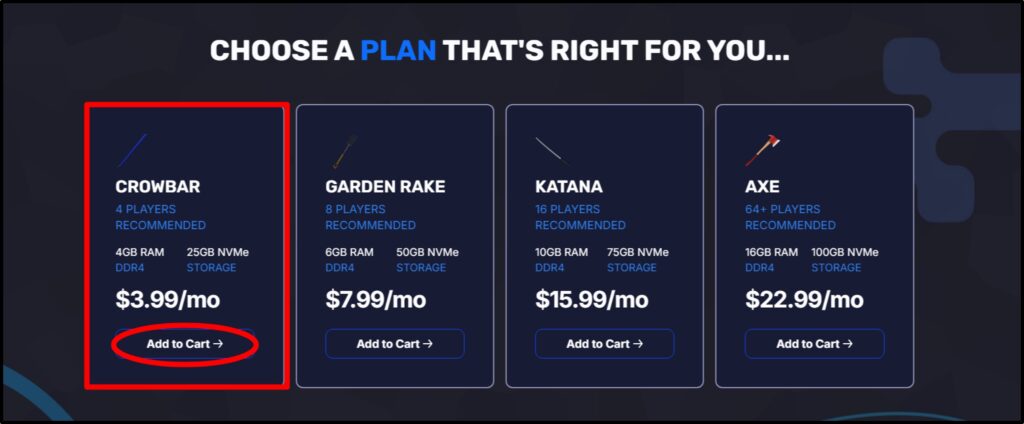
Step1) Open the GravelHost’s official website >> Select the 1st plan of GravelHost’s Project Zomboid dedicated server >> Click Add to Cart to proceed.
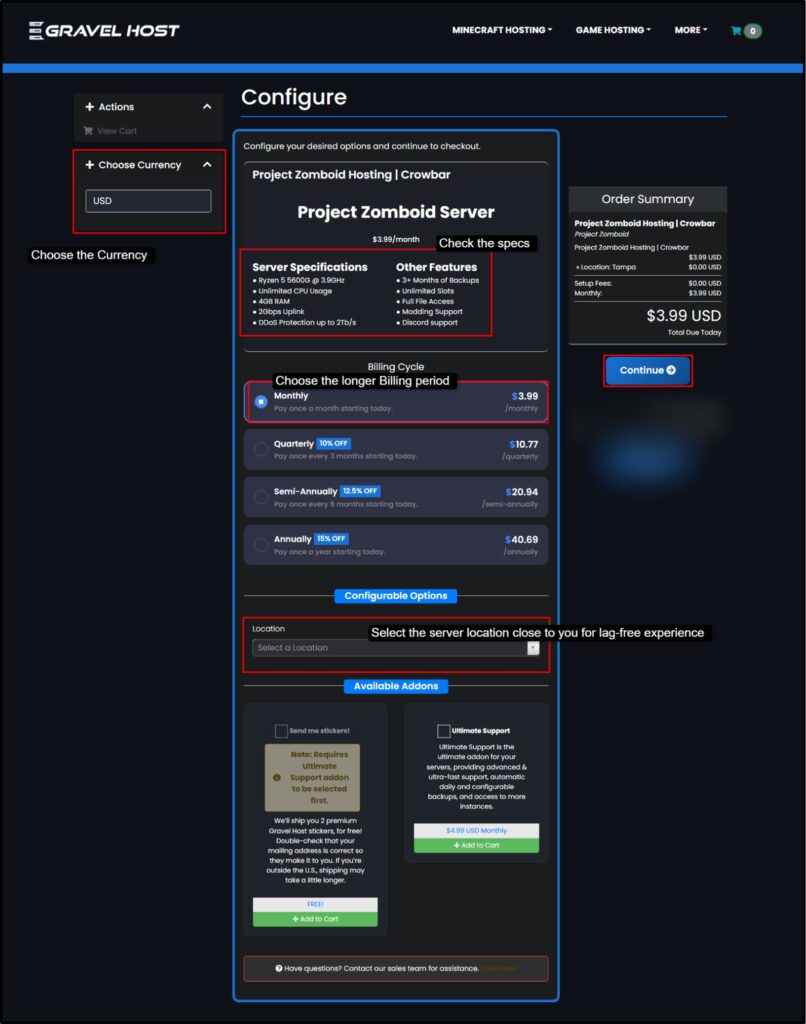
Step2) First, check the server specifications listed >> then, scroll further and see the billing cycle >> Set the Billing Cycle to Annually to save more (Instant 15% OFF on regular server price) >> Choose a server location closest to you (NA, EU, AS, or AU) for better performance (You can do a Live Ping Test too) >> Choose the Currency to USD / GBP >> Click Continue to proceed.
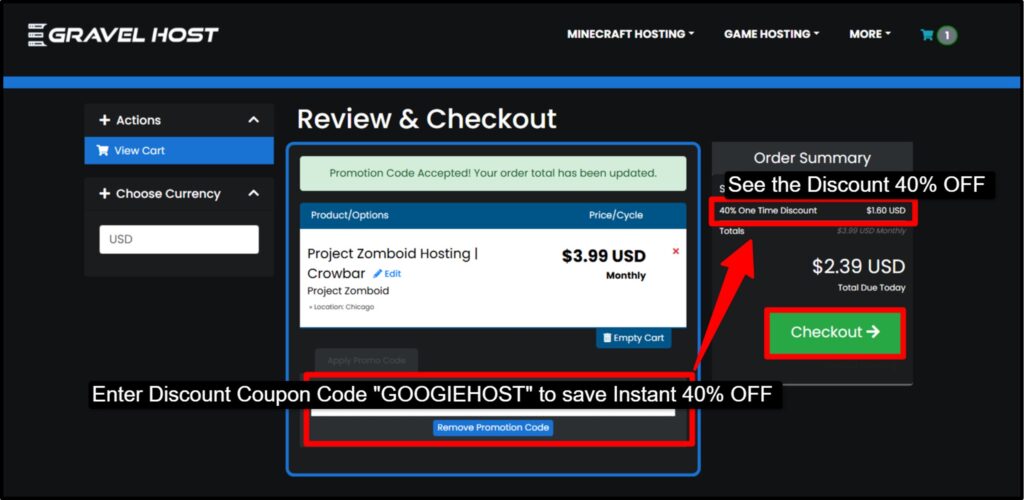
Step3) Now lastly, you have to review the configuration of the server >> Check the Payment details & the server location >> Add Project Zomboid server discount coupon “GOOGIEHOST” and Get Instant 40% One Time Discount >> Click the Checkout button
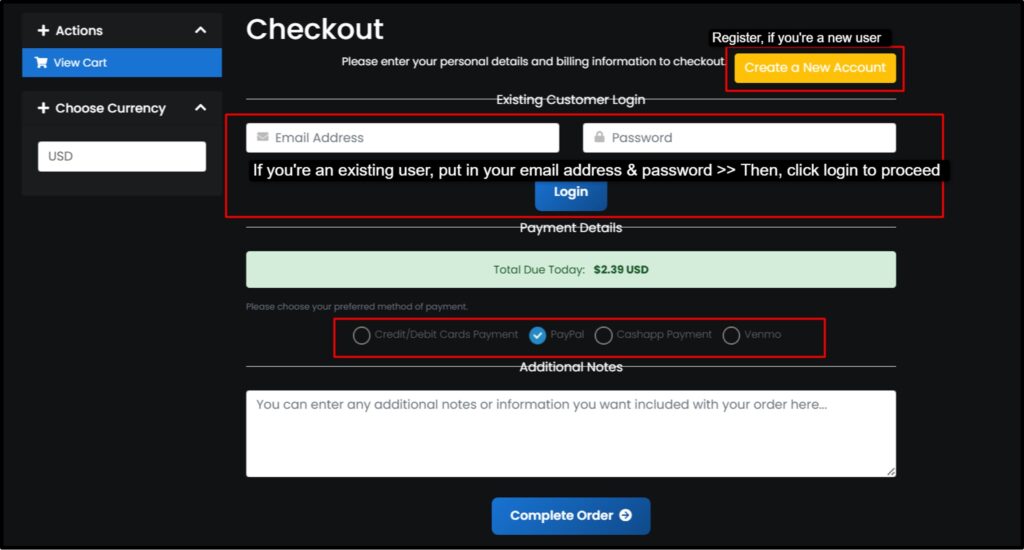
Step4) If you’re a new user, you need to register your id to GravelHost (You Name, Contact details, Country, billing address, Billing details, a strong Password & that’s it) >> But if you’re an existing user, in that case, you need to put in your login credentials >> Choose the payment method (Paypal / Card / CashApp / Venmo) >> Click the Complete Order finally.
Step5) After the payment is confirmed and your server is ready >> Log in to the Gravel Host Game Control Panel >> You’ll see your server listed in the dashboard >> Click Manage to access server controls
This panel replaces complicated Linux commands and makes server management easy.
Step6) Inside the Game Panel >> Click Create Instance >> Select Project Zomboid from the list of supported games >> Confirm the setup >> The Game Panel automatically installs all required server files for you.
Step7) After the instance is created >> Double-click the Project Zomboid instance >> Click Start >> Your Project Zomboid dedicated server will begin running within seconds.
Step8) Once the server is live >> Copy the connection details from the panel >> Open Project Zomboid on your PC >> Paste the server IP & credentials to join
That’s it!
You’re now inside your own Project Zomboid multiplayer server. Adjust gameplay rules, player limits, mods, and communication settings. All changes can be done without commands.
Conclusion
We have made it easy for newbie gamers to host their own Project Zomboid dedicated server. You simply don’t need to know Linux commands, server files, or complicated configurations, just simply follow the steps and you’re ready to play.
We have provided you everything: what you need before you start, how to choose the right hosting provider and how to set up the server using a Game Panel.
And, for this purpose, we have chosen Gravel Host as it offers powerful hardware, global server locations, mod support, strong security and an easy-to-use control panel.
If you want to host your own Project Zomboid multiplayer world, this setup makes it simple and fast. Now you can focus on surviving the game 😂