How to Clear Cache in WordPress 2026: 7 Proven Methods

You made a change on your WordPress site. You hit save. You refresh the page. And nothing changed.
Has it ever happened to you? If yes! Then, lemme tell you that it is a classic cache problem and almost every WordPress user faces it at some point.
Cache is your website’s best friend when it comes to speed. But it can also be the reason your updates never seem to show up. I have brought good news for you. It is that clearing cache in WordPress takes less than a minute once you know where to look.
I am going to tell you 7 proven methods on how to clear cache in WordPress. I will cover everything from cache plugins and browser cache to hosting dashboards, CDN, object cache, cPanel and quick keyboard shortcuts.
By the end of this article, you will know exactly what to do every time your site shows old content.
What is Cache in WordPress?
Cache is a saved copy of your web pages.
When someone visits your site, WordPress normally runs several database queries to build the page and send it to the visitor’s browser. This takes time and uses server resources like RAM, storage and all.
Caching solves this time taking problem by storing a ready-made version of the page.
The next time someone visits, WordPress serves that saved copy instead of rebuilding the page from scratch. The benefit here is that you get a faster site and a better UX for your visitors.
There are several types of cache that affect a WordPress site. Understanding each one helps you know which one to clear when something goes wrong.
- Page cache: Stores full HTML pages to avoid repeated database calls, reducing server processing time and dramatically improving load speed for returning visitors.
- Browser cache: Your visitor’s browser saves images, CSS, and JS files locally, so repeat visits load faster by avoiding re-downloading static resources from the server again.
- Server cache: Your hosting provider stores copies of pages at the server level, minimizing PHP execution, which leads to faster response times and improved scalability.
- CDN cache: Content delivery networks store copies of your site across global servers. This ensures that your users load content from the nearest location. It reduces latency.
- Object cache: Stores results of database queries using tools like Redis or Memcached. This reduces repeated database hits and speeds up dynamic content generation significantly for complex WordPress sites.
Each type can cause issues on its own. That is why I will show you how to clear all of them.
Why You Should Clear Cache in WordPress
Cache is great for performance but it is not perfect. There are several situations where you need to clear it to keep your site running properly.
Here are the most common reasons to clear WordPress cache:
- Your site shows old content even after you update it: Cached versions may still be served instead of fresh content, preventing recent edits, new text or images from appearing to visitors immediately.
- CSS or JavaScript changes are not reflected on the front end: Cached static files can override your latest code changes, causing styling issues or broken functionality until cache is cleared and updated files reload properly.
- Plugin or theme updates are causing visual glitches: Old cached assets may conflict with updated files, leading to layout breaks, missing elements or inconsistent design.
- Visitors report seeing outdated pages: Their browsers or CDN may still serve cached versions, means that users view older snapshots of your site instead of the most recent live version available.
- You are troubleshooting a bug and need a fresh load: Clearing cache ensures you are testing the actual current version of your site. This also eliminates false positives caused by outdated cached data.
- You just migrated your site to a new domain or server: Cached URLs or paths, may still point to the old setup, causing broken links or incorrect redirects across your website.
Missing even one layer of cache can leave your site showing stale content. That is why I recommend checking all the cache types when something seems off.
Let’s now get into the 7 methods you can use.
7 Proven Methods to Clear Cache in WordPress
I have put these methods in order from the easiest to the most advanced. You can start from the top and work your way down if the first method does not solve your issue.
1. Clear Cache Using WordPress Cache Plugins
This is the most common and easiest method for most WordPress users.
Cache plugins sit inside your WordPress dashboard and give you a simple button to clear all stored cache files. No technical knowledge needed at all. Just in one click, your job is done.
The most popular cache plugins right now are WP Rocket, W3 Total Cache, and LiteSpeed Cache. Each one has a slightly different UI but the process is the same.
So, if you follow the steps below, you won’t get confused at all. The process is somewhat the same in every plugin.
Here is how to clear cache using a plugin:
- Log in to your WordPress admin dashboard >> Go to the plugin settings from the left sidebar
- Look for a button labeled Clear Cache, Purge Cache, or Flush Cache >> Click it
- Wait a few seconds for the confirmation message
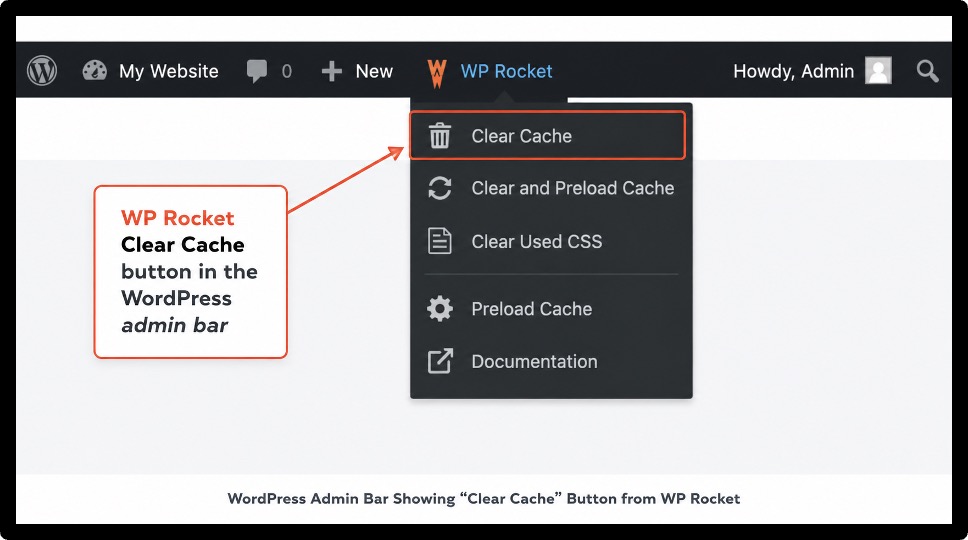
With WP Rocket, you will also see a Clear Cache option directly in the top admin bar. You do not even need to go into the plugin settings. One click from the top bar and you are done.
With LiteSpeed Cache, go to LiteSpeed Cache in your left sidebar and click Purge All. With W3 Total Cache, go to Performance and then Dashboard and click the Purge All Caches button.
When to use this method: Use this method every time you update a page, publish new content, change your theme settings, or install a plugin.
2. Clear Browser Cache
Browser cache is the copy your own browser has saved on your computer.
Even after clearing your plugin cache, your browser might still show you the old saved version of the page. This is why you sometimes see outdated content even when everything else is cleared.
The process to resolve it is very simple. You just need to clear your browser’s stored data.
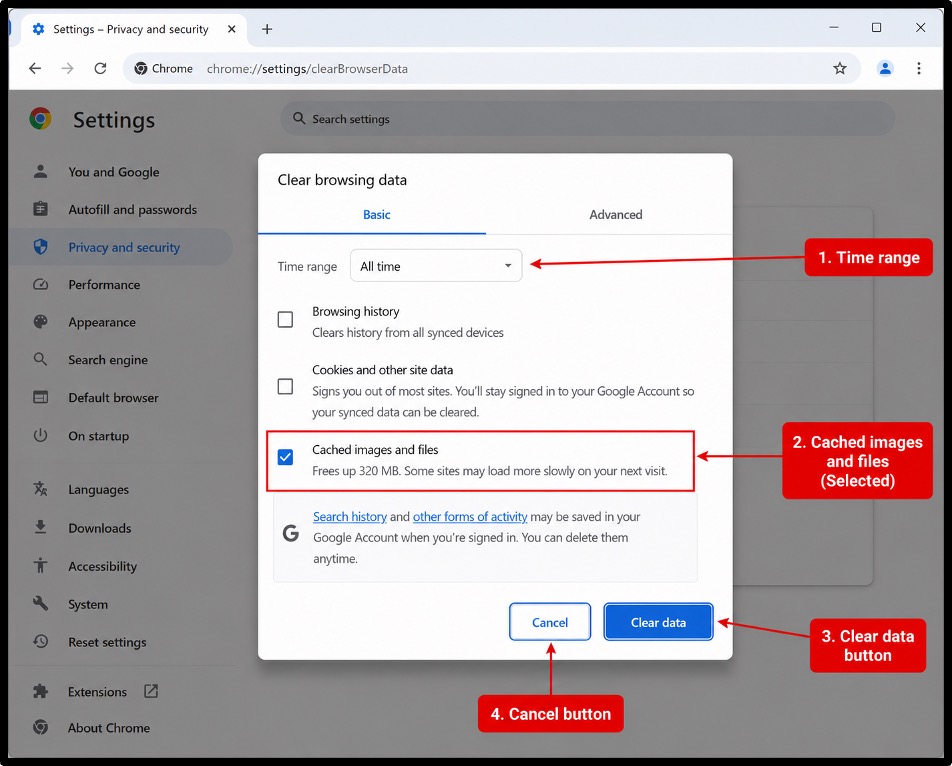
Here is how to do it in Chrome:
- Click the three-dot menu in the top right corner >> This opens Chrome’s main menu where you can access settings.
- Go to Settings and then Privacy and Security >> Navigate through the settings panel >> Find options related to cookies and browsing history.
- Click Clear Browsing Data >> This opens a popup window where you can choose what type of stored data you want to remove from your browser.
- Check the box for Cached Images and Files >> This ensures Chrome deletes stored copies of website resources that may be causing outdated content or display issues.
- Set the time range to All Time >> Selecting this removes all cached data stored over time >> Ensure no old files remain that could interfere with updated website content.
- Click Clear Data >> This final step deletes the selected cached files >> Forces Chrome to load fresh versions of websites the next time you visit them.
For Firefox, the steps are almost the same. Click the three-line menu >> Go to Settings, then Privacy and Security >> Scroll down to Cookies and Site Data >> Click Clear Data.
For Microsoft Edge, Go to Settings >> Privacy Search and Services >> Click Choose What to Clear under Clear Browsing Data.
When to use this method: Use this when you are seeing old content on your own device after clearing the plugin cache. If a visitor reports seeing old content, ask them to clear their browser cache too.
3. Clear Cache via Hosting Provider
Many hosting companies build their own caching system directly into their servers.
This is called server-side caching. It runs separately from your WordPress cache plugin, which means clearing your plugin cache alone is not always enough.
Popular hosts like Hostinger, YouStable, Bluehost, SiteGround, WP Engine and Kinsta all have built-in server-level caching. The steps to clear it vary slightly by host but the idea is the same.
Here is the general process:
- Log in to your hosting dashboard >> Look for a section called Performance, Speed, Caching, or Optimization
- Find the button that says Clear Cache, Flush Cache, or Purge Cache >> Click it
- Wait for the confirmation message
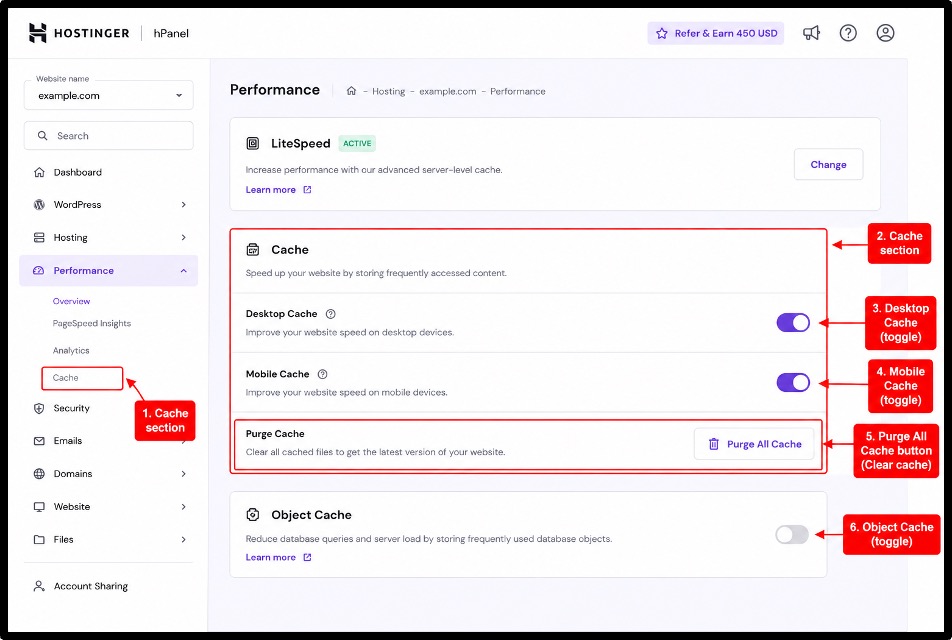
On SiteGround, this option is found in the Site Tools under the Speed section. On Hostinger, go to Hosting, select your site, and look for the Cache option in the left sidebar. On Bluehost, it is available right in the dashboard under My Sites.
When to use: Use this after you update themes, install new plugins, or make server-side changes. This is a step many beginners skip, which is why their site still shows old content even after clearing plugin cache.
4. Clear CDN Cache (Cloudflare, etc.)
A CDN or Content Delivery Network stores copies of your website across servers all around the world. This makes your site load faster for visitors in different countries.
But it also means those remote servers might still be serving an older version of your site even after you update it.
Cloudflare is the most widely used CDN for WordPress sites. Here is how to clear cache through Cloudflare:
- Log in to your Cloudflare dashboard at cloudflare.com >> Select your website from the list
- Click on Caching in the left sidebar >> Click the Configuration tab
- Scroll down and click Purge Everything >> Confirm the action in the popup
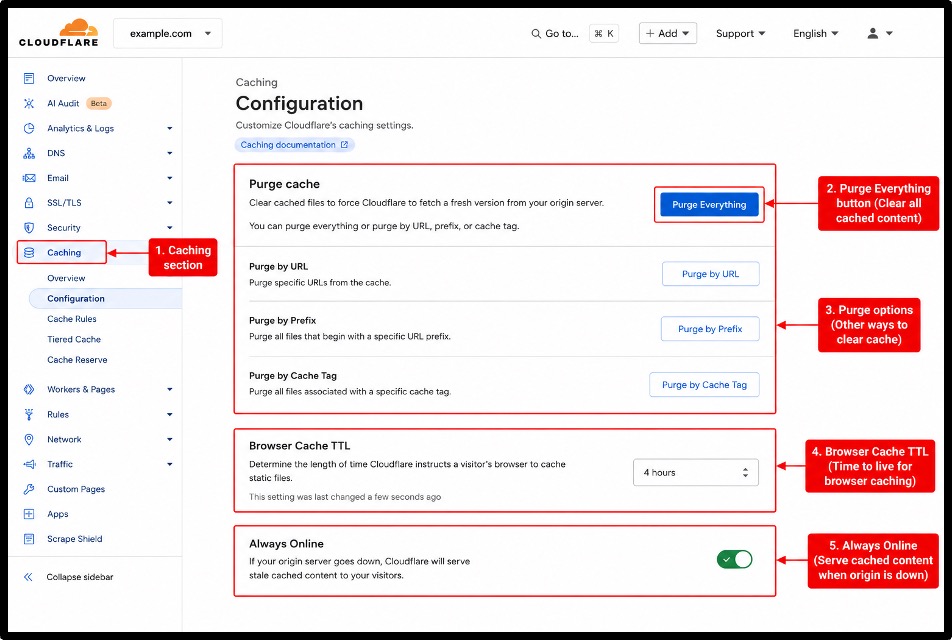
You will see a success message once the cache is purged. This forces all Cloudflare servers worldwide to fetch a fresh copy of your site the next time someone visits.
Most other CDN providers like BunnyCDN, KeyCDN, or StackPath have a similar Purge or Flush Cache button in their dashboards.
When to use this method: Use this after making major changes to your site, especially after updating your homepage, hero images, or global styles.
5. Clear Object Cache (Advanced Method)
Object cache is a more advanced type of caching that stores the results of database queries.
Instead of caching the full page, it saves individual database results like menu items, widget data, or transient options. This reduces the number of times WordPress has to ask the database for the same information.
Object cache is commonly used on high-traffic sites, WooCommerce stores, and membership sites. Tools like Redis and Memcached power object caching. Your hosting provider usually sets this up for you.
Here is how to flush object cache:
- Through your hosting dashboard: Look for a Redis or Object Cache section and click Flush or Purge
- Using a plugin: The Redis Object Cache plugin by Till Kruss has a Flush Cache button inside WordPress settings
- Via WP-CLI: Run the command wp cache flush from your site’s root directory using SSH
If you are on managed hosting like Kinsta or WP Engine, object cache is handled automatically. You can flush it from the hosting dashboard under the cache management section.
When to use this method: Use this when you see database-related issues or when updates to menus, widgets, or transients are not showing up after clearing other caches.
6. Clear Cache via cPanel or Server
This is a more hands-on method meant for users who are comfortable with their hosting control panel. cPanel is the control panel used by many shared hosting providers. It gives you direct access to your site’s server files, including cached files.
Here is how to clear cache manually through cPanel:
- Log in to your cPanel at yourdomain.com/cpanel >> Go to the File Manager section
- Navigate to your WordPress site’s root folder, usually public_html
- Look for a folder called cache, wp-content/cache, or similar >> Select all files inside that folder and delete them
Some cPanel installations also have a dedicated cache tool. Look for Caching, LiteSpeed Web Cache Manager, or Nginx Cache in your cPanel dashboard. Click the relevant option and use the purge or clear button.
This method gives you full control but requires careful navigation. Do not delete any folders outside the cache directory.
When to use this method: Use this as a last resort when plugin-based cache clearing is not working, or when you need to clear old cache files from a previously deleted plugin.
7. Use Hard Refresh (Quick Fix)
A hard refresh forces your browser to skip its local cache and download a completely fresh version of the page you are viewing.
This is the fastest method and takes just one keyboard shortcut. It is not a permanent fix for all cache issues but it works great when you just need to check if your latest changes are live.
Here are the keyboard shortcuts for a hard refresh:
- Windows and Linux: Press Ctrl + F5 or Ctrl + Shift + R
- Mac: Press Cmd + Shift + R
- Chrome on any system: Hold Shift and click the refresh button
You can also open an Incognito window in Chrome or a Private window in Firefox or Edge. This bypasses the browser cache entirely without clearing it.
It is a great way to check what a first-time visitor sees on your site.
When to use this method: Use this for a quick check after making small changes. This clears only your browser’s view, not the server-side or plugin cache.
Bonus Tips to Manage WordPress Cache Effectively
Clearing cache is important but managing it well from the start saves you a lot of headaches down the road.
Here are a few tips that will make your caching setup more reliable.
- Enable automatic cache clearing: Most cache plugins let you set rules to auto-clear cache when you publish or update content. Turn this on so your site always shows fresh content without manual effort.
- Use only one cache plugin at a time: Running two cache plugins together causes conflicts. Pick one that suits your hosting environment and stick with it.
- Avoid caching dynamic content: Pages like checkout, cart, and user dashboards should not be cached. Most plugins let you exclude these pages from caching. Make sure those exclusions are set up correctly.
- Update your plugins and themes regularly: Outdated plugins can cause caching conflicts. Keeping everything updated reduces the chance of cache-related issues.
- Test after clearing cache: After clearing cache, visit your site in a new incognito window to confirm the changes are showing up correctly before calling it done.
Common Cache Issues and Fixes
Even after clearing cache, some issues can still show up. Here are the most common ones and how to fix them quickly.
Changes not showing after clearing caches
This usually means one layer of cache is still holding an old copy. Work through this checklist:
- Clear cache using your plugin: Start with your WordPress caching plugins, as it controls page or object caching and is often the primary layer serving outdated content to visitors.
- Clear your browser cache: This helps confirm whether the issue is local, since browsers may store older versions of files and ignore your latest site changes.
- Clear your hosting provider’s server cache: Many hosts run server-level caching that overrides plugin settings, so clearing it ensures the server delivers fresh content instead of previously stored page versions.
- Clear your CDN cache on Cloudflare: CDNs store copies across global servers, so purging ensures users worldwide receive the latest version rather than outdated cached files.
- Do a hard refresh with Ctrl + F5: This forces your browser to reload all resources from the server, bypassing local cache and ensuring you see the most recent updates immediately.
CSS or JavaScript Not Updating
This happens when your cache plugin is minifying or combining CSS and JS files. The old combined file gets cached. Go to your plugin settings and clear the minified files separately.
In WP Rocket, go to Tools and click Clear Cache under CSS and JS.
Login or Logout Issues
Cached pages sometimes break WordPress login flows. Most cache plugins let you exclude the login page, dashboard, and user account pages from caching.
Check your plugin settings and make sure those pages are excluded.
Quick Troubleshooting Checklist
Just go through this checklist to fix the issues quickly:
- Clear plugin cache: Remove stored page copies from caching plugin
- Clear browser cache: Delete locally saved files causing outdated content
- Clear hosting server cache: Purge server-level cache storing old page versions
- Clear CDN cache: Remove cached files from global delivery servers
- Check if dynamic pages are incorrectly being cached: Exclude login, cart, checkout and account pages
- Deactivate and reactivate your cache plugin: Reset configuration and clear any stuck cache rules
- Check for conflicting plugins: Identify plugins interfering with caching behavior or rules
Best WordPress Cache Plugins (2026)
There are many cache plugins available but three stand out as the most reliable options. Here is a quick overview of each one and when to use them.

WP Rocket
- Global Content Delivery
- Built-in Performance Hub
- Excellent Support

LiteSpeed Cache
- Server-Level Full-Page Cache
- Content Delivery Network Support
- Object Cache Support

W3 Total Cache
- File Minification
- CDN Integration
- Mobile & AMP Support
Brief comparison (speed, ease of use, pricing)
To help you understand all the WP cache plugins at just a single glance, I’ve listed all the features in a form of a comparison table to help you choose the best:
| Features | WP Rocket | LiteSpeed Cache | W3 Total Cache |
| Price | $59 per year (single site) | Free | Free & $99 per year Pro |
| Ease of Use | Very Easy | Moderate | Complex |
| Server-Level Cache | No | Yes (LiteSpeed servers) | Partial |
| Best For | Most non-LiteSpeed hosts | LiteSpeed/Hostinger users | Developers, tech users |
| Free Version | No (14-day guarantee) | Yes (fully featured) | Yes |
| Core Web Vitals | Excellent | Excellent on LSCache | Good if configured well |
| Active Installs | 3.5M+ | 5M+ | 1M+ |
FAQs: How to Clear Cache in WordPress
How often should I clear WordPress cache?
You do not need to clear it on a fixed schedule. Clear cache whenever you update content, install or update a plugin, change your theme or notice your site is showing old information.
Will clearing cache break my website?
No. Clearing cache does not delete your actual site content. It only removes the stored temporary copies. Your pages, posts, images, and settings remain untouched.
Why is my website still showing old content after clearing cache?
You may have cleared only one layer of cache. WordPress sites have multiple cache layers including plugin cache, browser cache, server cache, and CDN cache.
Do I need a cache plugin for WordPress?
Yes, for most sites a cache plugin is necessary. Without it, WordPress rebuilds every page from scratch on every visit using multiple database queries. This slows your site down and uses more server resources.
Which cache plugin is best in 2026?
LiteSpeed Cache is the best choice on LiteSpeed-powered servers like YouStable because it caches at the server level and is completely free.
why is my WordPress cache not clearing?
Your WordPress cache is not clearing because there may be multiple active cache layers, that includes plugin, server, browser, or it may also include CDN cache. To solve this problem, you can clear all cache layers and hard refresh your browser to see the final updated content.
Conclusion: How to Clear Cache in WordPress
Cache is one of the most important performance tools in WordPress.
It speeds up your site and reduces server load. But when it holds onto old copies of your pages, it becomes a problem you need to solve fast.
I told you 7 proven methods to clear cache in WordPress.
You now know how to clear it through plugins like WP Rocket, LiteSpeed Cache, and W3 Total Cache. You know how to handle browser cache with a few clicks or a keyboard shortcut. You also know how to access your hosting dashboard to flush server cache on providers like YouStable and Bluehost.
You know how to purge CDN cache on Cloudflare. And you know the advanced steps for object cache and cPanel.
Each method targets a different layer of cache. When you clear all of them together, you give your site a completely fresh start.
The biggest tip that I wanna give? Make it a habit to clear all cache layers after major updates. Most cache problems come from skipping one step.
Now that you have this guide, you will not have to guess which step that was. Save this article and come back to it the next time your site shows something outdated.



Table of Contents
- What is Cache in WordPress?
- Why You Should Clear Cache in WordPress
- 7 Proven Methods to Clear Cache in WordPress
- Bonus Tips to Manage WordPress Cache Effectively
- Common Cache Issues and Fixes
- Best WordPress Cache Plugins (2026)
- Brief comparison (speed, ease of use, pricing)
- FAQs: How to Clear Cache in WordPress
- Conclusion: How to Clear Cache in WordPress