How to Deploy n8n on a VPS & Automate Entire Business 2026

I have deployed n8n on virtual servers a lot of times. My research team runs it across several client servers every week.
In this guide, I’m going to give you that exact process, start to finish. You get the same setup for real business work. Along with the steps to deploy n8n on a VPS, I’ve also added the screenshots so that the things are easy for you to understand and follow the process.
See! Most people grab a cloud plan, then make a mess. You can skip that thing completely. A small VPS gives you unlimited n8n runs at an affordable price.
You get full control of your data and your automations.
Any small VPS with 2GB of RAM or more can run n8n. Our VPS price comparison lists plans from $3 a month.
Here is what made me write this guide. I watched three founders overpay for a capped plan while their VPS sat empty.
That waste of money. You get the exact requirement, the exact commands and the reasoning behind each choice.
By the end of this guide, you will have a live, secure n8n on your own server. You will also have real automations running your business tasks.
You do not have to be a server expert to follow along. Every command here, you simply need to copy and paste it in your terminal.
Every command and spec in this guide comes from real deployments my team runs on live client servers. I tested this on Ubuntu 24.04 with Docker before writing a single step.
What Is n8n?
Before you deploy anything, let’s first understand what n8n actually is. It is an open-source workflow automation tool that connects your apps and moves data between them through a visual, node-based editor.
Think of it like a wiring board for your software. You drag a trigger, link a few actions and a task that ate your time now runs on its own.
Let’s take an example to understand this! A new lead fills a form. n8n can:

- catch that lead
- add it to your CRM
- send a welcome email
- ping your sales channel in seconds.
You build that chain once. It then repeats forever, day and night, at zero extra effort. That is the real thing that n8n does.
n8n calls this a workflow.
Understanding Workflow Automation
Workflow automation means letting software handle repeat tasks that once ate your time. You set the rules once and the system runs them.
- Every workflow starts with a trigger. A form entry, a new email, a scheduled time or a webhook starts the process.
- From there, n8n connects apps and services through nodes. Each node does one job: fetch data.
- n8n links these nodes into a chain. Data flows from one app to the next, cleaned and shaped along the way with zero manual steps.
The result is really awesome. Tasks that needed a person now run on its own, and that too accurately, every single time.
n8n connects apps through ready-made nodes for hundreds of services. Slack, Google Sheets, Stripe, and your CRM all snap in.
Why Businesses Are Switching to n8n
See! Teams keep moving to n8n for four solid reasons. Each one saves money.
- Open-source flexibility: It is free and open. You check it, extend it and add community nodes to fit the business needs.
- Flat pricing: n8n charges per full workflow run, not per task. A fifty-step automation costs the same as a two-step one.
- Self-hosted control: You run it on your own server. Your data stays with you, which is really important for compliance and user trust.
- AI integration: Native nodes plug into OpenAI, Anthropic, and other models. You build AI agents that act inside your workflows.
If you put together all these things, it turns n8n into a powerful engine for a growing business. You pay little money and control a lot.
Popular n8n Use Cases
People ask what n8n actually does day to day. Here are the automations my team builds most often for real companies.
- Lead generation: Capture form leads, filter them, score them and route the best ones straight to sales.
- Customer support: Auto-tag tickets, draft replies with AI and send urgent cases to the right person fast.
- Social media scheduling: lines up posts across platforms from one sheet, then publish on a set timetable.
- Email marketing: Trigger sequences on user actions, sync contacts and clean your lists on autopilot.
- AI business assistants: Build agents that answer questions, summarise data and take action across your tools.
These are the flows that pay for themselves fast. Automate one, measure the hours saved, then build the next.
Why Deploy n8n on a VPS Instead of Using Cloud Plans?
You can run n8n on the official cloud in minutes. So why to deploy n8n on a VPS instead of cloud? The answer involves money and freedom. Also includes data security.
Complete Data Ownership
On a VPS, your workflows and credentials stay on the hardware you control. Sensitive business data stays on your server, not a third party.
It really matters when you handle customer records, invoices or health data. You decide the region and the backup policy. There is a trust angle too.
Clients relax when they hear their data sits on infrastructure you own and lock down.
Lower Long-Term Costs
Cloud plans start around $20 a month and climb fast as your work grows. A self-hosted VPS runs the same software for just a few dollars.
A VPS server costs up to $4 to $10 a month. The n8n software itself is free, so you pay only for the VPS server.
Over a year, that gap saves most teams hundreds of dollars. The gap only widens as you add workflows. It is that cloud costs go up with every execution, while your VPS cost holds as per the hardware.
Unlimited Workflow Executions
This is the big one.
- Cloud plans limit your runs and a single workflow can drain a whole month in just a few days. One workflow firing every five minutes burns roughly 8,600 runs a month. The entry cloud plan stops well before that.
- On your own VPS, executions run unlimited. You are bound only by server power, which you can raise any time. Even if you have heavy data transfer, pair it with an unlimited bandwidth VPS plan so traffic stays clear of any bottleneck.
Better Performance and Customization
Self-hosting opens options that the cloud plans do not. You shape the server on your own around your exact automation needs. You also pick the hardware.
Faster CPU for busy webhooks, more RAM for big payloads and NVMe disks for quick reads.
- Custom domains: Serve n8n on your own subdomain with clean webhook URLs.
- Reverse proxies: Add Caddy for automatic HTTPS and tight access control.
- Extra integrations: Install community nodes and system tools your workflows depend on.
For fast, execution-heavy stacks, raw throughput counts. A high-bandwidth 10Gbps VPS keeps webhook-driven flows snappy under real load.
Comparison Table
Numbers make the choice clearer than words. Here is how n8n Cloud works against a self-hosted VPS side by side.
| Feature | n8n Cloud | Self-Hosted VPS |
|---|---|---|
| Monthly cost | $20 to $200 by tier | $4 to $10 server, software free |
| Executions | Limited: 2,500 to 40,000 | Unlimited |
| Data location | n8n EU servers (Frankfurt) | Your server, your region |
| Workflows | Unlimited on current plans | Unlimited |
| Custom domain | Limited | Full control |
| Custom nodes | Restricted | Full install access |
| Maintenance | Managed by the team for you | You manage it |
| Scaling | Upgrade the plan | Add CPU, RAM, or Queue Mode |
| Best for | Non-technical fast start | Control and low cost |
Pick cloud for zero-setup convenience. Pick a VPS when you want unlimited runs, full data control and a cost that stays small as you scale.
VPS Requirements for Running n8n
The right server size keeps n8n fast and stable. If you undersize it, in that case, heavy workflows freeze the editor and drop webhooks.
Your needs come down to two numbers.
- How many workflows you run
- How many fires at the same moment.
Webhook-heavy setups with big payloads demand real CPU and memory. Choose the plan as per your peak workflow.
Minimum Requirements
For testing and light personal use, a small VPS server is enough. The official information lists a minimum hardware to get started.
- 1 vCPU
- 2GB RAM
- 20GB SSD storage
This handles a few simple workflows. Treat it as a starting point.
Recommended Requirements
For real business traffic, you need to increase the resources. n8n runs on Node.js, so one heavy task can eat memory and block the queue.
- 2 vCPU or more
- 4GB RAM
- NVMe SSD storage
This plan runs n8n plus a PostgreSQL database with some space left as well. AI-heavy pipelines and Queue Mode do best at 8GB so you can choose 8GB RAM in that case as well.
You can start from here for any serious use. You can always adjust the VPS later, but a comfortable starting resource saves early issues.
Book the resources for your busiest workflow, not for an average one. A single large payload in a Code node can hold three times its data in memory.
Best VPS Providers for n8n Hosting
My team has tested n8n across many hosts. These five VPS providers give the best mix of price and speed. For a greater list, see our best n8n hosting roundup.
Kamatera
- One-click n8n setup
- Data centers in 4 continents
- Pay hourly billing
DigitalOcean
- One-click Docker
- Managed Postgres with a click
- Clear tutorials plus trial credit
Vultr
- High-frequency CPU for busy triggers
- 32 locations including US & Tokyo
- Hourly billing to pay only for what you need

Linode (Akamai)
- Network support for back-to-back performance
- Predictable pricing that is easy to budget
- Solid uptime for a long track record
Hetzner
Hetzner
- Best value for the lowest monthly cost
- Large bandwidth on EU servers
- GDPR by default with data kept in-region
Choosing the Right Operating System
n8n runs best on Linux. It is stable and it works perfectly with Docker, which powers our whole setup.
- Ubuntu 24.04 LTS: This is the most popular Linux distros option. Long support, huge community and every tutorial targets it.
- Debian 12: Leaner and rock-steady OS. This OS is a great choice when you want minimal issues.
You can choose any one of them. Either one works for this guide. Windows can run n8n but it is less reliable when you try to run it inside Docker.
When you prefer full control over the server, a Linux unmanaged VPS gives you root access from day one. Do you want to know other options? Here is our take on free Windows VPS options.
Prerequisites Before Installation
A little preparation beforehand saves hours later. Please get these four items ready before you write a single command.
Domain Name Setup
n8n needs a domain to serve HTTPS and receive webhooks properly. A subdomain works perfectly for this.
Create something like n8n.yourdomain.com. It keeps your automation panel separate from your main site.
You will need a domain first and so when you are shopping, please check out our options. My team has compared the best cheap domain registrars for small budgets.
Larger firms managing many domains should check out the best enterprise domain registrars for bulk control and security.
Server Access
You access your VPS using SSH. Your provider gives you an IP address, a username and a password at signup.
You can choose any VPS provider from the options that I’ve listed above. The moment you sign up and pay for your VPS server, you get a confirmation email where your server login credentials are mentioned like the screenshot given below.
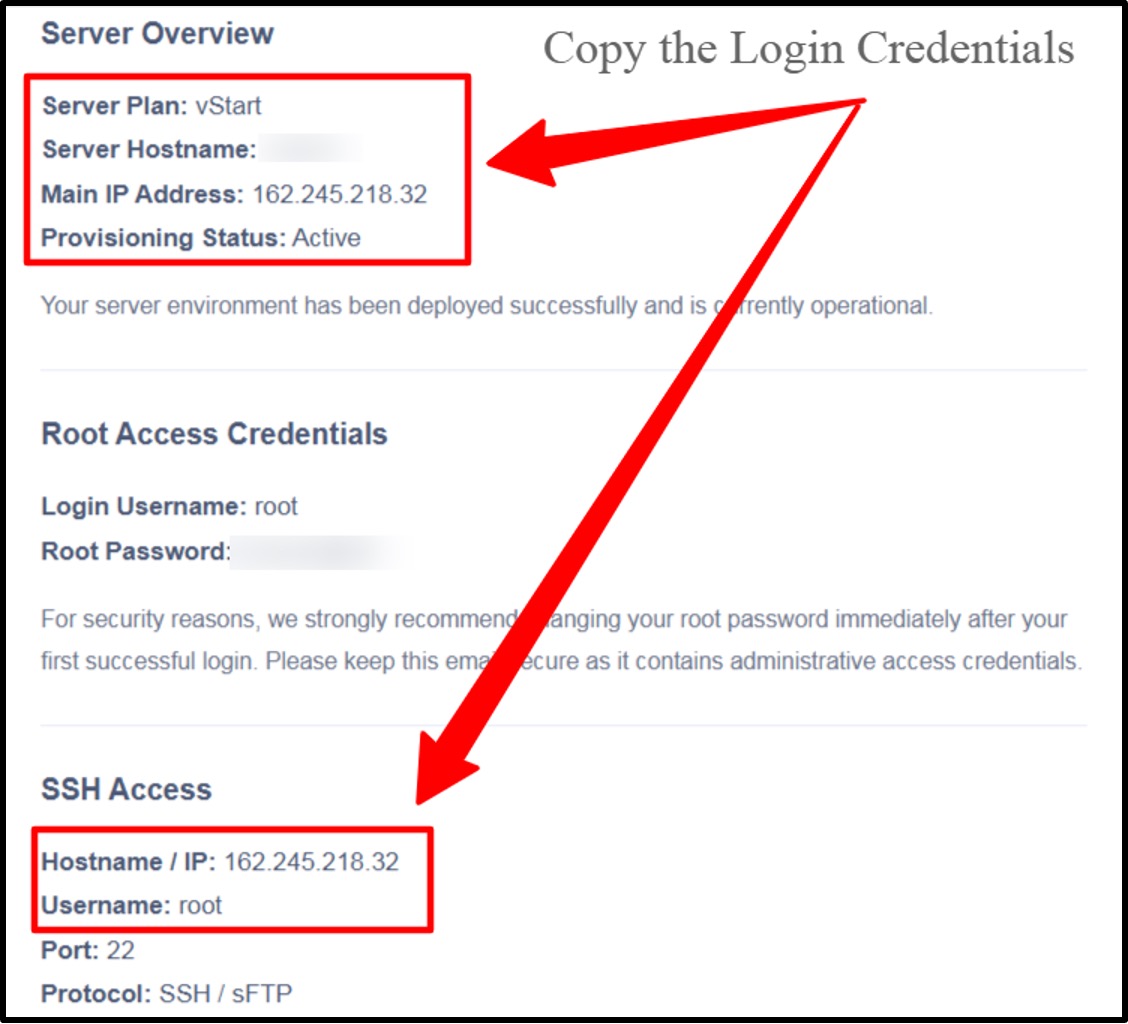
Please use the login credentials and connect from your terminal with a single line.
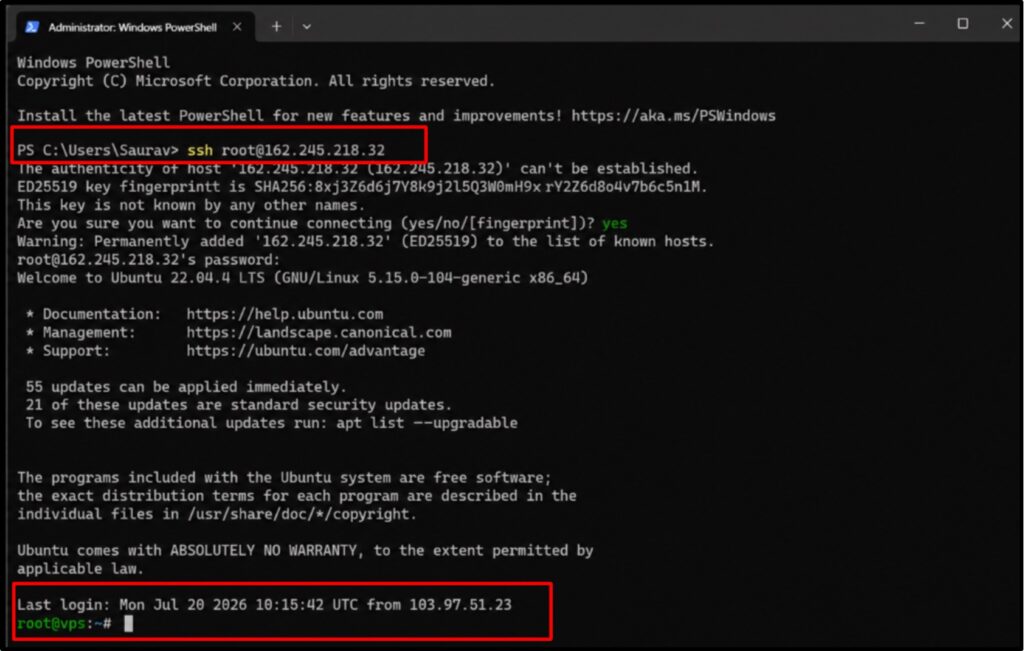
| ssh root@your-server-ip |
Developers who want a smooth, root-ready VPS server can start with a VPS built for developers.
DNS Configuration
Now point your domain to the server.
- Log in to your DNS panel >> Add one A record.
- Set the host to n8n and the value to your VPS IP address >> Save it.
DNS updates can take up to a few hours. Check progress with a quick lookup before you move on.
| dig n8n.yourdomain.com |
When the command returns your VPS IP, propagation is done. Only then does the SSL step later succeed properly.
Basic Security Preparation
Lock the server first.
A fresh server is a target, so start with updates and a proper user. Update every package to close known holes:
| sudo apt update && sudo apt upgrade -y |
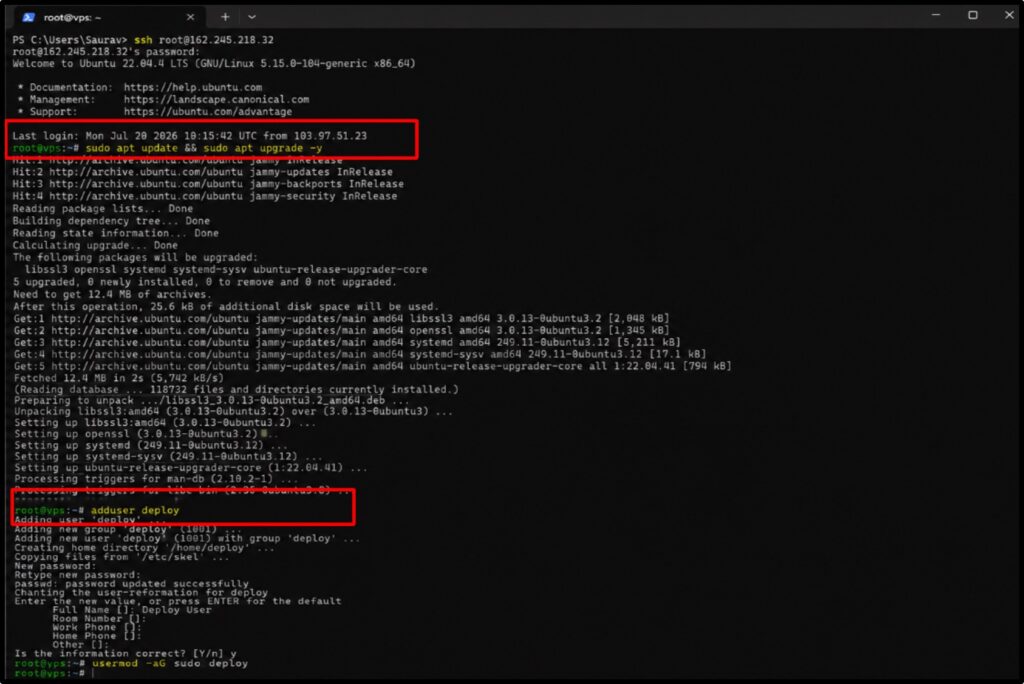
Then create a non-root user so you stop working as the all-powerful root account:
| adduser deploy |
| usermod -aG sudo deploy |
Working as this limited user cuts the damage from any single mistake. It is a habit every server pro keeps.
For tighter security, switch SSH to key-based login and turn off password access. That way you can stop most brute-force attempts.
Step-by-Step Guide to Deploy n8n on a VPS
This is the main thing of the guide.
Follow each step in order, and you will have a live n8n in under an hour. Every command below is tested and ready to copy.
I’ve even added the screenshots with the tested results so that you can simply copy the command and paste it into your terminal the way I’ve done.
It works on Docker, so a Docker-ready VPS makes the whole path smoother.
Step 1) Set the Firewall
Open only the three ports you need: SSH, HTTP, and HTTPS. Everything else stays shut.
| sudo apt install ufw -y |
| sudo ufw allow 22 |
| sudo ufw allow 80 |
| sudo ufw allow 443 |
| sudo ufw enable |
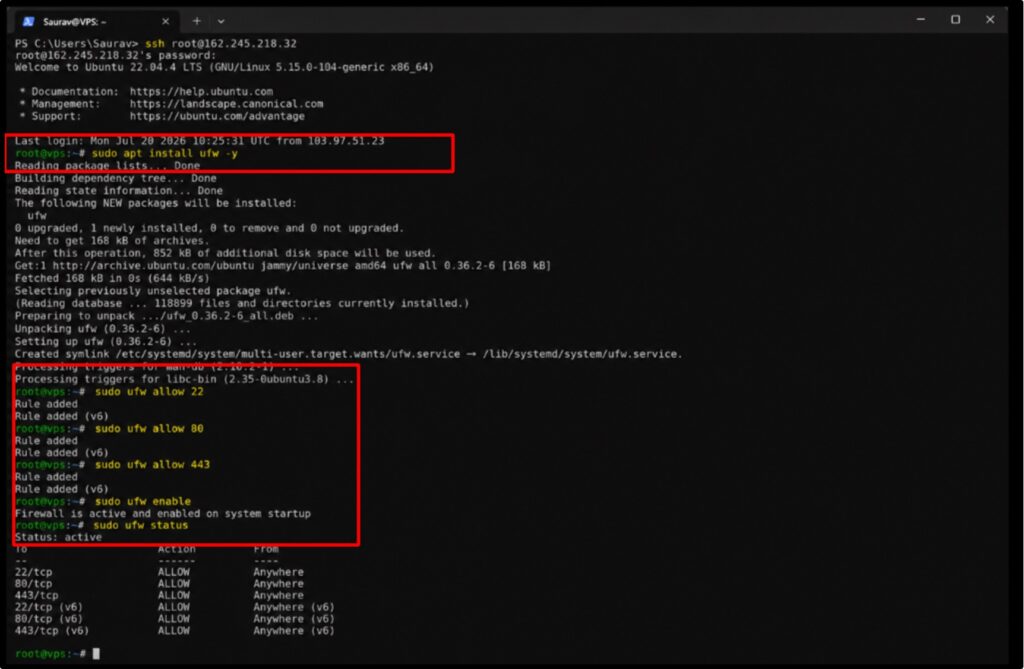
A tight firewall reduces your attack surface right away. You leave open only the doors your server actually uses.
Step 2) Install Docker and Compose
Docker packages n8n, PostgreSQL and the proxy into clean containers. One script installs everything.
Containers keep each part separate and easy to update. You upgrade one piece and leave the rest untouched.
| curl -fsSL https://get.docker.com | sudo sh |
| sudo usermod -aG docker $USER |
Log out and come back in so the group change takes effect. Then confirm the install:
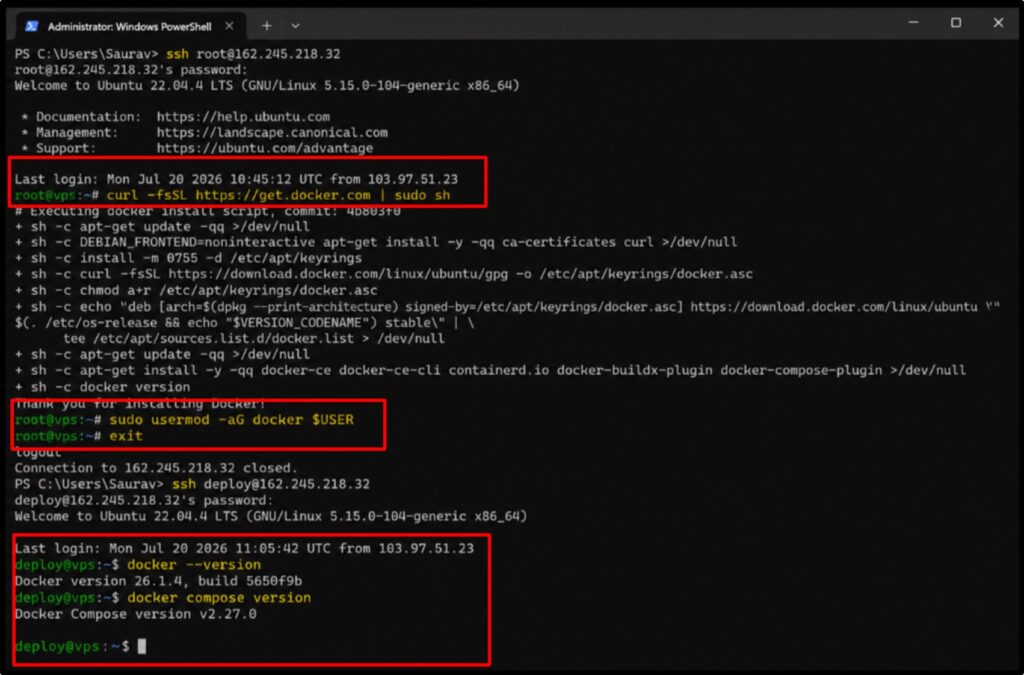
| docker –version |
| docker compose version |
Step 3) Create the Project Files
Make a clean folder to hold your setup. This keeps configs together and backups simple.
| mkdir ~/n8n && cd ~/n8n |
Create a .env file for your settings. It holds your domain, database login, and encryption key.
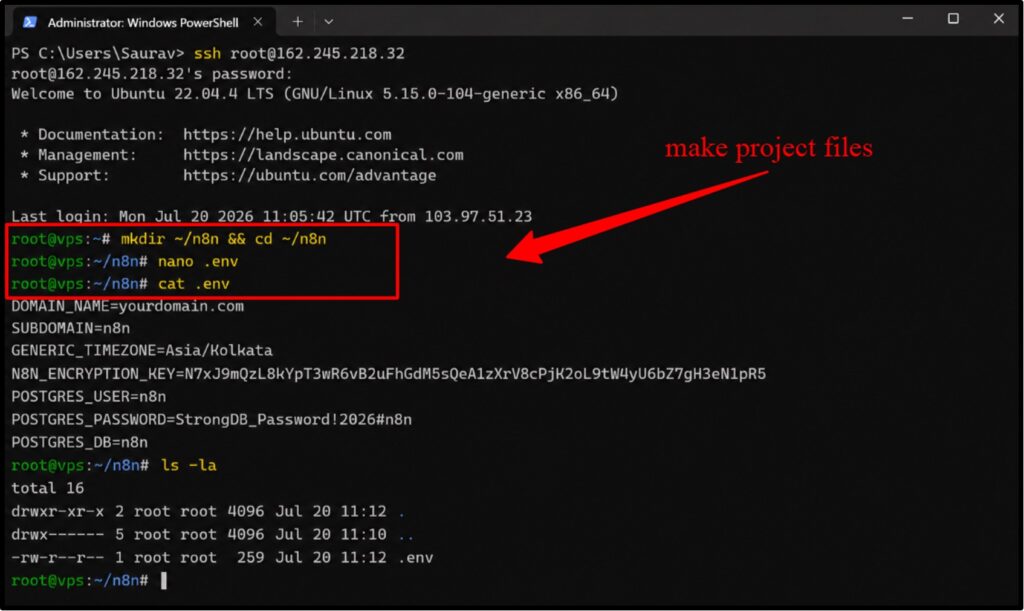
Generate a long, random encryption key and paste it in. This one value protects every credential n8n stores.
| DOMAIN_NAME=yourdomain.com |
| SUBDOMAIN=n8n |
| GENERIC_TIMEZONE=Asia/Kolkata |
| N8N_ENCRYPTION_KEY=paste-a-long-random-string |
| POSTGRES_USER=n8n |
| POSTGRES_PASSWORD=strong-db-password |
| POSTGRES_DB=n8n |
Step 4) Write the Docker Compose File
This file defines three containers: n8n, a PostgreSQL database, and Caddy for HTTPS. Save it as docker-compose.yml.
Notice that n8n keeps its port private.
Only Caddy faces the internet, which keeps the app itself shielded.
| services: |
| postgres: |
| image: postgres:16 |
| restart: always |
| environment: |
| – POSTGRES_USER=${POSTGRES_USER} |
| – POSTGRES_PASSWORD=${POSTGRES_PASSWORD} |
| – POSTGRES_DB=${POSTGRES_DB} |
| volumes: |
| – postgres_data:/var/lib/postgresql/data |
| n8n: |
| image: docker.n8n.io/n8nio/n8n |
| restart: always |
| environment: |
| – N8N_HOST=${SUBDOMAIN}.${DOMAIN_NAME} |
| – N8N_PROTOCOL=https |
| – WEBHOOK_URL=https://${SUBDOMAIN}.${DOMAIN_NAME}/ |
| – GENERIC_TIMEZONE=${GENERIC_TIMEZONE} |
| – N8N_ENCRYPTION_KEY=${N8N_ENCRYPTION_KEY} |
| – DB_TYPE=postgresdb |
| – DB_POSTGRESDB_HOST=postgres |
| – DB_POSTGRESDB_USER=${POSTGRES_USER} |
| – DB_POSTGRESDB_PASSWORD=${POSTGRES_PASSWORD} |
| – DB_POSTGRESDB_DATABASE=${POSTGRES_DB} |
| volumes: |
| – n8n_data:/home/node/.n8n |
| depends_on: |
| – postgres |
| caddy: |
| image: caddy:2 |
| restart: always |
| ports: |
| – “80:80” |
| – “443:443” |
| volumes: |
| – ./Caddyfile:/etc/caddy/Caddyfile |
| – caddy_data:/data |
| depends_on: |
| – n8n |
| volumes: |
| postgres_data: |
| n8n_data: |
| caddy_data: |
Step 5) Add the Caddyfile
Caddy handles HTTPS on its own. This tiny file tells it to serve your subdomain and pass traffic to n8n.
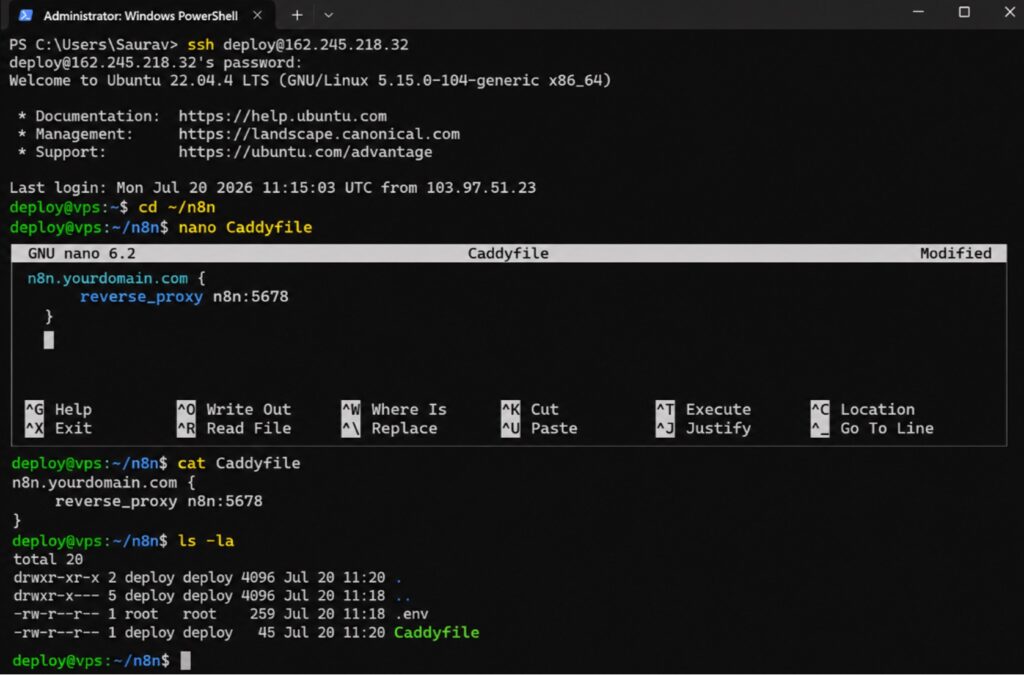
| n8n.yourdomain.com { |
| reverse_proxy n8n:5678 |
| } |
Step 6) Launch the Stack
Start every container in the background with one command. Caddy fetches a free SSL certificate as it boots.
| docker compose up -d |
The first boot takes a moment while images download and the certificate issues. Give it a minute before you test.
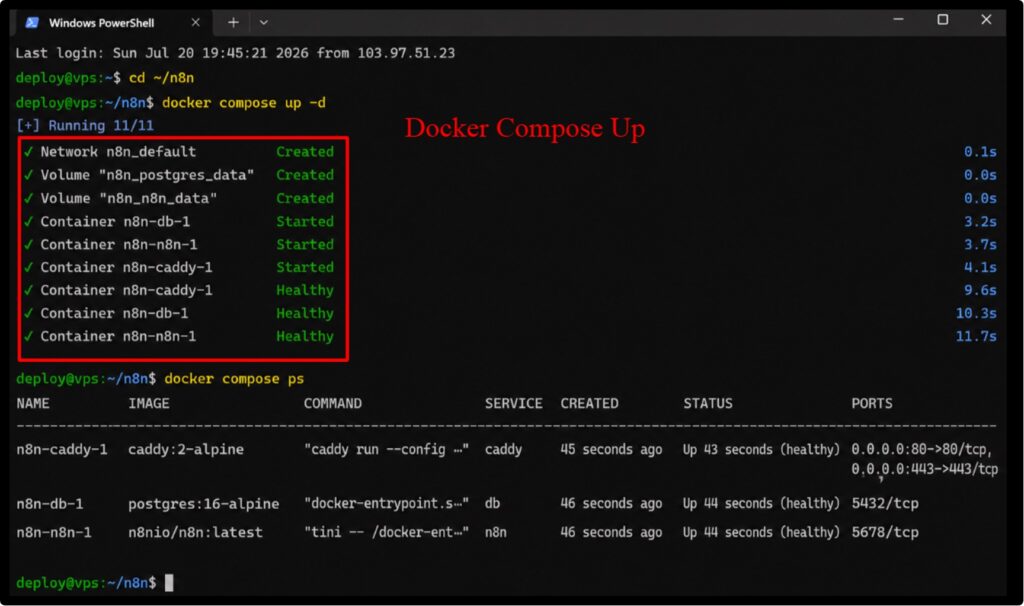
Check that all three containers run healthy:
| docker compose ps |
Step 7) Open n8n and Create Your Account
- Visit https://n8n.yourdomain.com in your browser.
- The setup screen loads over a secure connection.
Create your owner account with a strong password. You are now inside your own n8n, ready to build.
Watch the logs the first time you launch. Run docker compose logs -f n8n to catch any config typo before you rely on the instance.
Securing Your n8n Instance with SSL
HTTPS is really important. Webhooks and logins must travel encrypted, or you leak data and break integrations.
Here’s some good news. It is that Caddy already handled it. On first launch, it requested a free Let us Encrypt certificate for your domain.
It also renews that certificate on its own, so you do not have to remember about expiry. See! It is really a big mistake if you serve n8n over a plain HTTP.
Two things must be true for the certificate to be issued.
- Your domain points to the server,
- Ports 80 and 443 stay open.
You set both earlier. So your padlock appears the moment the containers finish booting.
Want to confirm it worked? Load your subdomain and check for the lock icon and a valid certificate in the browser.
Set your N8N_ENCRYPTION_KEY before the very first launch and store it in a password manager.
Essential n8n Settings for Production
A running n8n is step one. These settings given below, turn it into a stable production system that survives real traffic.
Use PostgreSQL, Not SQLite
n8n defaults to a simple SQLite file. It works for hobby use but struggles with concurrent works.
The compose file above already switched you to PostgreSQL. It handles heavy workflow volume and backs up cleanly.
Set the Webhook URL Correctly
The single most common failure is a wrong webhook URL.
- Set WEBHOOK_URL to your public HTTPS domain before launch.
If you skip this step, your webhook triggers would fail silently and you’ll end up looking for an invisible bug. You already set it in the .env file.
Turn On Queue Mode for Scale
Once the daily runs climb into thousands, add Queue Mode.
- It uses Redis to spread work across separate workers.
This keeps the editor responsive and also the heavy jobs run in the background. Reach for it at 8GB RAM and up.
Set Your Timezone
Scheduled workflows fire on server time.
- Set GENERIC_TIMEZONE to your region so cron jobs run when you expect.
A wrong timezone sends your morning report at midnight. This one line saves a lot of confusion later.
Lock Down Access
Enable user management and require strong passwords for every account. Where you can, limit the admin panel to known IPs.
Add 2FA login for every user. It is a small step that blocks the most common account attacks.
First Business Automation Workflow
Now, let us build one real automation so you see how it works on day one. Target a task you repeat daily.
- A great starter: send a Slack alert every time a new lead fills your form.
Pick something small and visible. A quick happy result builds confidence and shows the rest of your team what n8n can do.
- Step 1 >> Add a Webhook or Form trigger node (This catches the new lead the instant it arrives)
- Step 2 >> Add a Set node to shape the data (Keep the name, email, and message you care about)
- Step 3 >> Add a Slack node (Point it at your sales channel + drop in the lead details)
- Step 4 >> Click Execute Workflow >> Submit a test lead >> Watch the message land in Slack.
That is a full business automation, live in seconds. Activate it and it runs forever with zero input from you.
Once this clicks, you will see automations everywhere. Every repeat task you do by hand becomes a candidate for n8n.
AI-Powered Business Automations with n8n
This is where n8n works better. Its AI nodes let you build agents that think and act inside your workflows. For AI-agent stacks that need extra muscle, a VPS tuned for AI agent workloads gives you a lot of help.
n8n ships native nodes for OpenAI, Anthropic, and other model providers. It also offers a dedicated AI Agent node.
You connect a model, attach tools and memory, then let the agent decide what to do with each input.
- Smart support replies: An agent reads a ticket, drafts an accurate answer and tags it for the right team.
- Content generation: Feed a topic, get a first draft, then route it to review automatically.
- Data summaries: Pull raw reports and return a clean, human summary in your inbox each morning.
You can chain steps too. An agent reads an email, checks your database, drafts a reply and books a calendar slot in one flow.
One key point that I would like to say: n8n orchestrates the AI. The model runs through its API, so your server stays light unless you host the model too.
That split keeps costs OK. You rent intelligence by the call and keep your automation engine on a small, cheap server.
Automating Marketing Operations
Marketing runs on repeat tasks, which makes it perfect for n8n. Here are five flows my team builds again and again.
- Social media publishing: Schedule and post across platforms from one central sheet on a fixed timetable.
- Blog content distribution: Publish a post, then auto-share it to social, email and your community channels.
- Newsletter automation: Sync new subscribers, trigger welcome sequences and clean bounced contacts on their own.
- SEO monitoring: You can track ranking shifts and broken links, then you can also alert your team the moment something moves.
- Lead nurturing: You can send timed follow-ups based on user actions, so warm leads stay warm and ready.
Marketing flows tend to fire often, sometimes every few minutes. On a capped cloud plan, that pace drains your quota fast.
Each flow runs unlimited on your VPS. That freedom is exactly why self-hosting beats capped cloud plans for marketing.
Automating Sales Processes and Customer Support
Sales and support drown in small, repeat actions. n8n clears that load so your team focuses on people.
On the sales side, capture every lead, enrich it with company data, and score it before it reaches a rep.
Route hot leads straight to your closers and drop cold ones into a nurture sequence. The pipeline sorts itself.
For support, auto-tag incoming tickets by topic and urgency. AI drafts a reply, and your agent approves or edits it.
Urgent cases escalate on their own to the right person. Response times fall, and every ticket gets tracked.
You can wire in a feedback loop too. Every closed ticket syncs to a dashboard, so you spot patterns fast.
Common n8n Deployment Issues and Fixes
Even a clean setup hits snags. Here are the problems my team sees most, plus the fast fix for each.
- Webhooks fail silently: Your WEBHOOK_URL is wrong. Set it to your full public HTTPS domain and restart the stack.
- SSL will not issue: DNS has not propagated, or ports 80 and 443 are shut. Check both, then wait a short while.
- Editor freezes: A heavy workflow blocks the main process. Move to Queue Mode and add RAM to clear it.
- Lost credentials after update: The encryption key changed. Restore the original key and your saved logins return.
- Container keeps restarting: Read the logs with docker compose logs n8n. A config typo is the usual cause.
- Database will not connect: Check your Postgres user, password, and host match the .env file exactly. A single mismatch blocks startup.
- Server slows to a crawl: A memory leak or oversized payload is choking RAM. Add memory or move the heavy flow to Queue Mode.
Best Practices for Running n8n in 2026
A stable instance needs good habits. Follow these six practices, and your automation engine stays healthy long term.
- Use separate databases: Run PostgreSQL for n8n data. It handles load far better than the default file store.
- Enable automated backups: Schedule nightly database dumps to offsite storage. Test a restore before you ever need one.
- Implement role-based access: Give each person the access they need and nothing more. Limit admin rights tightly.
- Secure API credentials: Store secrets in n8n credential vaults, not inside workflow nodes. Rotate them on a schedule.
- Monitor workflow performance: Watch execution times and error rates. Catch a slow flow before it drags the server down.
- Keep Docker images updated: Pull new releases regularly, but back up first and read the changelog for breaking changes.
Here is the backup command my team runs on a nightly cron:
| docker compose exec postgres pg_dump -U n8n n8n > n8n-backup-$(date +%F).sql |
And the two lines that update n8n safely:
| docker compose pull |
| docker compose up -d |
Run updates during quiet hours and keep the last backup close. That way a bad release costs you minutes, not data.
Real-World Business Automation Examples
Abstract benefits only go so far. Here is how four real business types put n8n to work every day. Each example below maps to flows my team has shipped for paying clients. They are practical, not theory.
E-commerce Automation
Online stores run on repeat tasks that n8n handles end to end.
- Orders: Sync new orders to your fulfilment tool and accounting the second they land.
- Inventory: Flag low stock and reorder automatically before items sell out.
- Customer notifications: Send order, shipping, and delivery updates with zero manual sending.
Agency Automation
Agencies juggle many clients, so automation buys back real hours.
- Client onboarding: Trigger contracts, folders, and welcome emails from one form submission.
- Reporting: Pull data from ad and analytics tools into a clean report each week.
- Billing: Generate and send invoices on schedule, then chase overdue ones on their own.
SaaS Automation
Software teams wire n8n into their product lifecycle.
- User registration: Add new signups to your CRM, email tool, and onboarding flow at once.
- Support workflows: Route tickets, sync them to your tracker, and alert the on-call engineer.
- Usage monitoring: Watch key metrics and ping the team when a threshold trips.
Content Creator Automation
Creators automate the busywork so they focus on the work that matters.
- Publishing: Push finished content live across platforms from a single trigger.
- Social sharing: Auto-post each release to every channel on a set schedule.
- Analytics reporting: Collect views and engagement into one weekly dashboard email.
Cost Breakdown: Self-Hosted n8n vs Traditional Automation Platforms
The savings become obvious once you line up the numbers. Self-hosting on a VPS undercuts every capped platform.
| Option | Monthly cost | Execution limit |
|---|---|---|
| n8n self-hosted VPS | $3.67 | Unlimited |
| n8n Cloud Starter | $20 | 2,500 |
| n8n Cloud Pro | $50 | 10,000 |
| Zapier (mid plan) | $50 and up | Task-metered |
| Make (mid plan) | $16 and up | Operation-metered |
n8n charges per full workflow run, not per task. A fifty-node flow costs the same as a two-node one, which slashes the bill on complex jobs.
Self-hosting removes the cap entirely. You pay one small server fee and run as much as your hardware allows.
Do add a little for your time and backups. Even then, a self-hosted setup stays far cheaper than any capped plan at scale.
For a business running dozens of workflows, the yearly saving funds a whole other tool. That is why my team defaults to a VPS.
Prices were checked in November 2026 and shifted often. n8n, Zapier, and Make all revise plans regularly, so confirm current figures on each vendor page before you budget.
Frequently Asked Questions
Q1. Is n8n free to self-host?
Yes. n8n is free to self-host with unlimited workflows and executions. You pay only for the server it runs on, which lands around $3.67 a month on a small VPS.
Q2. How much RAM does n8n need?
For testing, 2GB RAM is OK for n8n needs. For real production traffic, plan for 4GB or more. Heavy AI pipelines and Queue Mode setups run best on 8GB. n8n is built on Node.js, so a single heavy task can eat memory fast.
Q3. Can I run n8n on a $5 VPS?
Yes, for light use. A 1 vCPU, 2GB box handles a handful of simple workflows fine. Once you add webhooks with real traffic or a PostgreSQL database, step up to 2 vCPU and 4GB. The extra few dollars saves you from timeouts.
Q4. Is self-hosted n8n secure?
Yes! You can get a secure self-hosted n8n only when you set it up right. Serve it over HTTPS, set a strong encryption key, keep the admin panel behind a reverse proxy, and lock the firewall to ports 22, 80, and 443. Regular updates close known gaps.
Q5. Can n8n replace Zapier?
Yes, n8n covers hundreds of integrations, handles branching logic, and runs custom code nodes. It charges per full workflow run, not per task, so complex automations cost far less.
Q6. Does n8n support AI agents?
Yes. n8n ships native nodes for OpenAI, Anthropic, and other providers, plus a dedicated AI Agent node. You connect a model, add tools and memory, then let the agent act inside your workflows.
Q7. How many workflows can n8n run?
Self-hosted n8n places zero cap on workflows or executions. Your real limit is server capacity. A 4GB VPS runs dozens of active workflows smoothly. For thousands of daily executions, add Queue Mode with Redis and scale to 8GB or more.
Conclusion
You now SEE the full path: pick a VPS, point to a domain, run Docker, add Caddy for HTTPS and log in to your own n8n. That setup costs a few dollars a month and runs unlimited automations.
For a security-hardened base, my team also rates VPS hosts strong on WireGuard and private networking.
My team uses this exact stack for real client work. It stays stable, it scales, and it keeps your data on your own server.
Start small with a 2 vCPU, 4GB box. Build one workflow that saves you an hour this week, then stack the next one on top.
Remember the pattern that runs through this whole guide. Own your data, skip the caps, and pay a flat, tiny bill. The tools are ready. The commands sit right above. Your first automation is one login away.
Bookmark this guide and revisit the best practices section every few months



Table of Contents
- What Is n8n?
- Why Deploy n8n on a VPS Instead of Using Cloud Plans?
- Comparison Table
- VPS Requirements for Running n8n
- Prerequisites Before Installation
- Step-by-Step Guide to Deploy n8n on a VPS
- Securing Your n8n Instance with SSL
- Essential n8n Settings for Production
- First Business Automation Workflow
- AI-Powered Business Automations with n8n
- Automating Marketing Operations
- Automating Sales Processes and Customer Support
- Common n8n Deployment Issues and Fixes
- Best Practices for Running n8n in 2026
- Real-World Business Automation Examples
- Cost Breakdown: Self-Hosted n8n vs Traditional Automation Platforms
- Frequently Asked Questions
- Conclusion