Every month you send thousands of queries to a cloud AI service. Everytime you are paying for someone else’s server and giving up your data and hope that this is the most affordable option.
There is actually a smarter way.
You can run your own private AI assistant on a Virtual Private Server (VPS) for as little as $5 to $20 per month, with no usage limits, no data leaks and you’ll get full control over which AI model you use.
Our technical team has spent weeks testing this setup end to end and this guide gives you every step in plain simple english language so you can go live today.
Developers, small business owners, researchers and privacy-focused users who want a private & self-hosted AI chatbot on a VPS and they do not trust OpenAI, Anthropic or any paid API.
What You Need Before Starting?
Before you write a single command, make sure your VPS meets the right hardware spec.
Please try and understand that AI models are memory-hungry.
If you’re loading a Q4 (quantized version 4), in that case, RAM of 6GB to 8GB is OK. However, if you’re loading a 7B parameter model, it takes around 13GB to 14GB RAM, before the OS and other services consume their share.
Getting RAM weak means constant crashes and slow responses.
Our team tested both minimum and recommended setups across multiple VPS providers. Here is what actually works.
Hardware and VPS Requirements
We have added a list below of the hardware and VPS minimum and recommended requirements so that your AI assistant can be self-hosted and without any stoppage can execute workloads properly.
Please keep in mind these requirements when renting a VPS server for self hosting AI assistant.
| Spec | Minimum (Small Models) | Recommended (7B, 13B & Higher Models) |
| vCPU | 4 vCPU | 8+ vCPU |
| RAM | 8 GB | 16 GB to 32 GB |
| Storage | 100 GB SSD | 200 GB+ NVMe SSD |
| OS | Ubuntu 22.04 LTS | Ubuntu 22.04 LTS |
| GPU | Not required | Optional (speeds up inference) |
| Bandwidth | 1 TB per month | 2 TB+ per month |
If your VPS has less than 8 GB RAM, even lightweight models like TinyLlama will slow down. Always match your AI model size to your available RAM. A 7B (Q4) model needs roughly 8 GB. A 13B model needs 16 GB to 18GB. A 70B model needs 40+ GB or a GPU VPS.
Recommended VPS Providers (Budget VPS)
Our research team compared dozens of VPS providers. These four best VPS for self hosting AI assistants that have the best price and offer ease of use when running an AI assistant.
#1. Kamatera
Kamatera has been running cloud infrastructure since 1995. It lets you build a fully custom VPS by choosing exact CPU cores, RAM, SSD and data center location.
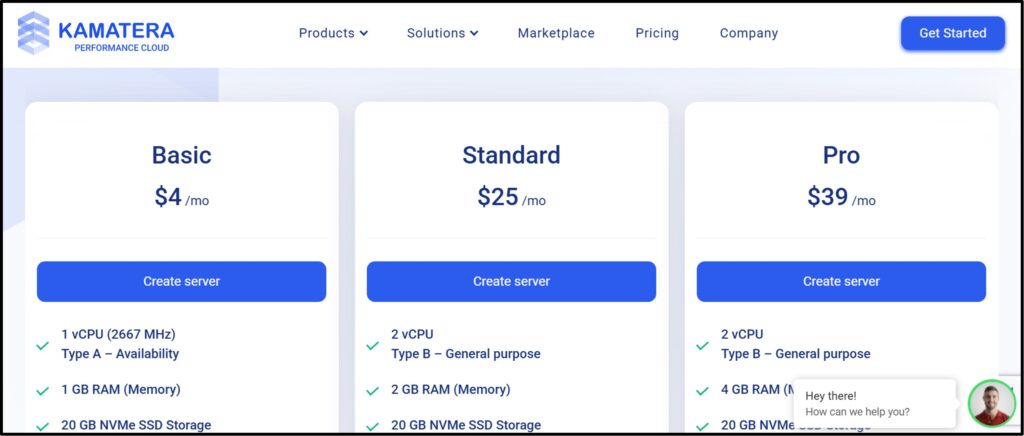
Pricing starts at $4 per month and includes a 30-day free trial with up to $100 in server credit. It works well for teams who want fine-grained control without any lock-in price.
- Fully custom VPS configuration: Choose CPU, RAM, SSD, and OS separately instead of picking from fixed plans.
- 30-day free trial: Includes up to $100 in server value and 1 TB of traffic to test your AI setup at no cost.
- Instant scalability: Add RAM or CPU cores in under 60 seconds on a live server without downtime.
- Global data centers: Locations across North America, Europe, Asia, and Australia for low latency wherever you need it.
- Transparent hourly billing: Pay only for what you use with no long-term contracts required.
#2. Vultr
Vultr is a developer-first cloud provider founded in 2014 and headquartered in the USA. It offers cloud computing starting at $2.50 per month and operates 32 data center locations across 19 countries.
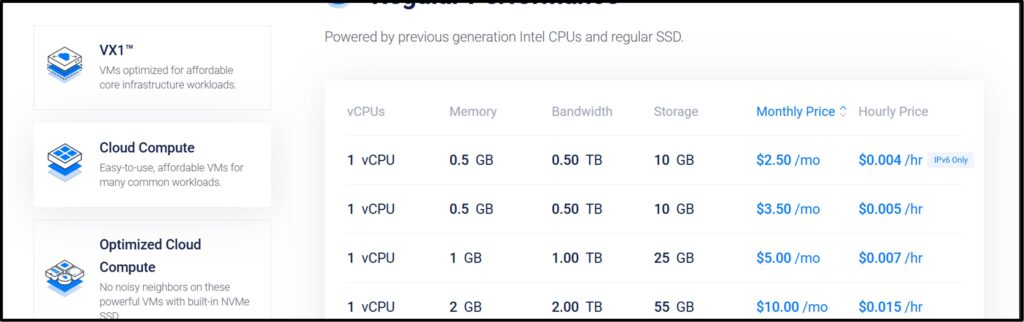
Their VX1 platform, launched recently in October 2025, uses dedicated AMD EPYC cores with up to somewhat 80% better performance per dollar compared to major hyperscalers.
- Entry plans from $2.50 per month: The most affordable starting point for lightweight AI models like TinyLlama or Phi-3.
- VX1 Cloud Compute: Dedicated EPYC cores with up to 50 Gbps networking and NVMe storage for CPU-intensive inference.
- 32 global locations: One of the most geographically distributed independent cloud providers available.
- High Performance NVMe plans: Starting at $6 per month with fast NVMe SSDs, critical for loading large model files quickly.
- Hourly billing: Spin up a GPU or high-RAM instance only when you need it and pay by actual usage.
#3. Hetzner Cloud
Hetzner is a German provider with data centers running since 1997.
Their cloud product launched in 2017 and became popular for offering some of the lowest prices in the industry. A 4 vCPU, 8 GB RAM instance currently starts at around EUR 8.49 per month.
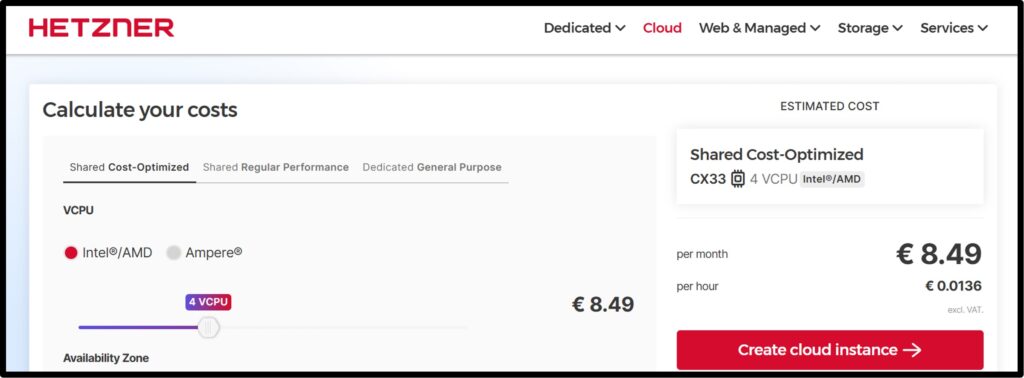
They follow strict EU data protection standards, which is a strong bonus for privacy-focused AI setups.
- Best price-to-performance ratio in Europe: a CX33 with 4 vCPU and 8 GB RAM costs roughly 6.49 EUR per month, far below comparable plans elsewhere.
- EU data sovereignty: servers run in Germany and Finland under strict European data protection laws, ideal for GDPR-sensitive AI workloads.
- ARM-based CAX instances: energy-efficient Ampere Altra servers starting at 3.79 EUR per month for lightweight model inference.
- 20 TB monthly traffic included: generous allowance so your AI assistant handles heavy usage without surprise bills.
- 20 EUR free credit on signup: enough to test your full AI setup for a month at no cost.
#4. DigitalOcean
DigitalOcean is the original developer-experience-first cloud provider. Their Droplets deploy in under 60 seconds and start at $4 per month.
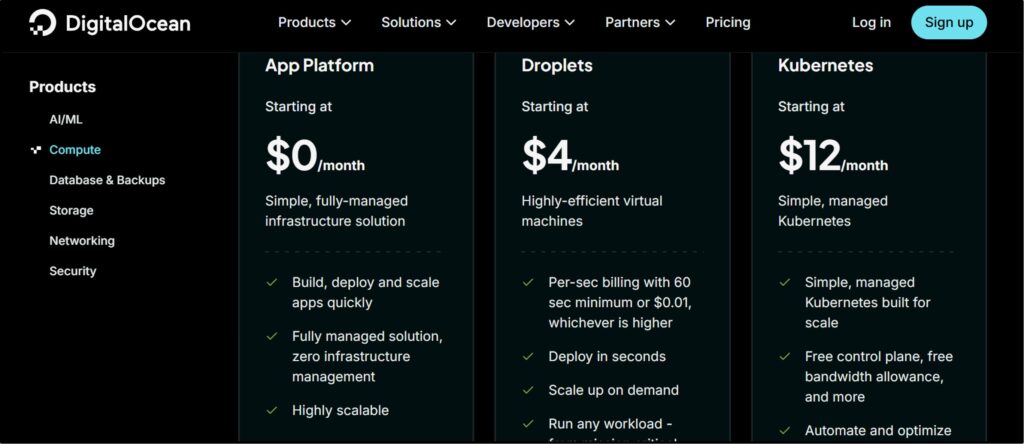
They introduced per-second billing, which reduces waste on short-lived test instances. DigitalOcean is known for the best beginner documentation in the industry, with 350+ community tutorials.
- Droplets from $4 per month: Shared CPU plans give you a solid starting point for small AI models with minimal upfront cost.
- Premium NVMe Droplets from $7 per month: Faster SSD storage and the latest CPU generations for snappier model loading.
- Per-second billing: as of January 2026, You pay only for actual usage time, making development and test cycles cheaper.
- One-click deploy and snapshot backups: Automatic weekly backups at 20% of Droplet cost protect your model and configuration data.
- Massive tutorials library: 350+ guides covering Nginx, Docker, firewalls, and more, so beginners can set up securely without confusion.
Pricing information is accurate as of 2026. VPS prices change frequently. Always check the official provider websites for the latest rates before purchasing.
Choosing the Right AI Model
The model you pick decides how much RAM you need, how fast responses come back, and how good the answers actually are. There is no single right answer.
It depends on your VPS size and what you want the AI to do.
Small Lightweight Models (4 GB RAM or less)
These models run on budget VPS plans with 4 to 8 GB RAM. They respond quickly and are great starting points.
- TinyLlama (1.1B): A 1.1 billion parameter model trained on 3 trillion tokens. Runs on almost any VPS. Good for simple Q&A, text summarization and quick assistants.
- Phi-3 Mini (3.8B): Microsoft’s compact model that punches well above its size. Good reasoning and coding ability in under 2 GB of memory.
- Gemma 2B: Google’s open model trained on 2 trillion tokens. Clean output, fast inference, works on low-RAM servers.
Balanced Models (8 to 16 GB RAM)
These are the workhorses. They give you near-GPT-3.5 quality on a mid-range VPS.
- Mistral 7B: One of the most popular open-source models. It performs better than Llama 2 13B on many benchmarks while using half the memory. Excellent for chat, coding and summarization.
- Llama 3 8B: Meta’s latest generation model. Strong instruction following, multi-turn conversation, and code generation. Needs about 8 GB RAM in 4-bit quantized form.
Advanced Models (16 to 32 GB RAM)
For teams or power users who need the best quality possible from a self-hosted setup.
- DeepSeek (7B / 67B): Strong coding and reasoning model. The 7B version runs comfortably on a 16 GB VPS. The larger variant needs a GPU VPS or 32+ GB RAM.
- Mixtral 8x7B: A mixture-of-experts model from Mistral AI. Efficient for its quality, behaving like a 47B model but only activating 12B parameters per token. Needs about 24 GB RAM.
- Qwen 2.5 (7B / 14B / 72B): Alibaba’s multilingual model with strong performance in English, Chinese and other languages. The 7B version is a solid daily-driver model.
AI Model Comparison Table
This is the comparison table! We have listed all the models under one head so that you can get a proper idea about them.
| Model | RAM Needed | Speed | Quality | Best For |
| TinyLlama 1.1B | 2 GB | Very Fast | Basic | Simple Q&A, budget VPS |
| Phi-3 Mini 3.8B | 3 GB | Fast | Good | Coding, reasoning on small VPS |
| Gemma 2B | 2 GB | Fast | Good | General chat, low RAM setups |
| Mistral 7B (Q4) | 5 GB | Medium | Very Good | Chat, summarization, coding |
| Llama 3 8B (Q4) | 6 GB | Medium | Very Good | Instruction following, chat |
| Mixtral 8x7B (Q4 quantized) | 24 GB | Slower | Excellent | Complex reasoning, enterprise |
| DeepSeek 7B | 6 GB | Medium | Very Good | Coding, technical tasks |
| Qwen 2.5 14B | 12 GB | Medium | Excellent | Multilingual, research |
Best Self-Hosting Tools for AI Assistants
The AI model is just the brain. You also need a tool to run it and a web interface to talk to it. Here are the tools our team tested and recommended.
Ollama
Ollama is the easiest way to run large language models on a Linux server. You install it with one command, pull any model with another, and your AI is running.
It serves an OpenAI-compatible API on port 11434, so any app that talks to OpenAI can talk to Ollama too. It supports Llama 3, Mistral, Gemma, DeepSeek, Qwen, Phi, and over 100 other models.
Key features of Ollama include easy deployment, beginner-friendly setup and one-command model installs.
Open WebUI
Open WebUI gives you a ChatGPT-like browser interface for your self-hosted model.
It connects to Ollama or any OpenAI-compatible API and adds features like conversation history, user accounts, multi-user roles, document uploads for RAG and voice input.
It runs as a Docker container and deploys in minutes. It supports multi-user access and is designed to operate entirely offline.
LocalAI
LocalAI is an OpenAI API-compatible server that runs locally. It is useful when you want to replace OpenAI API calls in an existing application without changing your code.
Just point the API base URL to your LocalAI instance. Supports LLMs, image generation, speech-to-text and text-to-speech.
Text Generation WebUI
Also called oobabooga, this tool offers the most advanced configuration options for running local models. You get fine-grained control over sampling parameters, model quantization settings and loading methods.
It is better suited for developers and researchers who want to experiment deeply with model behavior.
LangChain
LangChain is a Python framework for building AI workflows and automation pipelines. You can connect your self-hosted model to databases, APIs, document stores, and external tools.
It is the go-to framework for building document Q&A systems, AI agents and RAG applications on top of Ollama.
Step-by-Step VPS Setup
Once your VPS is running Ubuntu 22.04, follow these steps in order. The steps given below cover connecting and preparing the server for Ollama and Open WebUI.
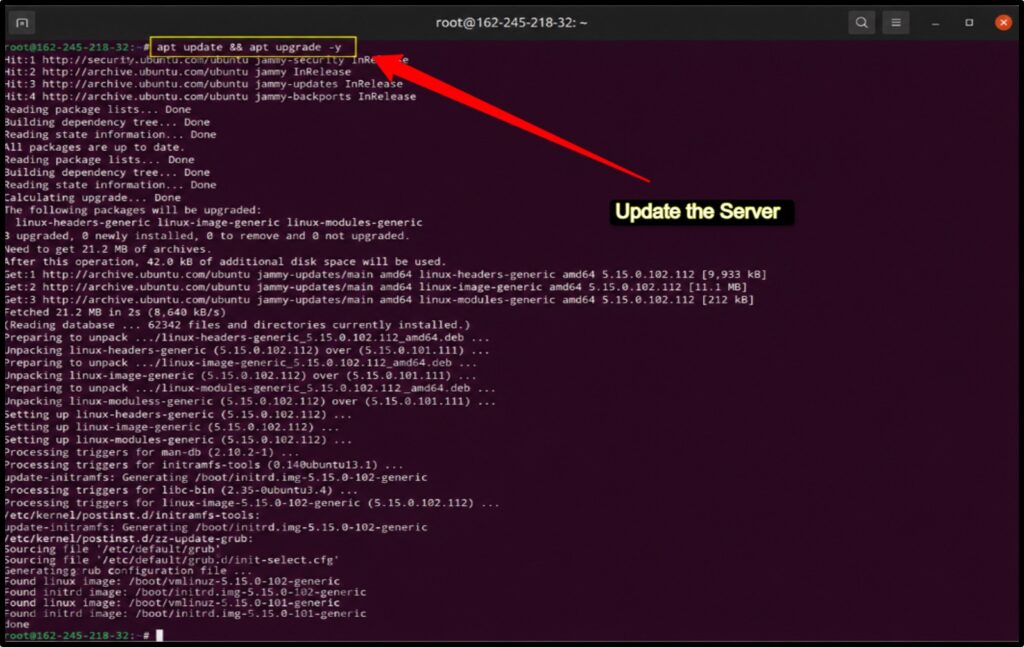
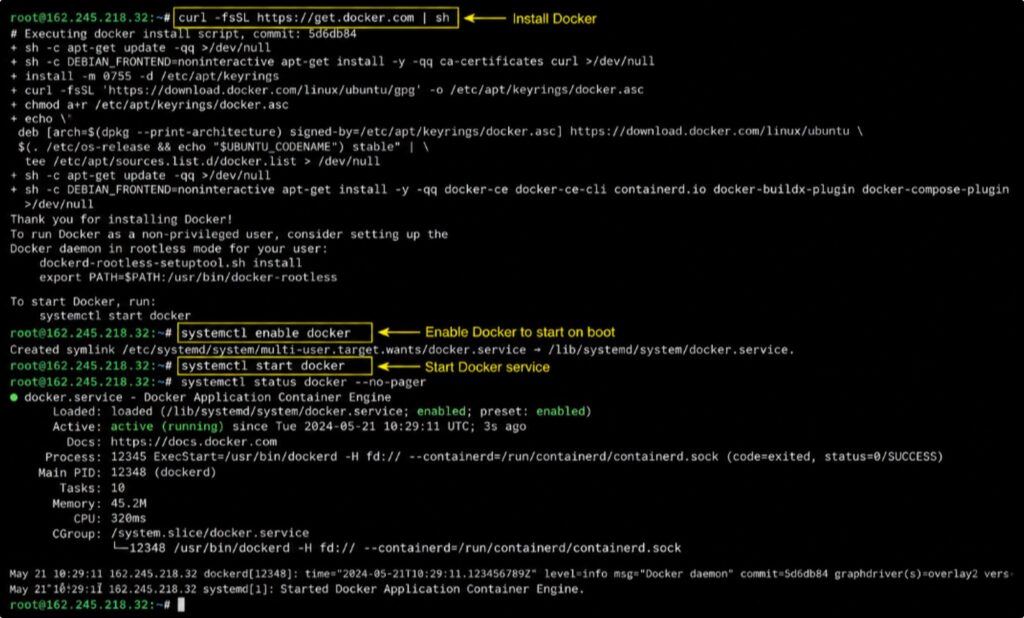
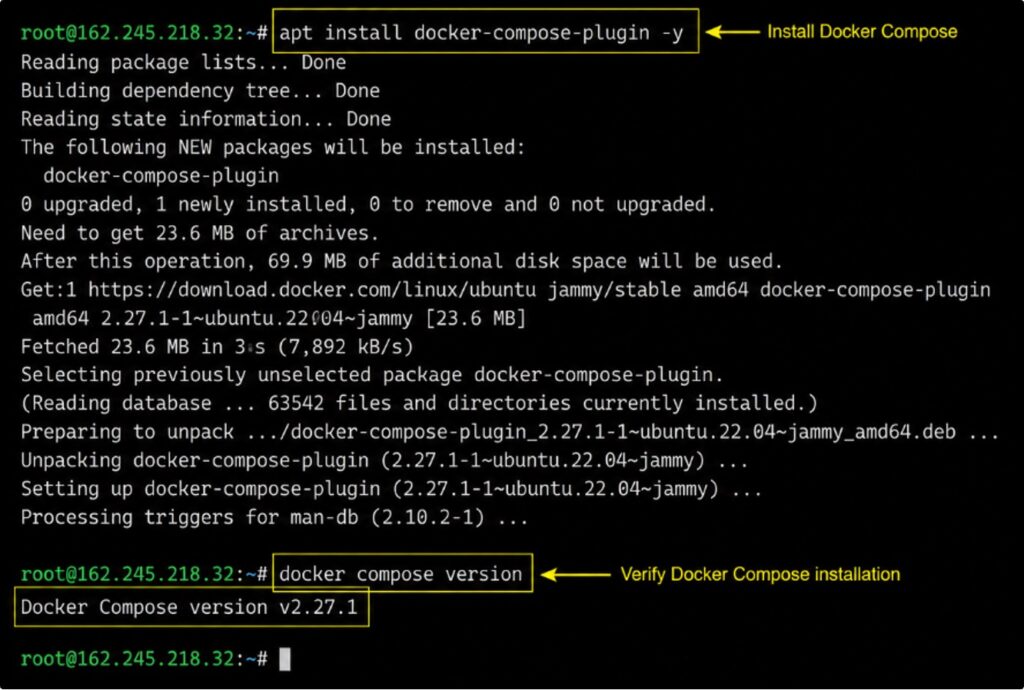
We’ve put the commands in bold letters. You simply can copy paste it on your terminal to execute the process. Along with the steps, we’ve also added screenshots so that you can follow the commands exactly how we’ve done it:
Step 1: Connect to Your VPS
Use SSH to connect from your local machine >> Replace your_server_ip with your actual VPS IP address.
| ssh root@your_server_ip |
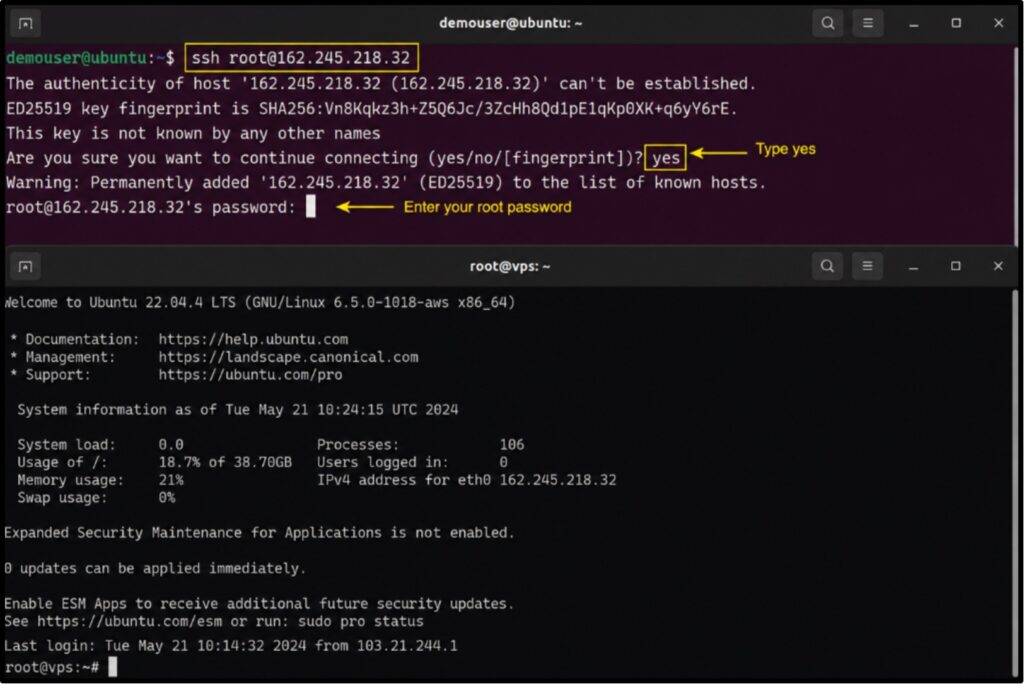
If you are using an SSH key, add the -i flag pointing to your private key file.
Step 2: Update the Server
Always run a full system update before installing anything >> This patches security vulnerabilities and makes sure your package lists are current.
| apt update && apt upgrade -y |
Step 3: Install Docker
Docker is used to run Open WebUI and other tools in isolated containers.
| curl -fsSL https://get.docker.com | shsystemctl enable dockersystemctl start docker |
Step 4: Install Docker Compose
To install Docker Compose, please run the following commands.
| apt install docker-compose-plugin -ydocker compose version |
Step 5: Secure Your VPS
This step is not optional >> An unsecured VPS will be compromised within hours of going online >> Change SSH port (reduces automated scan attacks):
| nano /etc/ssh/sshd_config# Change Port 22 to Port 2222systemctl restart sshd |
Disable root login. In /etc/ssh/sshd_config, set: >> PermitRootLogin no
Enable firewall (UFW):
| ufw allow 2222/tcpufw allow 80/tcpufw allow 443/tcpufw enable |
Install Fail2Ban to block brute-force login attempts:
| apt install fail2ban -ysystemctl enable fail2bansystemctl start fail2ban |
If you follow the commands given above as it is, you’ll be able to set up and self-host AI assistant on your VPS. The process is really simple. You just need to follow the steps in order.
Installing Ollama on the VPS
Ollama handles the heavy lifting of downloading, managing, and running AI models. Our technical team confirmed the one-line install works cleanly on Ubuntu 22.04.
| curl -fsSL https://ollama.com/install.sh | sh |
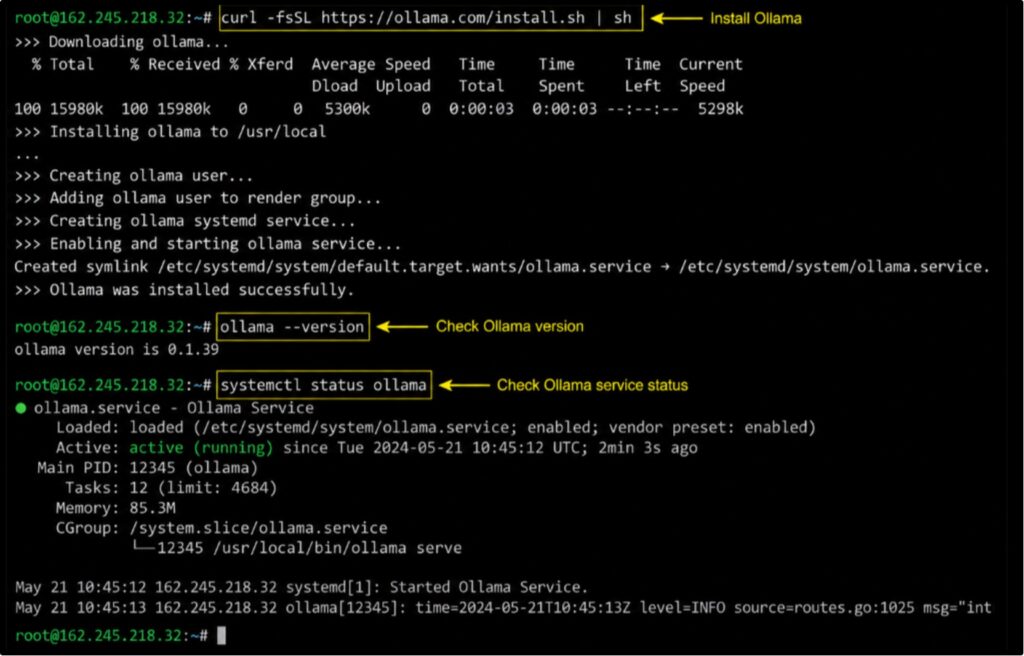
After installation, verify Ollama is running:
| ollama –versionsystemctl status ollama |
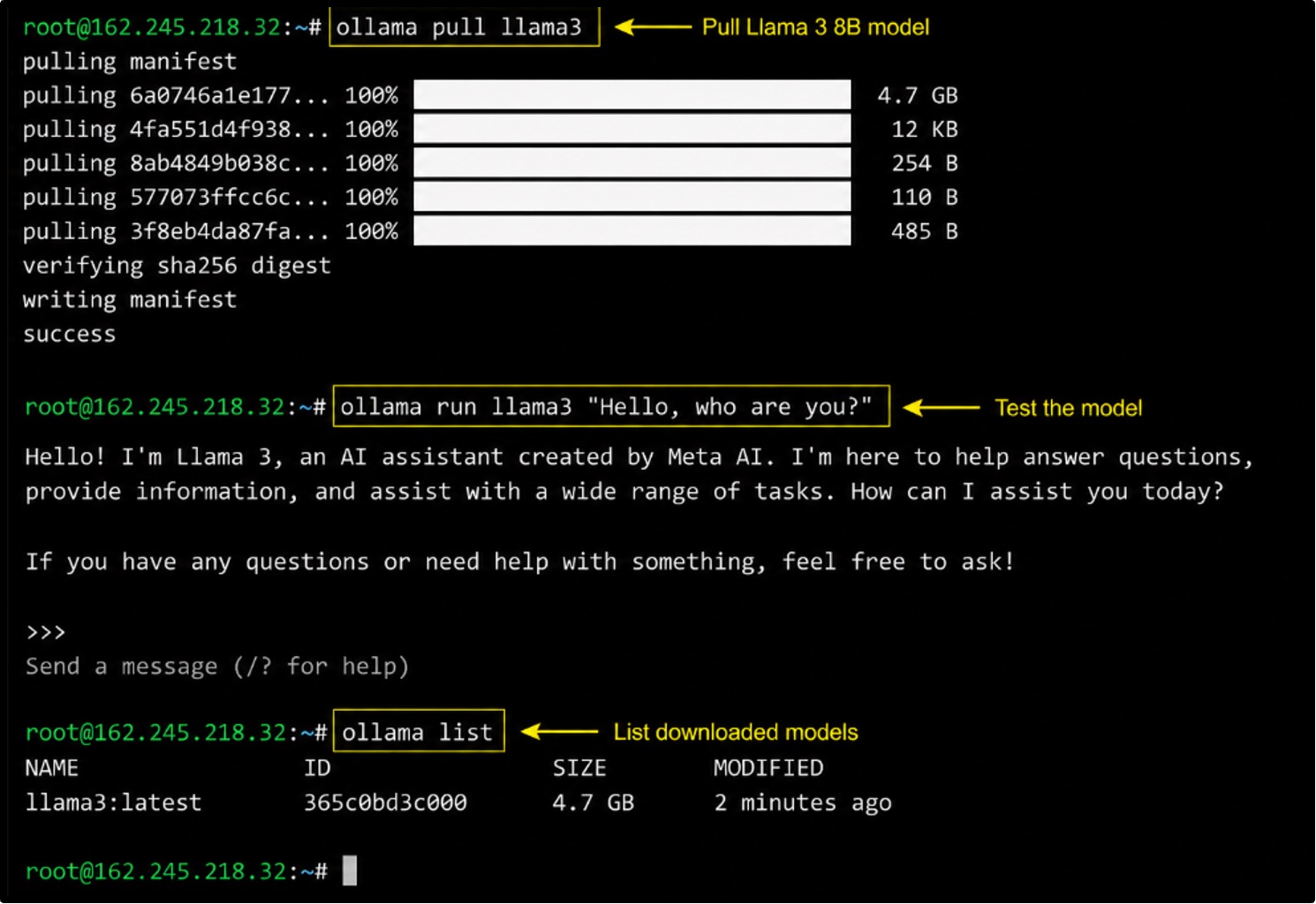
Now pull your first model. Start with Llama 3 8B for a good quality-to-RAM balance:
| ollama pull llama3 |
Test it right from the terminal! Now there are two ways to do it:
Option1) Interactive mode (recommended for beginners):
| ollama run llama3 |
Then type your prompt when the >>> appears.
Option2) One-liner with inline prompt:
| ollama run llama3 “Hello, who are you?” |
You can run Llama 3 in interactive mode by typing ollama run llama3 and entering your prompt, or pass a quick one-liner directly as shown above
| ollama run llama3 “Hello, who are you?” |
To list all models you have downloaded:
| ollama list |
Ollama installs itself as a systemd service automatically. It starts on boot and runs in the background. You do not need to manually start it after a reboot.
To pull lighter models for a budget VPS:
| ollama pull phi3ollama pull gemma:2bollama pull tinyllama |
Setting Up a ChatGPT-Like Web Interface
Talking to Ollama through the terminal is fine for testing, but not practical for daily use. Open WebUI gives you a full browser-based chat interface.
Here is how to install it with Docker.
| docker run -d -p 3000:8080 –add-host=host.docker.internal:host-gateway -v open-webui:/app/backend/data –name open-webui –restart always ghcr.io/open-webui/open-webui:main |
Open your browser >> Go to http://your_server_ip:3000 >> On first launch, create an admin account. Then select your Ollama model from the dropdown and start chatting.
- Port 3000 should not be open to the public internet without a password or reverse proxy in front.
- See the Securing Your AI Assistant section below before exposing this to outside users.
Open WebUI features include conversation history saved locally, file uploads for document Q&A, support for multiple Ollama models in one interface, user accounts and multi-user support, and a clean mobile-friendly design.
Adding Your Own Knowledge Base (RAG)
A standard AI model only knows what it was trained on. RAG (Retrieval-Augmented Generation) lets you connect your own documents so the AI can answer questions about your specific content.
This is how you build an internal company chatbot or a documentation assistant.
What is RAG?
RAG works in two steps. First, your documents are split into chunks and stored as vector embeddings in a database.
When you ask a question, the system retrieves the most relevant chunks and feeds them to the AI as context. The AI then answers using both its training knowledge and your document content.
The result is accurate, grounded answers instead of hallucinated ones.
Tools for RAG
These tools simplify building RAG pipelines by handling document processing and embeddings. This lets you focus on creating accurate AI applications efficiently.
- LangChain: Python framework for chaining retrieval and generation steps. Works with Ollama and most vector databases.
- LlamaIndex: Specializes in document ingestion and retrieval. Easier to set up for document Q&A than LangChain in many cases.
- ChromaDB: Lightweight open-source vector database that runs locally. No external service required. Good starting point for small knowledge bases.
- Qdrant: High-performance vector database that runs in Docker. Better choice for large document collections.
Uploading Documents
Uploading documents enables your AI system to learn from your data. It turns static files into searchable knowledge that can be queried instantly through natural language questions.
- Open WebUI has built-in document upload support.
- You can drag and drop files directly into the chat interface. Supported formats include PDFs, Markdown files, Word documents (.docx), and plain text files.
- For website content, you can paste text directly or use LangChain’s web loader to scrape and index pages automatically.
Example Use Cases
RAG unlocks practical solutions across teams by transforming scattered information into a unified, searchable assistant that reduces search time and enhances decision-making accuracy.
- Internal company chatbot: Upload your SOPs, HR policies, and product documentation. Let your team ask questions in plain language.
- Documentation assistant: Upload your technical docs and let developers ask questions without digging through pages manually.
- Research assistant: Upload papers, reports, and notes. Ask the AI to find connections, summarize findings, and answer specific questions.
Securing Your AI Assistant
Running a self-hosted AI on a public VPS without security is like leaving your front door open. This section covers what our team puts in place before going live.
Enable HTTPS
Install Nginx as a reverse proxy so your AI interface is accessible over HTTPS instead of a raw IP and port.
| apt install nginx certbot python3-certbot-nginx -y |
Create an Nginx config for your domain:
| server { server_name yourdomain.com; location / { proxy_pass http://localhost:3000; proxy_set_header Host $host; proxy_set_header X-Real-IP $remote_addr; }} |
Get a free SSL certificate with Let’s Encrypt:
| certbot –nginx -d yourdomain.com |
Certbot will auto-renew your certificate and update the Nginx config automatically.
Authentication
Open WebUI includes built-in user accounts and password protection.
Enable it in the admin settings. For teams, you can set up OAuth login with Google or GitHub, or configure multi-user roles so different people have different access levels.
For a single-user private setup, basic HTTP auth added at the Nginx level is a strong layer of protection.
VPS Security Best Practices
Keeping your VPS secure should become your day to day habit. Together, these practices create a safer and more reliable setup for running AI workloads.
- Automatic backups: Enable weekly snapshots on your VPS provider dashboard. DigitalOcean and Vultr both offer this for a small monthly fee.
- Monitoring: Install htop or set up a free Uptime instance to watch your server health and get alerts when something breaks.
- Rate limiting: Add rate limiting to your Nginx config to prevent brute-force login attempts on your AI interface.
- Resource isolation: Run Open WebUI and Ollama in separate Docker containers so a crash in one does not take down the other.
Optimizing Performance
Getting a model running is step one. Getting it running fast and efficiently takes a bit more work. Here is what actually makes a difference.
Use Quantized Models
Quantization compresses a model by reducing the precision of its numbers, for example from 16-bit floats to 4-bit integers. A 7B (Q4) model in full precision needs about 8GB of RAM.
The same model in 4-bit quantization (Q4) needs about 5 GB. You lose a small amount of output quality but gain a massive drop in RAM usage and a meaningful speed improvement.
Ollama downloads quantized models by default.
GPU Acceleration
If your VPS has an NVIDIA GPU, Ollama will use it automatically for inference. GPU inference is 5 to 20 times faster than CPU-only for the same model.
To set up GPU support:
| ubuntu-drivers autoinstallnvidia-smi # Install NVIDIA Container Toolkitcurl -fsSL https://nvidia.github.io/libnvidia-container/gpgkey | sudo gpg –dearmor -o /usr/share/keyrings/nvidia-container-toolkit-keyring.gpgcurl -s -L https://nvidia.github.io/libnvidia-container/stable/deb/nvidia-container-toolkit.list | sed ‘s#deb https://#deb [signed-by=/usr/share/keyrings/nvidia-container-toolkit-keyring.gpg] https://#g’ | sudo tee /etc/apt/sources.list.d/nvidia-container-toolkit.listsudo apt update && sudo apt install -y nvidia-container-toolkitsudo nvidia-ctk runtime configure –runtime=dockersudo systemctl restart docker ollama run llama3 |
To actually use the GPU (especially when running Open WebUI via Docker), you also need to install the NVIDIA Container Toolkit between nvidia-smi and ollama run llama3.
Resource Monitoring Tools
Keep an eye on your server! Like having a control room with blinking lights and dials that tell you exactly what’s happening:
- htop: Real-time CPU and RAM usage. Run htop in any terminal session.
- nvtop: GPU usage monitor. Run “apt install nvtop -y” then nvtop to watch GPU utilization during inference.
- Prometheus & Grafana: For a proper monitoring dashboard with historical data, alerts, and charts. Gives you a professional view of server health.
Running AI Models Efficiently on Small VPS Servers
Not everyone can afford a 16 GB RAM VPS right away. Here is how to get the most out of a smaller server.
Best Models for Low RAM (Under 8 GB)
Lightweight models like Llama 3 8B, run smoothly on under 8GB RAM using quantization techniques efficiently.
- Phi-3 Mini: Best quality-to-RAM ratio for a small VPS. Around 2.3 GB in quantized form.
- TinyLlama: Only 638 MB. Runs on any VPS with 2 GB RAM or more. Limited quality but fast.
- Gemma 2B: Around 1.5 GB. Solid general assistant for basic tasks.
Swap Memory Setup
Swap lets your server use disk space as extra RAM when physical RAM runs out. It is slower than real RAM but prevents crashes when a model slightly exceeds available memory.
| fallocate -l 8G /swapfilechmod 600 /swapfilemkswap /swapfileswapon /swapfileecho ‘/swapfile none swap sw 0 0’ | tee -a /etc/fstab |
Swap is a safety net, not a performance tool. If your model relies heavily on swap, inference will be extremely slow. Use swap to prevent crashes, but buy more RAM for real speed.
Performance Tweaks
Fine tuning threads and reducing context size, helps conserve RAM, speed responses and maintain smooth performance on VPS.
- CPU thread optimization: Ollama automatically detects and uses all available CPU threads. If responses are slow, reduce the model context size.
- Context size tuning: Set OLLAMA_NUM_CTX=2048 for lightweight setups instead of the default 4096 to use less RAM and respond faster.
- Model quantization: Always use Q4 or Q5 quantized models on VPS setups. Avoid full-precision (FP16) models unless you have a GPU VPS with 24+ GB VRAM.
Advanced Features
Adding voice and multi agent systems transforms your AI into a powerful assistant capable of interaction and complex task execution.
Voice Assistant Integration
You can add speech-to-text and text-to-speech to make your AI assistant fully voice-capable.
- Whisper STT: OpenAI’s open-source speech recognition model. Runs locally, transcribes audio accurately in multiple languages. Open WebUI supports Whisper natively.
- Piper TTS: A fast, local text-to-speech engine. Produces natural-sounding voices without sending audio to external services.
AI Automation
Connect your self-hosted AI to automation workflows so it can take actions, not just answer questions.
- Zapier: Connect your Ollama API endpoint to thousands of apps through Zapier’s HTTP action. Trigger AI summaries, drafts, and classifications inside existing workflows.
- n8n workflows: Self-hostable Zapier alternative. Build complex AI automation pipelines that stay on your own infrastructure. Combines well with Ollama for fully private automation.
Multi-Agent Systems
For more complex tasks, multiple AI agents can work together where one plans, another researches, and another writes.
- AutoGen (Microsoft): Framework for building multi-agent conversations. Works with local Ollama models as a backend.
- CrewAI: Python framework for orchestrating a team of AI agents with defined roles and tasks. Integrates with LangChain and Ollama.
API Access
Ollama exposes an OpenAI-compatible API at http://your_server_ip:11434. Any tool or script that uses the OpenAI Python SDK can talk to your self-hosted model by changing one line:
From openai import OpenAI
Then run this,
| client = OpenAI( base_url=”http://your_server_ip:11434/v1″, api_key=”ollama”) response = client.chat.completions.create( model=”llama3″, messages=[{“role”: “user”, “content”: “Hello!”}])print(response.choices[0].message.content) |
Common Problems & Fixes
Most issues come down to limited resources, misconfigured containers, or blocked ports and can be resolved with quick checks and simple adjustments.
Model Crashes
If Ollama crashes mid-response or fails to load a model, the most common cause is running out of RAM. Check available memory with “free -h”.
If you are at the limit, either set up swap memory or switch to a smaller quantized model. Avoid running multiple large models at the same time.
Slow Responses
Slow output usually means the model is too large for your CPU or RAM. Switch to a Q4 quantized model first.
If that does not help, try a smaller model such as Phi-3 Mini instead of Mistral 7B. For a permanent fix, upgrade to a VPS with more RAM or add a GPU.
Docker Issues
If Open WebUI stops responding, check the container status and logs:
| docker ps -adocker logs open-webui –tail 50docker restart open-webui |
Port Access Problems
If you cannot reach port 3000 from your browser, check your firewall rules:
| ufw statusufw allow 3000/tcp |
Also check that your VPS provider’s cloud firewall in their control panel is not blocking the port at the network level. DigitalOcean, Vultr, and Hetzner all have a separate cloud firewall that sits above UFW.
Cost Breakdown
Your monthly cost depends on how powerful you want your AI setup to be, ranging from lightweight CPU deployments to high-end GPU systems capable of handling large models.
| Setup Type | Monthly Cost (USD) | What You Get |
| Starter (Tiny models) | $5 to $10 | 4 vCPU, 8 GB RAM, TinyLlama or Phi-3, CPU-only |
| Mid-Range (7B models) | $15 to $40 | 8 vCPU, 16 GB RAM, Mistral 7B or Llama 3 8B, CPU-only |
| Performance (13B+ models) | $50 to $100 | 8+ vCPU, 32 GB RAM, Mixtral or DeepSeek, CPU |
| GPU VPS (any model) | $80 to $300+ | NVIDIA A100/L40S, fast inference, 70B+ models possible |
Self-Hosting vs OpenAI API Costs
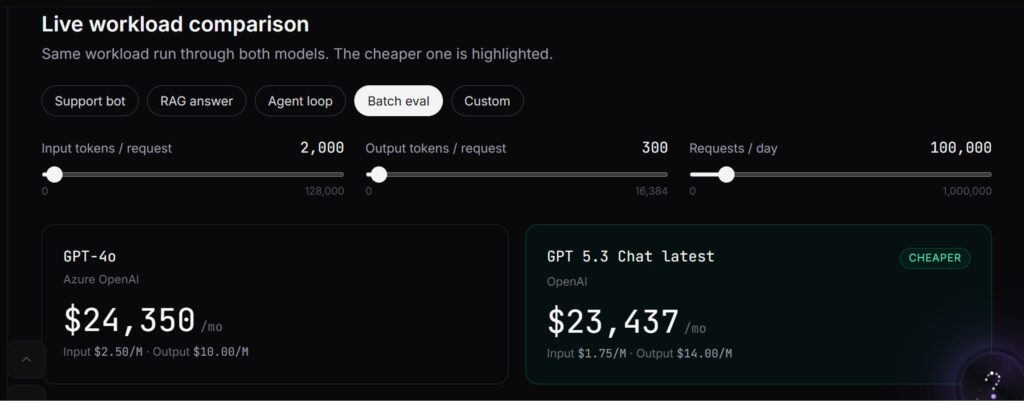
At typical usage of 100K tokens per day, OpenAI’s GPT-4o costs roughly $150 per month.
A Hetzner VPS with 16 GB RAM running Llama 3 8B costs around 16 to 21 EUR per month and handles unlimited tokens.
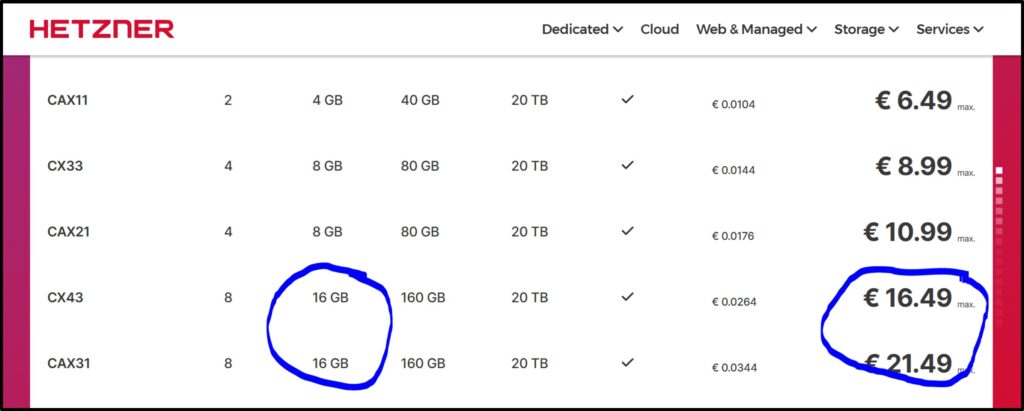
The break-even point for medium usage is usually 2 to 3 months. After that, self-hosting saves money every single month, with no rate limits and full data privacy.
A team using 5 million tokens per day would pay $700 or more per month with the OpenAI API. The same workload on a self-hosted 32 GB VPS costs $40 to $80 per month.
Annual savings: Over $7,000.
Best Use Cases for Self-Hosted AI
Self hosted AI works well where privacy and customization matter most. This enables secure automatic workflow, internal knowledge access, coding assistance and experimentation.
- Private business AI: Keep sensitive business data and internal processes off third-party AI servers entirely.
- Coding copilot: Run DeepSeek Coder or Llama 3 as a private GitHub Copilot alternative. Connect it to VS Code through the Continue extension.
- AI customer support: You can build a first-line support bot trained on your product documentation using RAG. Keep all customer queries on your own infrastructure.
- Research assistant: You can even upload papers and notes. Ask complex questions and get answers grounded in your own documents.
- Internal enterprise knowledge bot: Replace internal wikis with an AI assistant that reads from your Notion, Confluence, or markdown files and answers in plain language.
- Home lab projects: You can experiment with models and build automation workflows without paying per-token fees.
Alternatives to VPS Self-Hosting
A VPS is not the only way to self-host. Here are the main alternatives and when they make more sense & Let’s be simple and exactly to the point here.
- Local PC Hosting: Run Ollama directly on your laptop or desktop. Works well for personal use. Not suitable for team access or 24/7 availability.
- NAS Hosting: Synology and QNAP devices with 16+ GB RAM can run small models. Silent, energy-efficient, always-on. Limited by NAS CPU performance.
- Kubernetes Clusters: For teams running multiple AI services at scale. More complex setup but allows auto-scaling and better resource management across multiple nodes.
- Serverless AI Platforms: Services like Cloudflare Workers AI or Replicate let you run open-source models via API without managing a server. Easier setup, but you lose full data control and pay per token again.
FAQ: How to self-host your own AI assistant on a VPS
Can I run AI on a $10 VPS?
Yes, but with few limitations. A $10 VPS gives you 4 vCPU and 8 GB RAM. You can run Phi-3 Mini (3.8B) or TinyLlama comfortably on that. Mistral 7B is possible with 4-bit quantization and swap memory, but responses will be slow.
Which AI model is best for beginners?
Llama 3 8B is the best AI model for beginners, if your VPS has 16 GB RAM, or Phi-3 Mini if it has 8 GB RAM. Avoid jumping to large models like Mixtral 8x7B until you have confirmed your server handles the smaller ones without issues.
Do I need a GPU VPS?
No! CPU-only inference with quantized models is perfectly usable for personal or small team setups. Responses take 2 to 10 seconds per message depending on model size and VPS specs. A GPU VPS (roughly $80 per month) is not required to get started.
Is self-hosting AI secure?
Properly configured, yes! Your data never leaves your own server. Set up HTTPS with Let’s Encrypt, use Open WebUI’s built-in authentication, keep Ollama behind a reverse proxy, and enable UFW and Fail2Ban.
Can I use my own documents?
Yes, you can use your own documents. This is called RAG (Retrieval-Augmented Generation). Open WebUI has built-in document upload support. You can upload PDFs, markdown files, and Word documents.
How much RAM do AI models need?
A 7B model needs roughly 5 to 6 GB. A 13B model needs around 16GB to 18GB. A 70B model needs 40+ GB. Always add 2 to 3 GB overhead for the OS and Ollama itself.
Can I create a ChatGPT alternative?
Yes, you can create a ChatGPT alternative. Ollama plus Open WebUI gives you a fully private, self-hosted alternative with a nearly identical chat interface. You get multi-turn conversation, document uploads, conversation history, user accounts, and voice input. You control the model and the server.
Final Verdict: How to self-host your own AI assistant on a VPS
Self-hosting your own AI assistant on a VPS is no longer an expert project (You alone can do it and that too in just few minutes)
With Ollama handling model management & Open WebUI delivering a polished interface, our technical team confirmed that a capable private AI assistant is a 30 to 60 minute setup on any Ubuntu 22.04 VPS with 8 GB RAM or more.
Start with a budget VPS from Hetzner or Vultr, pull Llama 3 8B or Phi-3 Mini through Ollama, add Open WebUI for the browser interface, secure it with Let’s Encrypt and you have a fully private AI assistant that costs a fraction of any paid API.
The longer you wait, the more you pay in API fees. The savings last as long as you run it.



Table of Contents
- What You Need Before Starting?
- Choosing the Right AI Model
- Best Self-Hosting Tools for AI Assistants
- Step-by-Step VPS Setup
- Installing Ollama on the VPS
- Setting Up a ChatGPT-Like Web Interface
- Adding Your Own Knowledge Base (RAG)
- Securing Your AI Assistant
- Optimizing Performance
- Running AI Models Efficiently on Small VPS Servers
- Advanced Features
- Common Problems & Fixes
- Cost Breakdown
- Best Use Cases for Self-Hosted AI
- Alternatives to VPS Self-Hosting
- FAQ: How to self-host your own AI assistant on a VPS
- Final Verdict: How to self-host your own AI assistant on a VPS