10 Best Remote Desktop Software (2026)

How nice it would be to manage files and fix software bugs without going to the workplace. Sounds like magic right?
You know, many technicians, frontline staff, and even designers lose sales because they’re unable to reach every client. The main reason for this is travel time and RDP alone can’t solve this problem.
So, the only solution is remote desktop software that’ll make you feel as if you’re sitting in front of the original remote computer and allow you to access its files, software, keyboard, and mouse. You can even turn that PC on or off.
If you want to know more about these software, then you should read this blog. We have discussed 10 software along with their key features, best use cases, pros, cons.
We’ll also guide you on how to choose the Best Remote Desktop Software so that you can work without any delays whether you’re on a vacation or with your loved ones.
Before we start, let’s learn a simple definition of Remote desktop software.
What is remote desktop software and how does it work?
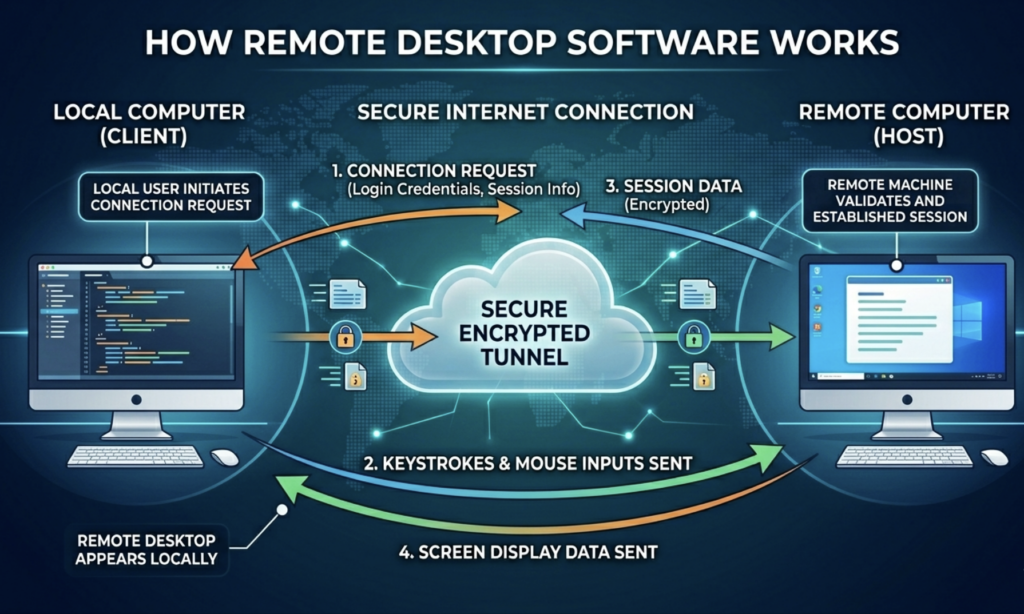
Remote desktop software is a platform that allows you to access distant servers or computers without touching them. This means you can control the software, files, data, and even the network of a computer from anywhere using this platform.
It contains three parts: a client, a connection, and a host.
- Client is the main computer from which you control the host (another computer) using a connection (RDP or VNC).
- It has a unique ability to mimic a remote computer, making it feel like you’re working on a real computer.
- This software is mostly used by developers, engineers, and large enterprises with heavy workloads who can’t access every system.
Here is the visual representation of how a remote desktop software works:
Now, we’re going to tell you about the 10 remote desktop software chosen by our experts.
10 Best Remote Desktop Software 2026
Our team has spent hours searching for the best Remote desktop software and have selected 10 of them so you can choose the one for yourself without wasting any time. Below we’ve listed all of them with their key features, best use cases, benefits and disadvantages. So, do give it a read.
⏰ TL;DR:
1. TeamViewer – Overall Best Remote Desktop Software
2. AnyDesk – Best Remote Desktop Software
3. Splashtop – High-Performance Remote Desktop Solution
4. Zoho Assist – Cloud-Based Remote Desktop Software
5. AnyViewer – Free and Easy Remote Desktop Software
6. Chrome Remote Desktop – Simple Browser-Based Remote Desktop Software
7. RemotePC – Affordable Remote Desktop Software
8. RustDesk – Open-source Remote Desktop Software
9. LogMeIn – Enterprise-grade Remote Desktop Software
10. Parallels Access – Best Remote Desktop Software for Gaming
1. TeamViewer – Overall Best Remote Desktop Software
TeamViewer
- Real-time Visibility
- Useful Insights
- Automated Remediation
Key features
- TeamViewer DEX: DEX (Digital Employee Experience) uses real-time monitoring to identify issues and remediation techniques to solve them so users remain productive.
- TeamViewer Frontline: This feature provides visual guidance through smart glasses (like augmented reality) to reduce errors and help frontline workers in warehouses and factories.
- Screen Sharing: Being a top Remote Desktop Software, TeamViewer allows high-quality, real-time screen sharing across any device, including PCs, tablets, and smartphones.
- IT Support: TeamViewer resolves technical glitches quickly even from a computer or mobile device, which saves travelling time and boosts customer engagement.
Pros & Cons
Pros
- Provides high-quality remote experience across different operating systems.
- Offers end-to-end encryption and multi-factor authentication for secure connectivity
Cons
- High pricing makes TeamViewer unfit for startups
- Interface is a bit complex for beginners.
Best for
According to our experts, TeamViewer is best for large-scale enterprises. It provides high-level security and automated AI tools to manage heavy workloads across multiple devices. Keeping organizations active 24/7.
2. AnyDesk – Best Remote Desktop Software
AnyDesk
- Remote Access and Control
- Security and Privacy
- Network Optimization
Key features
- Role-Based Address Book: This digital address book allows administrators to organize contacts and assign permissions based on a user’s role for secure data transfers.
- Cloud and On-Premises Support: You have full freedom to choose between private or cloud solutions for hosting AnyDesk.
- Regular Updates: This Remote Desktop Software for Windows releases new versions and security patches to make sure the software remains fast and safe.
- Mobile Device Support: You can control desktops even from your smartphones and tablets. This is useful for technical teams who want to manage terminals across different operating systems.
Pros & Cons
Pros
- Provides fast connectivity even with slow internet.
- You can set up and access AnyDesk on any operating system.
Cons
- Free version has limited features.
- Customization is tricky and complex for beginners.
Best for
We believe that AnyDesk is best for creative teams that need smooth remote access because it supports low-latency connectivity. This means you can control heavy designing software like Photoshop, Illustrator, and CorelDraw from anywhere.
3. Splashtop – High-Performance Remote Desktop Solution
Splashtop
- Free Trial
- Multi-Monitor Support
- Unattended and Attended Access
Key features
- Real-Time Patching: This feature helps IT firms to deploy security updates for operating systems and other apps to make sure all devices stay protected against the threats.
- Visibility and Control: Splashtop offers a dashboard so users can monitor the real-time security status of every device and fix issues quickly.
- Advanced Manageability: With advanced manageability, you can assign permission to only trusted people so they can access devices and manage files. It’s highly beneficial for large businesses that need to organize thousands of computers.
- Automations: By automating repetitive tasks, this Remote Desktop Software for Personal Use saves hours of manual labour so that users can focus on their main project.
Pros & Cons
Pros
- Provides 4K quality so users can feel as if they’re sitting in front of the remote server.
- Very affordable for small businesses, startups, and individuals.
Cons
- Consumes processor power quickly, especially if you’re using outdated hardware tools.
- Too many pricing options often confuse. potential clients.
Best for
In our opinion, Splashtop is perfect for learning institutions and hybrid companies that need high-quality performance to use heavy apps like AutoCAD. It’s because it helps art students to run these software remotely with zero lag.
4. Zoho Assist – Cloud-Based Remote Desktop Software
Zoho Assist
- 15-Day Free Trial
- No Credit Card Required
- Enterprise Support
Key features
- OEM Partnership: You can integrate Zoho assist into any custom software as it offers built-in support. This feature is perfect for companies who don’t want to deal with third-party downloads.
- SMB Solutions: Zoho’s Remote Desktop Software is best for Small and medium business as it’s affordable and easy-to-scale. It also offers tools like multi-monitor navigation and remote reboot without any fee.
- API/SDK: Zoho Assist also provides APIs and mobile SDKs to integrate this software directly into your existing apps or CRM.
- Mobile Support: It allows technicians to control PCs remotely from anywhere with their mobile devices. Saving time and money spent on transportation.
Pros & Cons
Pros
- Web-based console makes Zoho easy to use on both desktops and smartphones.
- Convenient pricing plans to help individuals and startups.
Cons
- Free plans don’t offer advanced features
- Many users have experienced lags.
Best for
After analyzing abilities and features of Zoho Assist, we’ve come to the point that this Remote Desktop Software is best for startups, IT help desks, and managed service providers. Because it allows you to support a variety of clients quickly. Its web-based console saves time spent on installation.
5. AnyViewer – Free and Easy Remote Desktop Software
AnyViewer
- 15-Day Unconditional Money Back Guarantee
- 256-Bit SSL Secure Order
- Permanent Free Technical Support
Key features
- Freeware Download: AnyViewer offers a free version so students can access other servers without paying high subscription fees. It’s easy to download and use without any time limits.
- Privacy Mode: Privacy mode helps you protect confidential data by darkening the remote computer’s screen and disabling the keyboard and mouse while you’re connected.
- Mirror Screen: With the screen mirroring feature, users can mimic their iPhone or Android screen directly onto a PC or Mac. This is highly beneficial for giving mobile presentations and sharing photos with family.
- Stable Connection: This Remote Desktop Software is built with advanced streaming protocols so you get a lag-free experience with zero interruptions while managing emails and other important tasks.
Pros & Cons
Pros
- Provides a user friendly interface so beginners can access remote desktops easily.
- Allows users to access files of other computers from anywhere.
Cons
- Privacy mode is only available in premium plans.
- Mouse support and remote gaming features aren’t available.
Best for
AnyViewer offers many user-friendly features with affordable pricing plans, making it best for small-to-medium businesses. Its simplicity and ease of use allow first-time users to access remote servers instantly.
6. Chrome Remote Desktop – Simple Browser-Based Remote Desktop Software
Chrome Remote Desktop
- Unattended Access
- Cross-Platform Support
- Multi-Session Handling
Key features
- Easy Access: You can access Chrome Remote Desktop quickly if you have an account on Google. This means you can jump into your computer from any device instantly.
- Android and iOS Support: CRD is the Best Remote Desktop Software for Android and iOS, as it allows you to control your PC or Mac right from your phone or tablet
- Screen Sharing: You can share your screen with someone else to help them solve technical issues without leaving your current place.
- Secure Infrastructure: As it uses Google’s infrastructure and WebRTC technology, all the remote sessions remain safe. This means all your activities and data transfers will be protected from outsiders.
Pros & Cons
Pros
- Works on all operating systems including Windows, Mac and Linux
- It’s completely free for both personal and commercial use.
Cons
- Drag and drop feature isn’t available for transferring files.
- The remote desktop must be logged in to Chrome.
Best for
Because of flexibility and ease of use, Chrome Remote Desktop is best for students, freelancers, businesses and firms that use Google Workspace like Docs, Google Drive, Maps and Sheets.
7. RemotePC – Affordable Remote Desktop Software
RemotePC
- Browser-Based Access
- Multi-Monitor Support:
- Multi-Factor Authentication (MFA)
Key features
- NinjaOne: With the NinjaOne console, you can launch RemotePC across thousands of devices instantly. Helping your employees to set up remote access without visiting every desk.
- Drag and Drop: RemotePC offers a drag-and-drop tool so you can move files and folders between your local and remote screens just like you do on your own desktop.
- Remote Reboot: You can even restart your remote computer if it becomes unresponsive. This ensures that users never lose session access due to simple issues.
- USB Redirection: USB Redirection allows you to connect your local scanner or printer with the remote desktop. This helps users perform complex tasks, like signing or data backups, without accessing the host.
Pros & Cons
Pros
- Provides advanced features at a low cost
- Users feel like sitting in front of the remote computer.
Cons
- Free version has a limited trial period.
- Web version has less features than the desktop app.
Best for
After testing RemotePC carefully, we’ve concluded that it’s best for small businesses and freelancers who don’t want to spend a lot on remote connections but need the feel of working in a real workplace.
8. RustDesk – Open-source Remote Desktop Software
RustDesk
- Direct P2P Connections
- Advanced Media Support
- Security and Management:
Key features
- Self-Host: Users have full control over the software because of self-hosted servers. This protects data, avoids third-party privacy risks, and reduces costs.
- Documentation: This Remote Desktop Software for Windows also provides documentation and GitHub repositories so developers can easily customize the features as per their needs.
- Video Tutorials: RustDesk provides video tutorials so users can install software easily. This simplifies setup and server configuration for both beginners and professionals.
- Community Support: Large community support of developers and other genuine users helps beginners and newbies to solve problems related to setup and fix issues.
Pros & Cons
Pros
- It’s open-source and free to use so developers can customize it according to their needs.
- Provides a clear video and audio quality so users don’t face difficulty while using any software.
Cons
- Complex for beginners.
- Limited features in mobile app.
Best for
We believe RustDesk is best for IT firms and industries like finance or healthcare because it provides full data security and on-premises control without expensive pricing plans.
9. LogMeIn – Enterprise-grade Remote Desktop Software
LogMeIn
- Unlimited Remote Access
- Multi-Monitor Support
- 1TB Cloud Storage
Key features
- Remote Monitoring & Management: RMM allows IT firms to keep track of all the work at once. It’s beneficial because it catches technical glitches before anyone notices them.
- Mobile Device Management: MDM tools help companies set up smartphones and tablets remotely for keeping data safe on mobile devices.
- Enterprise Security: Enterprise grade ensures that only verified users can access the remote server to protect private business conversations and files.
- AI Automation: LogMeIn uses AI to handle repetitive and time-consuming tasks like running system checks. This is useful because it saves hours of manual labour without any errors.
Pros & Cons
Pros
- Lag-free performance provides a native like feel to users.
- Enterprise grade security makes it useful for Fintech and banking firms.
Cons
- Limited features in desktop app.
- Too expensive for small businesses.
Best for
Our experts think that LogMeIn is best for small to medium businesses (SMBs) as it gives all-in-one tool that combines remote support with security. It’s even perfect for companies that want to manage a remote workforce without needing a massive, on-site IT department.
10. Parallels Access – Best Remote Desktop Software for Gaming
Parallels Access
- 14-Day Free Trial
- Live Support
- 30 Days Money Back Guarantee
Key features
- Industry-Wise Support: Parallels Access offers help to various industries, including healthcare, education, and engineering. This means users can access complex software like AutoCAD.
- Resource Library: This Remote Desktop Software offers a library containing guides and webinars to help non-technical users solve problems quickly.
- Parallels DaaS: Desktop as a Service feature allows you to launch a full computer desktop instantly from a web browser.
- Browser Isolation: With browser isolation, users can run their browser in a separate, sandbox environment to protect their computer and data from phishing attacks.
Pros & Cons
Pros
- Mobile application offer a desktop-like feel to the users.
- Full data privacy ensures that user data remain safe from hackers.
Cons
- Mobile app drains out battery quickly.
- Subscription plan isn’t budget-friendly for many users.
Best for
Parallels Access is best for Agile Startups and designers who use Mac hardware but require Windows-specific tools so they can stay productive even without using heavy workstation.
Remote Desktop Software vs VNC vs RDP
You might be aware of RDP (Remote Desktop Protocol) and VNC (Virtual Network Computing) and even used them at some time. Many people get confused between RDP, VNC and RDS that’s why we’ve compared their security, OS support, performance and user support in the table given below:
| Features | RDS | VNC | RDP |
| Security | High security due to TLS, AES and MFA | Low-Moderate security because of unencrypted data | Moderate security due to network level authentication |
| OS support | Works on Windows, Mac, Linux, iOS, Android | Works on Windows, Mac, Linux, iOS, Android | Works on Windows, Mac, Linux, iOS, Android |
| Multi user | Yes, unlimited people can join sessions together | Yes, but only 5 to 10 people can control the same screen | No, allows only one user at a time. |
| Performance | Variable performance because of internet connection and number of users | Lower than RDS but offers a consistent performance during screen sharing | High-speed performance for Windows users |
Key Features to Look for in Remote Desktop Software
Apart from the 10 Remote Desktop Software mentioned in this blog, you’ll find many other options online as well. But the thing is that all of these software aren’t reliable when it comes to lag-free performance and security. That’s why you should look for these things in a remote desktop software:
Strong security system
While accessing multiple monitors from a single laptop, you might face the risk of data theft because anyone can use login credentials to access the host.
You should use a remote desktop connection with strong encryption and multi-factor authentication.
OS and multi device compatibility
Remote desktop software should be compatible with different operating systems including Windows, Linux, Android, Mac and IOS.
This will make sure that you can access your remote computer from anywhere while travelling without facing any incompatibility issues
Unattended access
If you’ve used software similar to RDP, you’d know that someone should be present at the other side (in front of the remote computer) to accept the access request.
However, modern RDS offers unattended access, so you can access the server without this issue.
Drag and drop file transfer
Transferring files to someone in an urgent situation can be difficult, especially when you’re travelling.
However, modern RDP software provides drag-and-drop and copy-paste tools so you can send important documents and images from anywhere.
Multi monitor support
Multi-monitor support ensures that you can access all the screens simultaneously without wasting any time. This can be beneficial for employees who use more than 3 screens in their office setup.
This is beneficial for productivity as users don’t have to switch between different tabs again and again.
Session recording
This is one of the wonderful features for online content creators who offer learning tutorials and troubleshooting guides.
It allows users to record their screen activities for future use. Remote Desktop Software also great for students who want to revise old lectures.
Mobile support
Mobile support is a must because everyone can’t carry a laptop with them all the time. So, look for an RDS with mobile app support.
This ensures that technician or employees can access the remote server whenever needed to share important work or solve issues.
Wake on LAN
Do you know that these software also have the ability to wake up a turned off computer?
Until now, you may have only seen this in sci-fi movies, but it has become possible in reality. Wake on LAN means waking up the sleeping (turned off) remote computer.
Permission and role based access
By using the Remote Desktop Software, anyone can access remote server’s desktop, so the files and documents saved on them can also be misused.
That’s why you should look for an RDS with limited and role based access so only authorized persons can use them.
Pricing plans
If you’re a student, look for a free plan with lag-free session recordings and if you’re self-employed or own a business, consider a paid plan.
Paid plans offer more advanced features and are capable of accessing multiple desktops.
How to Choose the Best Remote Desktop Software
If you’re confused about how to choose the Best Remote Desktop Software then don’t worry because our experts have left some tips for you. Just consider these points while choosing a reliable remote desktop software:
Easy to install
Go for a software that’s easy to install or provides web support. Complex and time-consuming software installation can interrupt urgent work, especially for frontline workers.
User friendly interface
Apart from installation, the features should also be easy to use so that both beginners and professionals can use the software. That’s why you should get an RDS with an interactive UI and mandatory features like drag and drop, file sharing, and multiple panels.
Business requirements
A technician should choose a software that can handle the entire system of the remote computer, that means monitor, keyboard and mouse. A designer should choose one with software support so that they can manage heavy tools easily.
Authentication
Hackers are always looking for loopholes. That’s why you should choose a software with a strong security infrastructure, meaning it should have multiple authenticators that can verify user’s identities. Tools like Firewall, Immunify 360, and Bitninja security also protect against malicious data.
Phone/Tab support
Choose a Remote Desktop Software that offers desktop and mobile/tablet support so you don’t have to carry your laptop everywhere. Also, look for OS compatibility, which means the software should run on Windows, iOS, Android, Mac, and Linux.
And that’s it! Remember these points while choosing a software and you’ll get lag-free remote connections.
Pros & Cons of Remote Desktop Software
Pros
- Allows to work while travelling.
- Budget-friendly for freelancers and startups.
- Provides instant help to clients.
- Uses TCP, UDP, TSL and AES protocols for data safety.
Cons
- Highly dependent on internet connectivity.
- Many free RDS offer limited features.
- Screen might lag while accessing heavy software.
FAQs: Best Remote Desktop Software
Q1: Is remote desktop software safe?
A: Yes, remote desktop software is safe to use because they use double authenticators, firewalls and end-to-end encryption. This ensures that only genuine people can login to access remote computers and its data.
Q2: Which remote desktop software is best for Windows servers?
A: Chrome Remote Desktop, Splashtop, Zoho Assist and RustDesk are some of the Best Remote Desktop Software for Windows. These software help Windows users to access remote PC from anywhere without any incompatibility issues.
Q3: Is remote desktop software better than SSH?
A: No, remote desktop software isn’t better than SSH because both have different purposes. SSH (secure shell) allows users or developers to access the command line interface or terminal of a remote computer whereas, RDS is used for controlling all the apps, files, network and data of a remote PC.
Q4: Which remote desktop software is best for IT support?
A: TeamViewer and AnyDesk are best for IT support because they allow IT firms to remain active with the help of AI powered remote control. Both provide enterprise grade security to safeguard user data.
Q5: Can remote desktop software transfer files?
A: Yes, remote desktop software can transfer files safely by using drag and drop tools and USB redirection.
Q6: What encryption do remote desktop tools use?
A: Remote desktop tools use end-to-end encryption like TLS (Transport Layer Security) and AES (Advanced Encryption Standard). Both of these encryption protocols help users to establish a secure connection between the clients and hosts so data remains safe from hackers.
Q7: Can multiple users access the same remote computer?
A: Yes, multiple users can access the same remote computer but only if they have permission. All the remote desktop software use multiple authenticators and role based access techniques so only authorized person can access the remote computer.
Q8: Can remote desktop software be used for gaming?
A: Yes, remote desktop software can be used for gaming. Some of these software like Anyviewer allow users to access the mouse and keyboard along with the desktop so gamers can play any game on the remote PC easily.
Q9: Does remote desktop software support multi-monitor setups?
A: Yes, remote desktop software supports multi monitor setups using multiple panels. This means users can access multiple desktops on a single screen.
Q10: What ports are used by remote desktop software?
A: Remote desktop software uses TCP and UDP ports. These ports provide a clear audio and video quality to the users so they don’t face lags while using a remote computer.
Q11: How much does remote desktop software cost?
A: Remote desktop software can cost depending on their offered features. Many free RDS don’t offer advanced features and security while the paid ones come with enterprise grade security and business centric features.
Q12: What is the best remote desktop software overall?
A: There’s no best remote desktop software because each of them serve different business needs. Zoho Assist can be best for freelancers and startups whereas, Anyviewer and RemotePC can be best for medium and large businesses.
Conclusion
Look, you can’t be everywhere on time, no matter how important the work is, that’s why the Best Remote Desktop Software works like a blessing. You can access hundreds of servers without leaving your place and it won’t let you feel like you’re sitting in front of a dummy.
It’s best for frontline workers, engineers, developers, and designers who do resource-heavy tasks. Being highly secure and compatible with smartphones/Tabs, it avoids carrying heavy laptops and helps you to send important files and resolve client issues instantly.
We’ve discussed 10 RDS providers in this blog post you just read so you can choose the best option for your workflow. Our team has tested all the software carefully to help you get the best value for your money.
If you want to purchase a remote desktop software, just scroll up and read this blog again. And if you’re in a hurry, check our comparison table where we’ve listed the best use cases, features, pricings and free plan availability of each software.
Comparison Table
If you’re in a hurry, just go through the table given below. You can compare each of them based on their features and choose a reliable software to establish a remote connection.
| RDS | Platforms supported | Best use case | Security features | Free plan availability | Pricing range |
| TeamViewer | Windows, Mac, Linux, iOS, Android | large-scale enterprises | AES/MFA | Yes | $24+/month |
| AnyDesk | Windows, Mac, Linux, iOS, Android | creative teams | TLS | Yes | $23+/month |
| Splashtop | Windows, Mac, Linux, iOS, Android | learning institutions and hybrid companies | Authentication | No | $6+/month |
| Zoho Assist | Windows, Mac, Linux, iOS, Android | startups, IT help desks, and managed service providers | SSL/GDPR/AES | Yes | $10+/month |
| AnyViewer | Windows, Mac, Linux, iOS, Android | small-to-medium businesses | ECC | Yes | $3.99+/month |
| Chrome Remote Desktop | Windows, Mac, Linux, iOS, Android | students, freelancers | Google security | Yes | Free |
| RemotePC | Windows, Mac, Linux, iOS, Android | small businesses and freelancers | TLS/AES | No | $22.12+/month |
| RustDesk | Windows, Mac, Linux, iOS, Android | finance or healthcare | End-to-end encryption | Yes | Free, paid plan starts with $9.90+/month |
| LogMeIn | Windows, Mac, Linux, iOS, Android | small to medium businesses | MFA | No | 14 day free trial and paid plan starts at $30+/month |
| Parallels Access | Windows, Mac, Linux, iOS, Android | Agile Startups and designers | SSL | No | $54.99+/month |
Here are some other most popular Software.
- Best Proxy Checker Tools
- Best Plagiarism Checker Tool
- Best Free Content Marketing Tools
- Best Free Backlink Checker Tools
- Best Task Management Software Tools
- Best Free Ai Resume Builders
- Best Cloud Telephony in India
- Best Free Graphic Design Tools


Table of Contents
- What is remote desktop software and how does it work?
- 10 Best Remote Desktop Software 2026
- 1. TeamViewer - Overall Best Remote Desktop Software
- 2. AnyDesk - Best Remote Desktop Software
- 3. Splashtop - High-Performance Remote Desktop Solution
- 4. Zoho Assist - Cloud-Based Remote Desktop Software
- 5. AnyViewer - Free and Easy Remote Desktop Software
- 6. Chrome Remote Desktop - Simple Browser-Based Remote Desktop Software
- 7. RemotePC - Affordable Remote Desktop Software
- 8. RustDesk - Open-source Remote Desktop Software
- 9. LogMeIn - Enterprise-grade Remote Desktop Software
- 10. Parallels Access - Best Remote Desktop Software for Gaming
- Remote Desktop Software vs VNC vs RDP
- Key Features to Look for in Remote Desktop Software
- How to Choose the Best Remote Desktop Software
- Pros & Cons of Remote Desktop Software
- FAQs: Best Remote Desktop Software
- Conclusion
- Comparison Table