How to Host WhatsApp and Telegram Chatbots on a VPS 2026

I have set up business chatbots on VPS servers many times. My research team and I have tested this exact process 15+ times before writing this guide for you.
I have built and deployed these chatbots for my real clients and handed them the running system. I saw their customer base grow after they followed my guidance. Some of them now handle hundreds of chats a day on their own.
That is the result I want for you too.
In this guide I show you how to host WhatsApp and Telegram chatbots on a VPS right from scratch. Every step is in easy words, so a total beginner can easily follow along.
You will learn why a VPS keeps your bot online 24/7, which VPS feature you need, what is the real VPS cost in 2026 and the full step by step WhatsApp / Telegram business chatbot setup with commands (separately given in the boxes) you can copy.
Let’s get started.
What Is a Business Chatbot on a VPS?
Before we understand the entire process of how to set up a business chatbot on a VPS and anything further, let me explain the idea in simple words.
A business chatbot on a VPS (virtual private server) is an automated chat program that runs on your own private server and replies to customers on WhatsApp or Telegram 24/7.
Let me help you understand this with the help of an example:

Your VPS is like your personal space that is there in a data center and stays on all the time. This VPS has all the hardware requirements like high RAM, CPU, storage drives to run your chatbots smoothly non-stop.
You do not need to maintain all that in your laptop, you simply can buy a VPS. Your chatbot is a smart helper that runs on the VPS and answers messages to your clients for you.
Let’s say a startup called BrewCart sells coffee online.
A customer messages at 4AM for delivery. The founder is asleep, but the chatbot on his VPS is awake. The chatbot checks the order and replies in one second.
That customer feels really good as he is heard even at odd times. The sale stays alive 24/7. So the bot is the brain and the VPS is the always-on home for that brain.
Now let me show you why a VPS is good to run chatbots and it is the best option available so far.
Why Host Your Business Chatbot on a VPS?
See! I am not saying that you can’t run telegram business bots on your laptop or on a free server. You can, but believe me, I’ve tried both the options for clients and both have let me down at the worst times.
A premium VPS hosting service for running chatbots fixed every one of those problems.
24/7 Availability
The first reason is the big one. Your business stays open when your bot lives on a VPS, day and night.
- Always online: A VPS stays powered on in a data center with backup power and internet. Your laptop sleeps or drops wifi; the server does not. Your bot answers even at 3 AM like it is noon time.
- No dependency on local computers: Once the bot runs on the VPS, you can switch your own machine off and fly abroad. The bot keeps going to its own home.
That benefit alone pays for the server. A missed midnight message is a missed sale, so you host chatbot 24/7 on VPS and stop losing buyers.
Better Performance
Speed matters more than people think. A slow reply will make a customer feel that he is being ignored, and a VPS gives your bot the power to answer fast and be available every time.
- Dedicated resources: A VPS gives you a fixed slice of CPU and RAM that is yours only. Here, you need to understand that if you register for free options, since the server is shared by a number of users and the machine is also weak, your bot crawls.
- Faster response times: With dedicated power, your bot reads a message and replies back in well under a second, and instant answers build trust in your brand.
Fast bots feel human. As if a human is sitting at the back and replying to everyone 24/7. A cloud VPS for chatbots keeps every reply quick.
Enhanced Security
You are handling private customer chats. A VPS puts you in full control of how that data is secured. Every information of your client is 100% protected with a firewall. Later in the guide below, I’ve covered the steps on how to build a firewall on a VPS and secure your data.
- Full server control: You hold the root keys to the whole server. You decide what runs, what gets blocked, and who logs in.
- Custom firewall configuration: You build your own wall around the server, open only the doors your bot needs, and lock the rest.
On a managed VPS platform you trust someone else with all of the security related things. On your own Linux VPS chatbot setup, the safety is in your hands.
Scalability
A good bot grows with your business. On day one you have ten chats; later ten thousand. A VPS can easily fit that growth.
- Handle growing customer conversations: A small VPS handles a busy day of messages with room to spare and keeps pace as more people find your brand.
- Upgrade resources when needed: When your bot gets popular, you click a button and add RAM or CPU in minutes. There is no migration and no rebuilding requirement at all.
You start small and cheap, then scale only when demand is real. That is why VPS chatbot deployment suits a solo founder and a growing team alike.
Cost Efficiency
Money is the part most people worry about. The good news is a VPS is one of the cheapest ways to run a serious bot.
- Lower cost than managed chatbot platforms: Managed platforms charge per user or per chat, and that bill climbs fast. A VPS charges one flat monthly price for unlimited chats.
- Predictable monthly expenses: You pay the same amount every month, so you can plan your budget with zero surprise charges.
A few dollars a month buys a server that answers unlimited chats. For a person who wants to set up business chatbot hosting, cost is something that matters the most.
WhatsApp vs Telegram Chatbots: Which One Should You Choose?
Before setup, pick your channel.
Both apps are great but fit different businesses. I get this question from clients all the time, so let me tell you the real difference.
| Feature | WhatsApp Bot | Telegram Bot |
|---|---|---|
| Setup difficulty | Higher, needs Meta approval | Very easy, ready in minutes |
| Cost to start | Free API access, pay per template message | Fully free |
| Audience reach | Huge, most customers already use it | Large, strong in tech and crypto circles |
| Business verification | Required for scale | Not needed |
| Hosting model | Meta hosts the API, your VPS runs the webhook | Your VPS runs the bot directly |
| Media and files | Solid, with catalogs and buttons | Excellent. Large file support |
| Best for | Mainstream support and sales | Communities, alerts, tech products |
The table gives a quick view, but the right pick depends on your buyers and budget. Let me explain each choice in plain words.
When to Choose WhatsApp
Pick WhatsApp when your customers are active users who already live in the app. Most shoppers in India, Brazil and worldwide open it daily. Setup takes more effort and a small fee per business-started message, but for a shop or service the reach is worth it.
When to Choose Telegram
Pick Telegram when you want a fast, free start with zero approval waiting. It is good for tech products, crypto projects, communities and alert bots. You can build it in minutes and pay nothing for messaging. The Telegram bot hosting VPS route is the easiest for a first-timer.
When to Use Both Together
Many clients run both. You catch the buyers on WhatsApp and your community crowd on Telegram. One VPS runs both bots at the same low cost, so you double your reach on a single server.
VPS Requirements for Hosting Chatbots
People often ask me for a giant server and the chatbots are not that heavy machines that require a giant server. A chatbot is a light tool that uses optimum web resources. Let me give you the honest numbers my team tested.
Minimum Requirements
This is the floor. A small bot on either app runs happily on modest specs. For a single bot with light traffic, this is all you need.
- 1 vCPU: One virtual core handles an easy stream of messages for a small business with ease.
- 1 to 2 GB RAM: This memory runs your bot code, a small database and the system with some extra space left.
- 20 GB SSD: An SSD is fast storage. 20 GB holds your bot, logs, and chat data for a long time.
- Ubuntu 24.04 LTS: A free, stable Linux system with long support. It is the version I use for every bot.
That spec costs only a few dollars a month. For a first bot, this minimum is a great, safe start.
Recommended Requirements
Once your bot gets busy or you add AI replies, add more resources then. This is the sweet spot my team lands on for a growing business bot.
- 2 vCPU: Two cores keep replies instant even when many customers chat at once.
- 4 GB RAM: Extra memory runs AI features, a bigger database, and both bots at once with no slowdown.
- NVMe SSD: NVMe is the fastest storage today. It reads and writes quicker, so your bot feels snappy.
- Automated backups: Daily backups save a copy of your whole server, so you restore in minutes when something breaks.
This tier handles thousands of chats a day plus light AI work. For most serious businesses, this is where I point them.
Best VPS Features to Look For
Specs are only half the story. The extras that I’ve listed below separate a good host from an irritating one, and these are what I check first personally when I set up chatbots on a VPS.
- DDoS protection: Secure your server from attacks that try to knock your bot offline. Good hosts include it for free.
- Snapshot backups: A snapshot freezes your entire server at a moment in time, so you roll back whenever you need.
- Root access: Full control. You install anything and tune the server exactly how your bot needs it.
- Global data centers: Servers near your customers means faster replies. Pick a location close to most of your buyers.
- High uptime SLA: A promise of 99.9% or better keeps your bot online almost every second of the year.
A host with these features makes your life easy and your bot smooth. That is what makes the best VPS for chatbot hosting worth it.
I have kept every spec and price in this guide honest and based on real testing.
Prerequisites Before Starting
Before we open a terminal, here is a simple checklist. Gather these first and the whole setup runs with no stopping halfway.
WhatsApp Bot Requirements
WhatsApp asks for a little paperwork, so let me list what you need. Clear Meta’s checks and your WhatsApp business API VPS bot is ready.
- WhatsApp Business account: A business profile in the WhatsApp Business Platform, tied to a phone number you own.
- Business verification: Meta verifies your business for higher message limits. Small tests work before this; but if you want to scale, you need it.
- Meta Developer account: A free account at the Meta Developer site, where you create your app.
- API credentials: Your access token, phone number ID, and app secret, which connect your VPS to the WhatsApp Cloud API.
One honest note. Meta retired the old self-hosted WhatsApp API in October 2025. Today the API lives on Meta’s servers and your VPS runs the brain that talks to it.
Telegram Bot Requirements
Telegram is refreshingly simple. There is almost nothing to prepare, which is why I love it for a fast first project.
- Telegram account: Any normal account works. You use it to talk to the bot builder and manage your bot.
- Bot token from BotFather: BotFather is Telegram’s official bot maker. It hands you a secret token that controls your bot.
See the difference?
Telegram gets you moving in minutes, which is why many founders begin their Telegram business bot hosting journey here.
Server Requirements
Last, the server side. These three items form the home your bot will live in, so line them up now.
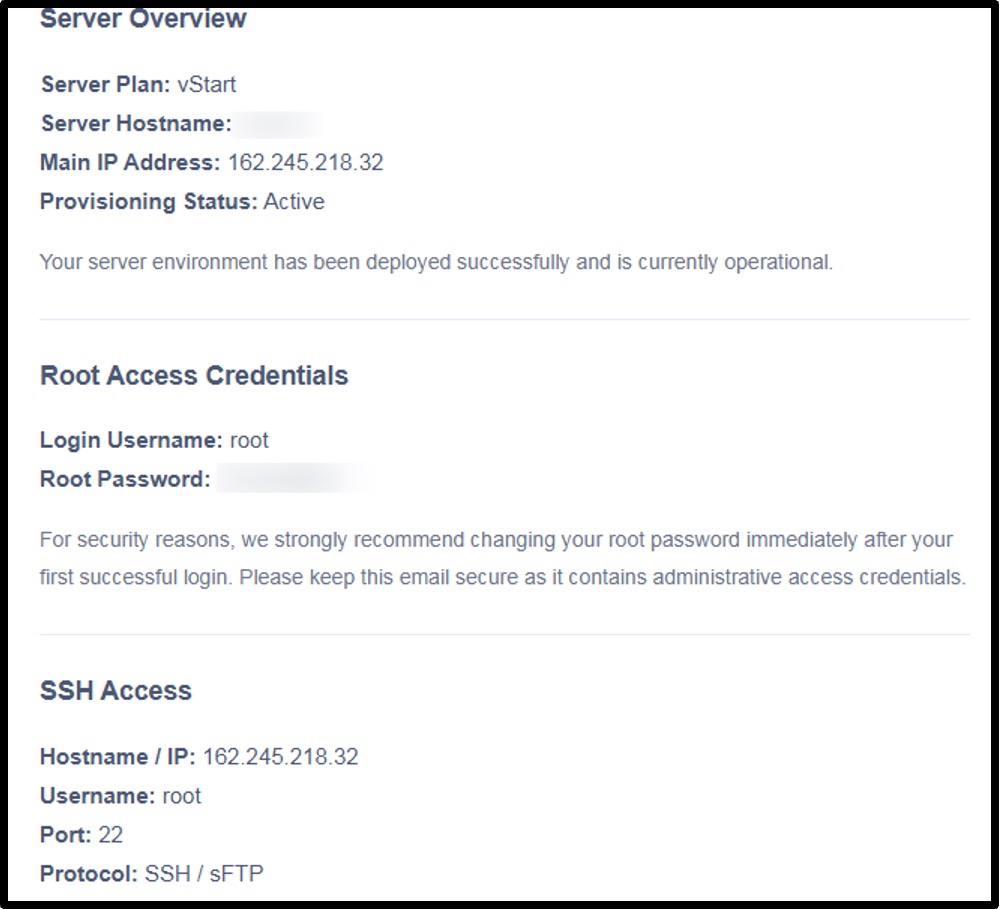
- VPS provisioned: A live VPS running Ubuntu 24.04, with the login details from your host in hand.
- Domain name: A web address like yourbrand.com. Your WhatsApp webhook and SSL certificate need it.
- SSH access: SSH is a secure way to log in to your server from your own computer using a terminal.
Here I want to tell you that I’ve rented YouStable VPS server for chatbot hosting as the they offer full admin access via secure SSH key, low price, easy to scale in just one click, 24/7 support service if in case the bot stops working or contacting to resolve server related issues.
The checklist is done.
Now let me show you exactly how to deploy a business chatbot from scratch. I’ve also added the important screenshots along with the steps so that if you get an issue in between the steps, you can refer to the images.
Step 1: Deploy and Secure Your VPS
Everything starts with a clean, locked-down server. A fresh VPS is a new house with the door open, so our first job is to bolt it shut.
Log in to your host and create a VPS. Pick Ubuntu 24.04 LTS, choose a data center near your customers, and deploy. Your host emails an IP and a root password.
Open a terminal and log in with SSH:
| ssh root@162.245.218.32 (you put your own IP address that is given to you by the provider) |
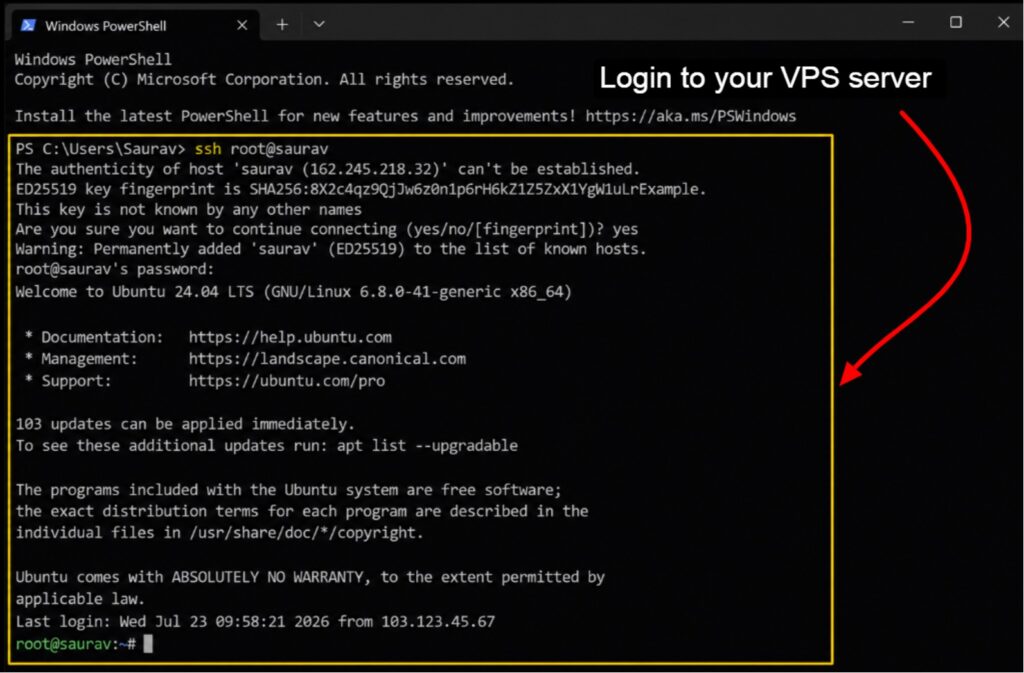
Type the password. You are inside the server. Update everything first:
| apt update && apt upgrade -y |
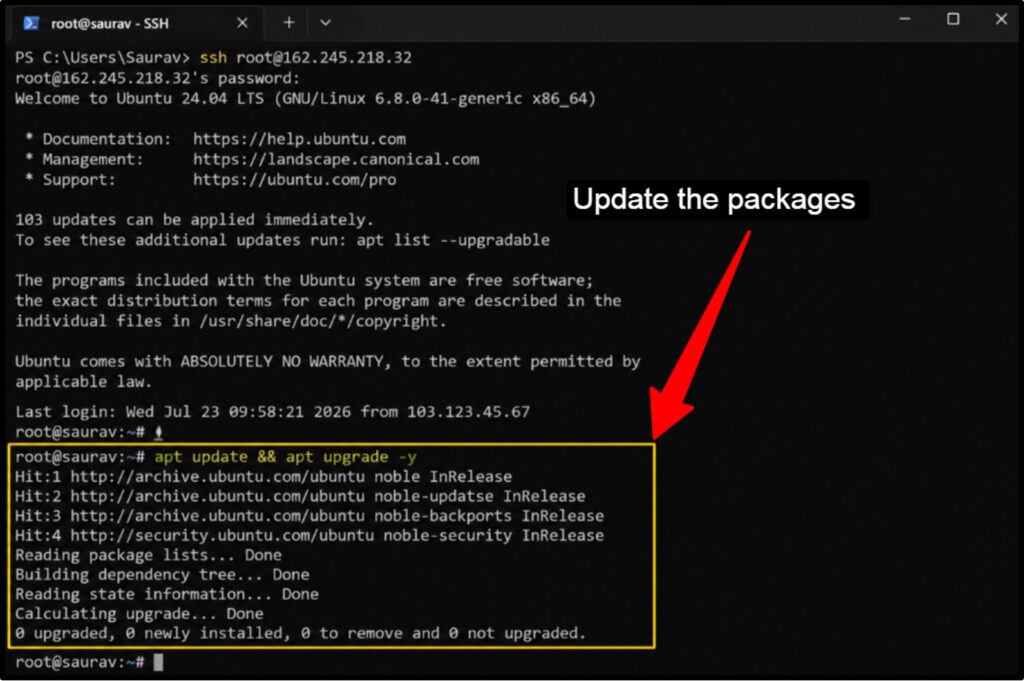
Create a normal user so you stop working as root, which is safer:
| adduser botadminusermod -aG sudo botadmin |
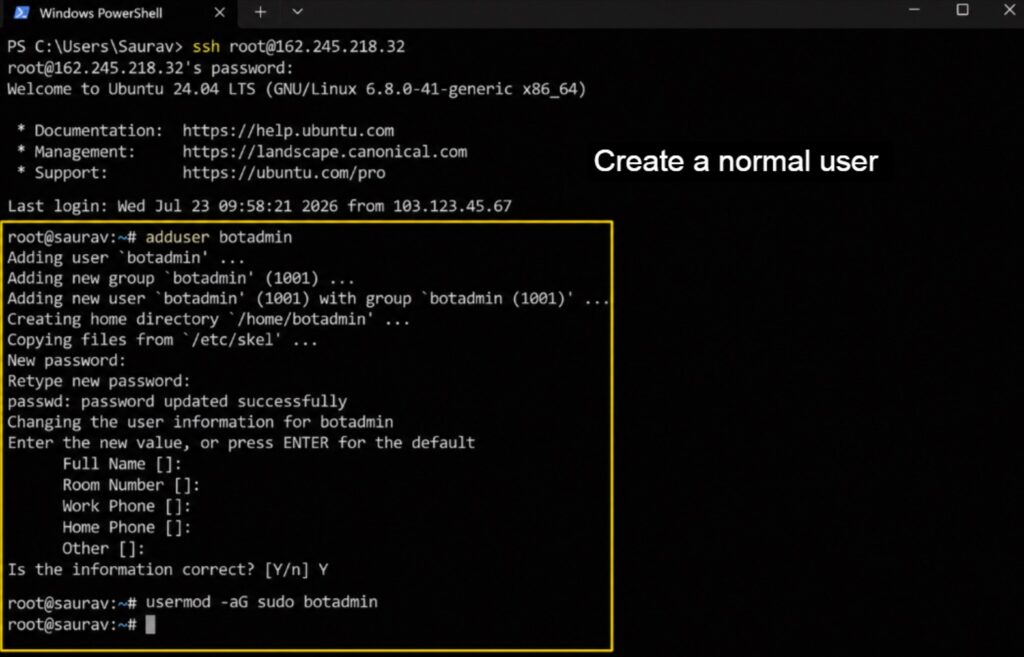
Set up a firewall, opening only the doors we need:
| ufw allow OpenSSHufw allow 80ufw allow 443ufw enable |
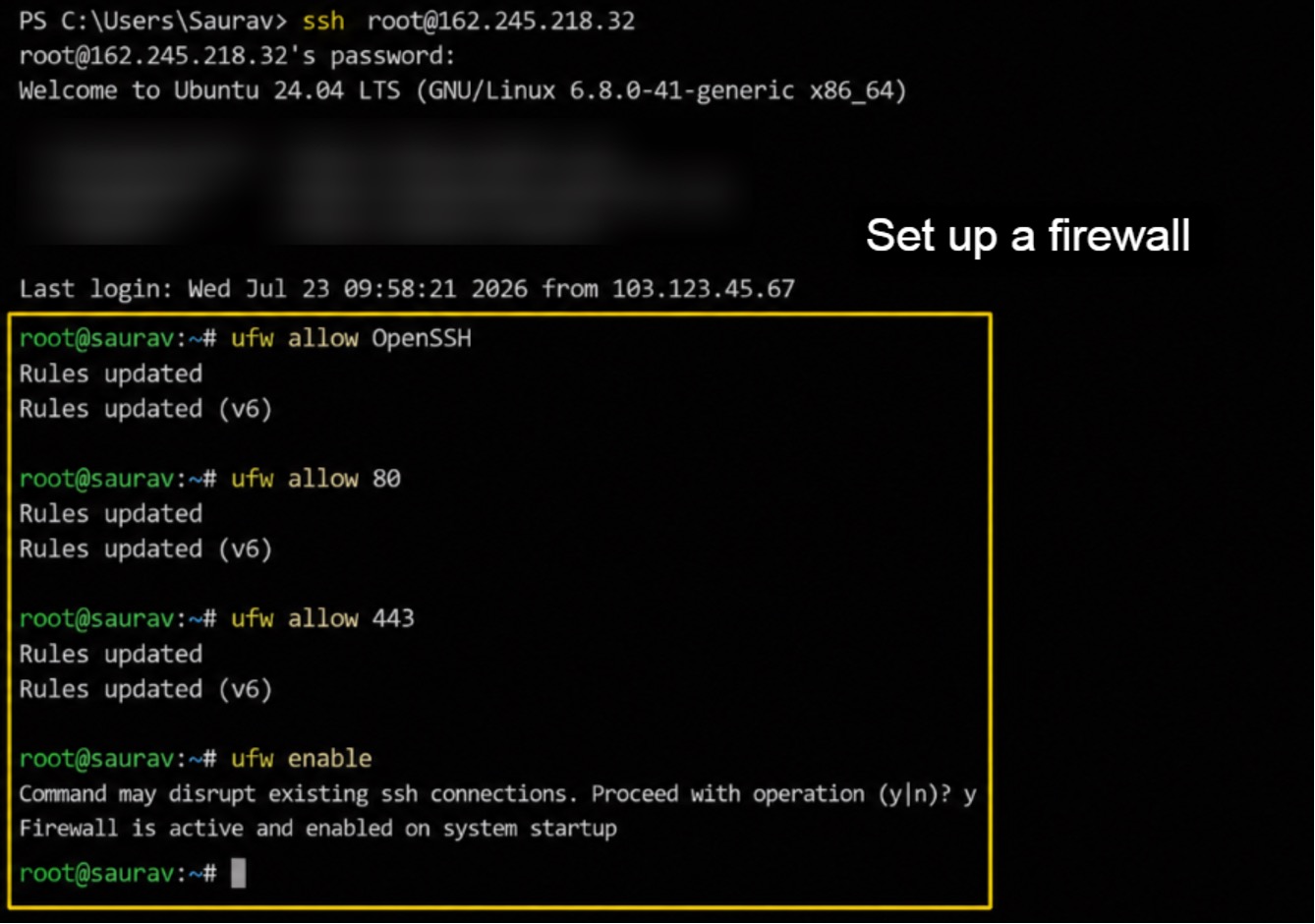
Your server is now updated, has a safe user and a firewall for security. That locked-down base is the foundation of every good VPS chatbot deployment.
Turn off root SSH login and use SSH keys instead of a password. It is the biggest security upgrade you can make in five minutes.
Step 2: Install Required Software
With the server secure, we install the tools your bot needs. Think of it as stocking the kitchen before you cook.
We need Python to run bot code, Nginx for traffic, and Docker for deployment. First, Python and pip:
| apt install python3 python3-pip python3-venv -y |
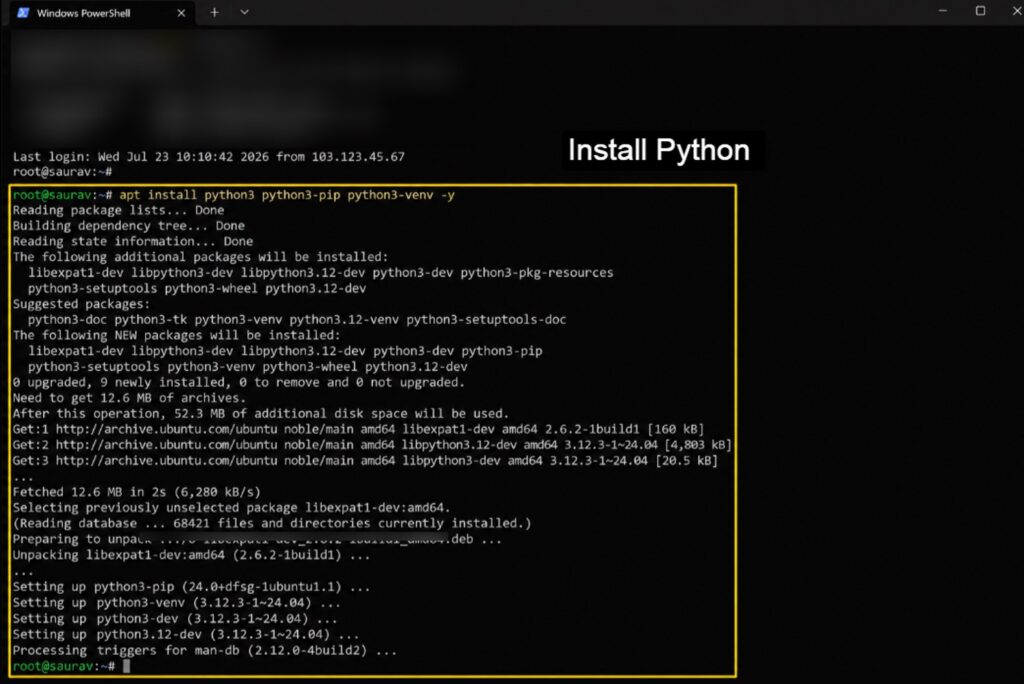
Then Nginx, which guides traffic to your bot:
| apt install nginx -y |
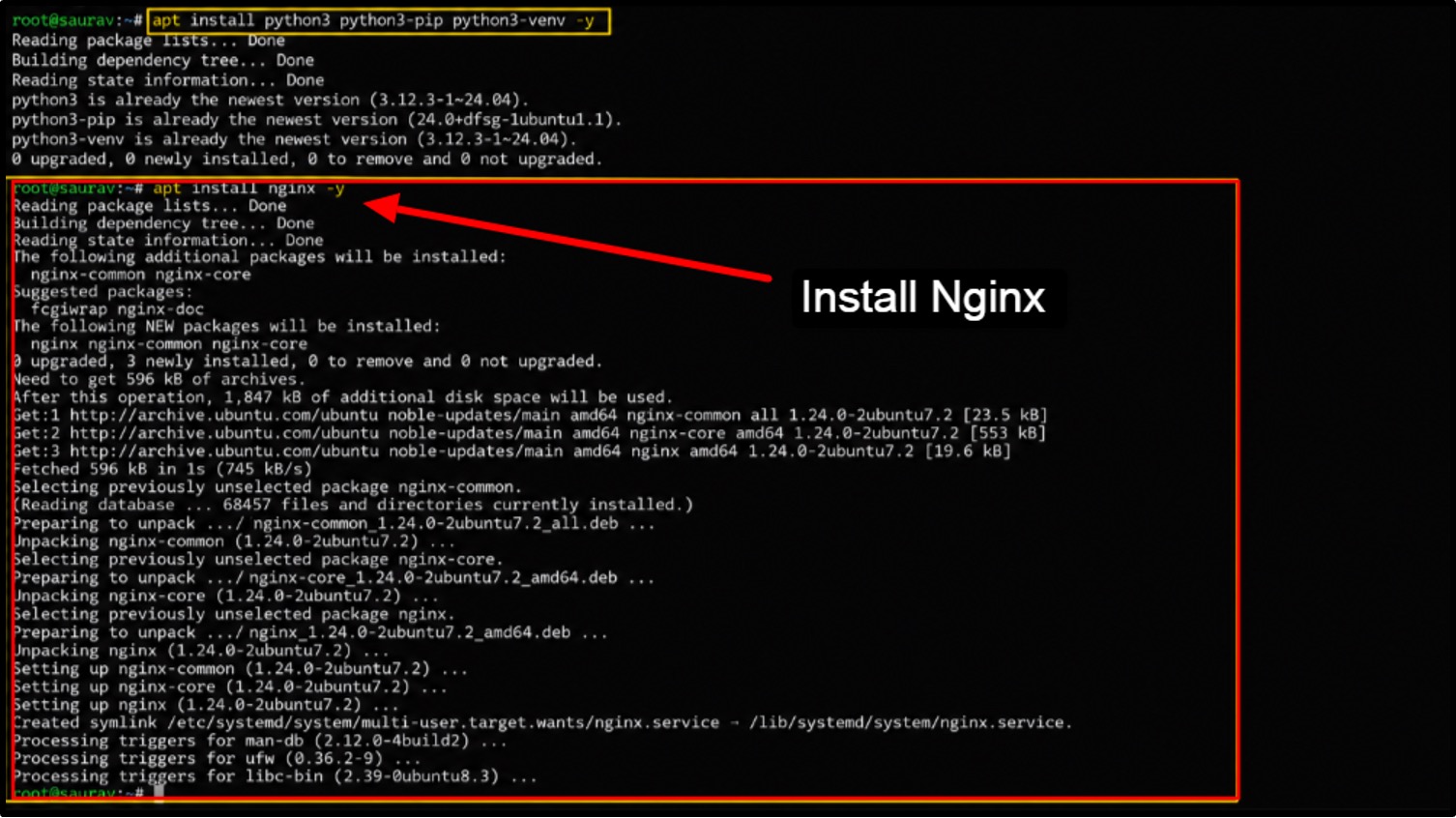
Now Docker, which packs your bot into a neat container:
| apt install docker.io docker-compose -ysystemctl enable docker |
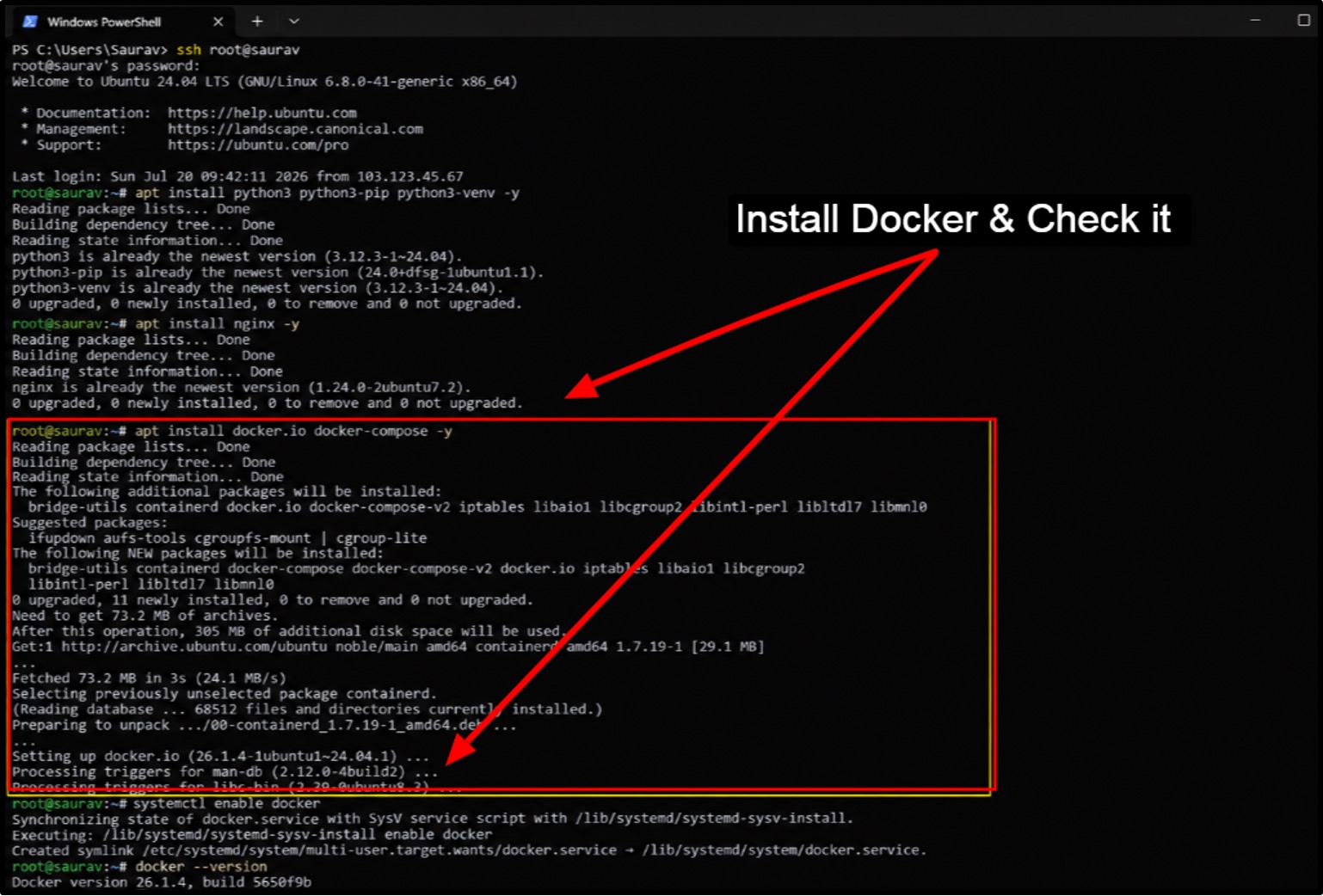
Check Docker works:
| docker –version |
Your tools are in place. This clean base of Python, Nginx, and Docker powers the Docker chatbot deployment we build next.
Step 3: Create a Telegram Business Bot
Let me start with Telegram because it is the fastest result. In a few minutes you have a live token and a working reply.
Open Telegram and search for BotFather. It has a blue checkmark, so pick the official one. Start a chat and type:
| /newbot |
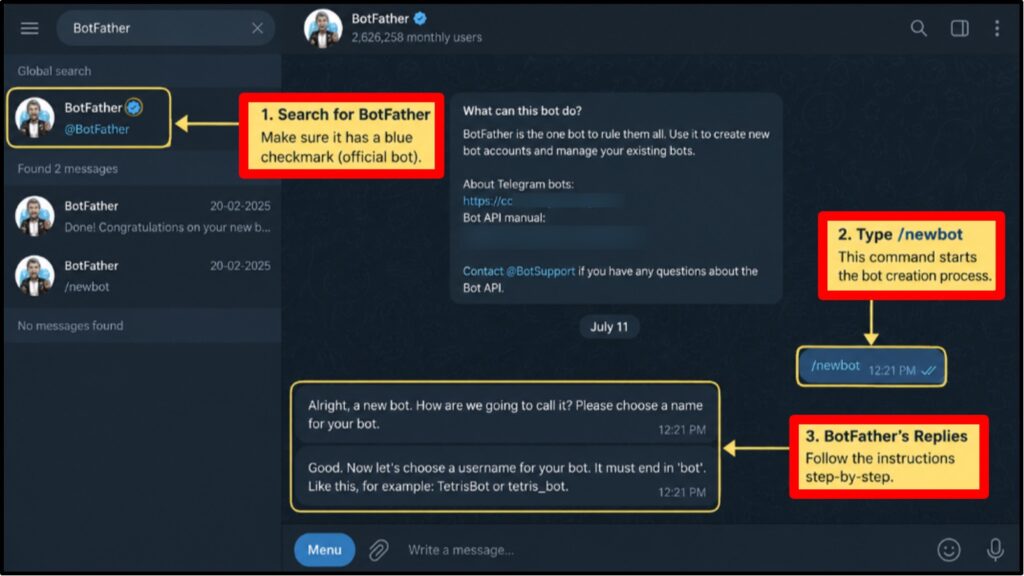
BotFather asks for a name, then a username ending in bot. It hands you a token that looks like a long code. Copy it and keep it secret.
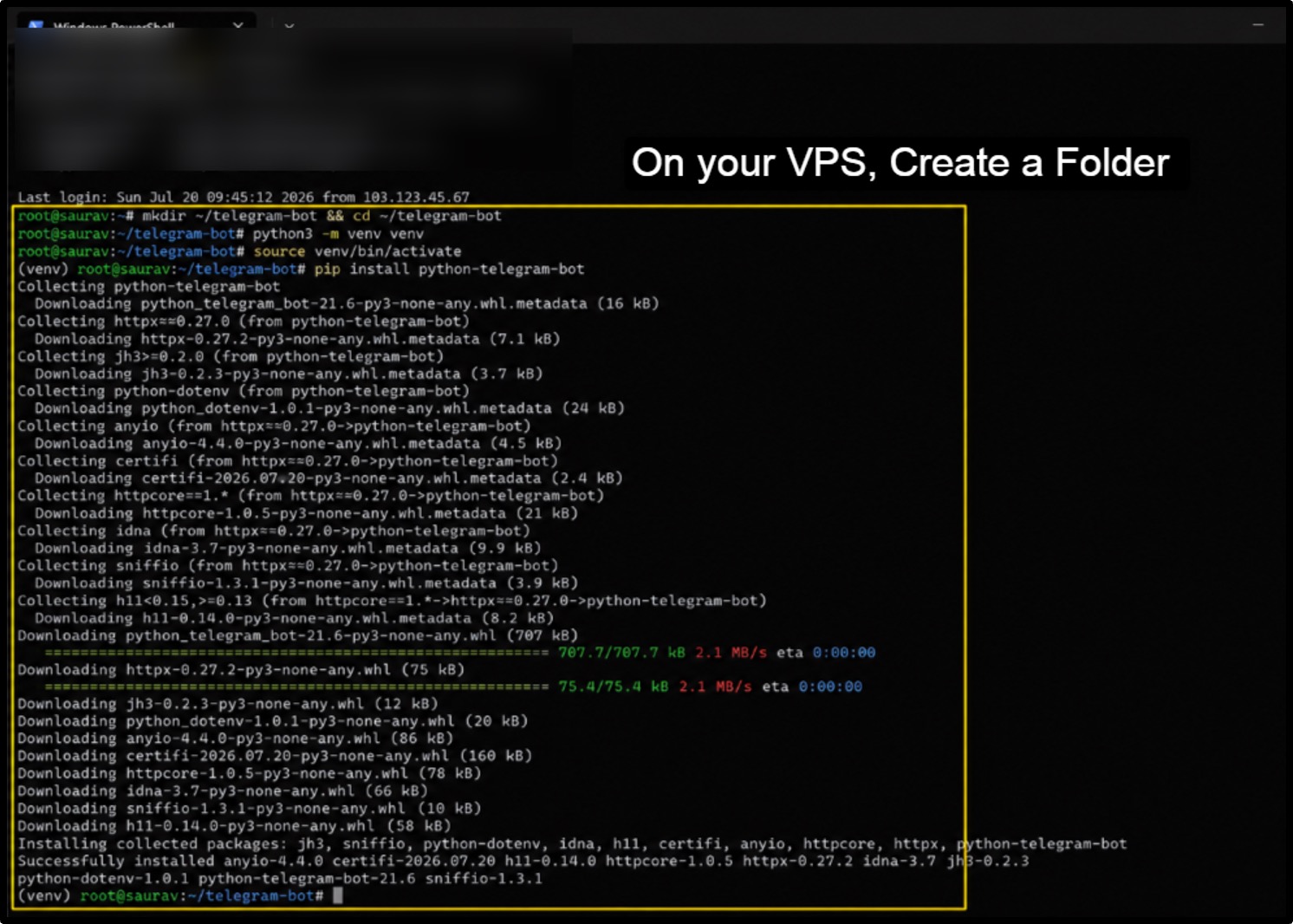
On your VPS, create a folder and a fresh Python space:
| mkdir ~/telegram-bot && cd ~/telegram-botpython3 -m venv venvsource venv/bin/activatepip install python-telegram-bot |
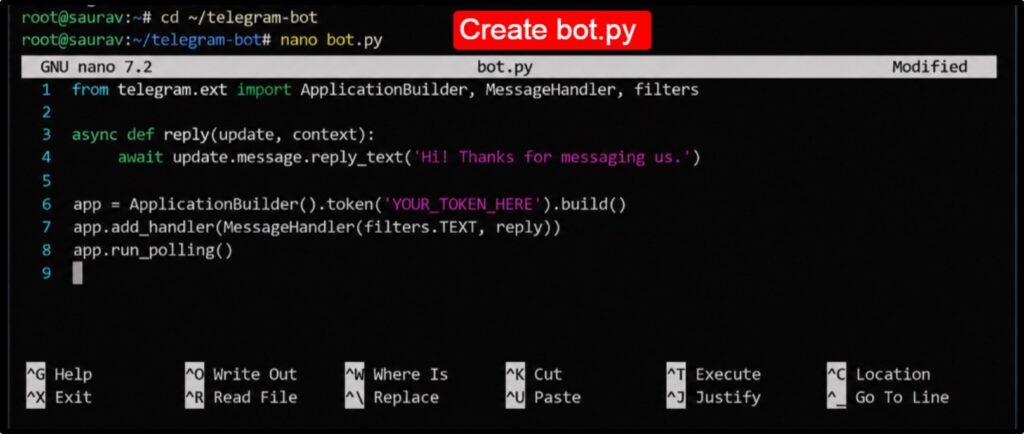
Create bot.py and paste a simple reply bot:
| from telegram.ext import ApplicationBuilder, MessageHandler, filters async def reply(update, context): await update.message.reply_text(‘Hi! Thanks for messaging us.’) app = ApplicationBuilder().token(‘YOUR_TOKEN_HERE’).build()app.add_handler(MessageHandler(filters.TEXT, reply))app.run_polling() |
Run it and message your bot on Telegram:
| python bot.py |
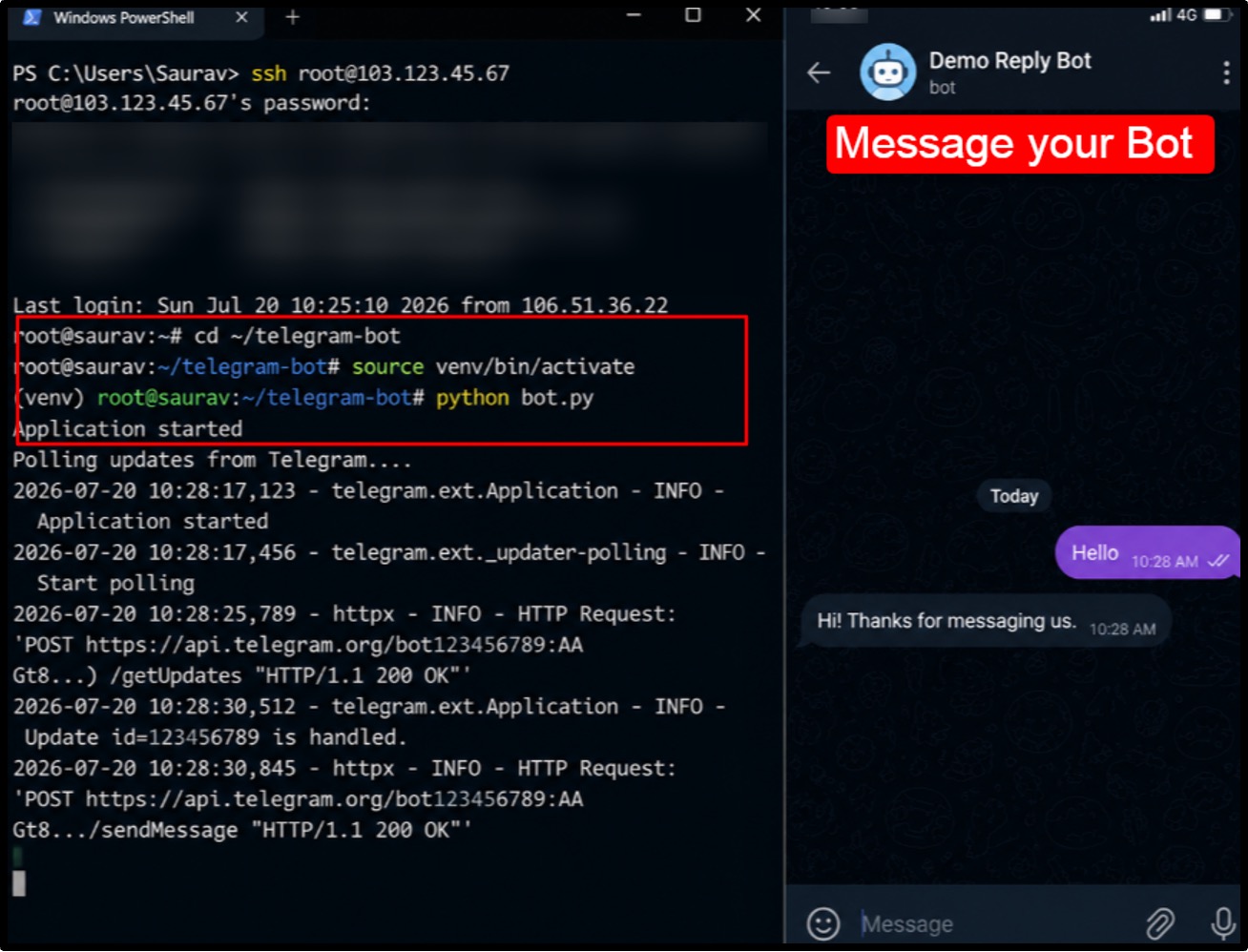
Your bot just replied. That simple loop is the heart of your Telegram bot server setup. Later we made it run 24/7 with Docker.
Step 4: Create a WhatsApp Business Chatbot
WhatsApp takes a few more steps, so stay with me. Here I clear up a myth that trips up almost everyone.
Here is the truth many old guides get wrong. You do not host the WhatsApp API on your VPS anymore. Meta shut the self-hosted version in October 2025 and now runs the API on its own servers.
So what does your VPS do? It runs the brain. Your VPS holds a webhook, a web address Meta pings every time a customer messages you. Your bot reads it and replies through Meta’s API.
- Go to the Meta Developer site >> create an app >> add the WhatsApp product. Meta gives you a test number, a phone number ID, and a temporary access token.
On your VPS, build a small webhook server. Create a folder and install Flask:
| mkdir ~/whatsapp-bot && cd ~/whatsapp-botpython3 -m venv venvsource venv/bin/activatepip install flask requests |
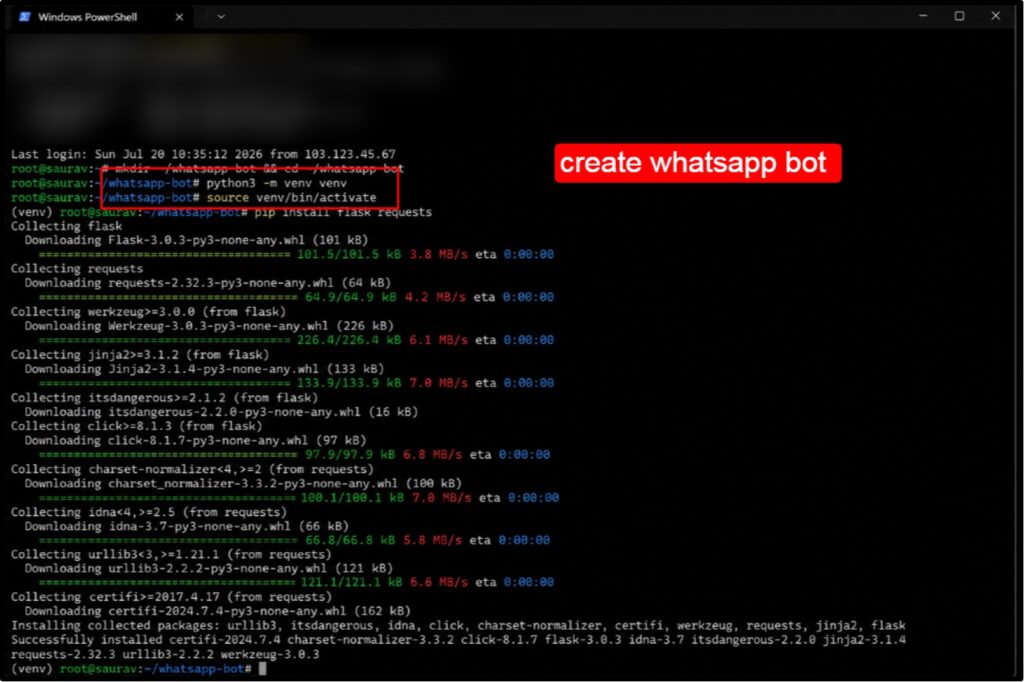
Create app.py with a webhook Meta can reach:
| from flask import Flask, requestapp = Flask(__name__)VERIFY = ‘mysecret123’ @app.route(‘/webhook’, methods=[‘GET’])def verify(): token = request.args.get(‘hub.verify_token’) ok = token == VERIFY return request.args.get(‘hub.challenge’) if ok else (‘error’, 403) @app.route(‘/webhook’, methods=[‘POST’])def receive(): data = request.get_json() # read the message and send a reply through Meta’s API return ‘ok’, 200 app.run(host=’0.0.0.0′, port=5000) |
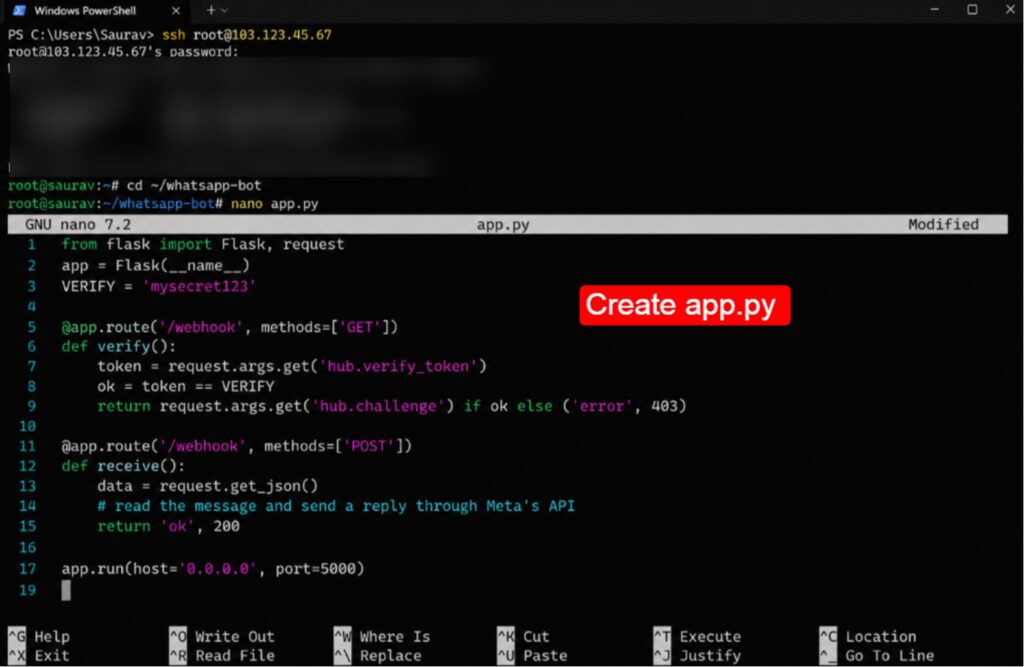
Run it, then in the Meta dashboard >> Webhooks >> add your web address and verify token. Meta checks it and connects to your VPS.
Now Meta delivers every customer message to your VPS, and your bot replies. Your server holds all the logic, so you tweak replies and add features whenever you like. That is how a modern WhatsApp chatbot VPS hosting setup works in 2026.
Your VPS does not hold the WhatsApp API. It holds your bot’s brain and its webhook. Meta carries the messages. Get this, and you are ahead of most guides online.
Step 5: Configure Nginx Reverse Proxy
Your bot runs on a plain port like 5000, but the web expects a proper address. Nginx is the doorman that connects the two.
A reverse proxy passes visitors arriving at your domain to your bot inside the server. Create an Nginx config:
| nano /etc/nginx/sites-available/chatbot |
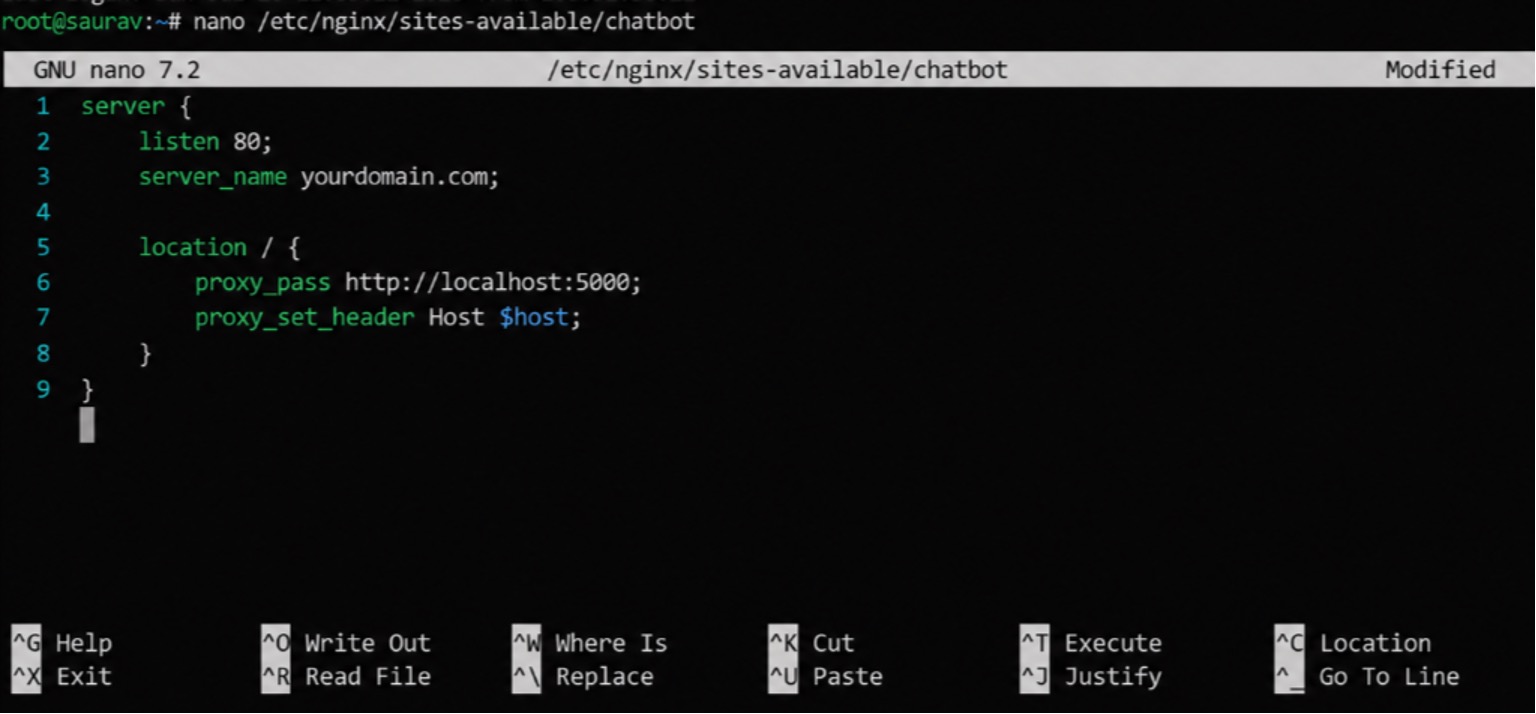
Paste this, swapping in your own domain:
| server { listen 80; server_name yourdomain.com; location / { proxy_pass http://localhost:5000; proxy_set_header Host $host; }} |
Turn the config on and restart Nginx:
| ln -s /etc/nginx/sites-available/chatbot /etc/nginx/sites-enabled/nginx -tsystemctl restart nginx |
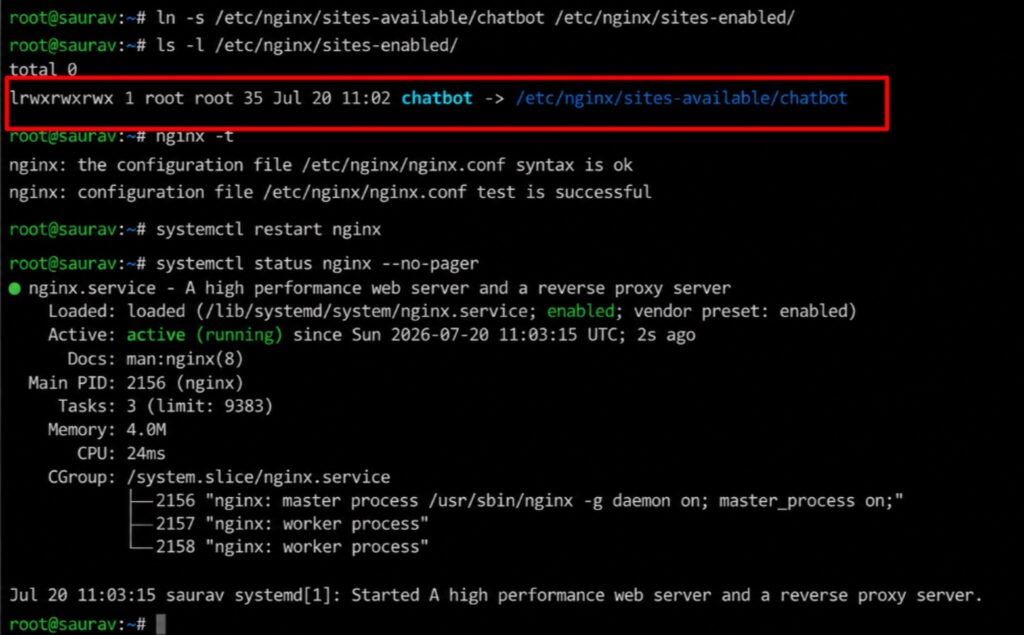
Now your domain points straight to your bot. This clean routing is a core part of any solid Linux VPS chatbot setup.
Step 6: Enable Free SSL with Let’s Encrypt
WhatsApp refuses to talk to an address that is not secure, so we add a free SSL certificate. It turns http into locked https at no cost.
Let’s Encrypt gives free certificates that renew on their own. We use Certbot to get one. Install it:
| apt install certbot python3-certbot-nginx -y |
Ask for your certificate. Certbot reads your Nginx config and does the rest:
| certbot –nginx -d yourdomain.com |
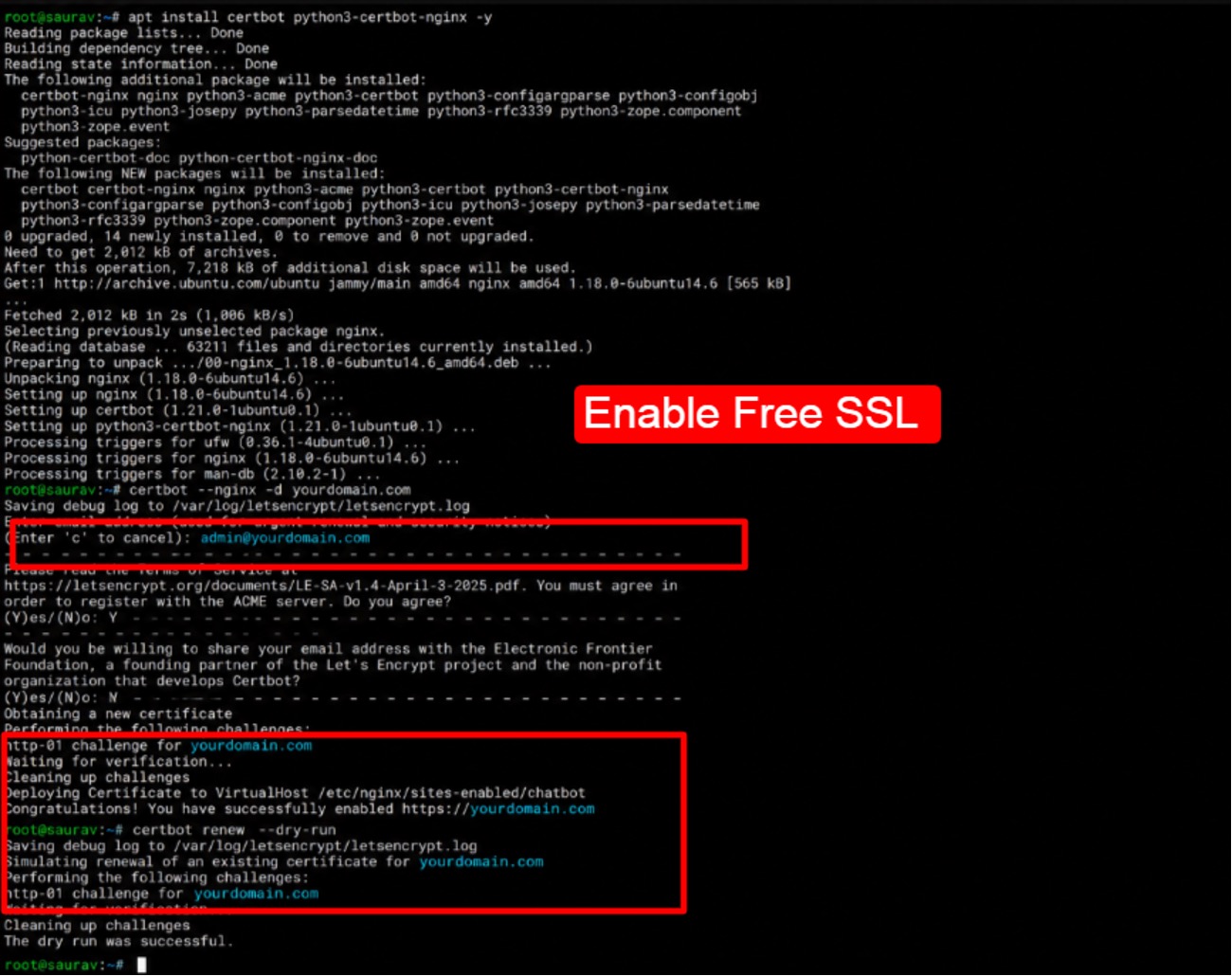
Answer the two prompts and Certbot installs it. Your site is now https. Test the auto-renewal:
| certbot renew –dry-run |
Your bot now sits behind a secure, trusted address. Meta is happy, customers are safe, and your host chatbot 24/7 on VPS plan cleared its biggest hurdle.
Let’s Encrypt certificates last 90 days but renew on their own. Run the dry-run test once, and you can forget about it for good.
Step 7: Deploy Your Chatbot with Docker
Run your bot by hand and it stops the moment you close the terminal. Docker fixes that by wrapping it in a container that restarts after any crash or reboot.
Docker packs your bot and its needs into one box that runs the same way every time. Create a Dockerfile:
| FROM python:3.12-slimWORKDIR /appCOPY . .RUN pip install -r requirements.txtCMD [‘python’, ‘app.py’] |
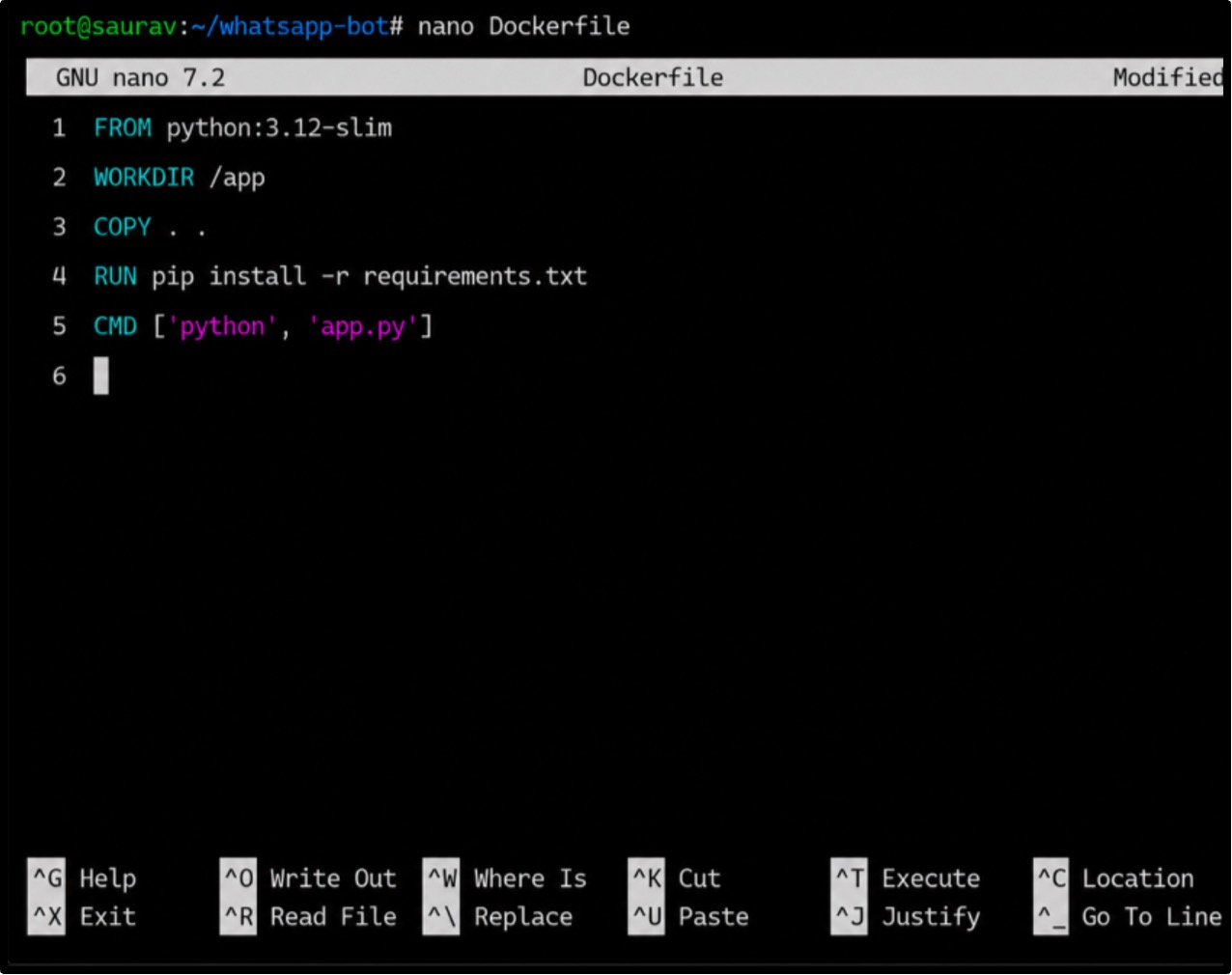
List your libraries in requirements.txt, then build and run the container:
| docker build -t mychatbot .docker run -d –restart always -p 5000:5000 mychatbot |
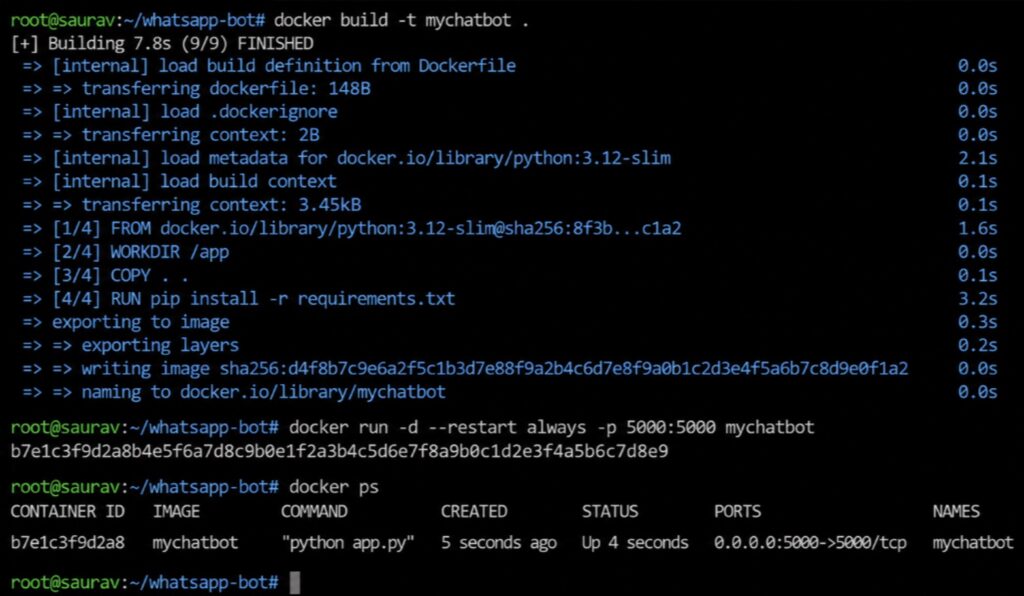
The restart always flag is the magic. It brings your bot back after a crash or reboot, with no help from you.
Your bot now runs on its own, day and night.
This step delivers a hands-off Docker chatbot deployment that keeps your business awake while you sleep.
Step 8: Add AI Capabilities to Your Chatbot
A basic bot gives fixed replies. An AI bot understands what a customer means and answers like a helpful human.
You connect your bot to an AI model through an API. A message comes in, your bot sends the text to the AI, gets a natural reply, and passes it back.
Install the AI library, for example the OpenAI client:
| pip install openai |
Inside your reply function, send the message to the model and return its answer:
| from openai import OpenAIclient = OpenAI(api_key=’YOUR_AI_KEY’) def smart_reply(message): result = client.chat.completions.create( model=’gpt-4o-mini’, messages=[{‘role’: ‘user’, ‘content’: message}] ) return result.choices[0].message.content |
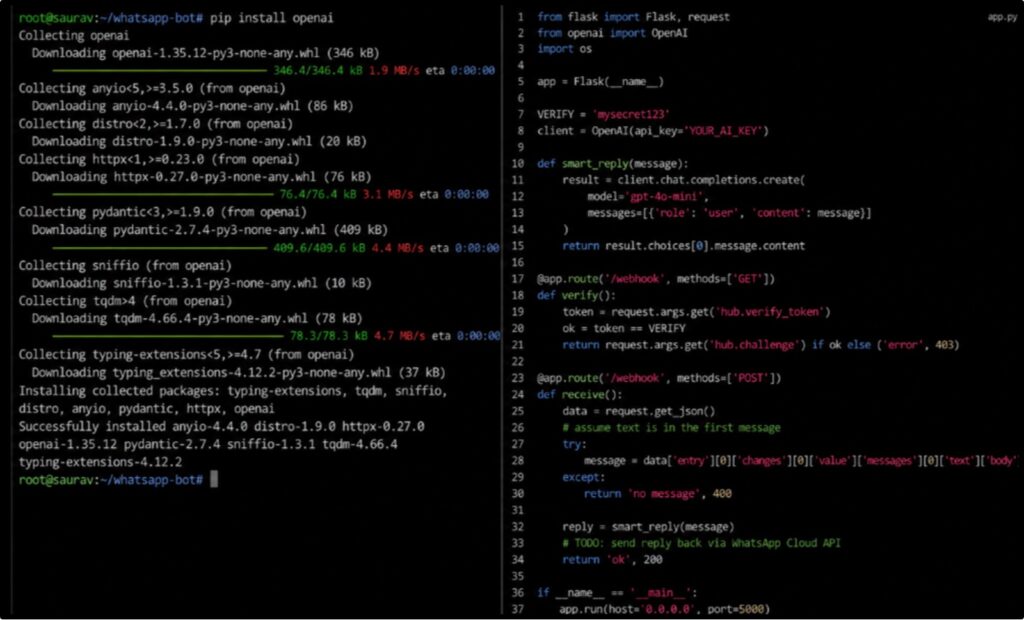
Now your bot answers questions it was not scripted for, handling odd wording and follow-ups with ease.
An AI layer lifts your bot from a menu to a mind. This is where your WhatsApp automation server feels like a real team member.
I always cap AI replies and add a fallback message. When the AI is unsure, the bot offers a human handoff.
That small touch keeps customers happy and your costs in check.
Step 9: Monitor and Maintain Your Bot
A live bot needs a light touch of care. You do not babysit it, but you keep an eye on its health.
Check your container is alive whenever you want:
| docker ps |
Read the recent logs to spot errors early:
| docker logs mychatbot –tail 50 |
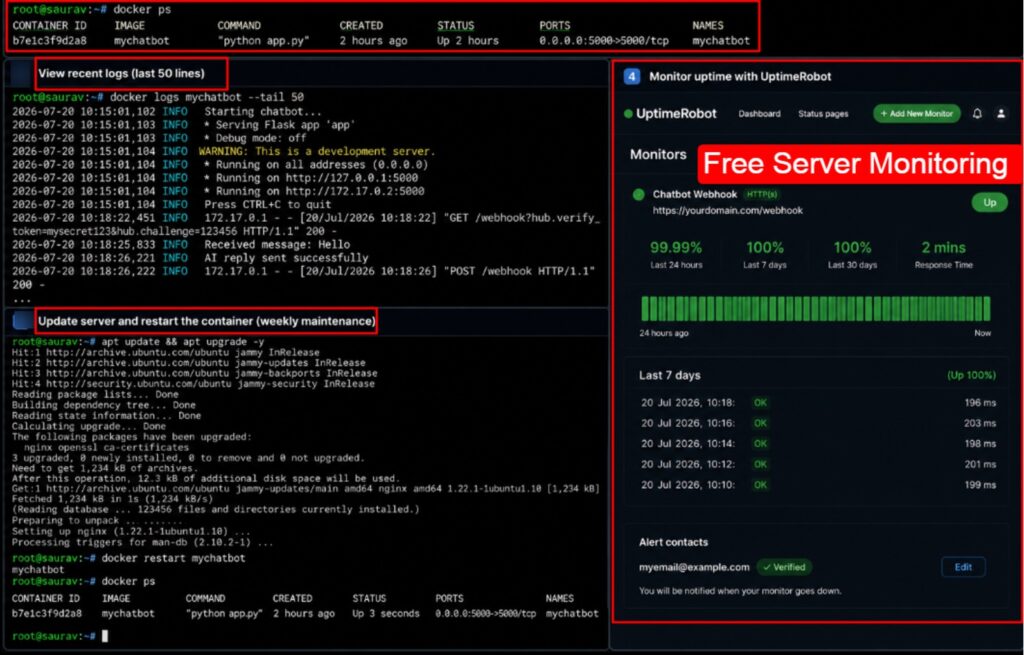
Set up an uptime checker like UptimeRobot. It pings your bot and emails you the second it goes down.
Once a week, update your server and restart the container:
| apt update && apt upgrade -ydocker restart mychatbot |
A few minutes a week is all it takes to keep your VPS for messaging bots healthy, fast, and online for the long run.
Common Problems and Fixes
Even a clean setup hits a bump now and then. I have seen every one of these on client servers, so here is the usual issue and the exact fix.
Bot Not Responding
When your bot goes quiet, start with the webhook and the token. Check the webhook status in the Meta dashboard, then verify your API tokens have not expired.
A stale token is the most common cause I see.
SSL Errors
SSL trouble usually means the certificate did not validate or quietly expired.
Run the Certbot renewal test to check its health. Should it be expired, renew it with one command and browsers trust the site again.
High Resource Usage
When CPU or RAM sits near full, two fixes help. Tidy your code and close loops that run too often. When traffic has simply grown, upgrade to the recommended tier and the jam clears fast.
Messages Not Delivering
When replies fail to reach customers, check two things.
- A fresh WhatsApp number starts with a daily cap that rises over time.
- A blocked firewall port also stops traffic, so open the right ports.
Most bot problems come down to a token, a certificate, a resource limit or a firewall rule. Now you know the four suspects and their fixes.
Security Best Practices for Business Chatbots
Your bot handles real customer chats, so security is really important. The good thing is that strong protection takes only a handful of habits.
- Protect API keys: Treat tokens like house keys. Keep them out of your code and any public place.
- Use environment variables: Store secrets in a hidden .env file your bot reads at runtime, not inside your code.
- Enable backups: Turn on daily snapshots so you restore the whole server in minutes when anything breaks.
- Configure rate limiting: Limit how many requests one user sends per minute to stop spammers and floods.
- Restrict server access: Allow SSH only from your own IP where you can, and use SSH keys over passwords.
- Keep software updated: Run updates every week. Most attacks target old, unpatched software.
- Monitor suspicious activity: Watch your logs for odd spikes or strange logins. Early detection beats cleanup.
None of these are hard, and together they build a strong shield. Apply them once, keep the weekly habits, and your self-hosted chatbot VPS stays safe.
Scaling Your Chatbot as Your Business Grows
Success brings a happy problem 😀(I smiled because this is a good thing that many customers are going to grow your business but you do not have enough server resources to handle the load. That’s a happy problem) More customers than one small server can handle.
When that day comes, you scale, and here is how.
- Horizontal scaling: Run several copies of your bot across servers so the work spreads and no machine gets overwhelmed.
- Load balancers: A load balancer shares incoming chats evenly across your servers, so replies stay fast during a rush.
- Database optimization: Add indexes and clean old records so your bot holds its speed as chat data grows.
- Queue systems: A queue lines up heavy tasks in order, so your bot stays responsive while big jobs finish.
- Multi-server deployments: For very large traffic, spread bots across regions so customers connect to the nearest one.
You will not need all of this on day one. You start on a single small VPS and add these pieces only when growth demands them, so your cloud VPS for chatbots grows as fast as your business.
Estimated Hosting Costs in 2026
Now the question every person asks: what does this cost? I’ve estimated the cost of all the VPS providers and I’ve found YouStable more affordable and along with that it also offers complete admin access and even offer global access so that your bots can run 24/7/
I pulled fresh 2026 YouStable VPS prices (it is affordable), and the total is far lower than most people expect.
This table is just to give you a basic idea about how much money you need to run a bot successfully (right from buying a VPS to including AddOns as well)
| Setup Type | Monthly Cost |
|---|---|
| Small Telegram Bot | $3.67 (1vCore CPU + 4GB RAM) |
| Small WhatsApp Bot + Add Extra for messages | $5.46 (2vCore CPU + 8GB RAM) |
| AI-Powered Bot (7B Model) | $7.88 (4vCore CPU + 16GB RAM) |
| Enterprise Chatbot | $15.78 (8vCore CPU + 32GB RAM) |
Those numbers are double checked before putting them in the table. However, you can check for the prices on the official website of YouStable.
You can even go for UltaHost, known for BitNinja security, Imunify360 protection, admin access, regular backup and 24/7 support. The VPS costing of UltaHost starts from $3 per month.
Let me break the cost down so you see where each dollar goes.
- VPS: The core cost is $3.67 a month.
- Domain: About $10 to $13 for a whole year. You need it for your WhatsApp webhook and SSL.
- SSL: Free, thanks to Let’s Encrypt. You pay zero for a trusted certificate that renews on its own.
- API fees: Telegram is free. WhatsApp charges per business-started message, from about $0.01 in India to $0.025 in the US, and customer replies inside 24 hours are free.
- Monitoring tools: Free for basic needs. UptimeRobot covers a small bot at no cost.
Add it up and a simple bot costs the price of a coffee or two each month. For a system that answers customers 24/7, that is a great deal.
Prices were checked and can shift over time. WhatsApp message rates in particular change by country and by Meta’s own updates, so treat these as a close guide, not a fixed quote.
VPS vs Managed Chatbot Platforms
You might wonder why not just use a ready-made platform. I have used both for clients, so here is the honest side-by-side.
| Features | VPS Hosting | Managed Platform |
|---|---|---|
| Control | Full control of everything | Limited to their settings |
| Cost | Low flat monthly fee | Higher, often per user or per chat |
| Customization | Unlimited, build anything | Boxed into their features |
| Maintenance | You handle updates | They handle it for you |
| Scalability | Scale on your own terms | Scales. But the bill climbs fast |
So the thing is clear. A managed platform is easy but pricey and boxed in. A VPS asks for a little learning up front and rewards you with full control and a tiny bill.
Frequently Asked Questions (FAQs)
Q1: Can I host a WhatsApp chatbot on a $5 VPS?
A: Yes. A $5 VPS with 1 to 2 GB RAM easily runs a small WhatsApp bot’s webhook and logic. The API itself lives on Meta’s servers, so your VPS only runs the bot brain, which is light work.
Q2: Is Telegram bot hosting free?
A: The Telegram Bot API is completely free, with no message charges at all. You only pay for the VPS that keeps your bot online 24/7, which starts around $4 a month.
Q3: Do I need Docker for chatbot hosting?
A: You do not strictly need it, but I strongly suggest it. Docker makes your bot restart on its own after a crash or reboot. You can use systemd instead, yet Docker stays cleaner over time.
Q4: How much RAM does a chatbot need?
A: A simple bot runs fine on 1 to 2 GB of RAM. Once you add AI replies or run both bots together, step up to 4 GB for smooth, instant performance.
Q5: Can I host multiple bots on one VPS?
A: Yes, and it is a smart move. One VPS can run a WhatsApp bot and a Telegram bot side by side, plus several more, as long as the RAM holds up. You pay for a single server.
Q6: Is VPS hosting secure for business bots?
A: Very secure, when you set it up right. With a firewall, SSH keys, hidden API keys, and weekly updates, your VPS can be safer than many shared platforms because you control every layer.
Q7: How do I keep my chatbot online 24/7?
A: Run your bot inside Docker with the restart always flag, on a VPS that stays powered on in a data center. Add an uptime monitor, and your bot answers customers around the clock.
Q8: Can I add AI features later?
A: Absolutely. You start with a simple reply bot and connect an AI model whenever you are ready. The upgrade takes a small code change, so there is zero rush on day one.
Q9: Which is easier to host, WhatsApp or Telegram?
A: Telegram is far easier. You create it with BotFather in minutes and pay nothing for messaging. WhatsApp needs Meta approval and a webhook, so it takes more setup but reaches a wider crowd.
Q10: What is the best VPS for chatbot hosting in 2026?
A: The best VPS gives you NVMe storage, root access, DDoS protection, daily backups, and a 99.9% uptime promise, at a low flat price. Match the data center to where your customers live.
Conclusion: How to Host WhatsApp and Telegram Chatbots on a VPS
You now hold the full path to host a WhatsApp Telegram chatbot on a VPS, from an empty server to a smart bot that answers customers day and night.
I have walked this road with real clients, and the results speak for themselves: happier buyers and a business that runs around the clock.
Start small with a cheap VPS and one bot, then grow as demand rises. I have tested this exact path many times, so you can trust each step to hold. The setup is simpler than it looks, and the payoff is real.
Take your VPS and deploy your chat bot on your VPS and grow your business.



Table of Contents
- What Is a Business Chatbot on a VPS?
- Why Host Your Business Chatbot on a VPS?
- WhatsApp vs Telegram Chatbots: Which One Should You Choose?
- VPS Requirements for Hosting Chatbots
- Prerequisites Before Starting
- Step 1: Deploy and Secure Your VPS
- Step 2: Install Required Software
- Step 3: Create a Telegram Business Bot
- Step 4: Create a WhatsApp Business Chatbot
- Step 5: Configure Nginx Reverse Proxy
- Step 6: Enable Free SSL with Let's Encrypt
- Step 7: Deploy Your Chatbot with Docker
- Step 8: Add AI Capabilities to Your Chatbot
- Step 9: Monitor and Maintain Your Bot
- Common Problems and Fixes
- Security Best Practices for Business Chatbots
- Scaling Your Chatbot as Your Business Grows
- Estimated Hosting Costs in 2026
- VPS vs Managed Chatbot Platforms
- Frequently Asked Questions (FAQs)
- Conclusion: How to Host WhatsApp and Telegram Chatbots on a VPS