Let’s say you have your Node.js app and now you want the world to see it. Please do not think that you need to spend to get a paid server to get started. No, It’s never like that.
Here, in this guide, me and my technical team, will help you host a Node.JS app for free.
As per my analysis, there are several modern managed cloud platforms (we’ve talked about them in this guide in detail) that let you host a Node.js app for free.
The entire setup process takes not more than 15 minutes.
You’ll get to know the best free platforms, step-by-step deployment on Render. We’ll also tell you about the domain setup, the common errors that newbies normally make and also tell you when to upgrade.
So, before we get your app live, let us quickly understand what Node.js hosting actually means.
What Is Node.js Hosting?
Node.js hosting is a server setup where your Node.js application runs back-to-back, receives requests and sends back responses. Node.js apps are not like static HTML pages that just have files.
A Node.js app executes JavaScript on the server. For example, if you built an Express.js API that returns user data from a database, you need a server that keeps that JavaScript process running 24/7. That is what Node.js hosting does.
How Node.js Works
Node.js uses a non-blocking I/O model, which means it can handle many connections at once without waiting for each one to finish.
Let’s make it simple for you!
When a user hits your app’s URL, the Node.js process
- receives the request
- runs your code
- sends back a response.
The process stays alive between requests. This is why you cannot host it the same way you host a static HTML website.
Common Use Cases
Node.js powers a huge range of apps. REST APIs and GraphQL servers, real-time chat applications, MERN and MEAN stack backends, serverless functions, Discord bots and lightweight microservices are all commonly built with Node.js.
Each of these needs a hosting atmosphere that supports back-to-back server processes.
Why Hosting Is Required for Node.JS Apps
Your app runs fine on your own laptop, but your laptop is not always on, and it does not have a public IP address the internet can reach.
Hosting solves that problem.
A cloud server stays online 24 hours a day with a public URL, so anyone in the world can access your app whenever they want.
Requirements for Hosting a Node.js App
Now, before you push your node.js app to a cloud platform, make sure you have the following things. Most setup failures happen because one of these is missing or not configured properly:
- Source code: Your Node.js project files, including your main entry file (usually index.js or server.js).
- package.json: A valid package.json with a “start” script defined, for example: “start”: “node index.js”. Every free platform reads this to know how to run your app.
- Git repository: All the platforms we cover in this guide deploy directly from GitHub or GitLab. Push your code to a repo before you sign up anywhere.
- Environment variables: Anything sensitive like database URLs, API keys, or JWT secrets should be stored as environment variables, not hardcoded in your code.
- Database (This is an optional requirement): If your app needs a database, you will connect it via a connection string set as an environment variable.
Your package.json start script is really important. Every platform in this guide uses it to boot your app. If it is missing, your deployment will fail immediately.
Can You Host a Node.js App for Free?
Yes, you can host node.js for free. Several modern cloud platforms offer free plans that can run a Node.js app without any credit card information.
There is only one issue and it is that free plans come with limitations on uptime and features.
For learning purposes (If you’re a newbie developer and just want to learn how to setup Node.js apps online) or for creating portfolios and MVPs, the free cloud plans work perfectly well.
Advantages of Free Hosting
Free hosting is the smartest starting point. If you are a newbie and have no idea how to deploy node.js apps, in that case, you’ll end up wasting money. That’s why free hosting is the right way to start.
- Free hosting gives you a real feeling of a cloud environment and that too for zero cost.
- As a developer, you can build a portfolio for free and share a live link with your recruiters.
- If you have a startup idea, spending money on infrastructure is a waste. Free hosting is a good option to get early feedback.
Limitations of Free Hosting
My research team found these to be the most common pain points developers run into if they use free hosting:
- Free plans give you 256MB to 512MB of RAM. This is enough for a small app, but not for an app with significant traffic.
- Free plans do not come with uptime guarantees. If the platform has a power off, your app goes down and there is no support priority for free users.
The platforms and pricing covered in this guide is available as of 2026. Cloud platform pricing changes frequently. Always verify the latest details on each platform’s official website before making a decision.
Best Free Platforms to Host a Node.js App
There are a handful of platforms that genuinely work well for hosting a Node.js app for free. My research team went through each of their official websites, tested their free tier limits, and put together honest overviews of what you actually get. Here are the five we recommend.
#1 Render

Pros
- No credit card required to get started
- Extremely beginner-friendly dashboard and setup flow
- Supports Node.js, Python, Ruby, Go, Rust, and Docker
- 5GB of free bandwidth per month on the Hobby plan
- 500 build minutes per month included
Cons
- Free web services spin down after 15 minutes of inactivity causing cold starts
- Free tier limited to one project with two environments
Summary
Render is the closest modern replacement for Heroku’s free tier. It easily connects to your GitHub repository and builds your app automatically on every push. It gives you a public URL with HTTPS included. It is a fully managed cloud platform that supports web services and managed databases under one roof. The free tier (called the Hobby plan) requires no credit card and lets you deploy a Node.js web service with auto-deploys from Git. Let’s see some of its more features!
Key Features
- Auto-deploy from Git: Every push to your connected branch triggers a new build and deployment automatically.
- Free managed HTTPS: SSL certificates are provisioned and renewed for you at no cost on every service.
- Environment variable management: Set and update environment variables directly from the dashboard without touching your code.
- Custom domains: Hobby plan includes two custom domains per workspace at no extra charge.
- Free PostgreSQL database: A 1 GB PostgreSQL instance is available on the free tier, though it expires after 30 days.
Free database instances on Render expire after 30 days and are deleted. You will need to create a new one and update your DATABASE_URL environment
Pricing
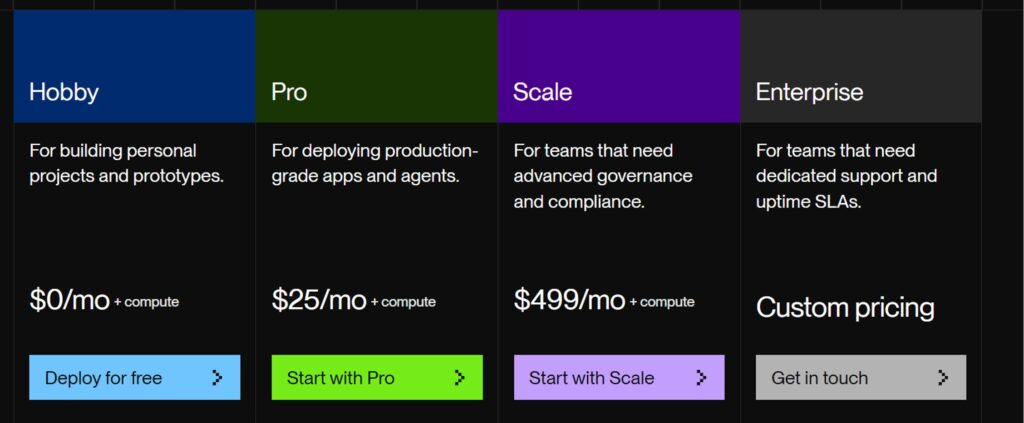
- Hobby plan (Free): No credit card required. Includes free web service, 5GB bandwidth, 500 build minutes and two custom domains per workspace.
- Pro (Paid): $25 per month. Always-on with no spin-down, 25GB bandwidth, 15 custom domains included.
Ideal Use Cases
- Beginners deploying their first Node.js or Express.js app and wanting a Heroku-like experience with zero setup friction.
- Portfolio developers who need a live link with HTTPS and a custom domain without spending anything.
Set up a free UptimeRobot monitor that pings your Render app every 10 minutes. This keeps the service warm and prevents the delay for visitors.
#2 Railway

Pros
- No sleep mode on paid plans, apps stay always on
- Clear usage dashboard prevents billing surprises
- Supports Node.js, Python, Go, Ruby, Rust, Java, PHP, and more
Cons
- Free plan’s $1 monthly credit is not enough for apps with a database
Summary
Railway is a developer-first deployment platform built around speed and simplicity. It supports virtually every language and framework, includes one-click database provisioning, and makes environment management feel natural. The free tier is limited but genuinely useful for getting started. It operates on a usage-based pricing model. When you sign up, you start on a 30 days free trial plan with $5 in free credits. After the trial ends, a Free plan gives you $1 per month in usage credits, which is enough to keep one lightweight service alive. For anything beyond a single minimal app, you will need the Hobby plan at $5 per month, which includes $5 in monthly compute credits, effectively making small apps free to run.
Features
- Per-second billing: You are only charged for actual resource consumption, measured to the second.
- Preview environments: Every pull request gets its own isolated environment for safe testing before you merge.
- Real-time usage dashboard: See exactly what you are spending in real time, so there are no surprise bills.
- One-click database deployment: Spin up PostgreSQL, MySQL, MongoDB, or Redis with a single click, all managed and connected automatically.
- GitHub auto-deploy: Connect your repo and every push to your selected branch triggers a fresh build and deployment.
Pricing
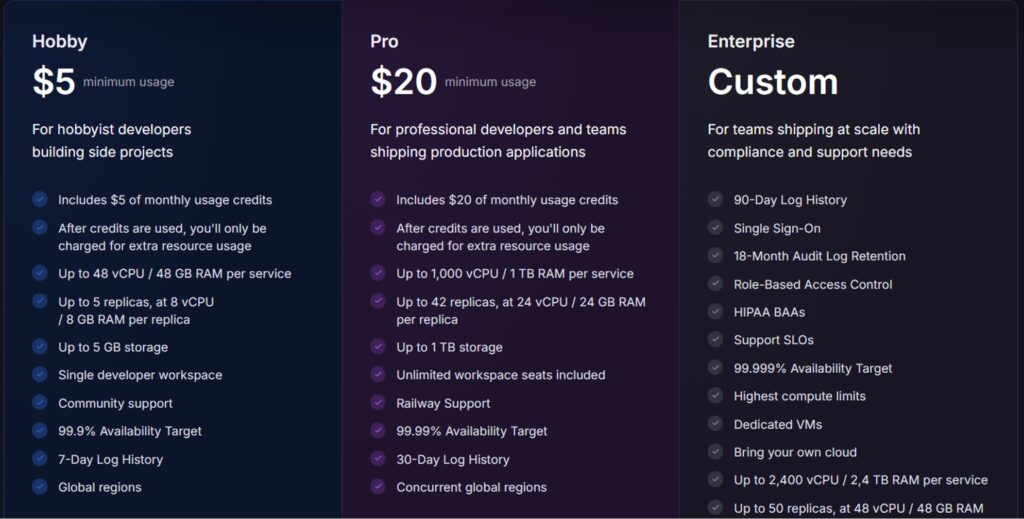
- Trial plan (Free): $5 one-time credit on signup, no credit card required. Enough for a few weeks of a lightweight app.
- Free plan: $0 per month with $1 in monthly usage credits after the trial ends. Suitable only for a single minimal service.
- Hobby plan: $5 per month minimum, includes $5 in monthly credits usage. Get up to 48vCore CPU or 48GB RAM per service. Get 5GB storage and 7 days log history as well.
Ideal Use Cases
- Developers who want the fastest possible deployment workflow and are comfortable with usage-based pricing.
- Projects that need a database alongside the Node.js app, since Railway’s one-click database setup is the simplest available.
#3 Fly.io

Pros
- Genuine global edge deployment across multiple regions
- High performance due to Firecracker microVM isolation
- Strong community and excellent documentation
- Shared CPU machines start at under $2 per month ($1.94) for small workloads
Cons
- More infrastructure setup required compared to beginner-focused platforms
Summary
Fly.io takes a different approach from other platforms. Instead of buildpacks, it runs your app inside lightweight microVMs using Firecracker, giving you close to bare-metal performance. It is slightly more technical than Render or Railway, but it offers global deployment and strong performance at a low cost.A small always-on Node.js app with minimal traffic can run entirely within the included allowances, making the effective cost close to zero for lightweight workloads. Fly.io is best suited for pro developers who are comfortable with the command line and want global edge deployment. It is not for beginners.
Features
- Global microVM deployment: Deploy your app to multiple regions around the world so users connect to the server closest to them.
- Docker-based deploys: Fly.io builds from a Dockerfile, giving you full control over your app’s runtime environment.
- Scale to zero: Apps scale down to zero when idle and wake up on the next incoming request, keeping costs low.
- Managed PostgreSQL: Fly Postgres runs as a Fly Machine with automated backups and connection pooling included.
- flyctl CLI: A powerful command-line tool handles deployment, scaling, secrets management, and log streaming.
Pricing
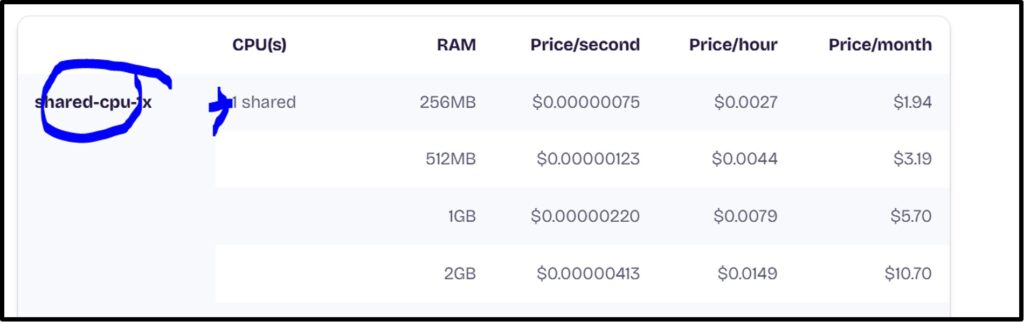
- Compute pricing: Shared-CPU-1x with 256 MB RAM starts at $1.94 per month.
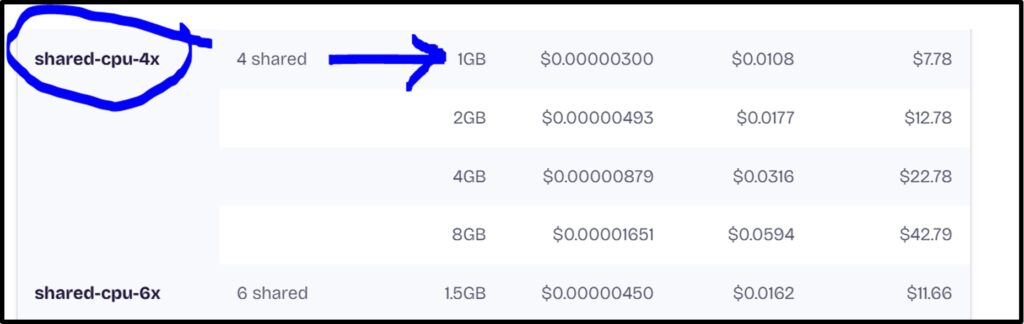
- Mid-tier 4-core with 1 GB RAM starts at $7.78 per month.
- Storage: Fly Volumes cost $0.15 per GB per month of provisioned capacity. First 10 GB of snapshots are free each month.
Ideal Use Cases
- Developers building latency-sensitive APIs who want their app running close to users in multiple global regions.
- Teams comfortable with Docker who want fine-grained infrastructure control without managing their own servers.
Fly.io is no longer free for new accounts. From 2024, new accounts require a valid payment method. A small always-on Node.js app with minimal traffic can run within the included allowances for around $1.94 per month on the cheapest plan. Include Fly.io in your plan only if you are willing to pay a small monthly fee.
Koyeb

Pros
- Genuine free tier with no credit card required
- Free PostgreSQL database included, which most other free platforms do not offer permanently
- Clean, modern dashboard that is easy to navigate
- Backed by Mistral AI following 2026 acquisition, signalling platform longevity
Cons
- Free instance scales to zero after one hour of no traffic, causing cold starts
Summary
Koyeb is a serverless container platform that runs apps globally using Firecracker microVMs. It is one of the few platforms that still offers a genuine free tier for Node.js apps, with no credit card required to get started. The Starter plan of Koyeb is free and includes one free web service with 512 MB RAM and 0.1 vCPU, plus a free managed PostgreSQL database. The free instance scales to zero after one hour of inactivity. In February 2026, Koyeb was acquired by Mistral AI, which signals strong backing for the platform going forward. It supports GitHub and Docker-based deployments with a global network spanning Frankfurt and Washington D.C. on the free tier.
Features
- Global deployment: Deploy across multiple regions with automatic routing to the closest available instance.
- Auto-deploy from Git: Connect your GitHub repository and every push triggers a new deployment.
- Docker support: Deploy from a Dockerfile or let Koyeb auto-detect your Node.js project using buildpacks.
- Scale to zero: Free instances automatically scale down after one hour of inactivity to keep costs at zero.
- Free PostgreSQL database: The Starter plan includes a free managed Postgres instance with 0.1vCPU, 512MB RAM, and upto 1GB of storage.
Pricing
- Starter (Free): No credit card required. One free web service (512 MB RAM, 0.1 vCPU, 2000MB storage), one free Postgres database (1GB storage, 5 compute hours/month) and up to 10 custom domains.
- Pro: $29 per month plus compute, includes $10 in monthly compute credits, 10 users, and 100 custom domains.
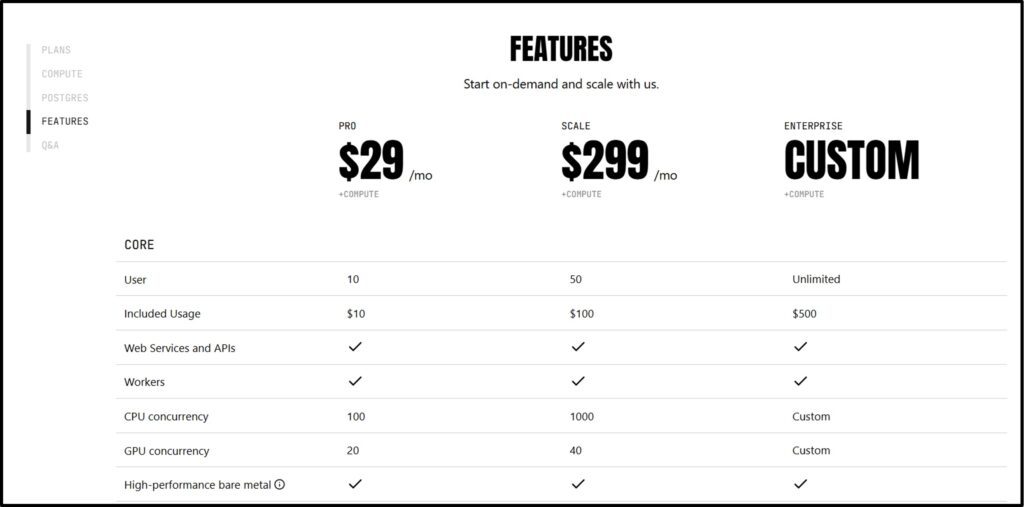
- Scale: $299 per month plus compute, includes $100 in compute credits, 50 users, and a 99.9% uptime SLA.
Ideal Use Cases
- Beginners who want a no-credit-card free tier on a platform with global infrastructure and a clean deployment experience.
- Developers who need a free hosted PostgreSQL database alongside their Node.js app without setting up a separate database service.
#5 Northflank

Pros
- 2 free services, 1 free database and 2 projects on the free tier
- Highly configurable with container-level control
- Supports Node.js, Python, Go, Ruby, and Docker
- Per-second billing on paid plans with no seat fees
Cons
- Smaller community means fewer tutorials and third-party guides available
Summary
Northflank is a full-stack deployment platform that sits between a simple PaaS and raw cloud infrastructure. It is more powerful than Render or Railway in terms of what you can configure, and the free tier is genuinely usable for small projects. Northflank’s Developer Sandbox (free tier) gives you 2 services, 2 free cron jobs, 1 database add-on and 2 projects at no cost. It requires a credit card to access the free tier, which is the main barrier for absolute beginners. Developers who are comfortable with that, Northflank is an excellent free option with no sleep mode on the free tier, which means your app stays awake around the clock unlike Render and Koyeb.
Features
- Always-on free services: Northflank’s free services do not spin down to zero, so there are no cold starts.
- Managed databases: Deploy PostgreSQL, MySQL, MongoDB, and Redis alongside your app in the same platform.
- Git-push deploys: Connect your GitHub or GitLab repository for automatic builds on every commit.
- Jobs and cron tasks: Run scheduled background jobs without needing a separate worker service.
- GPU support: Paid plans support GPU instances for AI and ML workloads, making Northflank future-proof for AI-powered Node.js apps.
Pricing
- Developer Sandbox (Free): Credit card required. Includes 2 services, 2 jobs, 1 addon (database), and 2 projects. Always-on with no sleep mode.
- Pay-as-you-go (Paid): 0.1vCPU starting at $2.70 per month ($0.0038/hr) for small workloads, billed per second of actual usage.

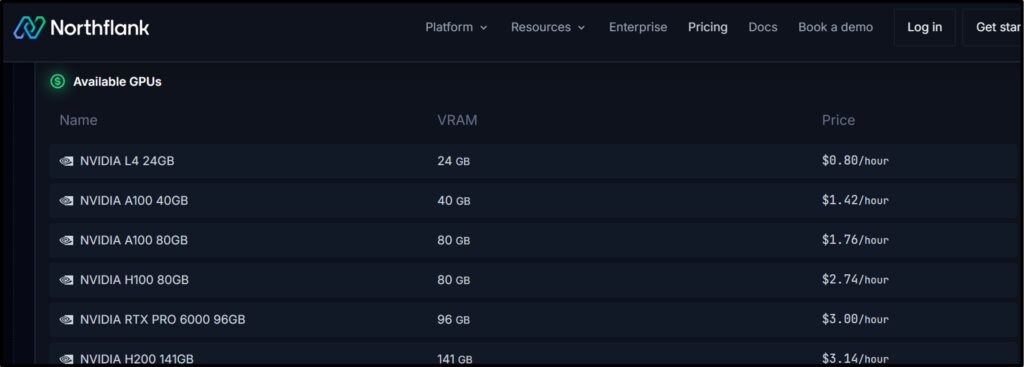
- GPU instances: Available on paid plans. NVIDIA A100 40 GB at $1.42 per hour, H100 at $2.74 per hour.
Ideal Use Cases
- Teams building Node.js apps that may later integrate AI features, since Northflank’s GPU support makes scaling into AI workloads straightforward.
- Developers who need their free-tier app to stay always-on without a keep-alive workaround, and who are comfortable providing a credit card.
Comparison Table: Best Free Node.js Hosting Providers
Here is a quick side-by-side look at how each platform compares on the features that matter most for free Node.js hosting.
| Provider | Free Tier | Auto-Deploy | Custom Domain | SSL |
| Render | Yes (Hobby plan, no CC) | Yes (Git-push) | Yes (2 domains free) | Yes (free, auto) |
| Railway | Yes ($5 trial credit) | Yes (Git-push) | Yes | Yes (free, auto) |
| Fly.io | No ($5/mo Hobby min.) | Yes (flyctl/GitHub) | Yes | Yes (free, auto) |
| Koyeb | Yes (Starter, no CC) | Yes (Git/Docker) | Yes (10 domains free) | Yes (free, auto) |
| Northflank | Yes (CC required) | Yes (Git-push) | Yes | Yes (free, auto) |
Step-by-Step Guide: Host a Node.js App on Render for Free
Render is our top recommendation for beginners.
Here is exactly how to get your Node.js app live on Render in under 15 minutes. My tech team has walked through this process multiple times:
Before you start: Make sure your project has a valid package.json with a start script >> Your code is pushed to a GitHub repository.
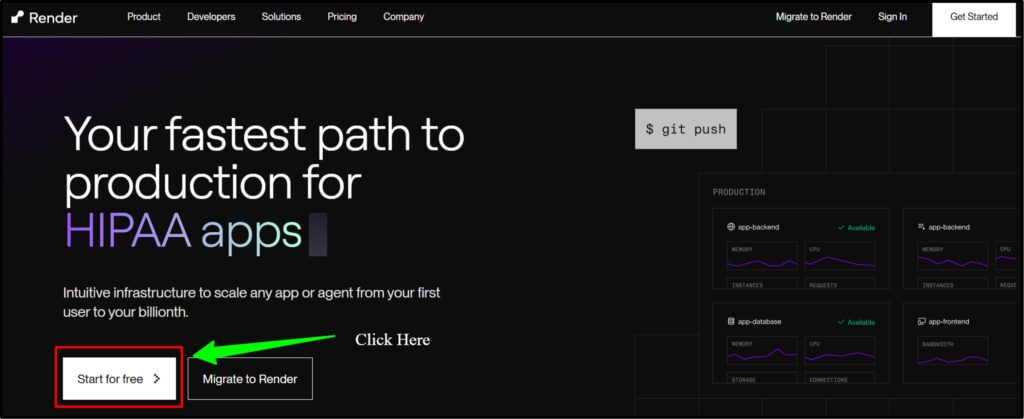
- Step1) Go to render.com >> click Get Started for Free
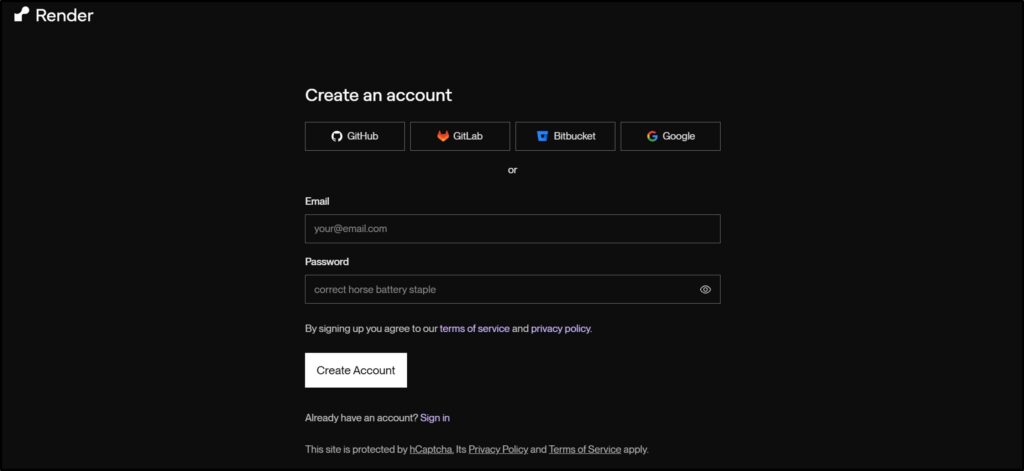
- Step2) Sign up with your GitHub account, which also grants Render access to your repositories.
- Step3) Once inside your dashboard >> Click the New button in the top-right corner >> Select Web Service from the dropdown.

- Step4) Render will show you a list of your GitHub repositories >> Select the repository that contains your Node.js app
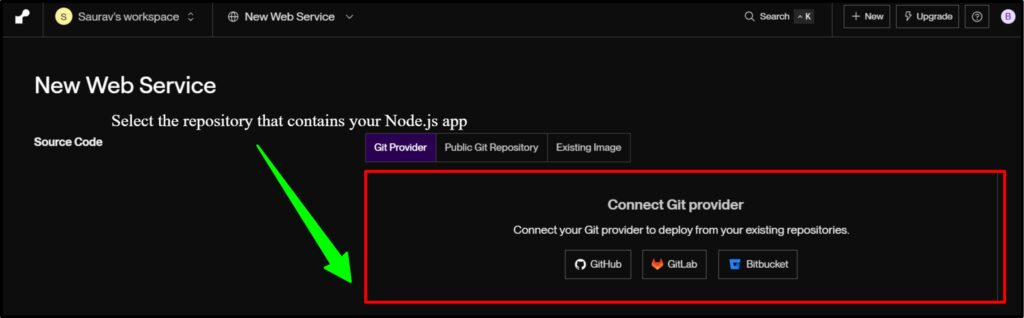
If you do not see it, click Configure GitHub access and grant permissions.
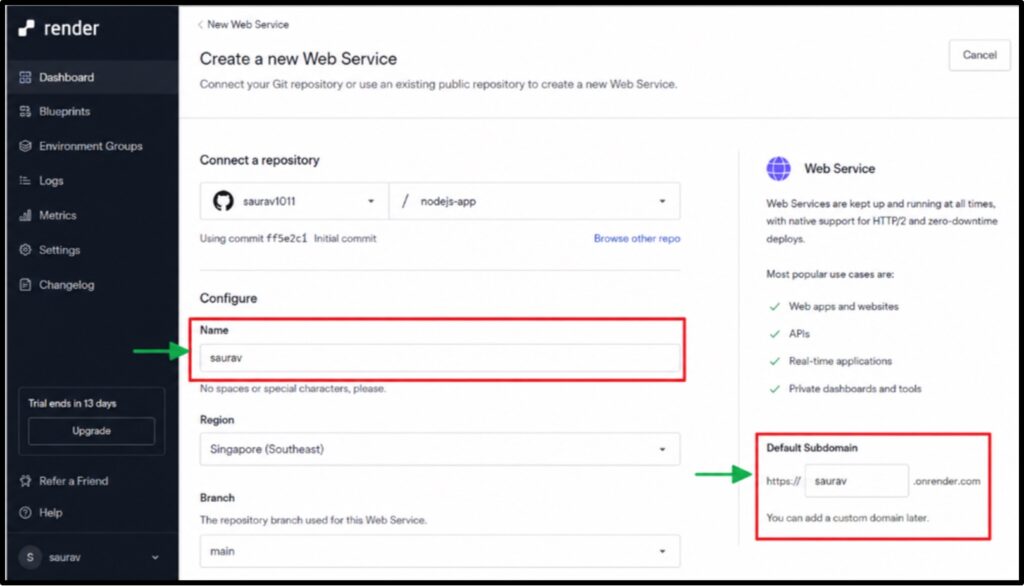
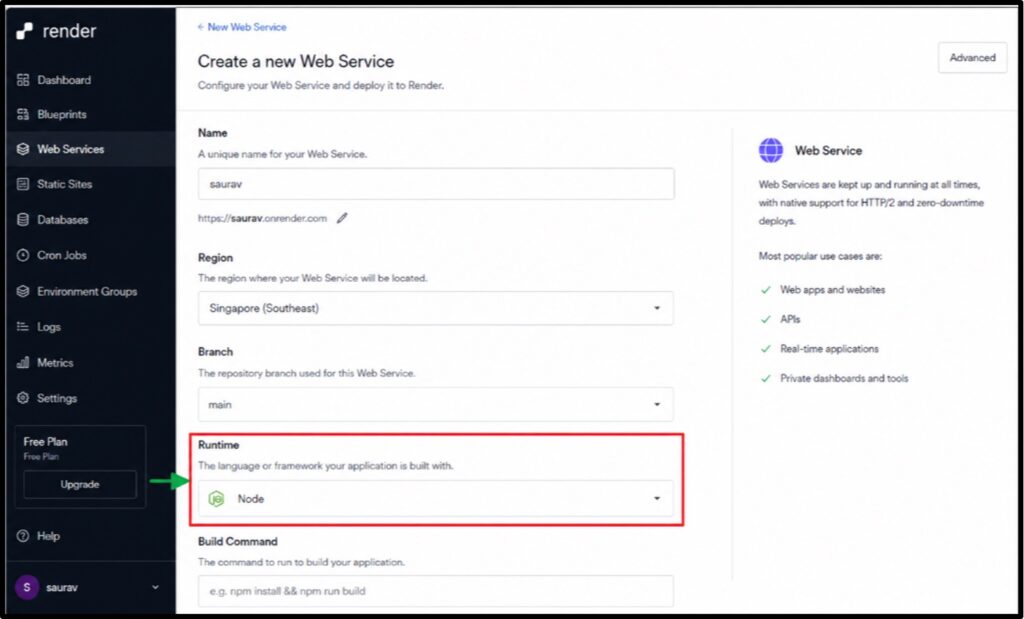
- Step5) On the configuration screen >> Give your service a name. This becomes part of your default subdomain (saurav.onrender.com).
- Step6) Set the Runtime to Node >> Render detects this automatically in most cases, but double-checks it.
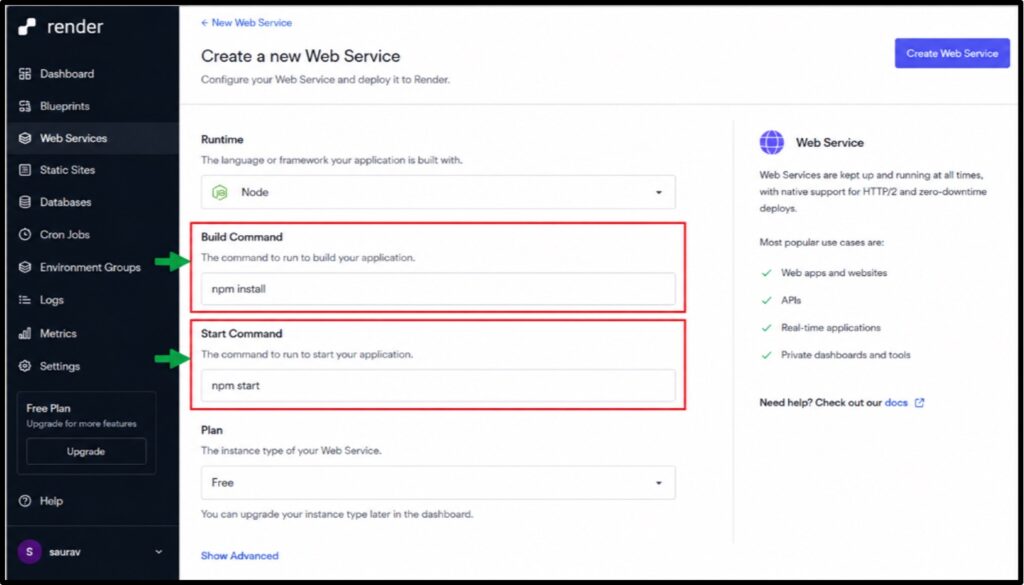
- Step7) Set the Build Command to: npm install >> Set the Start Command to: npm start (or node index.js if you do not have a start script defined).
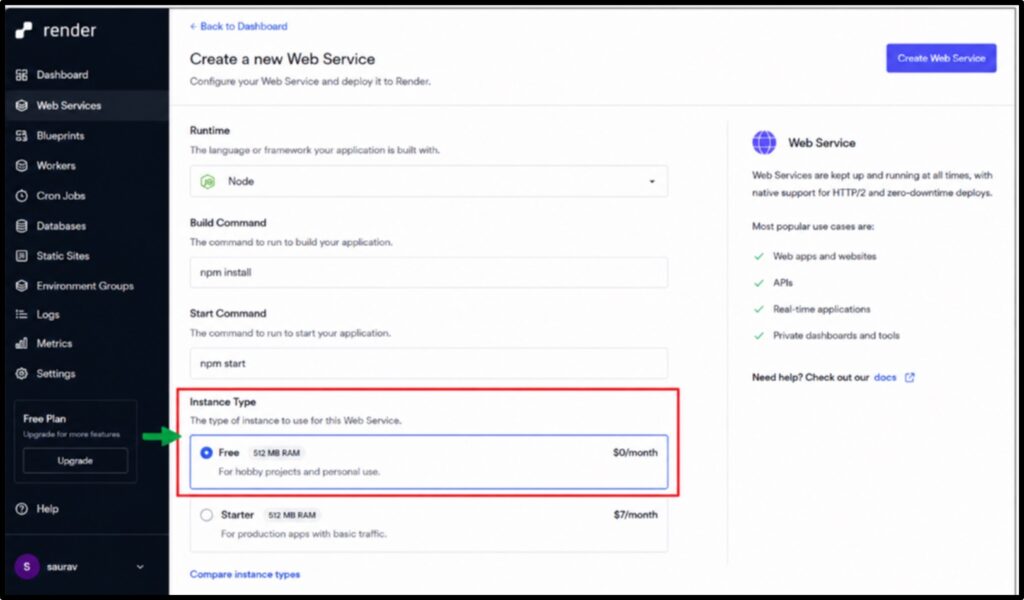
- Step8) Scroll down to the Instance Type section and select Free >> This is the zero-cost option with 512 MB RAM.
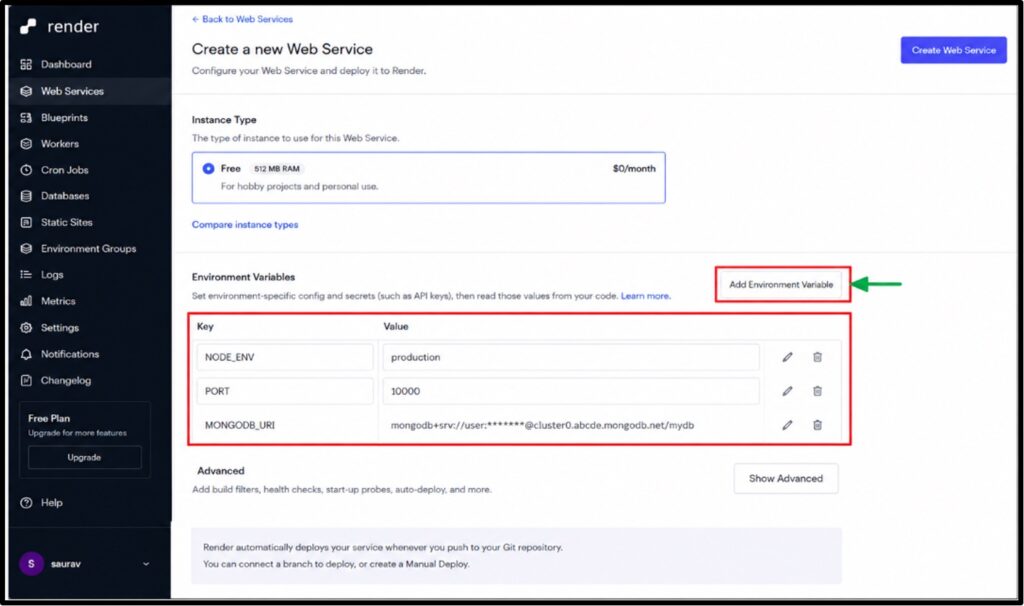
- Step9) If your app uses environment variables >> click the Add Environment Variable button >> Enter each key-value pair >> Never put secrets in your code.
- Step10) Click the Create Web Service button >> Render starts building your app immediately >> You can watch the build logs in real time on the next screen.
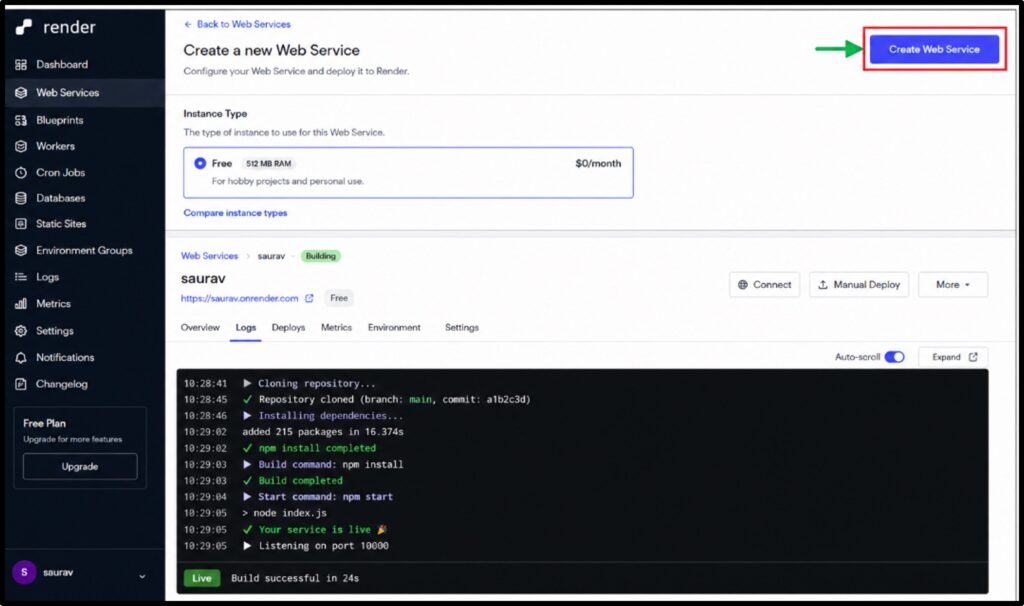
- Step11) Once the build finishes and the status shows Live, your app is accessible at the URL shown at the top of the page >> Click it to confirm everything works.
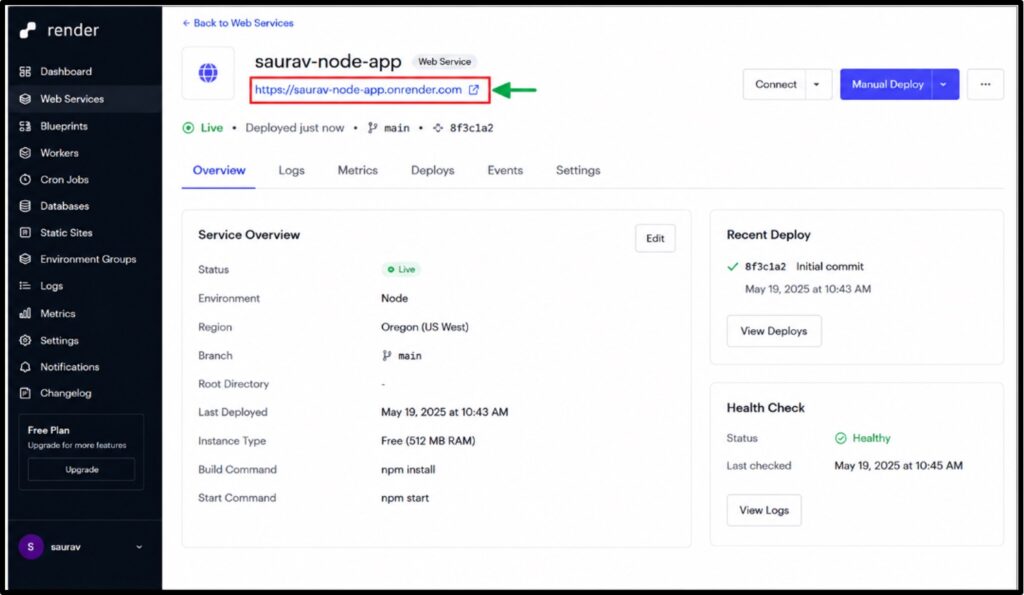
In our testing, The cold start at Render was on an average 4 to 5 seconds.
Secret Tip: If your build fails, the most common reason is a missing start script in package.json >> Open your package.json >> Confirm that “scripts”: { “start”: “node index.js” } is present.
How to Connect a Custom Domain
A custom domain makes your app look professional and is easy to set up once your app is deployed. Here is how we recommend handling the process, from domain purchase to a working HTTPS connection.
Step1) Purchasing a Domain
The first step is getting a domain name if you do not already have one.
We recommend purchasing your domain through YouStable or through GoDaddy. which offers affordable domain registration with competitive renewal rates and a simple DNS management panel.
Go to the official website of either Youstable or GoDaddy >> Search for your preferred domain name >> Complete the purchase.
Once the domain is registered, you will access its DNS settings in the next step.
Step2) Updating DNS Records
After buying your domain, you need to point it to your hosting platform. Here is how to do it on Render, though the steps are similar on other platforms.
- Log in to your Render dashboard and open your deployed web service >> Click the Settings tab and scroll to the Custom Domains section.
- Click Add Custom Domain >> Type your domain (for example, saurav.com or www.saurav.com).
- Render will show you a CNAME record value, something like saurav.onrender.com.
- Log in to your domain control panel >> Navigate to the DNS management section for your domain.
- Add a new CNAME record >> Set the Host to www (or @ for the root domain) >> Set the Value to the address Render gave you.
- Save the DNS record >> DNS changes typically take 10 to 30 minutes to propagate, though sometimes up to 24 hours.
Step3) Configuring SSL Certificates
- On Render, SSL is handled entirely for you. There is nothing to configure manually.
- Once your DNS record has propagated >> Go back to the Custom Domains section in your Render service.
- Render automatically provides a TLS certificate via Let’s Encrypt for your custom domain.
- When the certificate is ready, the status next to your domain changes from Pending Verification to Active.
Your app is now accessible at https://example.com with a valid certificate.
Step4) Testing Domain Setup
Before you share the link publicly, run through these checks to confirm everything is working properly.
- Open your domain in a browser >> Confirm it loads your app without any security warnings.
- Check that the padlock icon appears in the browser address bar, confirming HTTPS is active.
- Test both www.yourdomain.com and yourdomain.com to make sure both resolve correctly.
If the domain does not load after 30 minutes, go back to your DNS panel and double-check that the CNAME record is saved correctly with no typos.
Common Deployment Errors and Fixes
Even with careful setup, things can go wrong on the first deployment. Here are the errors my team has seen most often and exactly how to fix them:
Error: Cannot find module ‘express’
This means your dependencies were not installed during the build.
Check that your build command is set to npm install and that express (or whatever package is missing) is listed under dependencies in package.json, not devDependencies.
Error: listen EADDRINUSE: address already in use
Your app is trying to bind to a port that is already taken.
On hosting platforms, you must use the PORT environment variable provided by the platform, not a hardcoded port.
Fix it by changing your code to: const PORT = process.env.PORT || 3000;
Build fails with ‘npm ERR! missing script: start’
Open your package.json and add a start script under the “scripts” key: “start”: “node index.js”.
Replace index.js with your actual entry file.
App shows 502 Bad Gateway or Application Error
This usually means your app crashed after starting. Open the deployment logs on your platform dashboard and look for the error message.
The most common cause is a missing environment variable, such as a database connection string that is not set.
Free PostgreSQL database on Render returns connection errors
Render’s free PostgreSQL instances expire after 30 days and are deleted.
If you see database connection errors on a free tier Render deployment, check whether your database instance still exists.
You may need to create a new one and update your DATABASE_URL environment variable.
Always check the deployment logs first when something breaks. Every platform in this guide shows real-time logs during the build and runtime. The error message almost always tells you exactly what went wrong.
Security Best Practices
Free hosting does not mean you should skip security. A few basic steps protect both your app and your users, regardless of which platform you are on:
- Never commit secrets to Git: API keys, database passwords, and JWT secrets belong in environment variables only. Add a .env file to your .gitignore and never push it to GitHub.
- Use HTTPS everywhere: All five platforms in this guide provide free SSL, so there is no reason to serve anything over plain HTTP.
- Set rate limits on your API: Install the express-rate-limit package and apply it to your routes to prevent abuse and denial-of-service attempts.
- Keep dependencies updated: Run npm audit regularly and update packages with known vulnerabilities. On free hosting, a compromised dependency can take down your app silently.
- Validate all user input: Never trust input coming from the client. Use a validation library like Joi or express-validator before processing any data.
Performance Optimization Tips
Even on free hosting with limited resources, you can make your Node.js app noticeably faster with a few optimizations.
- Enable gzip compression: Use the compression middleware in Express to compress responses before sending them. This reduces bandwidth usage and speeds up load times for your users.
- Cache repeated database queries: If your app hits the database for the same data repeatedly, cache the results in memory using a simple object or a library like node-cache. This reduces both latency and database load.
- Use a CDN for static assets: Serve images, CSS, and JavaScript files through a CDN like Cloudflare’s free tier rather than from your Node.js server. This offloads bandwidth and reduces response times.
- Minimize your node_modules: Only install packages you actually use. Smaller dependency trees mean faster build times on free platforms where build minutes are limited.
- Implement a health check endpoint: Add a simple GET /health route that returns 200 OK. Platforms use this to verify your app is running, and external monitors use it to keep your app warm.
When Should You Upgrade to Paid Hosting?
Free hosting is the right starting point, but there comes a point where the limitations cost you more in time and lost users than a paid plan would. Here is how to know when that moment has arrived.
Consider upgrading if you need:
- Higher traffic handling: When real users start using your app and you see slow responses or errors during moderate traffic, free-tier resources are not keeping up.
- Better uptime guarantees: If your app is for a client or a production product, cold starts and occasional downtime are not acceptable. Paid plans remove sleep mode and offer SLA-backed uptime.
- Dedicated web resources: Shared free-tier CPU and RAM are shared with other users on the same machine. A paid plan gives your app its own allocation.
- Faster response times: For APIs used by a mobile app or a frontend with real users, 30-second cold start times will drive users away. Paid plans remove this.
- Advanced security: Paid tiers on most platforms include DDoS protection, private networking between services and access to audit logs.
Render’s Starter plan at $7 per month per service removes the sleep mode entirely and gives you a real always-on deployment.
Free Hosting vs Paid Hosting
Here is a clear comparison of what you get on free versus paid plans, so you can make an informed decision about when to move.
| Feature | Free Hosting | Paid Hosting |
| Monthly cost | Rs. 0 | $5 to $25 per month |
| Always-on (no sleep) | No (goes down after inactivity) | Yes |
| RAM | 256 MB to 512 MB shared | 512 MB to 8 GB dedicated |
| Custom domain | Yes (on most platforms) | Yes |
| SSL certificate | Yes (free on all platforms) | Yes |
| Uptime SLA | No | Yes (99.9% on most paid plans) |
| Priority support | No | Yes |
| Database included | Limited or expires | Persistent, larger storage |
| Bandwidth | 5GB per month (Render) | 500 GB or more per month |
| Best for | Learning, portfolios, MVPs | Production apps, client projects |
Frequently Asked Questions
Q1. Can I host a Node.js app completely free?
Yes. Render and Koyeb both offer completely free tiers that require no credit card. You can deploy a Node.js app, connect a custom domain and get HTTPS included at zero cost.
Q2. Is free Node.js hosting reliable?
Not for production use! Free node.js hosting does not come with uptime SLAs, has cold start delays and are subject to resource restrictions.
Q3. Which free hosting platform is best for beginners?
Render is the best starting point for beginners. It requires no credit card, connects directly to GitHub, handles SSL automatically, and has the most straightforward setup flow of any platform in this guide.
Q4. Can I connect a custom domain?
Yes! You can connect a custom domain on the free or entry-level plans. On Render, the Hobby plan includes two custom domains per workspace at no extra charge.
Q5. Can I host a MERN stack application for free?
Yes! You can host the Node.js and Express backend on Render or Koyeb for free, the React frontend on Vercel or Netlify (both have free hosting) and connect a free MongoDB Atlas cluster for the database. The entire MERN stack can run at zero cost.
Q6. Can I host Node.js and MongoDB for free?
Yes! Deploy your Node.js app on Render and use MongoDB Atlas for the database. Connect them by setting your MONGO_URI as an environment variable on your hosting platform.
Q7. Can I deploy directly from GitHub?
Yes! Every platform in this guide supports GitHub-based deployment. You connect your repository during setup and the platform builds and deploys your app automatically on every push to your selected branch.
Q8. Is free Node.js hosting suitable for production?
No! Free hosting is not suitable for production apps with real 10K users. Sleep mode causes cold starts, there are no uptime guarantees and resources are too limited for meaningful traffic. Use free hosting to go live.
Conclusion
Hosting a Node.js app for free has never been easier and you now have everything you need to do it.
We covered what Node.js hosting is and why your app needs a persistent server environment, told you the requirements like package.json and Git setup and explained both the advantages and limitations of free tiers.
We looked at five platforms in detail:
- Render is the top pick for beginners with its no-credit-card free tier and seamless GitHub integration.
- Railway gives you the fastest deployment experience and built-in database management.
- Fly.io suits developers who want global edge deployment and are comfortable with Docker.
- Koyeb stands out for its no-credit-card free tier with a bundled PostgreSQL database.
- Northflank is worth considering if you need an always-on free service without cold starts.
We told you the step-by-step deployment on Render, showed you how to connect a custom domain (start with YouStable or GoDaddy for domain registration) and covered DNS configuration and SSL setup.
You can start with one of the node.js hosting platforms today.
Push your code, connect your repo and your app will be live with a public URL in minutes.



Table of Contents
- What Is Node.js Hosting?
- Requirements for Hosting a Node.js App
- Can You Host a Node.js App for Free?
- Best Free Platforms to Host a Node.js App
- Step-by-Step Guide: Host a Node.js App on Render for Free
- How to Connect a Custom Domain
- Common Deployment Errors and Fixes
- Security Best Practices
- Performance Optimization Tips
- Free Hosting vs Paid Hosting
- Frequently Asked Questions
- Conclusion