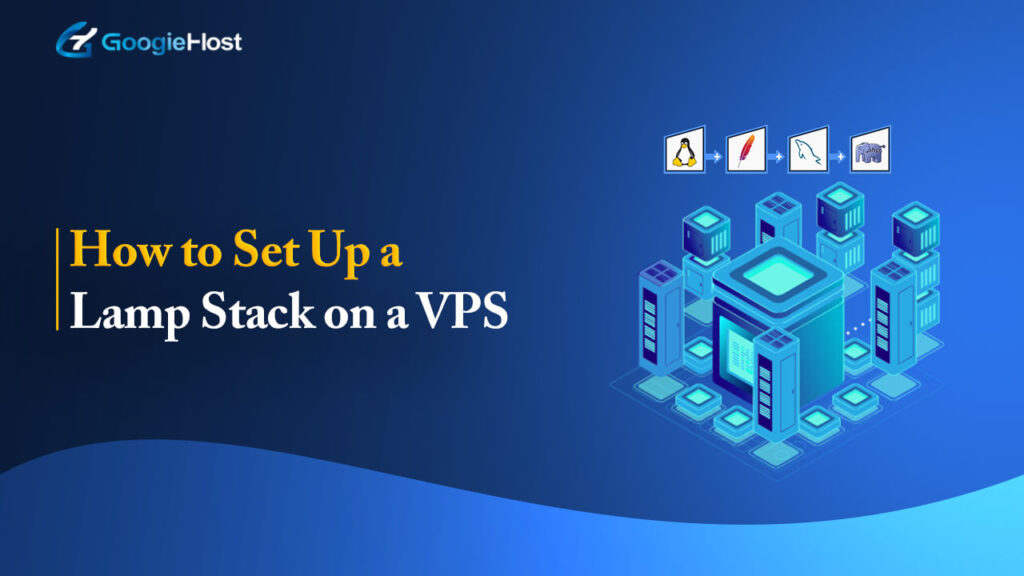
How to Set Up a LAMP Stack on a VPS: Step-by-Step Guide (2026)

Over 40% of all websites run on Apache and the LAMP stack powering them is still one of the fastest ways to get a production server live in under an hour.
If you are a newbie developer or an agency looking to host multiple PHP-based applications like WordPress, Joomla, or Drupal, setting up a LAMP stack on a VPS gives you full server control, flexible configurations and the scalability to grow.
Don’t have a server yet? Pick one from our cheap VPS list, which starts at $3 a month.
I will tell you every single step how to set up a LAMP stack on a VPS from scratch so you can go from zero to a fully running LAMP server.
You will connect to your VPS, then >> Install Apache, MySQL and PHP >> Configure virtual hosts >> Secure your installation, and deploy a live site.
I have personally tested every command you see here and added screenshots of my own steps so you can follow along exactly as I did.
You do not require any prior server experience. By the end of this Linux server tutorial, your server will be live, secured and ready to host real applications.
Tested Environment Note: All commands in this guide were tested on Ubuntu 22.04 LTS with a 2GB YouStable VPS.
What Is a LAMP Stack? (And Why Use It in 2026?)
A LAMP stack is a group of four open source technologies.
- Linux, the operating system. Ubuntu 22.04 LTS is your best choice for its long-term support.
- Apache, the web server that handles all incoming HTTP requests and serves your pages to visitors.
- MySQL, the relational database that stores everything: posts, users, products, orders.
- PHP, the server-side scripting language that powers most of the web’s dynamic content, including WordPress, Laravel.
All these 4 technologies are used together to build and run websites and web applications.
Linux serves as the OS, Apache handles web requests, MySQL manages data storage, and PHP processes dynamic content, working collectively to deliver fast, interactive web UX to users.
A LAMP stack is like a team of helpers that build and run websites.

Think of it like a tiny restaurant kitchen where each helper has one job, and together they cook and serve your website to visitors quickly and smoothly.
Why LAMP Is Still Relevant in 2026
LAMP continues to stay relevant because it is simple and trusted by developers worldwide. This is a dependable choice for building and managing websites even today.
- It is 100% open-source and completely free: You do not pay anything to use it. No licenses, no hidden costs. Just install and start building your website right away.
- It powers WordPress, Drupal, Joomla, and PHP frameworks: Most popular websites run on these platforms, and they all work smoothly with LAMP, which makes it a very practical choice.
- It is battle-tested on millions of servers: People have used LAMP for years on real websites, so it is proven to be stable and reliable in real-world usage.
- It has massive community support: You will find guides, tutorials, and plugins everywhere. Getting help or fixing issues becomes much easier.
- It pairs perfectly with a VPS: You get full control over your server, and you can scale resources as your website grows, keeping performance steady.
Prerequisites Before You Begin
Before you start setting up your LAMP stack, gather all essentials like VPS access, SSH credentials, a stable internet connection and basic terminal knowledge to keep everything running smoothly.
- A VPS running Ubuntu 22.04 LTS with at least 1 vCPU and 1 GB RAM
- Root or sudo access to your VPS
- An SSH client, such as Terminal on Mac or Linux, or PuTTY on Windows
- A stable internet connection throughout the setup process
- A domain name (optional but recommended if you plan to set up SSL)
Recommended VPS Specs for LAMP
For a quick overview, I’ve listed down the required VPS specifications for LAMP for different use cases so that you do not have to do the hardwork:
| Use Case | RAM | CPU | Storage |
|---|---|---|---|
| Dev / Staging | 1 GB | 1 vCPU | 20 GB SSD |
| Small WordPress Site | 2 GB | 2 vCPU | 40 GB SSD |
| Medium App / Multi-Site | 4 GB | 4 vCPU | 80 GB SSD |
| High-Traffic Production | 8 GB+ | 8 vCPU | 160 GB SSD |
Now, the question is where can you get all these VPS specifications? Is there any best VPS provider out there who you can trust?
The answer to this is Yes!
I have recommended VPS providers that offer scalable VPS plans, high performance and also they are affordable as well.
Popular VPS Providers to Consider
If you don’t already have a VPS, consider these reliable hosting providers for deploying a LAMP Stack:
- Kamatera: Kamatera offers highly scalable cloud VPS solutions with flexible resource allocation, making it ideal for developers who want complete control over their LAMP environment.
- DigitalOcean: It is beginner-friendly and provides one-click Ubuntu deployments, extensive documentation, and affordable pricing for hosting LAMP-based applications.
- Vultr: It delivers high-performance SSD VPS servers across multiple global data centers, making it a strong option for hosting fast and reliable web applications.
- Linode: Linode is known for its developer-focused cloud platform, transparent pricing, and robust infrastructure, making it an excellent choice for deploying Linux-based web servers.
These providers offer reliable Linux VPS hosting and provide the flexibility needed to install and optimize a LAMP Stack according to your project requirements.
For a detailed comparison, I recommend checking out the guide on the best VPS hosting for developers for a side-by-side breakdown.
Got everything ready?
Here is what I will show you: connect to your VPS via SSH, update the system, install each LAMP component one by one, secure and configure everything, then go fully live with HTTPS.
Follow the steps in order since each one builds on the last.
How to Set Up a LAMP Stack on a VPS
I have listed the steps in a really easy manner to help you copy the steps exactly the way I have done.
Follow these simple, beginner-friendly steps to install and configure Apache, MySQL and PHP on your VPS exactly as shown:
I’ve put all the important commands inside a box so that you can simply copy paste it on to your PuTTY or Windows Powershell.
Step1: Connect to Your VPS via SSH
The first step in any VPS web server setup is connecting to your server.
Open your terminal and run the following command:
| ssh root@your_server_ip |
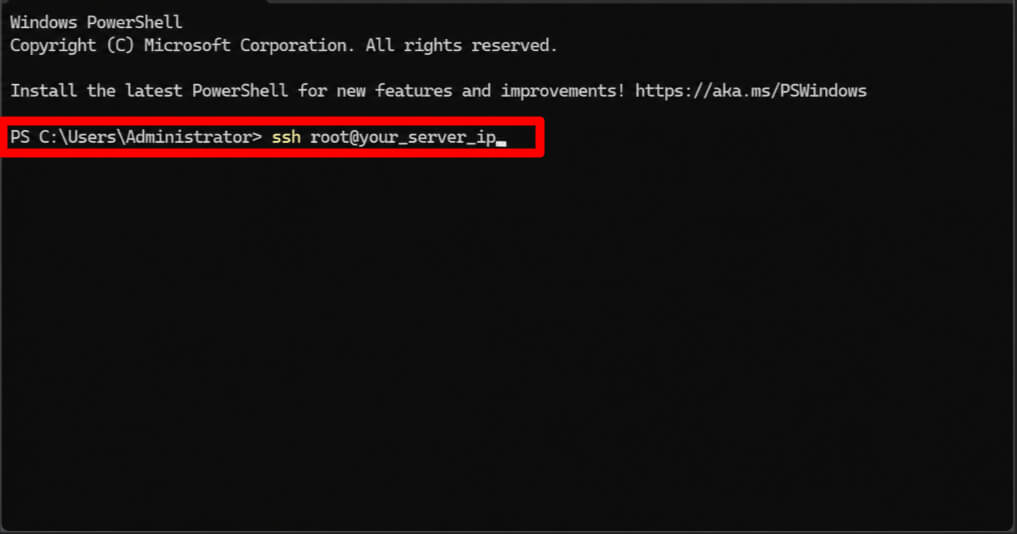
If your provider gave you an SSH key file, use this instead:
| ssh -i ~/.ssh/your_key.pem ubuntu@your_server_ip |
You will see a fingerprint prompt on your first login >> Type (Y) to accept it and continue. Once connected, your terminal will show the server prompt.
First-Time SSH Hardening
I strongly recommend you do this right after your first login. Running as root permanently is a serious security risk.
Create a dedicated sudo user with these two commands:
| adduser youruserusermod -aG sudo youruser |
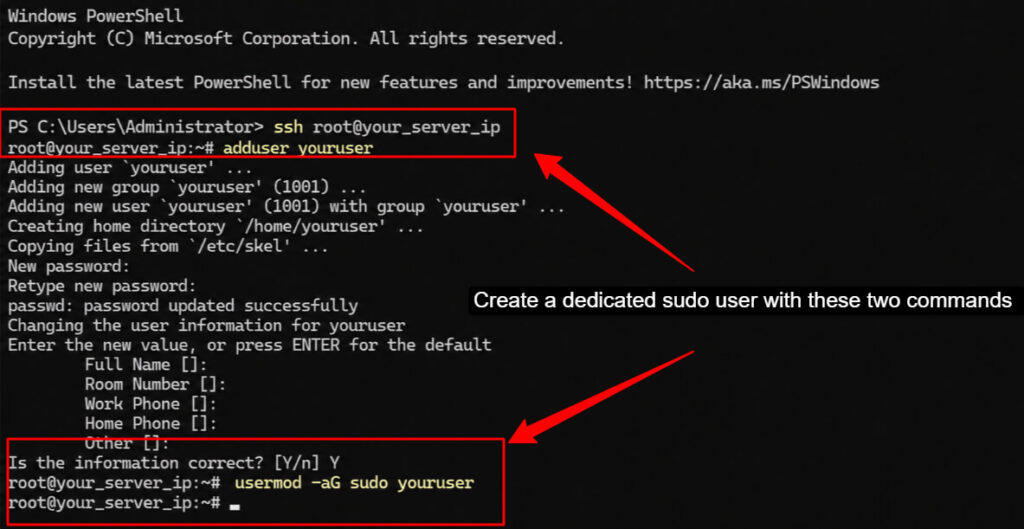
Then log out and reconnect as your new user. On top of that, you should also do the following:
- Disable root login by editing /etc/ssh/sshd_config and setting PermitRootLogin to no
- Switch from password authentication to SSH key authentication
- Optionally change the default SSH port from 22 to a custom port to reduce automated bot attacks
Step2: Update Your Server
I always update the system before installing anything.
This prevents dependency conflicts and ensures you are working with the latest security patches. It is a critical habit in any Linux server tutorial.
| sudo apt update && sudo apt upgrade -ysudo apt install -y curl wget gnupg2 software-properties-common |
The first command refreshes your package list and installs all available updates.
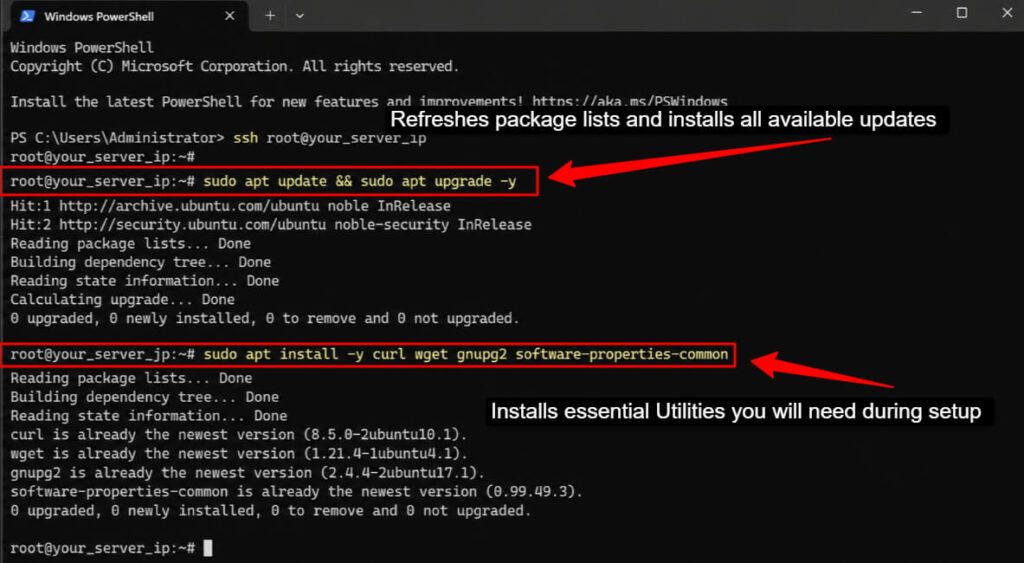
The second installs a few essential utilities you will need during setup. This usually takes between 2 and 5 minutes on a fresh VPS.
Step3: Install Apache Web Server
Apache is the core of your LAMP stack. It handles all incoming web traffic and serves your PHP content to visitors.
Here is how to install and start it:
| sudo apt install apache2 -ysudo systemctl start apache2sudo systemctl enable apache2sudo systemctl status apache2 |
The enable command makes sure Apache starts automatically every time your server reboots. The status command lets you confirm it is running before you move on.
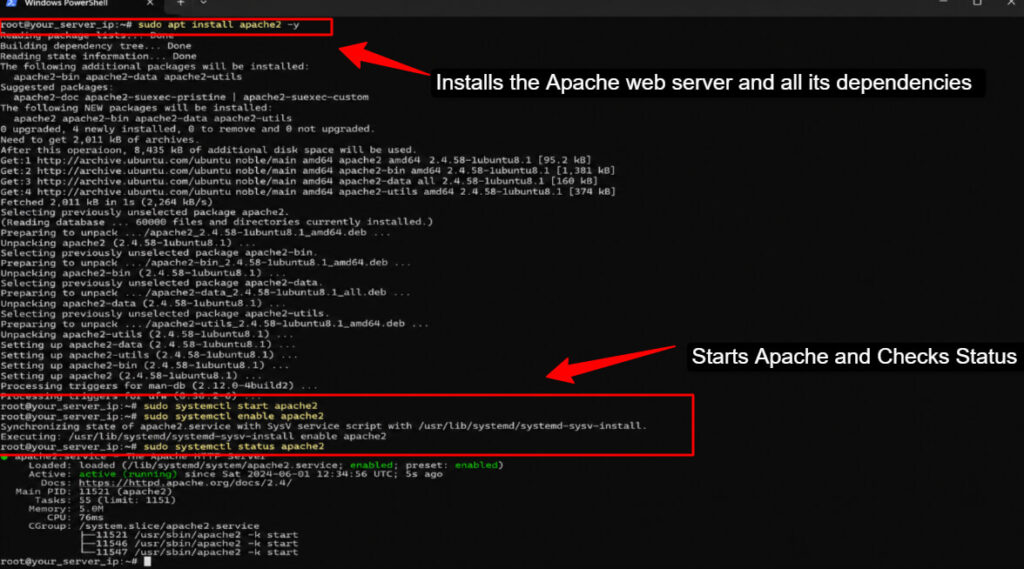
Configure UFW Firewall for Apache (Really very Important)
You need to open the correct ports so your server is reachable from the internet. Run these commands:
| sudo ufw allow OpenSSHsudo ufw allow ‘Apache Full’sudo ufw enablesudo ufw status |
Apache Full opens both port 80 for HTTP and port 443 for HTTPS. Always allow OpenSSH first so you do not accidentally lock yourself out of the server.
Now, in order to verify if apache is running or not:
Open your browser >> go to http://your_server_ip >> You should see the Apache2 Ubuntu Default Page >> That plain white page confirms Apache is live and serving content correctly.
Here are some practical Apache configuration best practices you can follow to keep your server secure and fast:
- Disable directory listing by adding Options -Indexes to your virtual host config to prevent exposing your file structure
- Hide your server version by editing /etc/apache2/conf-available/security.conf and setting ServerTokens to Prod
- Disable unused Apache modules to reduce your attack surface using sudo a2dismod followed by the module name
Step4: Install MySQL / MariaDB
Your LAMP stack needs a database engine. You have two solid options: MySQL, which is the industry standard, or MariaDB, which is a drop-in community replacement.
Here is how they compare:
| Feature | MySQL 8.x | MariaDB 10.x |
|---|---|---|
| License | GPL (Community) | GPL |
| Speed | Fast | Often faster |
| JSON Support | Native | Yes |
| Drop-in replacement | No | Yes for most apps |
| Maintained by | Oracle | Open-source community |
| Best for | Enterprise apps | Most VPS setups |
For most setups including WordPress, Joomla, and Laravel, I recommend MariaDB. It performs well and is fully community-driven.
The commands to Install MySQL and Install MariaDB are as follows:
| Install MySQLsudo apt install mysql-server -ysudo systemctl start mysqlsudo systemctl enable mysql Install MariaDB (Alternative)sudo apt install mariadb-server -ysudo systemctl start mariadbsudo systemctl enable mariadb |
Step5: Install PHP and Essential Extensions
PHP is what makes your site dynamic.
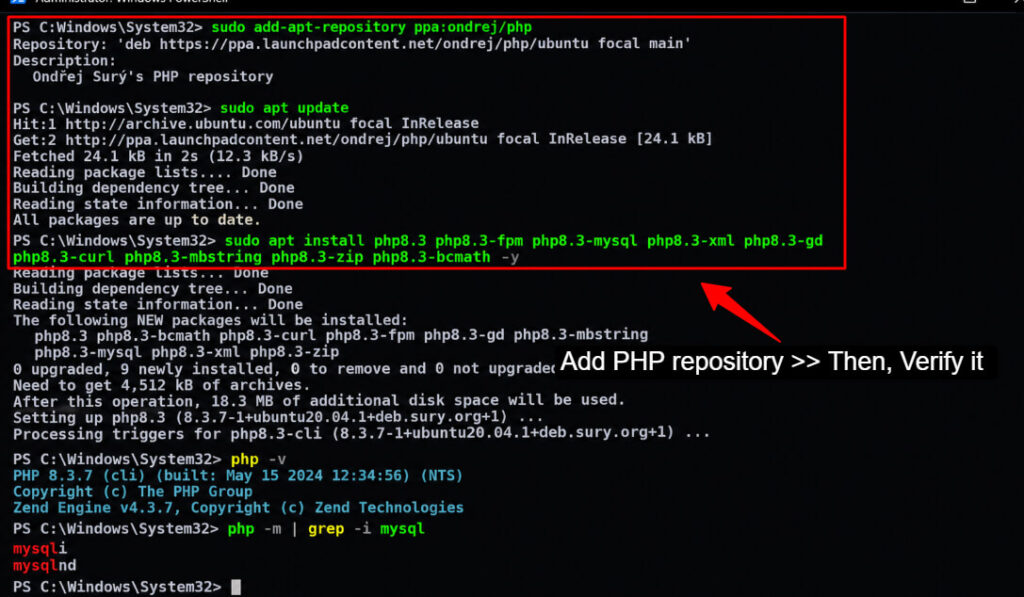
I will install PHP 8.3, the latest stable version, along with all the PHP modules you need to run modern web applications.
| To Add the PHP Repository and Install PHP 8.3, run:sudo add-apt-repository ppa:ondrej/phpsudo apt updatesudo apt install php8.3 php8.3-fpm php8.3-mysql php8.3-xml php8.3-gd php8.3-curl php8.3-mbstring php8.3-zip php8.3-bcmath -y To Verify Your PHP Installation, run:php -vphp -m | grep -i mysql |
The first command confirms your PHP version. The second confirms that the MySQL PHP extension is loaded and ready.
PHP-FPM vs mod_php: Why PHP-FPM Wins
I always use PHP-FPM over the older mod_php approach. Here is why you should too:
- Better process isolation means a PHP error does not bring down your entire Apache instance
- You can run different PHP versions for different sites on the same server
- PHP restarts independently without touching Apache
- Lower memory usage under high concurrent load
| To Connect PHP-FPM to Apache, runsudo a2enmod proxy_fcgi setenvifsudo a2enconf php8.3-fpmsudo systemctl restart apache2 |
Step6: Configure Apache Virtual Hosts
Apache’s virtual hosts feature is what lets you host multiple domains on a single VPS. I will show you how to set one up now.
Start by creating the directory structure for your site:
- sudo mkdir -p /var/www/yourdomain.com/public_html
- sudo chown -R $USER:www-data /var/www/yourdomain.com
- sudo chmod -R 755 /var/www/yourdomain.com
Now create the virtual host configuration file:
sudo nano /etc/apache2/sites-available/yourdomain.com.conf
Paste the following configuration inside the file:
<VirtualHost *:80>
ServerName yourdomain.com
ServerAlias www.yourdomain.com
DocumentRoot /var/www/yourdomain.com/public_html
ErrorLog ${APACHE_LOG_DIR}/error.log
CustomLog ${APACHE_LOG_DIR}/access.log combined
</VirtualHost>
Save the file, then enable your new site and disable the default:
sudo a2ensite yourdomain.com.conf
sudo a2dissite 000-default.conf
sudo systemctl reload apache2
Step7: Secure Your MySQL Installation
Out of the box, MySQL security needs hardening.
MySQL ships with some insecure defaults that you need to fix before you go live.
| Run the built-in security script:sudo mysql_secure_installation |
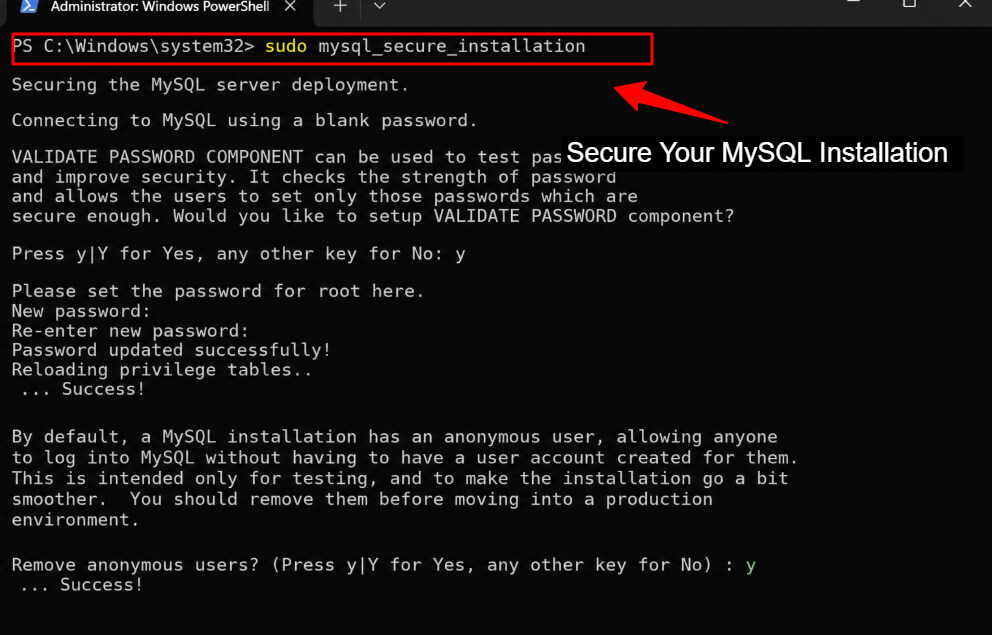
Work through each prompt as follows:
- Set a strong root password when asked
- Remove anonymous users: choose Yes
- Disallow root login remotely: choose Yes
- Remove the test database: choose Yes
- Reload privilege tables: choose Yes
Create a Dedicated Database User
Never use the root MySQL user for your applications. I always create a dedicated user for each app. Log into MySQL and run these commands:
| CREATE DATABASE myapp_db;CREATE USER ‘myapp_user’@’localhost’ IDENTIFIED BY ‘StrongPassword!’;GRANT ALL PRIVILEGES ON myapp_db.* TO ‘myapp_user’@’localhost’;FLUSH PRIVILEGES; |
Step8: Install and Configure phpMyAdmin
phpMyAdmin gives you a web-based interface to manage your databases visually without writing SQL by hand. It is not required, but it makes early configuring the LAMP server work much faster.
sudo apt install phpmyadmin -y
During installation, select apache2 when prompted and choose Yes to configure the database automatically.
Secure phpMyAdmin Access
- Change the default URL alias from /phpmyadmin to something less obvious to reduce automated attacks
- Add HTTP Basic Authentication as an extra layer of password protection
- Restrict access to phpMyAdmin by whitelisting your own IP address in the Apache configuration
Step9: Enable SSL with Let’s Encrypt (HTTPS)
Running without HTTPS in 2026 kills both trust and SEO rankings. I use Let’s Encrypt to get a free, auto-renewing SSL certificate. Start by installing Certbot:
sudo apt install certbot python3-certbot-apache -y
sudo certbot –apache -d yourdomain.com -d www.yourdomain.com
Certbot will automatically obtain your certificate, configure Apache, and set up HTTPS redirects. Follow the on-screen prompts. The whole process takes under 2 minutes.
Set Up Auto-Renewal
Let’s Encrypt certificates expire every 90 days. You need to make sure auto-renewal is active so your site never goes down with an expired certificate:
sudo systemctl status certbot.timer
sudo certbot renew –dry-run
If the dry run succeeds, your certificate will renew automatically before expiry. No manual action needed after this point.
Step10: Harden Your LAMP Server (Security Best Practices)
Installing LAMP is only half the job. Proper server hardening best practices protect your server from bots, brute-force attacks, and known vulnerabilities.
I always do these steps on every server I set up.
Apache Security Hardening
- Disable server tokens: set ServerTokens Prod in /etc/apache2/conf-available/security.conf
- Hide Apache version: set ServerSignature Off in the same file
- Disable TRACE and TRACK HTTP methods to prevent cross-site tracing attacks
- Install mod_security, which is an open-source web application firewall that filters malicious requests
System-Level Security
- Install Fail2Ban so that IPs get automatically blocked after repeated failed login attempts
- Enable automatic security updates by installing the unattended-upgrades package
- Set up logwatch or a similar tool to receive daily log digest emails
- Schedule regular database backups using cron jobs so you always have a recovery point
Step11: Optimize LAMP Stack Performance
A default LAMP stack performance optimization configuration leaves a lot of speed on the table. These tweaks I use on every production server make a real, measurable difference.
Apache Performance Tuning
- Enable mod_deflate for Gzip compression to shrink response sizes: sudo a2enmod deflate
- Enable mod_expires for browser caching so repeat visitors load your site faster: sudo a2enmod expires
- Switch from Prefork MPM to Event MPM for better concurrency under load
- Tune MaxRequestWorkers to approximately 80% of your available RAM divided by the average PHP process size
PHP Performance
- Enable OPcache in php.ini so PHP scripts compile to bytecode once and run much faster on repeat requests
- Set memory_limit and max_execution_time to values that match what your application actually uses
- Configure PHP-FPM pool settings such as pm.max_children based on your available RAM
For high-traffic applications, I recommend adding an object caching layer like Redis or Memcached.
These sit between PHP and MySQL and serve frequently requested data straight from memory instead of hitting the database on every request. See the dedicated Redis VPS caching guide for the full setup walkthrough.
LAMP vs LEMP Stack: Which Should You Choose?
When you are setting up a VPS, deciding which one to choose between LAMP and LEMP can feel a bit problematic at first, but it really offers performance and ease of use.
LAMP feels familiar and beginner-friendly, while LEMP is often preferred for handling higher traffic with better efficiency.
LEMP replaces Apache with Nginx.
Here is how the two stacks compare for a VPS web server setup so you can make the right call for your project:
| Factor | LAMP (Apache) | LEMP (Nginx) |
|---|---|---|
| Web Server | Apache | Nginx |
| Config Style | .htaccess (per-directory) | Server blocks (centralized) |
| Static file speed | Good | Excellent |
| PHP handling | mod_php or PHP-FPM | PHP-FPM only |
| WordPress support | Excellent | Good |
| Learning curve | Lower | Moderate |
| Best for | PHP apps and WordPress | High-traffic and APIs |
What do I think?
As per my expertise, LAMP is the better starting point for most developers and agencies. Apache’s .htaccess system makes per-site configuration simpler. It has unmatched WordPress compatibility.
I would only switch to LEMP when you need maximum static file throughput or are handling 10,000 or more concurrent connections.
Common LAMP Installation Errors and Fixes
Things rarely go perfectly during a fresh LAMP setup, and that is completely normal.
That’s why, I have listed some of the most common errors you might run into along the way, along with simple fixes to get you back on track quickly.
| Error | Likely Cause | Fix |
|---|---|---|
| 403 Forbidden | Wrong file permissions | Run chmod 755 on directories and chmod 644 on files |
| 500 Internal Server Error | PHP error or bad .htaccess | Check /var/log/apache2/error.log for the exact line |
| PHP shows as plain text | PHP-FPM not linked to Apache | Re-run sudo a2enconf php8.3-fpm then restart Apache |
| MySQL connection refused | MySQL service not running | Run sudo systemctl start mysql |
| ERR_SSL_PROTOCOL_ERROR | SSL cert not applied correctly | Re-run sudo certbot –apache for your domain |
| Apache not starting port 80 | Another process owns port 80 | Run sudo lsof -i :80 to find it then kill the PID |
| phpMyAdmin 404 | Apache alias not included | Add Include /etc/phpmyadmin/apache.conf to your config |
Most of these errors look scary at first, but they are usually quick to fix once you know where to look, so do not panic and troubleshoot step by step.
Estimated Costs: VPS + LAMP Stack in 2026
Setting up a LAMP stack is surprisingly budget-friendly since the core software is free, so your main expense is the VPS itself, which can scale based on your needs and growth.
One of the biggest advantages of LAMP is that the software itself costs nothing.
Here is a realistic cost breakdown for getting started:
| Component | Cost |
|---|---|
| LAMP Stack software | $0 (fully open-source) |
| VPS with 1 GB RAM (basic) | $4 to $6 per month |
| VPS with 2 GB RAM (recommended) | $10 to $12 per month |
| Domain name | $10 to $15 per year |
| SSL Certificate | $0 (Let’s Encrypt) |
| Total to get started | Approximately $6 to $15 per month |
| Bandwidth Costs | $0 to $5/month |
| Backup Costs | $0 to $5/month |
| CDN Costs | $0 |
| Monitoring Tools | $5 to $15/month |
| Email Services | $0 to $6/month |
Note – The prices mentioned above are subject to change. Please check the official website before making a purchase.
Best Use Cases for a LAMP Server
A LAMP stack VPS is versatile. Here is where I see it genuinely excel:
- WordPress hosting: LAMP is WordPress’s native environment. You can install, configure, and scale WordPress sites with zero compatibility issues.
- Laravel applications: Laravel’s PHP backbone runs perfectly on LAMP with PHP-FPM and proper Apache mod_rewrite configuration.
- PHP websites and CMS platforms: Whether it is a custom PHP project or a Joomla or Drupal installation, LAMP handles it out of the box.
- CRM systems: Self-hosted CRMs like SuiteCRM and vTiger are built specifically for LAMP environments.
- E-commerce stores: Magento, WooCommerce, and OpenCart all run reliably on a properly tuned LAMP VPS.
- Development and staging environments: You can spin up a LAMP server on a low-cost VPS to mirror your production setup and test changes safely before pushing them live.
FAQs
Is LAMP free to use?
Yes, completely! Every component including Linux, Apache, MySQL or MariaDB, and PHP is open-source and free. You only pay for your VPS server, which starts from around $4 per month. SSL certificates are also free via Let’s Encrypt.
Which Linux distro is best for LAMP?
Ubuntu 22.04 LTS is my top recommendation. It has a 10-year security support window, the largest community and the most thorough documentation for LAMP setups.
Can I install WordPress on LAMP?
Absolutely, You can! LAMP is actually the native environment WordPress was designed for. After completing the setup, you download WordPress, move the files to your virtual host document root, create a MySQL database for it and run the WordPress installer in your browser.
How much RAM does a LAMP server need?
The minimum is 1 GB RAM for a dev or staging environment. For a live WordPress site, I recommend 2 GB. That comfortably handles PHP-FPM workers and Apache processes simultaneously.
Is Apache better than Nginx?
Neither of them can be compared. They excel in different scenarios. Apache’s .htaccess system makes per-directory configuration easier, it has superior WordPress compatibility and it is simpler to learn. Nginx is faster at serving static files and handles very high concurrent connections more efficiently.
Can beginners set up a LAMP server?
Yes. beginners can set up a LAMP server. If you can copy and paste terminal commands and follow steps in order, you can get a LAMP stack running.
Should I use MySQL or MariaDB for my LAMP stack?
For WordPress and standard PHP applications, MariaDB should be used. It is a drop-in replacement for MySQL, typically performs better, and is maintained by an active open-source community. Stick with MySQL only if you specifically need Oracle enterprise support for a particular application.
What is PHP-FPM and should I use it instead of mod_php?
PHP-FPM stands for FastCGI Process Manager. It is the modern way to run PHP alongside Apache. PHP-FPM runs PHP as a separate service from Apache, which gives you better performance and lower memory usage under load. Yes, you should always use PHP-FPM over the older mod_php for any new LAMP installation.
My Final Verdict
A LAMP stack on a VPS gives you a strong foundation to build and scale websites with confidence.
It stays free and continues to power a huge portion of PHP applications, including a massive share of WordPress websites.
Here is what I want you to take away from this guide:
- LAMP remains one of the easiest server stacks to get started with. Apache’s configuration model is beginner-friendly and extensively documented across the web.
- It is excellent for both beginners and experienced developers. Beginners appreciate the simplicity, while experienced developers appreciate the flexibility.
- A VPS gives you real power. You get dedicated resources and the ability to scale your server up or down as your project grows.
Follow this Ubuntu LAMP tutorial from top to bottom and you will have a production-ready server that can host anything from a personal blog to a full multi-site agency platform.
If you hit any issues along the way, the troubleshooting table above has you covered.
Now go build something.



Table of Contents
- What Is a LAMP Stack? (And Why Use It in 2026?)
- Prerequisites Before You Begin
- Popular VPS Providers to Consider
- How to Set Up a LAMP Stack on a VPS
- Step1: Connect to Your VPS via SSH
- Step2: Update Your Server
- Step3: Install Apache Web Server
- Step4: Install MySQL / MariaDB
- Step5: Install PHP and Essential Extensions
- Step6: Configure Apache Virtual Hosts
- Step7: Secure Your MySQL Installation
- Step8: Install and Configure phpMyAdmin
- Step9: Enable SSL with Let's Encrypt (HTTPS)
- Step10: Harden Your LAMP Server (Security Best Practices)
- Step11: Optimize LAMP Stack Performance
- LAMP vs LEMP Stack: Which Should You Choose?
- Common LAMP Installation Errors and Fixes
- Estimated Costs: VPS + LAMP Stack in 2026
- Best Use Cases for a LAMP Server
- FAQs
- My Final Verdict