



Expert Review
An RDP provider can look great on paper, but the real experience starts after you purchase the server and use it for everyday work.
For this QloudRDP review, I personally purchased the NovaPlus RDP plan myself and tested the server from a user’s point of view so that I can bring to you the real testing experience.
I checked the CPU, RAM, storage, network performance, uptime, Windows licensing, firewall, RDP security and IP reputation. I also used the server for real workloads, including MetaTrader 5, multiple Chrome profiles, Python Selenium automation and Screaming Frog SEO Spider. I’ve also tested the QloudRDP dashboard, Live Chat and ticket support.
This review covers the actual resources and overall experience I had with the NovaPlus plan.
About QloudRDP
Here’s a quick overview of QloudRDP in a table format.
Here, in this table, I’ve covered its services, server locations, pricing, access, support, uptime, activation, refund policy and available payment methods. Once you read this table, you’ll get a clear picture about the company and what services it offers:
| Category | QloudRDP Details |
|---|---|
| Provider | QloudRDP |
| Industry | RDP Hosting / Remote Desktop / Cloud Servers |
| Founded | 2024 Confirmed! (In website, they are showing 2020) |
| Main service | Windows & Linux RDP servers |
| Other services | Forex RDP, Rendering RDP, Encoding RDP, Social Media RDP, Tally on Cloud |
| Server locations | India, US & in the Netherlands |
| Windows versions | Windows Server 2019, 2022 and 2025 |
| Linux options | Ubuntu, AlmaLinux and Rocky Linux |
| Entry monthly price | $12.99/month (Nova Plan, Yearly Billing) |
| Administrator access | Full Administrator access on Windows / root access on Linux |
| OS reinstall | Free and available from the client area |
| OS switching | Supported |
| Uptime (Real & Tested) | 100% (I’ve done the uptime testing below) |
| Activation | Instant Activation (in just 30 seconds) |
| Support | 24/7LiveChat and Ticket, email, phone & WhatsApp Support |
| Money-back guarantee | 7 days (Nova/ NovaPlus/ NovaPro) |
| Contracts | No long-term contract (No 2 Year / 3 Year Billing Contract) |
| Billing options | Monthly, half-yearly and yearly |
| Payment methods | Credit/debit cards, UPI, net banking, PayPal, Bitcoin and USDT |
These details give a quick snapshot of what QloudRDP provides. Now, for a greater look, I’ve discussed QloudRDP’s features and real-world testing below.
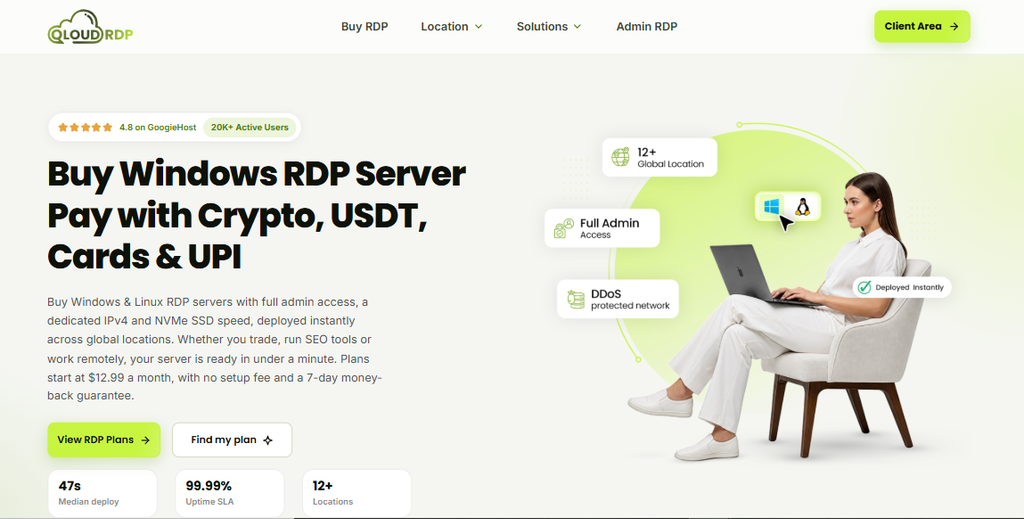
QloudRDP is a remote desktop and server provider that has been operating since 2024, with its location in India. It focuses mainly on Windows and Linux RDP servers and also offers specialised services such as Forex RDP, rendering RDP, encoding RDP, social media RDP and Tally on Cloud.
QloudRDP is also associated with sister brands YouStable and GoogieHost, which operate in the hosting and web services space.
The standard RDP plans include full administrator/root access, a dedicated IPv4 address, NVMe storage, DDoS protection and instant provisioning.
From a hosting point of view, the main attraction is the combination of fairly simple pricing and useful server resources.
| Plan | Monthly Billing | Yearly Billing | vCPU | RAM | NVMe Storage |
|---|---|---|---|---|---|
| Nova | $14.99/month | $12.99/month | 2 vCPU | 4 GB | 60 GB |
| NovaPlus | $26.99/month | $23.99/month | 4 vCPU | 8 GB | 120 GB |
| NovaPro | $40.99/month | $34.99/month | 6 vCPU | 12 GB | 180 |
I have bought an Admin RDP – NovaPlus Plan and I have done all the server related testing of it below.
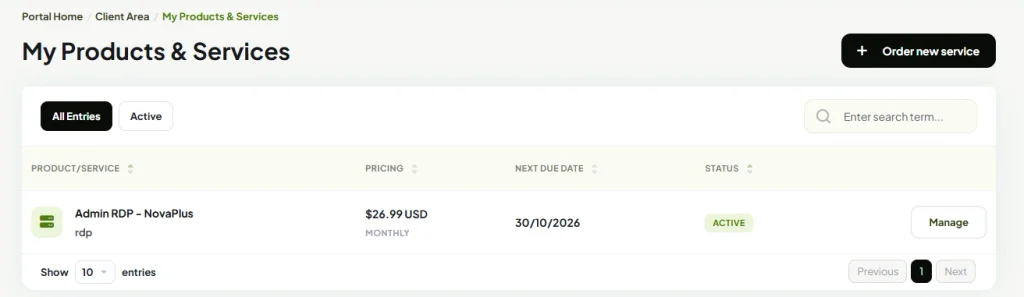
As you can see in the screenshot, the plan is on monthly billing. Monthly and yearly billing is good as it avoids a user entering into a long term contract and also gives him a chance to switch to another user if the things don’t go well as per his needs.
QloudRDP also says that it guarantees an uptime of 99.99% (I am going to check this claim through testing, below).
It also offers instant activation, a median deployment time of 30 seconds (I’ve shown with real screen recording on how much time it takes from order to login in), 24/7 human support via Live Chat, Ticket support, email, phone and Whatsapp support and AMD EPYC processors with NVMe storage.
While reviewing QloudRDP, I noticed misinformation that I could not ignore.
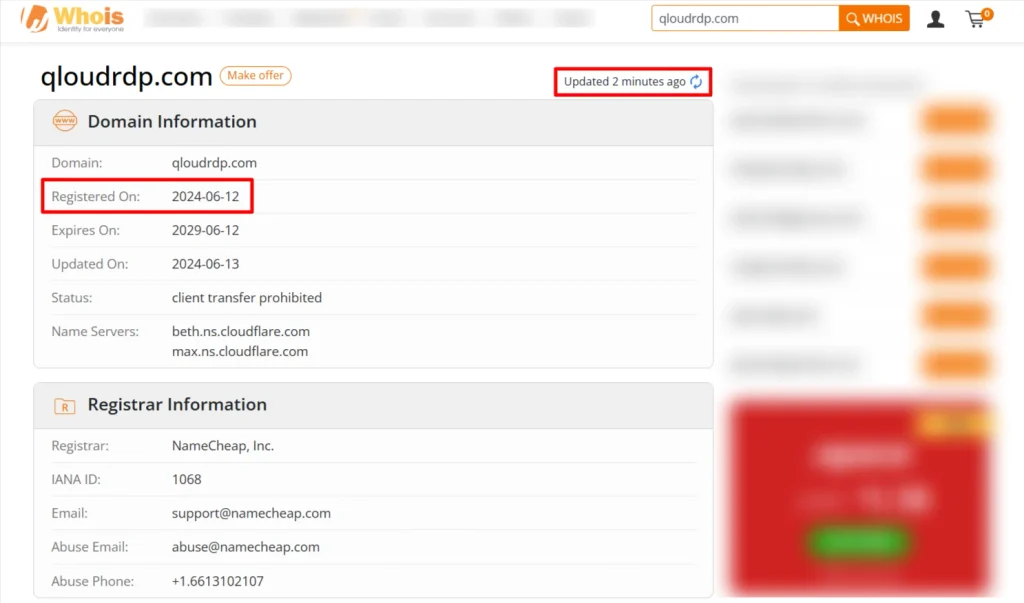
QloudRDP’s official website states that the company was established in 2020, but when I checked the WHOIS record for qloudrdp.com, the domain shows a registration date of 12 June 2024.
Based on my own verification, these two dates do not match.
A domain can certainly be registered after a company is established, so the 2024 domain date alone does not prove that QloudRDP did not exist before 2024.
Data Centers
I also found a similar situation when I checked QloudRDP’s data centre information.
Since I wanted to verify the details rather than rely only on what was written on the website, I contacted the QloudRDP live chat support team and asked where its RDP servers are hosted and how many locations are currently available.
The support representative confirmed that QloudRDP currently has three server locations:
- India,
- the United States
- And the Netherlands.
I have included the screenshot of my conversation as proof of this confirmation.
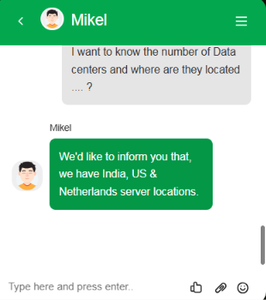
This information is useful when choosing an RDP location because a server that is geographically closer to me can generally provide lower latency and a more responsive remote desktop connection. I also used the support confirmation as my reference for the available locations instead of making assumptions based on the website.
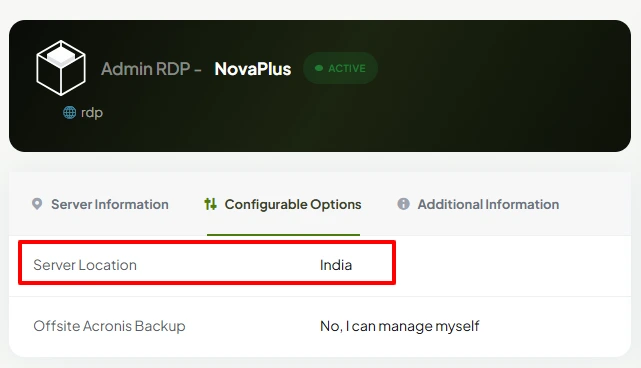
The server of the NovaPlus Plan that I bought is located in India.
Disclaimer: I verified the testing details and service information directly with the live chat support team. I have not included screenshots of every confirmation to keep this review concise and easy to read.
Payment Process & MoneyBack
I purchased the QloudRDP NovaPlus RDP plan for my hands-on testing, so the results in this review are based on a service I actually paid for and used.
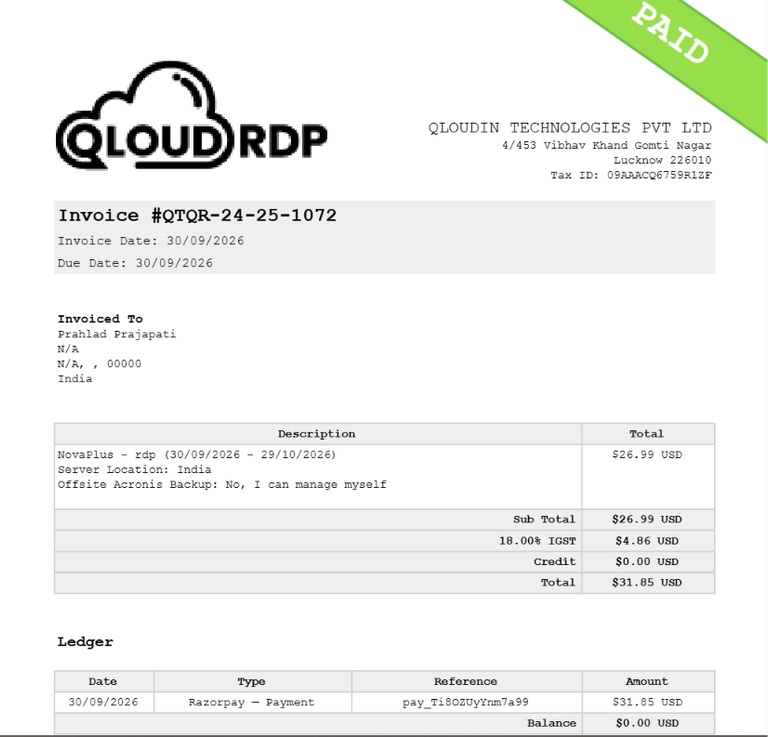
- As you can see from my invoice above, it shows the NovaPlus plan for 30/09/2026 to 29/10/2026, with the server location listed as India.
- The plan itself was billed at $26.99, with $4.86 IGST, bringing the total to $31.85.
- The payment process was also very quick; my order was completed in around 30 seconds with no glitches and the RDP was activated instantly.
The NovaPlus plan I purchased is listed at $26.99, with the monthly price shown as $23.99/month. It comes with
- 4 vCPU cores,
- 8 GB DDR4 RAM,
- 120 GB storage,
- 1 Gbps network speed
- and 1.5 TB monthly bandwidth.
- Windows Server 2019/22/25 or Linux,
- a 99.99% uptime guaranteed,
- Instant setup,
- and a 7-day refund period.
From my side, these specifications gave me a clear starting point for the hands-on testing, as I could compare the advertised resources with what I actually received and then test the server under normal RDP use, browsing, trading, SEO work and heavier workloads.
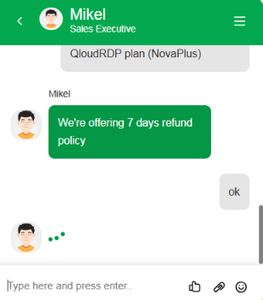
I also checked the money-back policy directly with QloudRDP through Live Chat before continuing with my testing.
The support representative confirmed that QloudRDP offers a 7-day money-back policy. However, refund eligibility may depend on the provider’s terms and conditions. Please check the refund policy before purchasing.
I found this useful because I was putting the service through several tests, and having the refund period confirmed directly by support gave me a clearer idea of the purchase terms. From my experience, the chat was also an easy way to confirm this information before relying on it in my review.
I have also recorded the purchase and activation experience here watch the QloudRDP purchase and activation video.
Tools I used to Test QloudRDP
I have tested the NovaPlus plan myself across performance, uptime, security, network, IP reputation, real workloads, dashboard usability and customer support.
| Test Conducted | Tool Used |
|---|---|
| CPU benchmark | Geekbench 7 |
| Uptime & response time | HetrixTools |
| Network throughput | iPerf3 |
| Windows licensing & activation | SLMGR |
| Failed login attempts | Windows PowerShell – Get-WinEvent |
| Windows Firewall | Windows PowerShell |
| Network Level Authentication (NLA) | Windows PowerShell + CIM/WMI |
| Open ports & network exposure | PowerShell |
| Forex/trading workload | MetaTrader 5 |
| CPU usage during trading | Windows Task Manager |
| RAM usage during trading | Windows Task Manager |
| Multi-browser workload | Windows Task Manager + Chrome |
| Browser automation | Python Selenium |
| Website crawling | Screaming Frog SEO Spider |
| IP & data centre verification | IPinfo |
| IP reputation | Scamalytics |
| IP fraud-risk check | IPQualityScore |
| IP blacklist check | Spamhaus |
| Multiple blacklist check | MXToolbox |
| Client dashboard testing | QloudRDP Client Dashboard |
| Live chat support | QloudRDP Live Chat |
| Ticket support | QloudRDP Support Ticket |
These tests helped me compare the advertised setup with the server I actually received and see how QloudRDP performs during real work.
Testing QloudRDP Performance, Security and Real-World Workloads
I tested QloudRDP from several angles. I checked CPU and RAM performance, network speed, uptime, Windows licensing, firewall and RDP security settings, port exposure, IP reputation and blacklist status. I also used the server for real workloads, including Python Selenium automation, Screaming Frog, MetaTrader 5 and multiple Chrome profiles.
From my testing, QloudRDP handled regular remote desktop work and SEO tasks comfortably, while heavier browser automation pushed the available CPU much harder. These tests gave me a better idea of how the server performs in actual use.
Testing QloudRDP CPU Performance
The result gives me a clear picture of the CPU resources behind my QloudRDP plan. I recorded a 380 single-core score and a 1,640 multi-core score from the 4-core Intel Xeon E5-2680 v4 processor.
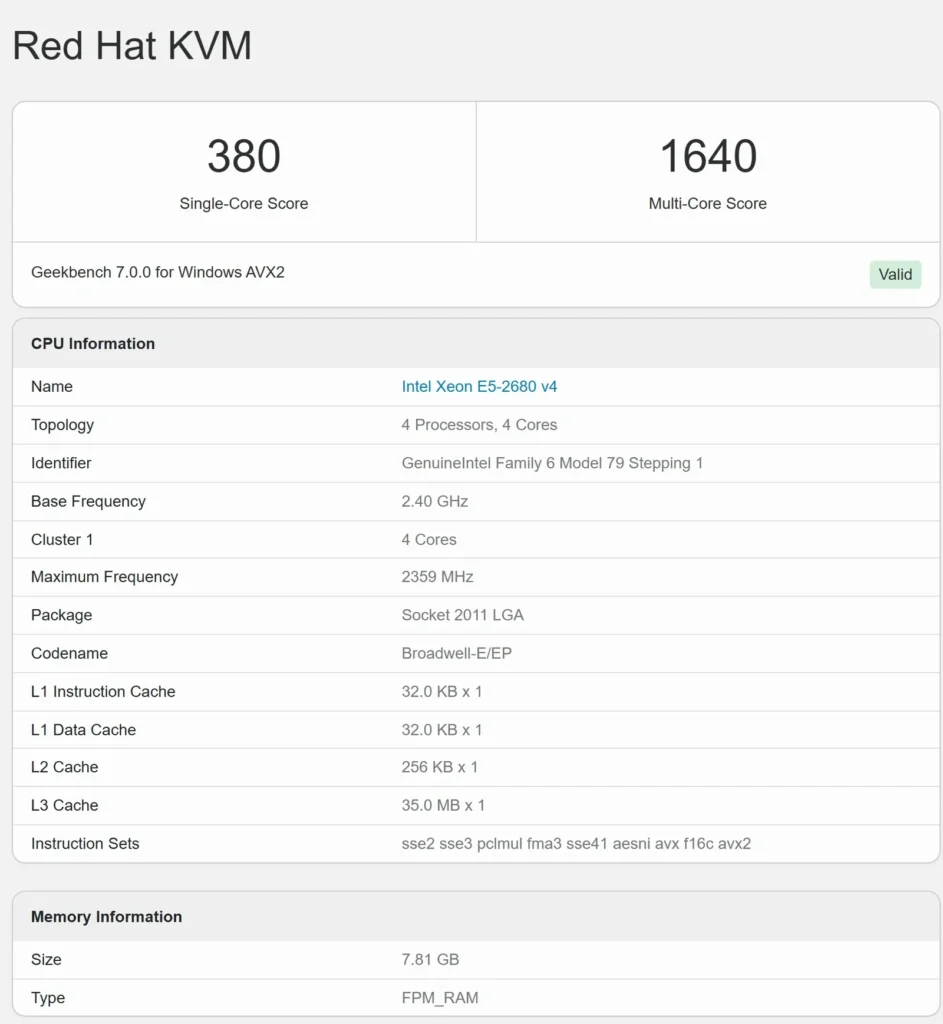
For regular RDP work, this level of CPU performance should be enough for tasks such as web browsing, working with documents, managing files, using control panels and running lightweight applications. CPU-heavy tasks can take more time to complete, though.
- Single-core performance: This affects tasks that mainly use one CPU core, including parts of application loading and general desktop responsiveness.
- Multi-core performance: This helps when several CPU-intensive tasks are running at the same time.
I found the benchmark useful. It is because it shows that the server uses an older Xeon E5-2680 v4. So, users planning to run heavy development tools or other demanding CPU workloads should keep this thing in mind.
The main thing is that the CPU is better for normal remote desktop work and easy workloads. Running several demanding applications together can put more pressure on the available 4 cores, so this is an important point to consider before using QloudRDP for workstation-level workloads.
Uptime & Global Response Time Monitoring
I saw that QloudRDP looked stable across the tested period.
The monitor was showing the server online with 100% uptime and an average recent response time of around 115 ms, while the regional checks stayed successful from locations including New York, London, Singapore, and Mumbai.
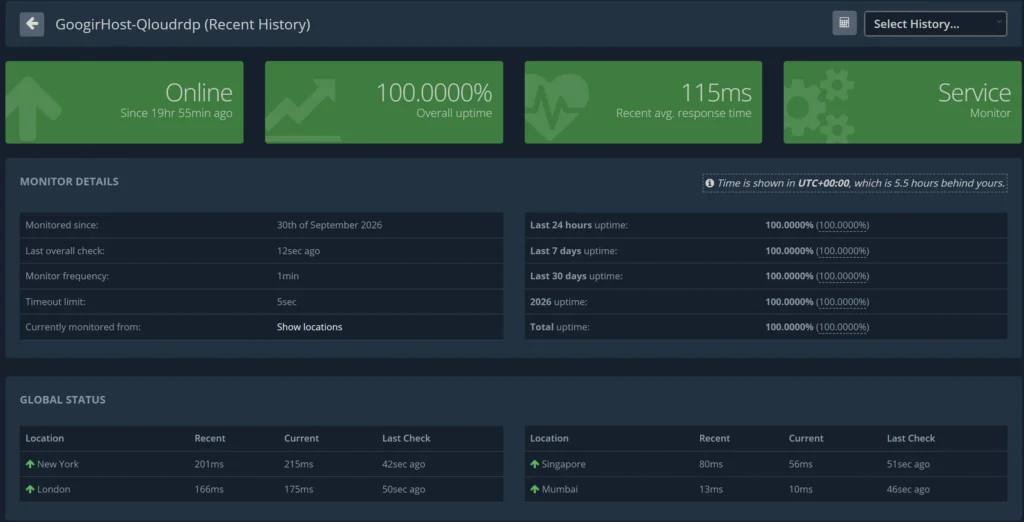
The response times naturally varied by geography, with the closest regions responding faster and distant locations taking longer, but there was no visible pattern of downtime or any major response-time spikes.
This testing shows that the QloudRDP server is not useful just because it is reachable from one location, but consistent responses across different regions give a better indication that the network path is stable.
I got fewer interruptions when keeping an RDP session open, transferring files, running browser-based work or managing applications continuously. The monitoring graph also remained steady, which is a positive sign from my testing.
Network Testing
The network throughput test gave me a much stronger indication of what the server connection can actually handle.
Using iPerf3, the connection sustained roughly 5 to 6 Gbps for most of the 10-second test, finishing at about 6.95 GB transferred with 5.96 Gbps reported for both sender and receiver.
More importantly, the result did not collapse after the first few seconds. Most intervals remained around the same multi-gigabit range, with the final interval reaching about 6.7 Gbps. This points to a high-capacity network path.
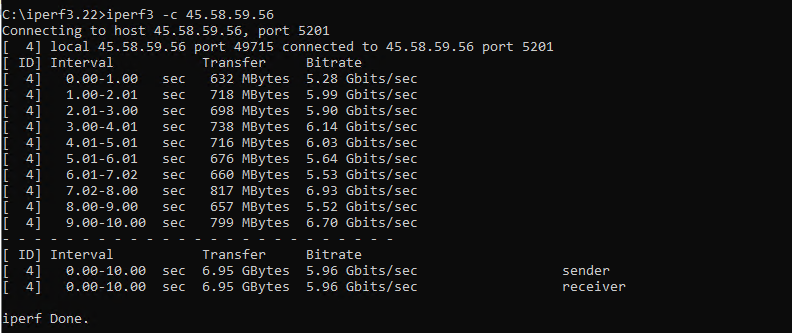
This testing information is really important for someone buying QloudRDP for more than basic RDP access, because network capacity directly affects how quickly data can move in and out of the server.
In my experience, a connection performing at this level is particularly useful for large file transfers, backups, software downloads, remote development, media-heavy workloads, and moving data between the VPS and another high-speed endpoint.
Windows Licensing & Activation Testing
The SLMGR /dlv test confirmed that the QloudRDP server is running Windows Server Datacenter and most importantly, the installation reports an active Licensed status. From a practical user point of view, this is important because the Windows environment is properly activated rather than operating with an expired or restricted licensing state.
During Licensing and Activation testing, it gave me confidence that the server was provisioned with a functioning Windows installation that was ready for regular RDP use, administration and server workloads without an activation-related limitation.
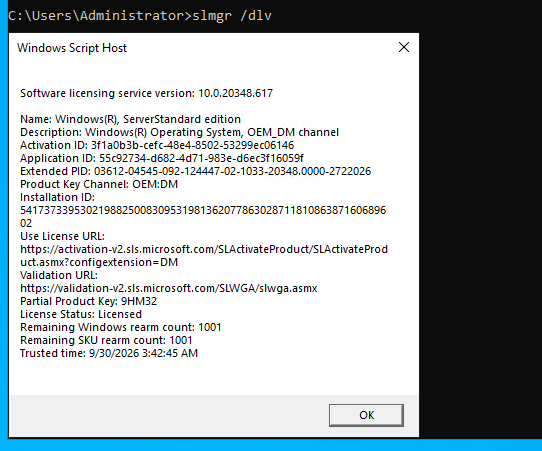
Beyond simply checking whether Windows was activated, this test helped me validate the underlying software environment before moving on to performance and infrastructure tests.
As per the screenshot of the testing, the server is using the OEM_DM licensing channel, while the operating system identifies as Datacenter edition.
Licensing itself does not make the RDP faster or increase available resources, but it contributes to the overall reliability of the server environment.
RDP Security & Failed Login Testing
I also checked the Windows Security logs with Windows PowerShell Get-WinEvent for Event ID 4625, which records unsuccessful login attempts, to see how the publicly accessible QloudRDP server was behaving from a security perspective.
- The results showed 631 failed authentication events over the previous day
- It showed repeated attempts targeting administrator-style usernames and activity associated with an external IP address.
This is a significant real-world observation because it shows that an internet-facing RDP server can quickly attract automated login attempts and scanning.
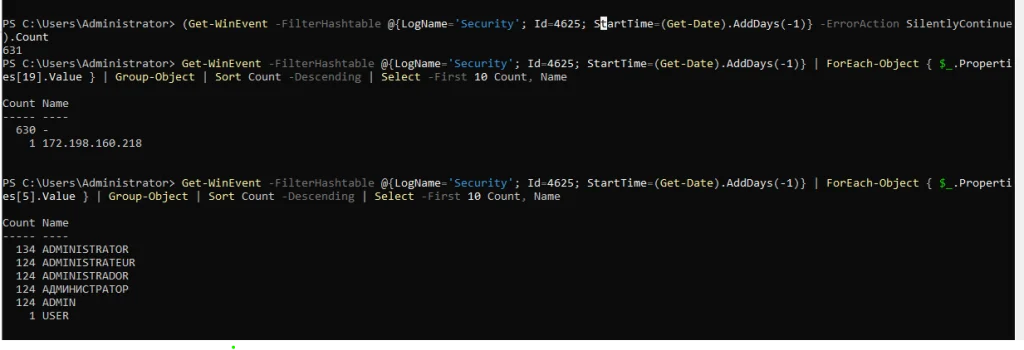
I would not treat these failed attempts as evidence that QloudRDP itself has been compromised, the important point, here in this testing, is that the authentication attempts were unsuccessful.
However, the volume makes the security implications very clear for anyone planning to use the service.
A QloudRDP user should take server hardening seriously by using
- strong unique credentials,
- limiting unnecessary exposure,
- configuring Windows Firewall appropriately,
- And considering additional RDP security controls.
It is a valuable testing result as it shows the real-world security environment surrounding the VPS. The server remained accessible and functional, but the logs demonstrate why securing an internet-facing Windows RDP instance is really important.
QloudRDP Firewall Testing
During my QloudRDP infrastructure testing, I used Windows PowerShell to check whether Windows Firewall was enabled and how the Remote Desktop rules were configured. All three firewall profiles (Domain, Private, and Public) were enabled, which is a good starting point for protecting a remote Windows server.
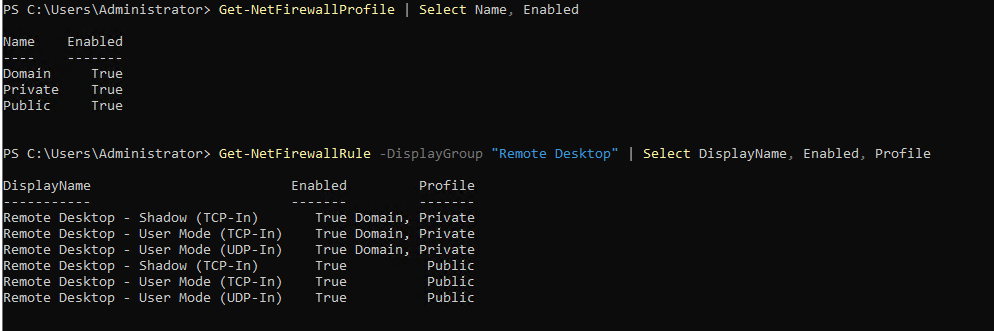
However, I also found that the Remote Desktop rules were enabled for all three profiles, including the Public profile.
This is really important because RDP provides direct access to the Windows desktop, and exposing it to untrusted networks can increase the risk of unauthorized login attempts. Enabling the firewall alone does not guarantee that the server is secure but the rules must also limit access to trusted IP addresses and networks.
Here, the main concern is not whether QloudRDP allows remote desktop connections, but the main thing is how safely those connections are exposed.
Network Level Authentication Testing
To check another important part of QloudRDP’s remote access security, I used Windows PowerShell with a CIM/WMI query to inspect the Remote Desktop configuration for Network Level Authentication (NLA).
The command returned 0, which indicates that the UserAuthenticationRequired setting is disabled for the queried RDP listener.

This is worth noting because NLA requires users to authenticate before a full Remote Desktop session is established. This helps reduce unnecessary resource use, by unauthenticated connection attempts and it also adds up an important layer of protection against unauthorized access.
Having NLA disabled can increase the server’s exposure to unwanted connection attempts, especially if RDP access is reachable from the public internet.
I would recommend enabling NLA if the operating system and intended remote access setup support it, then testing that legitimate connections still work as expected. For readers comparing RDP providers, this test highlights an important difference between simply providing a working remote desktop and providing one with sensible security settings.
QloudRDP Port & Network Exposure Testing
During this infrastructure testing, I checked the Windows server directly through PowerShell to see which TCP ports were actually listening.
The most important finding here is that port 3389 (the standard Windows Remote Desktop port) is actively listening, with the RDP service tied to a running process. I also found several other listening ports, including 135, 139, 445, 5357, 5985 and a group of higher-numbered ports.
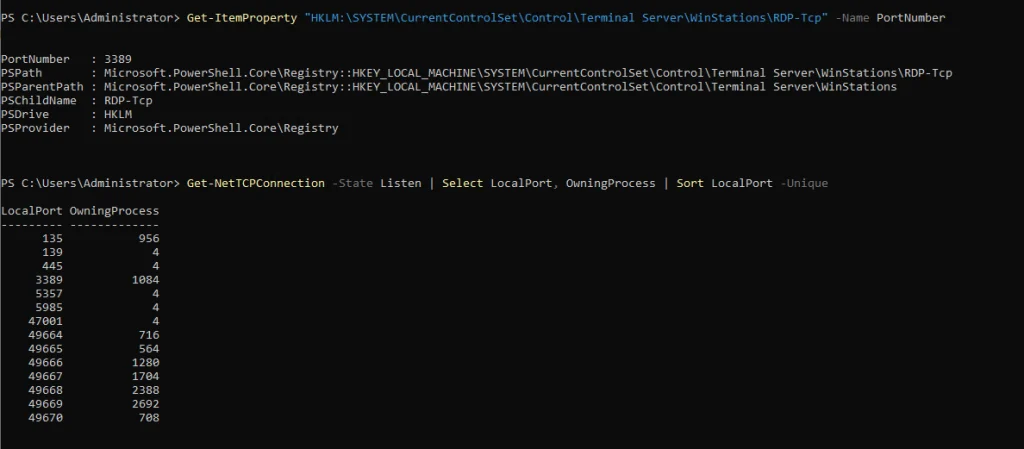
From a performance and usability perspective, this is important because it confirms that the server is not simply showing an RDP service in the control panel, the underlying Windows instance is actively running network services and accepting connections on the expected RDP port.
QloudRDP Forex Trading Environment Testing
When I opened the QloudRDP server with MetaTrader 5, I was able to keep multiple currency charts open at the same time, including EUR/USD, GBP/USD, USD/CHF, USD/JPY, USD/CNH and AUD/USD.
This helped me watch several markets from one remote desktop. The charts were updating normally, while the Market Watch, Navigator, indicators and trading panels remained available. The RDP environment felt suitable for keeping a trading terminal running for long periods, which matters for users who depend on continuous access to their trading setup.
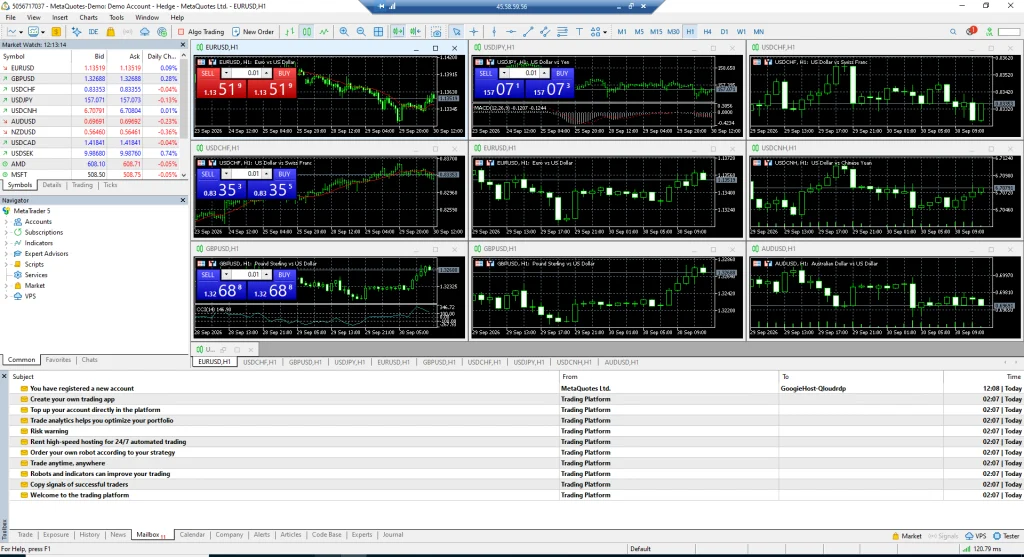
In this screenshot, you can see clearly that the QloudRDP session handled a fairly busy MetaTrader workspace. I had several charts and market windows open together, along with indicators and trading information, yet the desktop remained usable.
Those traders who run multiple charts, Expert Advisors or automated strategies, this kind of environment can reduce the need to keep a personal computer switched on throughout the trading day. My experience here suggests that QloudRDP can work well as a remote Windows environment for everyday MetaTrader use.
CPU Performance Testing
I saw the server’s processor usage through Windows Task Manager while using MetaTrader 5 was running with several charts open.
The system showed an Intel Xeon E5-2680 v4 at 2.40 GHz, with four virtual processors assigned to the environment. CPU usage was around 30% during the test, with the usage graph showing some short spikes rather than a sustained high load.
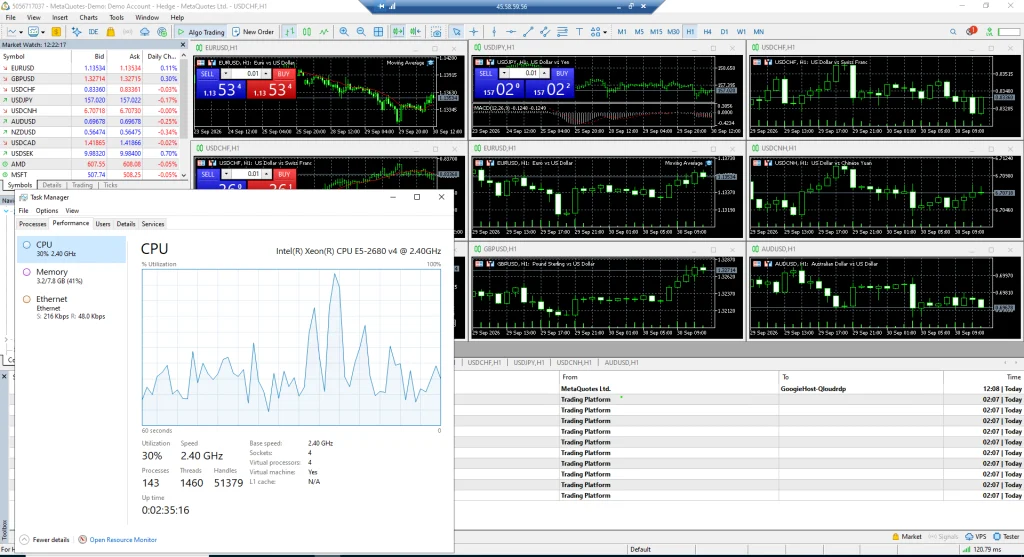
This thing is really a good sign because MetaTrader can consume more processor resources when multiple indicators, charts, Expert Advisors or automated trading processes are active. The available CPU headroom gives the server space to handle additional trading activity before processor usage becomes a problem.
QloudRDP RAM Performance Testing
I also checked memory usage in Windows Task Manager while the MetaTrader environment was running. The server had 7.8 GB of usable memory, with about 3.2 GB in use, which represented roughly 41% of the available memory.
Around 4.6 GB remained available, giving the remote desktop plenty of unused RAM during my test.
This information is really helpful for traders because MetaTrader itself is only one part of the workload; multiple charts, indicators, Expert Advisors, browser tabs, monitoring tools and other Windows applications can all consume memory over time.
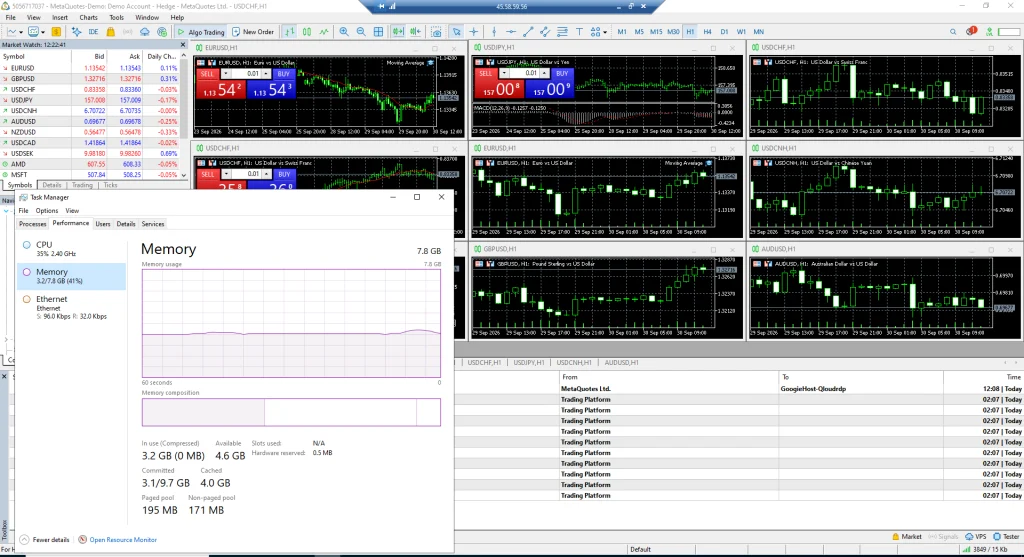
I saw during my testing that the memory usage stayed at a comfortable level. That gives me a better impression of the QloudRDP setup for users who want to keep their trading workspace active for extended periods.
The available RAM also leaves some space for additional applications, although running several resource-heavy programs at the same time would naturally increase consumption.
I did not see any memory pressure affecting my MetaTrader session, and the roughly 41% usage level says that the configuration had a reasonable amount of RAM headroom for the workload I was running.
Multi-Browser Performance Testing
I tested the QloudRDP machine with 10 Chrome profiles, each running around 2 to 3 tabs, to see how the server behaves under a more demanding browser workload.
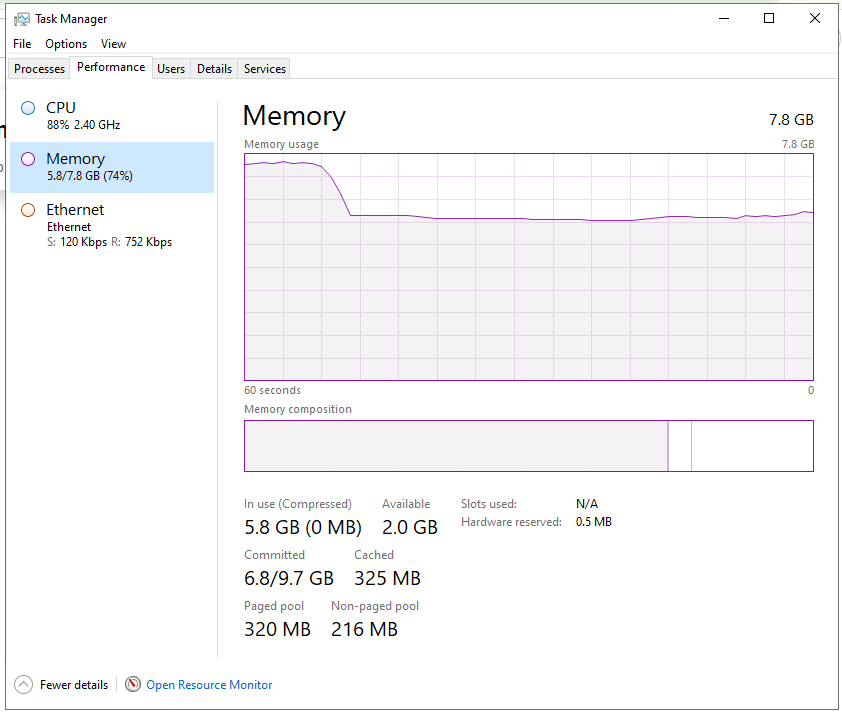
Windows Task Manager showed around 5.8 GB of the 7.8 GB RAM in use, or about 74%, while CPU usage was around 88% at the point captured.
The important thing here is that opening several Chrome profiles puts a much heavier load on the machine than simply running one browser window. Users who plan to manage multiple websites from the same RDP, this test gives a realistic picture of where the available resources start getting used.
- There was still around 2 GB of memory available, so I did not see immediate memory exhaustion, but adding many more browser tabs or other heavy applications could push the system harder.
- For normal browsing and a handful of Chrome sessions, the QloudRDP setup should be workable; users planning large-scale browser automation or dozens of active tabs should pay closer attention to CPU and RAM usage.
The RAM usage was still manageable, but the CPU figure tells me that this workload was getting fairly close to the practical limit of the assigned resources.
Browser Automation Performance Testing
I then moved from normal browsing to a more demanding Python Selenium automation test, where the script launched five Chrome browser instances.
The test output shows that all five browsers loaded in approximately 29.20 seconds, while Task Manager recorded 100% CPU usage during the workload. Memory usage reached around 4.9 GB out of 7.8 GB, or 63%, with roughly 2.9 GB still available.
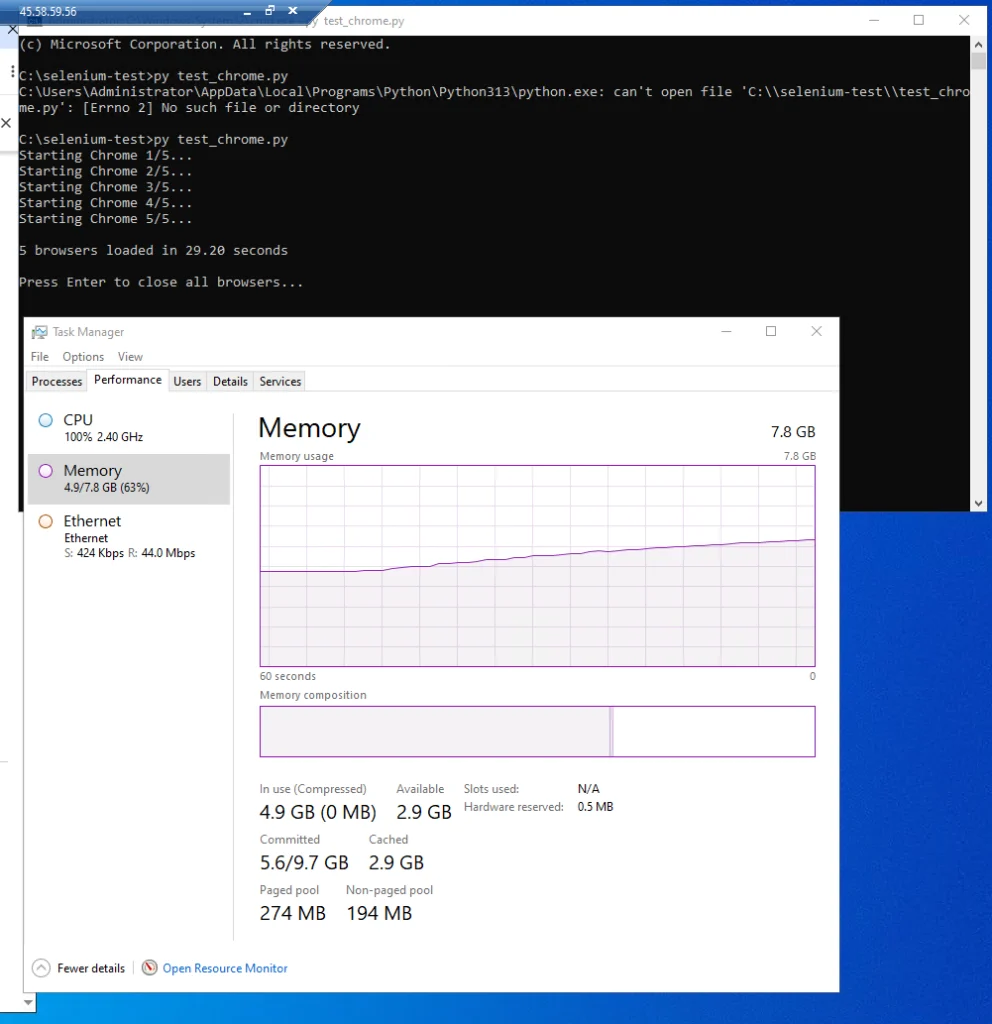
This is a much more useful test for users interested in automation because launching several browser instances at once can put far more pressure on a remote Windows machine than ordinary browsing.
I saw here that the processor became the limiting resource before the memory did.
The machine had enough RAM left during the test, but the CPU reached full utilisation while Selenium was starting the browsers.
This tells me that QloudRDP can handle multi-browser automation, but CPU-heavy automation tasks need to be planned around the available processing capacity. My five-browser test completed in under half a minute, which is a practical result for smaller automation jobs and routine browser tasks.
Website Crawling Performance Testing
For a website-crawling test, I used Screaming Frog SEO Spider and crawled a site with the tool configured to process 500 URLs. The crawl reached the full 500/500 target, while Task Manager showed approximately 5.0 GB of RAM in use out of 7.8 GB, or 64%, and CPU usage around 42%.
This is a useful workload for anyone who uses an RDP for SEO because Screaming Frog can create a much heavier desktop workload than normal web browsing. It also gives me a better idea of how the QloudRDP machine behaves when a real desktop application is processing a large number of URLs, images, scripts and page elements.
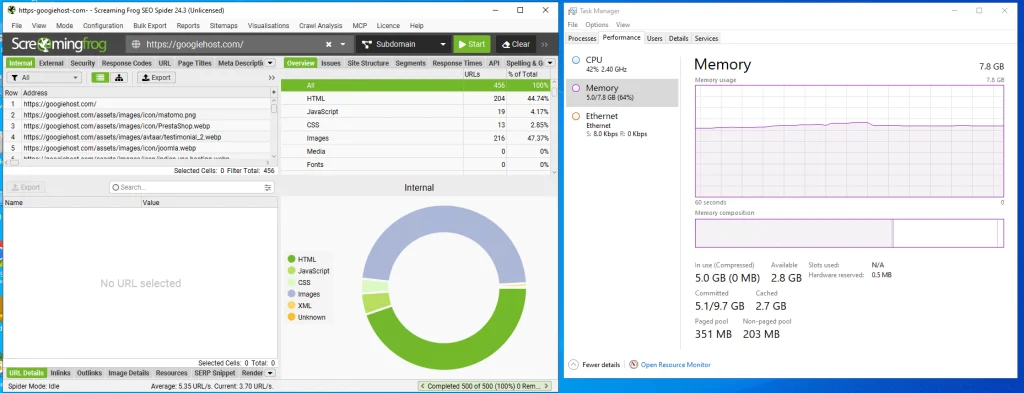
The RDP should be capable of handling routine technical SEO crawls for SEO experts. I would avoid running several large crawls at the same time in this configuration, but for a single working session, my test felt reasonably balanced.
IP Address & Datacentre Verification
I also checked the server’s public IP address using IPinfo to understand where the server is hosted and how the address is classified on the internet.
The test identified the IP as 45.58.59.56 and associated it with a hosting/cloud-service network. This is useful for an RDP review because the IP’s network identity can affect how websites and online services treat connections coming from the server.
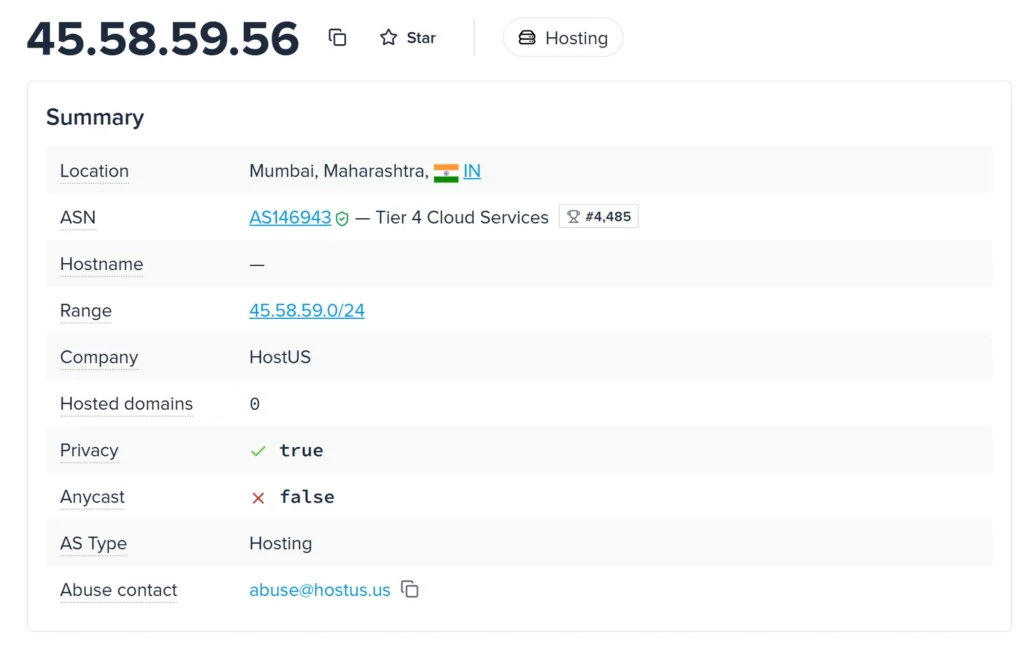
I would treat this result as a network-identity check. A datacentre IP is normal for an RDP service, and the important point is how external services recognise and handle that address.
I used this check alongside the performance tests because a good RDP experience is not just about CPU and RAM; the public IP also forms part of the environment I am actually using.
The result gave me a clearer picture of the type of internet connection behind my QloudRDP session and helped me assess the server from a user’s point of view.
IP Reputation Testing
To check how the QloudRDP IP is viewed by a third-party fraud and risk database, I tested 45.58.59.56 with Scamalytics.
The result displayed a Fraud Score of 19 and presented the overall risk indicator in the lower-risk/green range shown in the report. This is really important because shared or datacentre IP addresses can sometimes have a poor reputation due to activity from previous users on the same network.
A cleaner reputation gives the IP a better chance of being accepted by websites and online services, although individual websites can still make their own decisions based on their security rules.
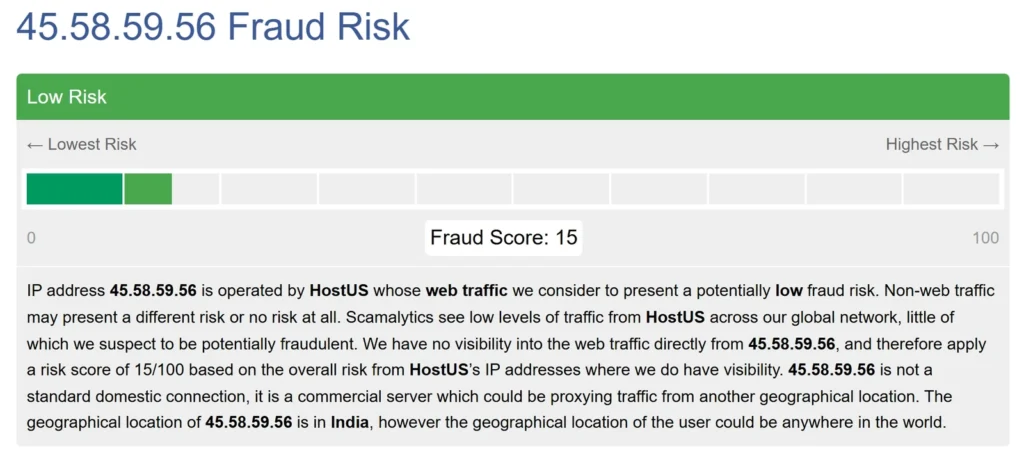
What I liked about this test is that it gave me a view that CPU and RAM tests cannot provide.
My QloudRDP session may perform well technically, but the public IP also needs to be usable across the services I access. A 19 fraud score is not a guarantee that every website will accept the connection, but the result did not show the kind of high-risk rating that would immediately concern me.
If you want to use QloudRDP for SEO work or regular browser activity, I would consider this nice from the IP-reputation test I performed.
IP Fraud-Risk Testing
I checked the public IP 45.58.59.56 through IPQualityScore to see how the address is viewed from a fraud-prevention perspective.
This testing is important because an RDP server may be used for browser work, account management, SEO tools, automation and other online services where IP reputation can affect access.
IPQualityScore looks at signals such as proxies, VPNs, suspicious behaviour and other risk indicators, so this test gives me a different view of the QloudRDP connection than a simple speed or hardware test.
Blacklist Testing
I also checked 45.58.59.56 against the Spamhaus Project to find out whether the IP appeared on its IP and domain reputation lists.
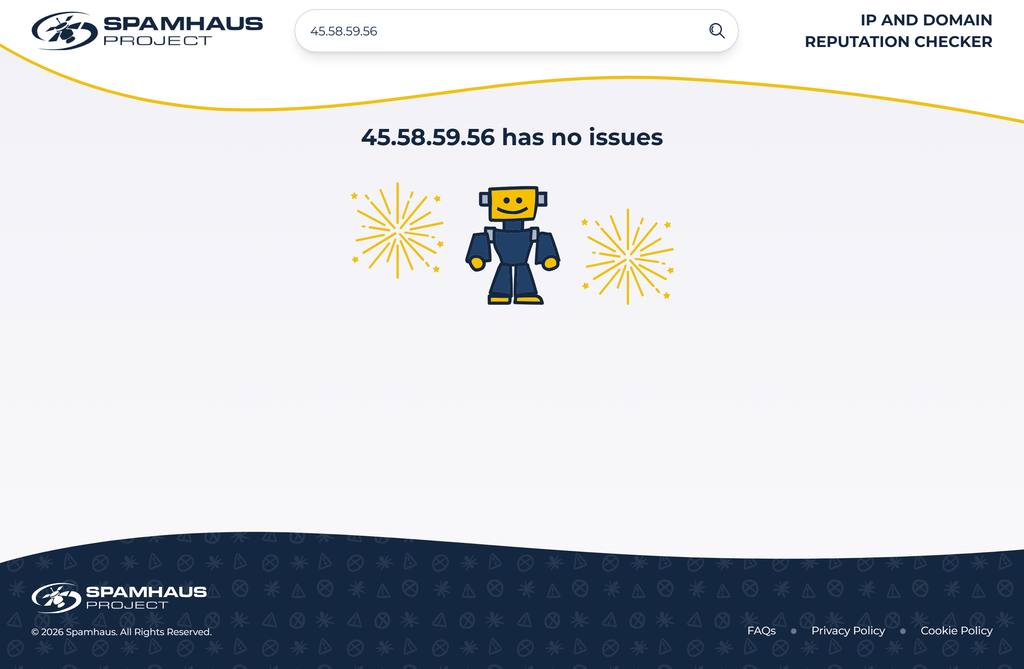
As you can see from the screenshot above, the result clearly showed “45.58.59.56 has no issues”, which is a useful result for an RDP service because blacklist status can affect email delivery, website access and the reputation of an IP used for online activity.
A server IP that appears on recognised blocklists may trigger restrictions with certain services, while a clean result gives me more confidence that the address was not currently flagged by the specific Spamhaus checks I performed.
As per my experience, this was one of the more reassuring external checks because it looked beyond the Windows resources and tested how the public IP is viewed by a well-known reputation service.
IP Blacklist Coverage Testing
As a second blacklist check, I ran 45.58.59.56 through MXToolbox’s blacklist test, which checks the address against a large collection of reputation and DNS-based blocklists.
The report displayed the results from many individual lists, giving me a broader check than relying on a single blacklist provider. This is good for QloudRDP because the same IP can look clean on one database while appearing on another, so checking multiple lists gives a better picture of the address’s current reputation.
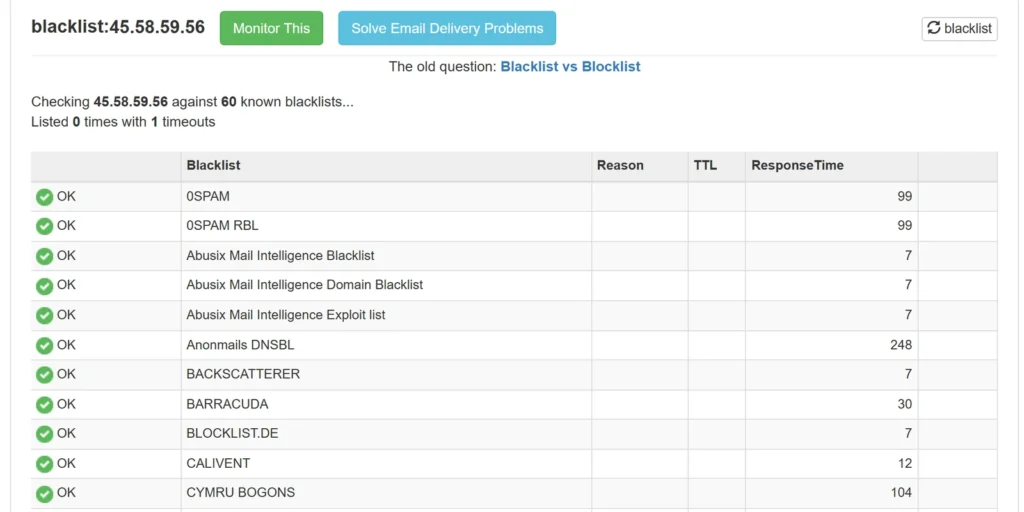
This test is really important for an RDP user to know as it can matter when accessing websites, sending mail-related traffic or working with services that use reputation databases to screen connections.
QloudRDP UI Testing
I saw the actual QloudRDP customer dashboard to see how practical it is to manage the RDP service after purchase.
The dashboard gives a quick overview of the account and the active RDP, while important actions such as connecting to the server, managing the service, checking invoices, changing the RDP password, opening support tickets and updating account details are available without having to search through multiple pages.
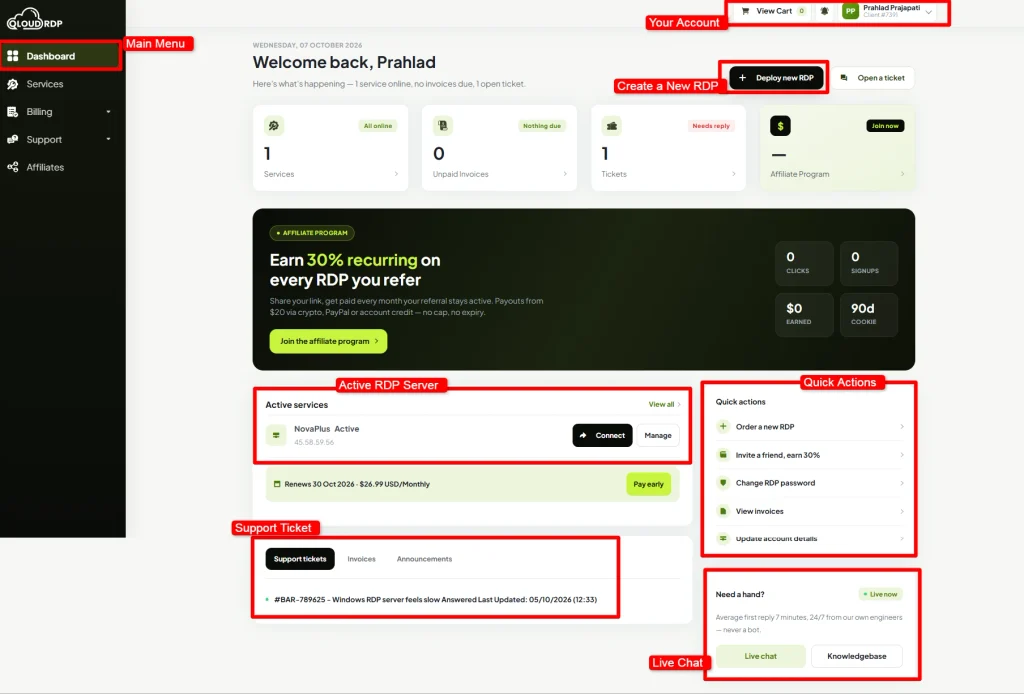
The dashboard shows the active service status, renewal information and quick actions, while the support-ticket area and live-chat option make it possible to move from managing the server to getting assistance without leaving the main account interface.
That has a direct impact on the overall RDP experience. If there is a connection, billing, password or service problem, the user can reach the relevant action quickly instead of hunting through the website.
In simple words, I can say that the dashboard feels designed more around actually managing an active RDP service which is a positive point for users who expect simple VPS/RDP administration.
QloudRDP LiveChat & Ticket Support Testing
After testing the QloudRDP infrastructure and seeing how the server performs under different workloads, I wanted to see what the experience is like when I actually need help from the provider.
For this part of my review, I tested both Live Chat and the support ticket system with real questions, paying attention to response time, how clearly the team answered, how easy it was to contact them, and whether the guidance was useful enough to solve or troubleshoot the issue.
LiveChat Testing (Response in just 10 seconds)
I started by asking a practical question about resetting my RDP password and the experience was quite straightforward.
- The support agent quickly understood what I was asking and explained that I could reset or change the RDP password directly from the Client Area, while also offering to help through a support ticket if I faced any problem.
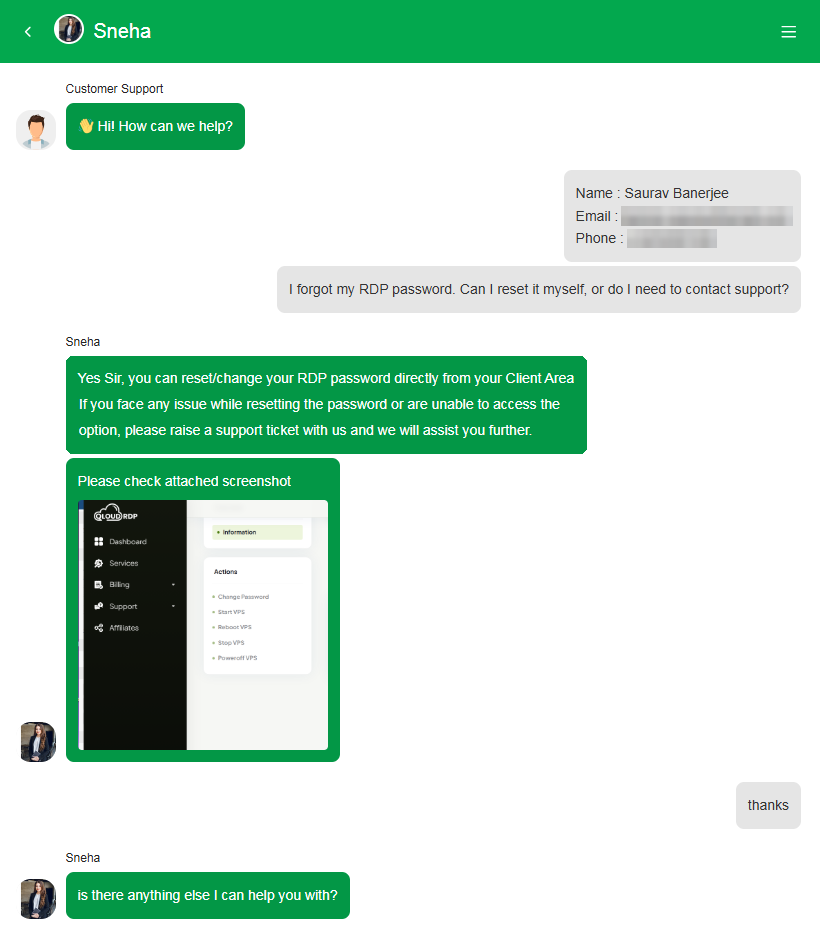
- I liked that I did not have to explain the issue repeatedly or go through a complicated support process. The reply was direct and included a screenshot showing where the option was available.
From my experience, the chat felt easy to use and the response was clear enough for someone who is new to managing an RDP server.
Ticket Support Testing (Response in just 4 mins)
I tested the support team by raising a ticket about my Windows RDP server feeling slow and I received a reply in around 4 minutes, with the ticket submitted at 12:29 PM and answered at 12:33 PM.
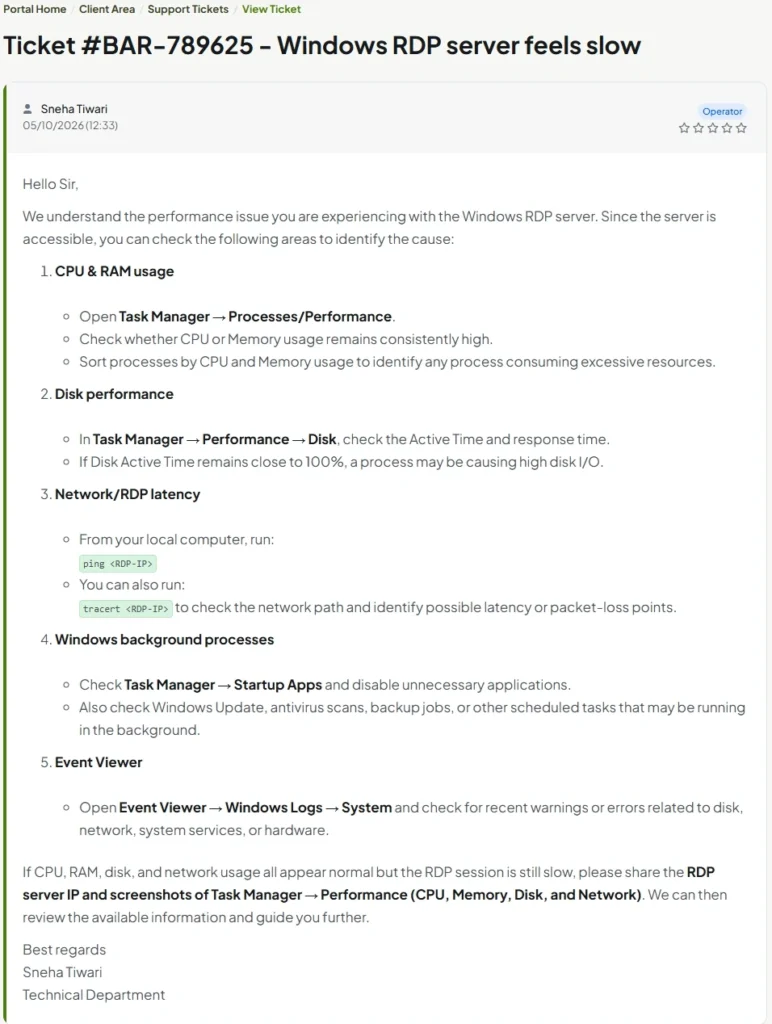
I found the response useful because the support agent gave me specific troubleshooting steps instead of a generic reply, asking me to check CPU and RAM usage, disk performance, network/RDP latency, Windows background processes and Event Viewer.
The instructions also explained where to find these settings in Windows, which made the process easy to follow.
I found that the support team was quick, polite and focused on the actual problem I reported. The ticket interface was also simple, with the status, priority, department, submission time and latest update clearly visible on one screen.
One more thing I would like to state: If you want to contact the expert team of QloudRDP, you can do it via LiveChat & Ticket Support. These two support channels are really helpful and you also get the response in a matter of minutes. You do not need to contact them via email or Whatsapp as they are 24/7 available for you via LiveChat.
What I Liked About QloudRDP
After testing the QloudRDP NovaPlus plan myself, I found that the service has several strong points beyond the things shown on the website.
As you can see, I’ve already checked the server resources, network performance, uptime, Windows licensing, security settings, IP reputation, dashboard, support and real workloads such as MetaTrader 5, Chrome profiles, Selenium and Screaming Frog.
- Very fast activation and setup: This was one of the first things I liked. My NovaPlus order was completed in around 30 seconds and the RDP was activated quickly.
- Strong network performance in my testing: The iPerf3 test was one of the better results I recorded. The connection sustained roughly 5 to 6 Gbps during my 10-second test, with about 5.96 Gbps reported for both sender and receiver.
- 100% uptime during my monitoring period: My HetrixTools monitoring showed 100% uptime, with an average recent response time of around 115 ms. Regional checks from locations such as New York, London, Singapore and Mumbai also remained successful.
- Good IP reputation and blacklist results: I checked the actual QloudRDP IP through Scamalytics, IPQualityScore, Spamhaus and MXToolbox. The Scamalytics test showed a Fraud Score of 19, while the Spamhaus check reported that the IP had no issues. MXToolbox also did not show a broad blacklist problem in my test.
- Good performance for normal work and SEO tasks: The NovaPlus server handled several practical workloads well. MetaTrader 5 ran with multiple charts, while my Screaming Frog test completed a 500-URL crawl with CPU usage around 42%.
- Support was genuinely fast in my tests: I tested both Live Chat and ticket support. The Live Chat response came in around 10 seconds, while my support ticket received a reply in about 4 minutes. The ticket response also contained practical troubleshooting steps covering CPU, RAM, disk performance, network/RDP latency, Windows processes and Event Viewer.
- Simple customer dashboard and useful server controls: I liked the way the client dashboard puts the active RDP, service management, invoices, password changes and support options in easy-to-find areas. QloudRDP also provides full Administrator/root access and allows OS reinstall and switching through the client area.
What I Disliked About QloudRDP
There were few areas that made me pause, mainly around the server’s CPU performance and default RDP security configuration.
- Heavy browser automation quickly used all CPU resources: My 10 Chrome-profile test reached around 88% CPU usage, and the five-browser Selenium test pushed the CPU to 100%. RAM still had room during the Selenium test, so CPU was clearly the limiting resource. This tells me that NovaPlus is better for moderate workloads.
- I found security settings that I would change: The biggest security concern from my testing was that Network Level Authentication (NLA) was disabled on the queried RDP listener. I also found Remote Desktop rules enabled across the Windows Firewall profiles, including the Public profile. The server recorded 631 failed authentication attempts in the previous day, which shows how quickly a public RDP server can attract automated login attempts.
FAQs
What is QloudRDP mainly used for?
QloudRDP is mainly used for remote Windows and Linux access. It suits everyday remote work, web browsing, SEO tasks, MetaTrader 5, browser-based work, file management and other applications that need a remotely accessible server.
Can QloudRDP handle multiple Chrome profiles?
Yes! QloudRDP handled 10 Chrome profiles with around 2 to 3 tabs per profile during testing. RAM usage reached about 74%, while CPU usage was around 88%, showing that multiple profiles work but can place heavy pressure on the server.
Is QloudRDP good for Selenium automation?
Yes! QloudRDP can handle Selenium automation for smaller workloads. I conducted a test launching five Chrome browsers that got completed in about 29.20 seconds, though CPU usage reached 100%. This makes it suitable for moderate automation.
Who should use QloudRDP NovaPlus?
QloudRDP NovaPlus suits users who need a remote Windows environment for browsing, SEO work, MetaTrader 5, moderate automation and regular remote tasks. Its 4 vCPUs and 8 GB RAM provide enough resources for everyday workloads, though heavy CPU tasks may push the limits.
Can QloudRDP run multiple applications at the same time?
Yes! QloudRDP can run several applications together, including Chrome, MetaTrader 5 and SEO tools. Testing showed comfortable performance for moderate workloads, but running several CPU-heavy applications together can put significant pressure on its four allocated CPU cores.
Conclusion: Is QloudRDP Worth It?
After using and testing the QloudRDP NovaPlus plan myself, I found that it delivers a capable RDP environment for everyday remote work, SEO tasks, trading and moderate workloads. My tests showed 100% uptime during the monitoring period, strong network performance, good IP reputation results and quick support responses.
So, my advice is simple! Use QloudRDP based on the workload you actually plan to run and take time to secure the server after receiving access.
I will also keep updating this review as I continue testing the service, checking its performance, uptime, support and overall user experience over time. This way, the information here stays based on actual testing rather than only the specifications shown on the website.
Rating Based on Expert Review




QloudRDP Support is truly remarkable
Service used: VPS Hosting
The 24/7 customer support offered by QloudRDP is truly remarkable. They are always ready to assist with any issues, ensuring smooth operations. I initially felt the pricing was a little on the higher side, but considering the quality and performance of the RDP, I feel it offers good value for the price. The RDP itself works really well and has been a great experience overall.
Outstanding support team
Service used: VPS Hosting
The setup process was practically instant after checkout. My RDP login details arrived in my inbox within a minute. When I ran into a minor remote port connection issue on my end, their support team walked me through it step-by-step and resolved it straight away. Outstanding support team.