Starting your first website in 2026 doesn’t have to cost you a single rupee, and that’s honestly why free hosting has become so popular among students and beginners.
When you’re just starting, you’re not really looking for something perfect. You just want a place where you can learn, try things out, and slowly understand how websites actually work. Free web hosting with cPanel gives you that space without putting any pressure on your pocket.
Now bring WordPress into the picture, and things start getting really interesting. WordPress is the world’s most popular content management system, and for good reason. It lets you manage your pages, update your content, and add new features using free plugins, without touching a single line of code.
But the question most people have is simple: Can you actually install WordPress on free hosting in 2026? The answer is yes. Many free hosting providers today give you a straightforward way to get WordPress up and running, so it’s not as technical or complicated as it might sound.
Here we will walk you through the whole process step by step. From choosing the right hosting to setting up your site and avoiding the common mistakes beginners usually make.
If you’ve been thinking about starting a website but didn’t know where to begin, this is exactly where you start.
If you want the complete beginner roadmap, covering domain, hosting, theme, plugins, and your first pages, follow our full guide on how to start a WordPress website for free.
Can You Install WordPress on Free Hosting in 2026?
Yes, you can install WordPress on free hosting in 2026. It’s now very easy to do, as many providers offer one-click setup, so no coding skills are needed. Take GoogieHost, for example, one of the most beginner-friendly free hosting providers, where, with its one-click installer, you can easily build your website.
Even manual installation is simple with basic tools like file managers and databases. However, free hosting has some downsides like slow speed and limited features. If you want a complete comparison, refer to this and understand about free WordPress hosting vs paid hosting.
Still, it’s a good choice for students and beginners to learn and build a basic website without spending money.
What You Need Before Installing WordPress
Before you install WordPress, it is important to have a few basic things ready, so the process goes smoothly. Think of this as your setup checklist: once these are in place, installing WordPress becomes quick and hassle-free, even if you are a complete beginner.
- Free hosting account: This is where your website “lives” on the internet. Firstly, you will need a free hosting account to give your server space to store your website files, images, and WordPress setup. Free hosting providers generally offer easy signup and sometimes even a one-click WordPress install, which makes things faster.
- Domain Name (Free Subdomain or Custom Domain): The address of your website, such as yourwebsite.com, is your domain name. You usually get a free subdomain (such as yoursite.hostingname.com) with free hosting, which is useful for testing and learning. If you plan to upgrade, you can go for an Annual paid hosting plan and get a free .com domain for exclusive brand visibility.
- Access to cPanel/Control Panel: The control panel (like cPanel) is your website’s dashboard. This is where you manage everything, like your files, databases, emails, and WordPress installation. You will use it to upload files, create a database, or install WordPress using an auto-installer.
- Internet Connection and Browser: This might sound basic, but it is very important. You need a stable internet connection to avoid interruptions during installations. A modern browser like Chrome, Edge, or Safari ensures everything loads properly, especially when working inside your hosting dashboard or WordPress admin panel.
Once you have these basics ready, you are all set to move ahead. From here, installing WordPress is just a few simple steps away; nothing complicated. Just follow along, and you will have your site live in no time.
Best Free Hosting Platforms That Support WordPress (2026)
Starting a WordPress website for free in 2026 is easier than ever, but choosing the right platform matters. While these platforms are good for beginners, many users also wonder about security. You can truly refer to this and understand is free WordPress hosting safe.
Here are some of the free hosting platforms that support WordPress in [yera]:
1. GoogieHost
GoogieHost

Summary
GoogieHost is a free hosting platform that lets you create and run a WordPress website without paying anything. It is mainly designed for beginners, students, and anyone who wants to learn about testing websites without any possible risk. The platform supports WordPress installation, offers decent speed, and gives you basic, useful tools for managing your website easily.
The setup process is simple, so even if you are new, a beginner, or a student, you can launch a website without much technical knowledge. Because it is a free WordPress hosting option, it offers decent performance for small projects like blogs, portfolios, or practice tests. It is considered a solid choice for learning, testing, and getting hands-on experience with WordPress.
Let’s dive into some of the major features of GoogieHost:
- One-Click WordPress Installation: GoogieHost makes WordPress setup super simple with its one-click installer. You don’t need any coding or technical knowledge; just click, and your site is ready in minutes. This is perfect for beginners who want a quick and hassle-free start.
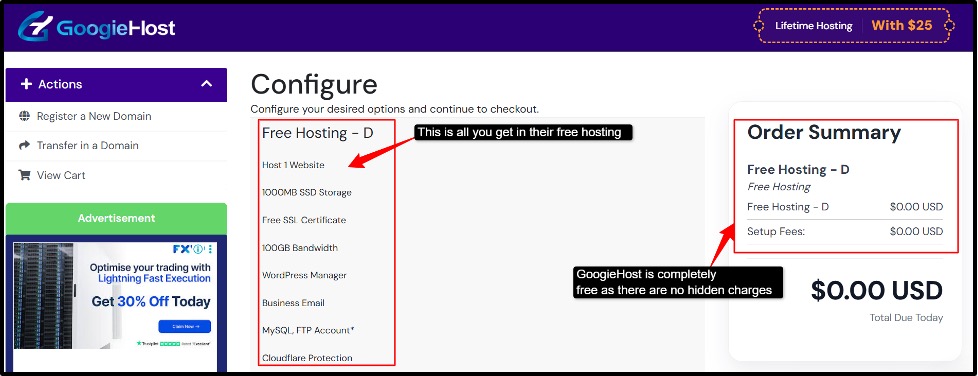
- Free SSL Security: It offers a free SSL certificate, which means your website runs on HTTPS. This keeps your site secure and builds trust with visitors. It also helps improve your SEO and makes your site look more professional.
- Control Panel + WordPress Manager: You get access to a control panel (Direct/Admin/cPanel-like) to manage your site. There is also a WordPress manager to handle installation, updates, and settings easily. This gives you full control without making things complicated.
- Decent Storage and Bandwidth: GoogieHost has around 1000MB of SSD storage and 100GB bandwidth for free users. This is enough for small blogs, portfolios, or practice websites. It may not be for big sites, but it works well for learning and testing.
- Fast Performance with LiteSpeed: The hosting uses LiteSpeed servers and SSD storage, which helps your site load faster. This improves user experience and basic SEO performance. For a few hosting platforms, the speed is quite decent for small projects.
2. WordPress.com [free plan]
WordPress.com

Summary
WordPress.com is a hosted version of WordPress where everything is managed for you: hosting, security, and updates. Using the free plan of this platform, you can create a website quickly without worrying about technical setup, and it is considered a great choice for beginners who want a simple way to start a blog or basic site.
One of the biggest advantages is how beginner-friendly it is. You don’t need to install WordPress manually or manage servers. You will get a free subdomain, built-in features, and an easy dashboard to manage your content easily. The free plan does come with some limitations, like restricted plugin access, limited customization, and WordPress branding.
We will not find out about some of the main features of this platform:
- Free Hosting with Subdomain: Here, you get free hosting along with a WordPress.com subdomain (like yoursite.wordpress.com). There is no need to buy hosting separately; it is all included here. This makes it super easy to get started without spending money.
- Easy Setup and Dashboard: The platform is designed for simple and quick setup. You can create pages, write posts, and manage your site from one clean dashboard. It is perfect for beginners and students who do not require technical hassle.
- Built-in Security and Updates: WordPress.com handles major security issues, backups, and updates automatically. You do not have to worry about maintenance or technical issues, as this keeps your website completely safe without extra effort.
- Pre-Designed Themes: Users get access to free themes to design their website. You can easily customize basic things like colours and layout. It saves a lot of time compared to building a site from scratch.
- Basic SEO and Performance: The free plan includes basic SEO features and decent performance. Your site is optimized for mobile and loads fairly well. It is enough for beginners who are just starting with SEO.
3. AwardSpace
Awardspace

Summary
Awardspace is a well-known free hosting platform that supports WordPress and is especially useful for beginners and small projects of students. It gives you a completely free hosting environment with PHP and MySQL, which are required to run WordPress smoothly. The platform has been around for years and is trusted for simple websites like blogs, portfolios, or practice projects.
The thing that makes AwardSpace stand out is that it offers ad-free hosting with decent uptime and basic resources, so your website looks clean and professional even on a free plan. You also get a control panel, database access, and a one-click installer, making it easy to set up WordPress without technical stress.
AwardSpace’s major features are as follows:
- One-Click WordPress Installer: This platform offers a one-click CMS installer (Zacky Installer) to install WordPress quickly. Here, you don’t need to upload files manually, but just click, and your website is all ready in minutes. This is perfect if you are new and want a smooth setup experience.
- Free Hosting with No Ads: One of the biggest advantages is that the free plan is completely ad-free. Your website will not show unwanted ads, which makes it look more professional. This is very rare in free hosting and great for personal or portfolio sites.
- Free Hosting Plan: Its free plan that offers 1 GB of disk space and 5 GB of monthly bandwidth, which is enough for students and beginners who have very small, low-traffic sites, allowing approximately 5000 visits monthly.
- Free Subdomain and Email Option: Here, you get a free subdomain to launch your site instantly. It also allows you to create a professional email like name@yoursite.com. This will add a more professional touch, even on a free plan.
- Good Storage and Uptime: The free plan includes around 1000MB of storage and 99.9% uptime. This is enough for small websites, blogs, or testing projects. It may not handle heavy traffic, but it works well for beginners.
4. FreeHosting
FreeHosting

Summary
FreeHosting is a basic free web hosting platform that allows you to run a WordPress website without paying anything. It offers the essential tools like PHP, MySQL, and a control panel, which are required to install and manage WordPress. It is mainly suitable for beginners, students, or anyone who wants to test and learn without investing money.
FreeHosting is called out to be a useful platform because it gives its users a clean, ad-free experience with decent resources compared to other free hosting providers. You get control over your website, can install WordPress manually or using an installer, and manage your files easily. While it is not built or designed for high-traffic sites, it works well for small projects and practice websites.
Let’s see the key features OF FreeHosting:
- WordPress Compatibility: FreeHosting supports tools like PHP and MySQL, which means you can easily run WordPress. You can easily install WordPress manually or sometimes using an installer tool. It will allow you to have full control over your website setup.
- Ad-free Hosting: It is not like the other free platforms, and this platform does not force ads on your website. This keeps your site clean and more professional-looking and acts as a big plus point if you are creating a portfolio or personal blog.
- Excellent Bandwidth & Storage: FreeHosting gives you 10 GB storage and unmetered bandwidth for small websites. It is enough for blogs, portfolios, or your learning projects. Sometimes, it could create problems in heavy traffic or with large websites.
- Control Panel Access: It offers its users a control panel to manage files, databases, and domains. You can upload many files, create databases, and control your site very easily. This feature makes it beginner-friendly and practical at the same time.
- Custom Domain Support: FreeHosting allows you to connect to your own domain name instead of using only a subdomain. It helps you to make your website look more professional. FreeHosting is great if you want to build a personal brand or any serious project.
5. ByetHost
ByeHost

Summary
ByeHost is a popular choice when it comes to a free hosting platform that supports WordPress, and it is widely used for beginners and students for learning and testing their websites. It offers the basic server environment that is needed for WordPress, including tools like PHP and MySQL, along with a control panel. The setup of this platform is quite simple, and you can get your website live without spending anything.
This platform is good because it gives better performance and features compared to many of the other free hosting platforms or providers. You get decent uptime, FTP access, and even a free subdomain to start your process quickly. Although it is still limited compared to paid hosting, it is a solid option for small WordPress sites and for practice projects.
Let’s move to ByeHost’s major features:
- One-Click WordPress Installer: ByeHost offers a one-click installer to set up WordPress easily. Here, you don’t need to upload files manually, and with just a few clicks, your website will be ready in no time. It is considered a perfect choice for students and beginners.
- Free Subdomain Option: You get a free subdomain to launch your website instantly. There is no need for you to buy a domain in the beginning, and it is great for testing and learning purposes. Students can benefit a lot because of this feature.
- PHP & MySQL Support: ByeHost completely supports PHP 8.3 and unlimited MySQL databases, which WordPress needs for running. Using these tools, you can create and manage databases easily from the panel, ensuring smooth WordPress performance.
- FTP and File Manager Access: It gives its users FTP access and a file manager to handle their website files. You can easily upload, edit, or manage files anytime. It is very useful if you want more and better control over your site.
- Decent Uptime and Speed: Working as a free hosting platform, ByeHost fairly offers good speed and 99.9% uptime, resulting in your site being online most of the time, and that too with stable performance. It’s good enough for small websites and beginner projects.
After discovering these free hosting platforms for WordPress in detail, let us move further and see other important criteria required for running WordPress.
How to Install WordPress on Free Hosting in 2026
Most of the hosting platforms now offer their one-click installer, like Softaculous, which removes all the technical hassle. You don’t need coding or manual file uploads; just follow a few of the simple steps, and your website will be live in minutes.
Method 1: Install WordPress Using One-Click Installer (Softaculous)
Step 1: Visit the official website of GoogieHost >> Click on Sign up and create your free hosting account.
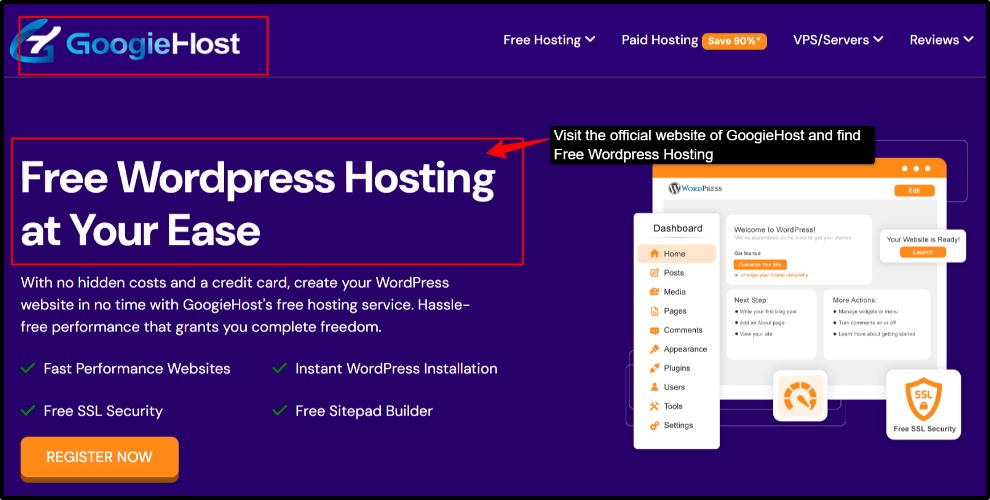
Step 2: Create your Free hosting account >> After login >> Click on “Create New Hosting Account”. Here, choose your domain (free subdomain or custom domain) >> Username & Password >> Click create account and wait for activation.
Step 3: Once your account is active,>> Go to your dashboard >> Click on “Manage” >>”cPanel”. This will open your hosting control panel.
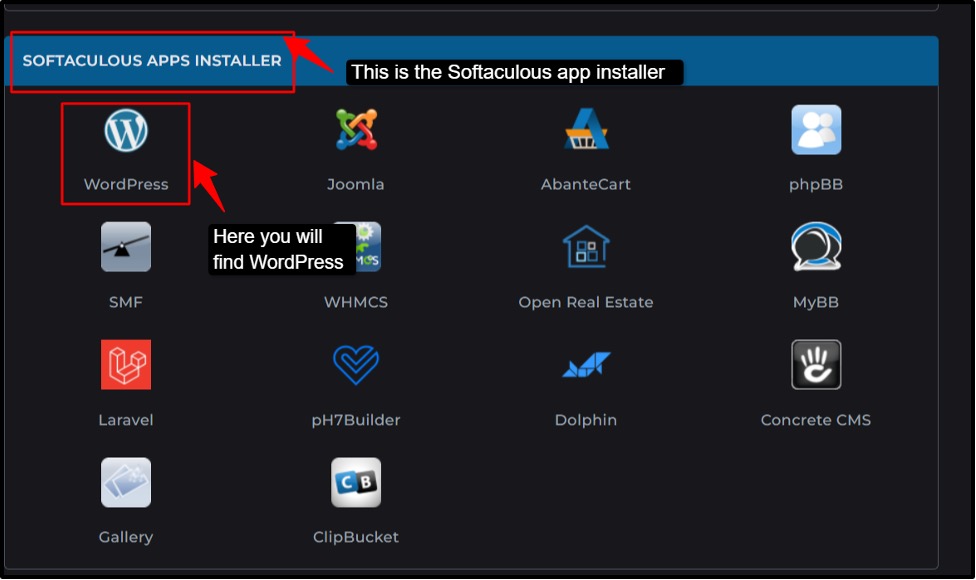
Step 4: Inside your cPanel, scroll to the “Software’ section >> Click on Softaculous Apps Installer. From the list, select WordPress.
Step 5: Now, here choose Domain and Setup Location. Here, select where you want your site to be located. Select your domain, Leave directory empty > yourdomain.com.
Step 6: Now set your WordPress Login Details. Enter your admin details > Username > Strong Password > Email address.
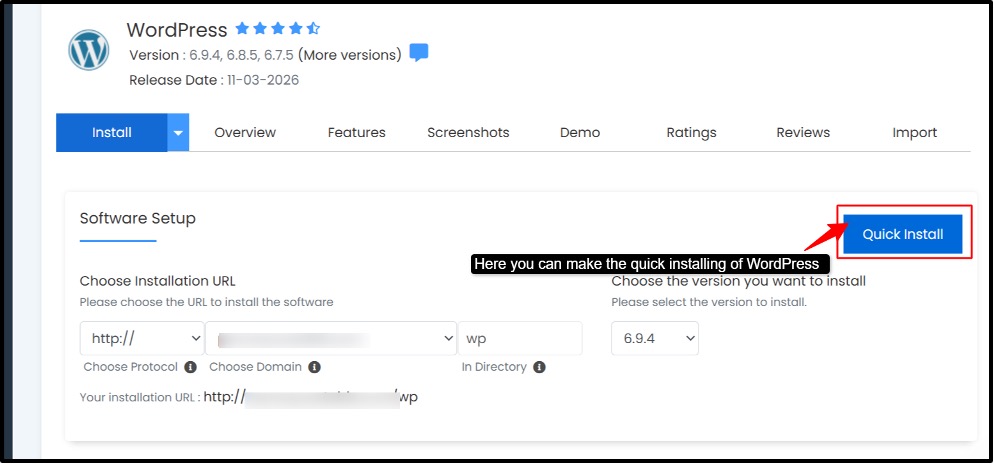
Step 7: Click Install. Now Softaculous will automatically install WordPress, create a database, and configure your website. This will take around 30- 60 seconds.
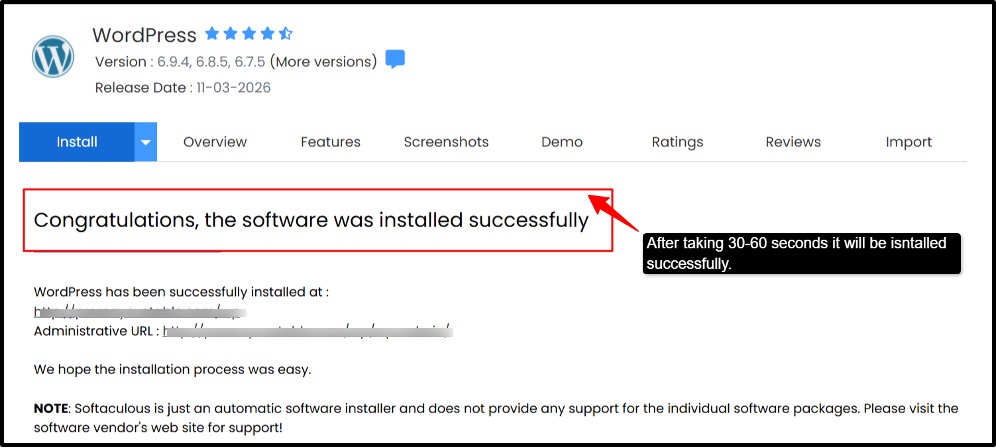
Step 8: Access your WordPress Dashboard. After installation, you will get a login link to yourdomain.com/wp-admin.
Log in and start building your website. Now we will move forward to another method, which is done without using Softaculous, it is the manual WordPress installation.
Method 2: Manual WordPress Installation (Without Softaculous)
If your hosting does not offer a one-click installer, don’t worry, you can still install WordPress manually. It may look a bit technical at first, but once you follow the steps, it is actually very simple. This method also helps you understand how WordPress works behind the scenes. Let us see the simple steps:
Step 1: Visit the official website of GoogieHost >> Create your free account and log in. verify you email and access your dashboard.
Step 2: Create your Hosting Account >> Click on “Create New Hosting Account” here again you choose your domain (free subdomain or custom) >> Username & Password. Wait for activation.
Step 3: Open cPanel (Hosting Dashboard) >> Click “Manage” >> “cPanel”. This is where you will manually set up everything.
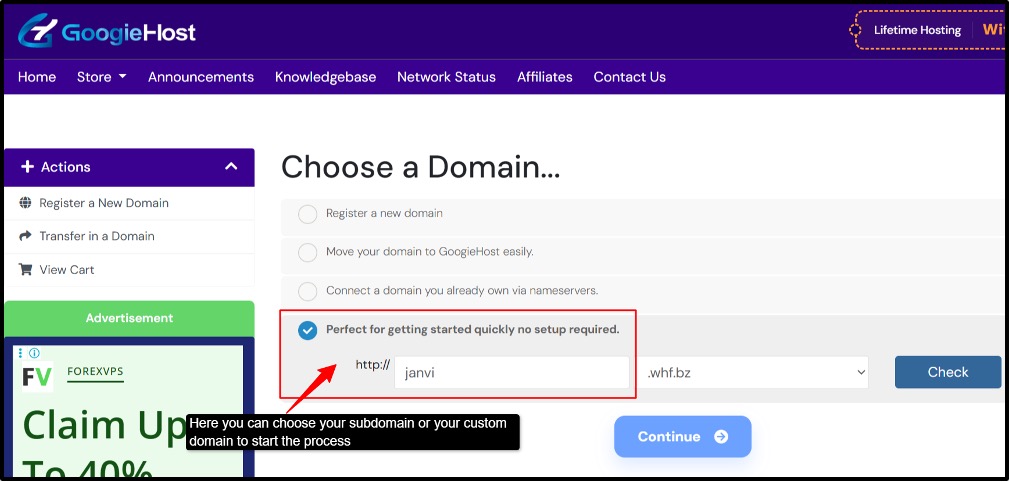
Step 4: Go to the official WordPress website >> download the latest version of WordPress ( ZIP file).
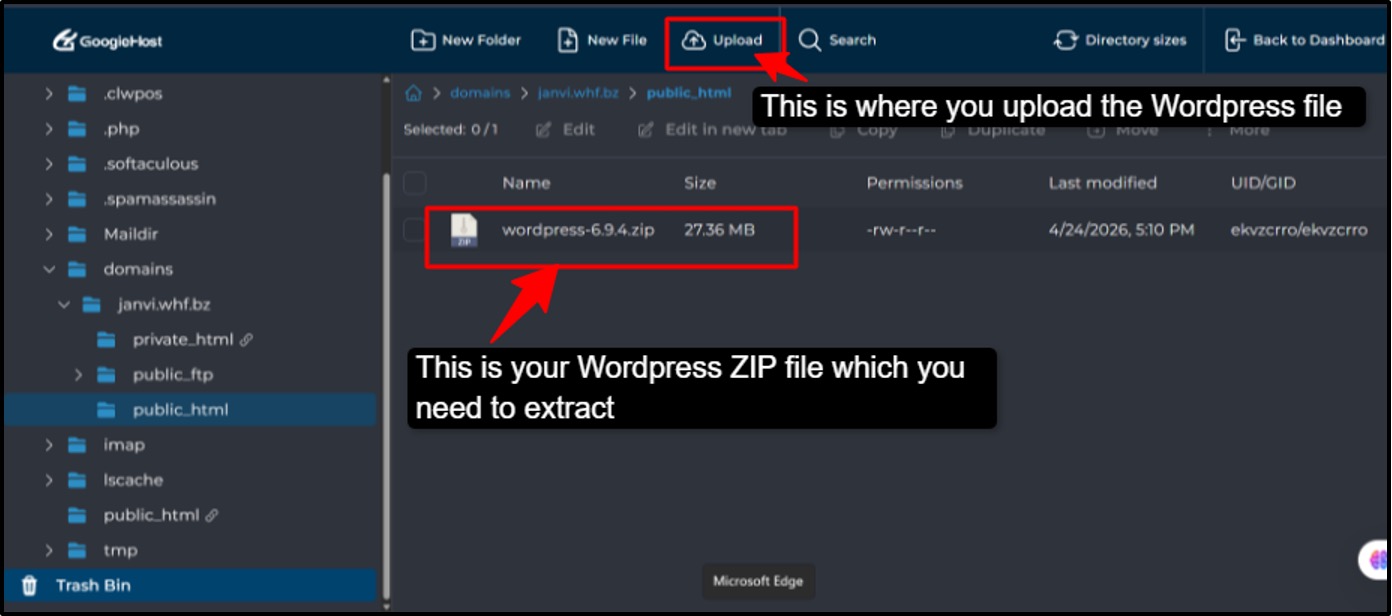
Step 5: Go to your cPanel >> Open File Manager ( or use a tool like FileZilla) >> Go to public_html >> Click Upload and upload the WordPress ZIP file. Once it is uploaded,>> Extract it.
Step 6: Create Database user >> Database name >> Strong password.
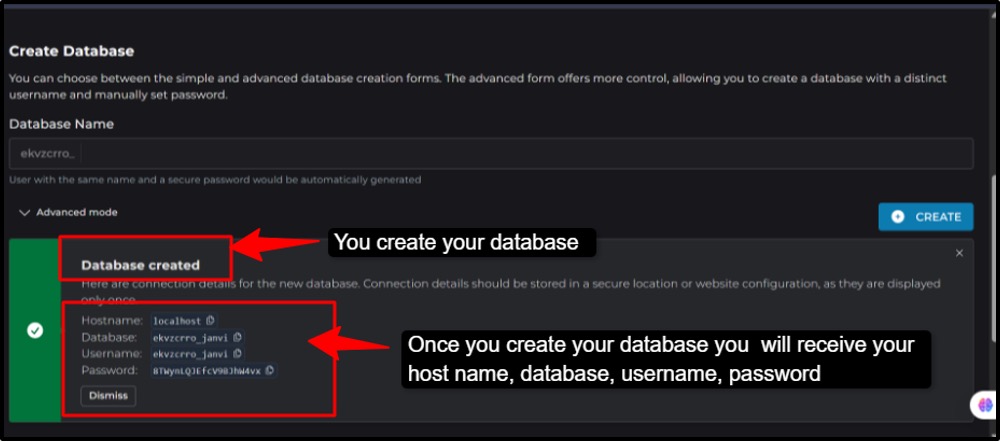
Step 7: Now open your website in a browser (yourdomain.com). The WordPress setup screen will appear >> Enter Database name >> Username >> Password. Click Submit >> Run Installation.
Step 8: Now, fill in your site details, Site title,>> Admin Username,>> Password & Email. Click Install WordPress.
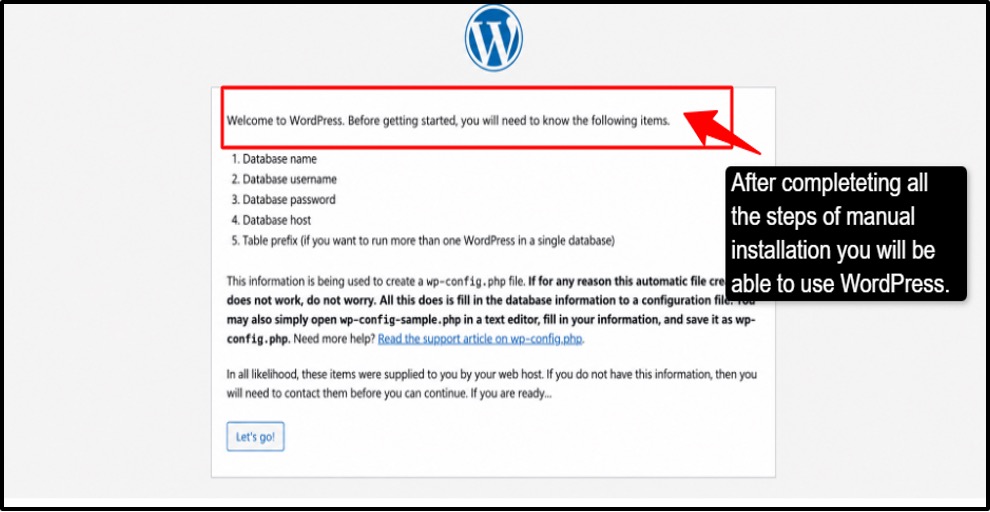
Step 9: Log in to your Dashboard. Go to youdomain.com/wp-admin. Log in, and your site is ready.
No matter which method you select, one-click or manual, the result is going to be the same. If you want speed and simplicity, go with Softaculous; if you want more control and learning, then manual installation is a great option.
Initial WordPress Setup After Installation
Once your WordPress is installed, your site is live now, but not really ready. This initial setup phase is where you clean things up, improve performance, and make sure your website looks and works the way you want. These small steps make a big difference in speed, SEO, and complete user experience.
- Choose a lightweight theme: Start by selecting a simple and fast theme instead of a heavy or complicated one. Lightweight themes load quickly and improve your website speed, which is good for SEO and visitors. You can find free themes inside your WordPress dashboard under Appearance > Themes.
- Install Essential Plugins: Plugins add extra features to your website without coding. Install only the important ones like the SEO plugin, the security plugin, and the caching plugin. You should avoid installing too many plugins, as they can slow down your site.
- Configure Permalink Settings: Permalinks are your website’s URLs (like yoursite.com/post-name). Go to the Settings > Permalinks and choose the “Post Name” option. This makes your URLs clean, readable, and better for SEO.
- Delete Default Content: WordPress comes with sample posts, pages, and comments. Delete things like “Hello World” post and sample page to keep your site clean. This helps you to start fresh and avoid confusion later.
- Set up SSL (if available): If your hosting provider provides SSL, make sure your site runs on HTTPS. This keeps your website secure and builds trust with visitors. You can easily enable it from your hosting panel or use a plugin if needed.
Once you complete all these basic steps, your WordPress sits no longer just installed; it is properly set up and ready to grow. You have now created a clean, secure, and optimized foundation that makes everything easier moving forward, from designing your site to publishing content.
Tips to Improve Performance on Free Hosting
Free hosting is great to start, but performance can be a bit limited if you don’t manage things properly. The good thing is, you can still make your website faster and smoother with a few smart tips. These simple tips can help you get the best out of your free hosting setup.
- Optimize Images: Large images often slow down your website a lot. You should always compress images before uploading or using any tools or plugins to reduce their size without losing quality.
- Enable the Caching Plugin: Caching stores a version of your website so it loads faster for visitors. So always use a very simple caching plugin to improve speed without any extra effort.
- Keep Everything Updated: Always update your WordPress core, themes, and plugins. These updates are very important as they improve the performance, fix bugs, and keep your website secure and safe.
- Clean unused Files and Data: Remove any of the unused themes, plugins, and old media files. Keeping your site clean will help you to run it faster and use fewer of the resources.
- Use a CDN (if Possible): A CDN (Content Delivery Network) helps in loading your site faster by using multiple servers. Even the free CDN services can improve speed for visitors from different locations.
- Regular Backups: Always keep a backup of your website so you don’t lose data. Free hosting may not provide automatic backups, so do it manually or use a plugin. Back up regularly to stay safe.
Free hosting has limits, but with the right approach, you can still create a fast and smooth website. Focus on simplicity, enhancement, and regular maintenance to get the best performance.
Security is a top priority when selecting the best enterprise domain registrars. Features like domain locking, two-factor authentication, and DNSSEC protection safeguard valuable digital assets from cyber threats and unauthorized access.
Common Problems & How to Fix Them
When you are using free hosting, running into small issues is very normal. Most of the issues that you face are easy to fix once you understand what is the reason behind them. Here are some of the common problems that occur, and simple ways to solve them.
- Error establishing database connection: This usually happens when WordPress cannot connect to your database. You need to check your database name, username, password, and host in the wp-config.php file. Also, make sure your database server is running and has not been deleted or changed.
- 500 internal server error: This is a very general server error, which is often caused by a faulty plugin or wrong settings. You should always try renaming your .htaccess file or disabling plugins through File Manager. You can also switch to a default theme to see if the issue gets fixed or not.
- Slow website speed: Free hosting can be slow if your site is not optimized. You should always use a lightweight theme, compress the images, and enable caching. You should also remove unnecessary plugins and keep your site clean.
- Installation timeout: This is a common issue that happens when the server takes too long during WordPress installation. Refresh the page or try installing again after a few minutes. You can even try manual installation or use a better internet connection.
Don’t panic when errors appear; most of them are common and fixable with small steps.
Free Hosting vs Paid Hosting for WordPress
When you are setting up a WordPress website, understanding the difference between (free hosting vs paid hosting) helps you make better decisions. Both options have their own pros and limitations, especially when it comes to performance and long-term growth.
Let us see the simple comparison between the two.
| Feature | Free Hosting | Paid Hosting |
| Speed | Slower performance due to shared and limited resources | Faster loading with optimized servers and better resources. |
| Security | Basic protection, limited security features | Advanced security, SSL, backups, and malware protection. |
| Support | Limited support or community-based help. | 24/7 professional support via chat, email, or mobile. |
| Scalability | Very limited, difficult to handle high traffic. | Easy upgrades as your website grows. |
Free hosting works well for learning and small projects, but it comes with limitations. It is the top choice for students and beginners. Paid hosting gives you high performance and more flexibility. This makes it a better choice if you plan to grow your website seriously.
FAQs
Is WordPress free to install on free hosting?
Yes, WordPress itself is completely free to use and install. Most free hosting platforms support WordPress installation without any cost. There are some extra features, like premium themes or plugins that may require payment.
Can I use a custom domain with free hosting?
Yes, many free hosting providers allow you to connect a custom domain. But in some cases, this feature may be limited or require a small upgrade. You can also start with a free subdomain and switch later.
Is free hosting safe for beginners?
Free hosting is generally safe for learning and small projects, especially for beginners. However, security features may be basic, so you need to take care of updates and backups. It is a good starting point for students and beginners, but not perfect for high-traffic or business sites.
How long does installation take?
WordPress installation usually takes 2-5 minutes with a one-click installer. Manual installation may take a bit longer, around 10-15 minutes. It depends on your hosting speed and internet connection.
Can I migrate later to paid hosting?
Yes, you can easily move your free website to paid hosting anytime. WordPress allows migration using plugins or manual backup methods. This makes it easy to upgrade when your website grows.
Conclusion
Using WordPress nowadays is not a very complicated thing; with time and advancement in technology, you have a way out in every situation. If you want to start your website, it’s not very tough to consider, as the free hosting providers we mentioned above make the whole process quite easy. You can use the one-click installer (Softaculous), or if not, you can also install WordPress and use it. We have guided every step to make your journey easy.
Just understand all of these providers in detail, understand your needs, like you are a beginner or a student who just wants to use it for learning, or you are someone from the business world who needs growth. It will serve all the purposes just the way you want it.
It is the perfect way you can learn, experiment, and turn your ideas into something real.
Go ahead, set your WordPress site today and take your first step toward building something of your own.



Table of Contents
- Can You Install WordPress on Free Hosting in 2026?
- What You Need Before Installing WordPress
- Best Free Hosting Platforms That Support WordPress (2026)
- How to Install WordPress on Free Hosting in 2026
- Initial WordPress Setup After Installation
- Tips to Improve Performance on Free Hosting
- Common Problems & How to Fix Them
- Free Hosting vs Paid Hosting for WordPress
- FAQs
- Conclusion