
How to Build a Productive Multi-Screen Workspace for Web Developers

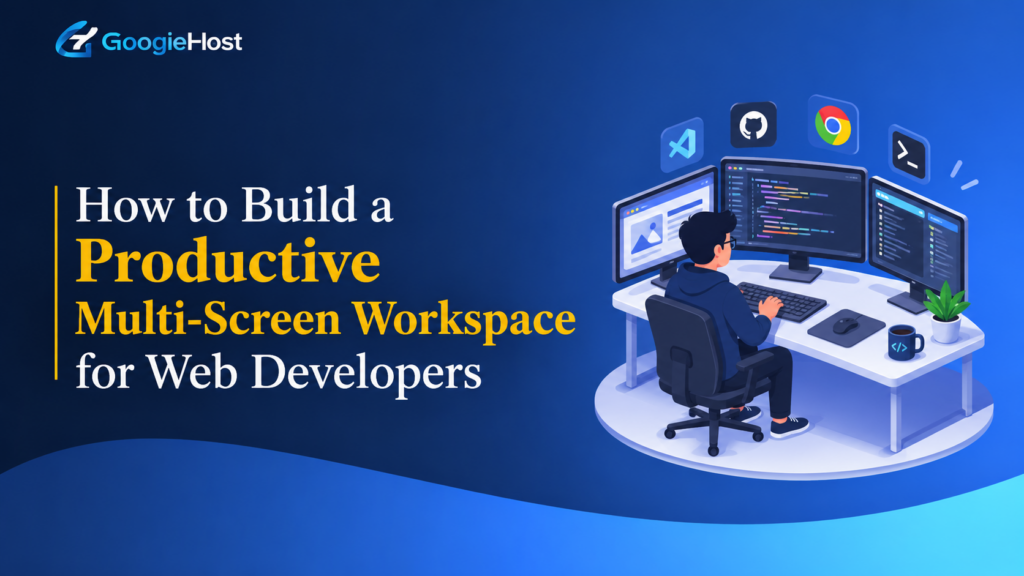
Coding typically requires juggling multiple things at any given point. From coding, testing a website, opening browser dev tools, reading through docs, watching other debugging panels, and chatting with others, having all of these open on one monitor and toggling between them will break your focus.
By implementing a multi-screen set-up, you can free up valuable workspace, retrieve what you need quicker and enjoy a healthier workstation. This can be applied whether you’re coding from home, a shared office or even just at a dedicated desk.
There are various ways to implement a multi-screen environment to aid your day-to-day coding activities.
1. Why Have a Multi-Screen Workspace?
The obvious reason to implement a multi-screen environment is to avoid closing and reopening other programs that you’ll need. Instead, they can stay displayed.
If you have two or more screens, you could code on your main monitor and view your running site in a second. Further monitors can then hold your notes, open dev tools etc.
Some of the advantages of a multi-screen workstation include:
- Multitask: Have multiple coding-related programs displayed at once
- Debug: Easier to cross-reference against your running page
- Workflow: You can tailor which programs are readily available to you
- Less time looking for programs!
- Adapt your screen configuration to fit how you like to develop
These can be highly beneficial if you find yourself coding on large, involved sites.
2. Which Monitors Should You Buy?
You don’t need to splash out on multiple large-format monitors to create a multi-screen environment. You can supplement your existing primary monitor with a small, portable monitor and gain similar functionality.
Of course, there are many factors that will influence your choice of monitor(s), including but not limited to: screen dimensions, pixel count, input options, luminance and physical adjustability.
In general though, you want your primary coding monitor to be as big as possible so you can read your source comfortably. Any further screens can then fill in the gaps.
Example Recommended Configuration for Developers
| Monitor | Dimensions | Use Case |
| Main coding screen | 24″-27″ | Coding |
| Additional screen(s) | 15.6″-18″ | View site, additional dev tools etc. |
If you don’t have the space for multiple large desktop-style monitors, or simply require a mobile option, a portable monitor is ideal. There are a number of manufacturers (e.g. UPERFECT) that produce portable screens which you can use with a desktop or notebook PC. Of course, you can specify the desired pixel density and form factor based on your needs.
3. Assign Each Screen a Role
As mentioned previously, just hooking up multiple monitors won’t necessarily increase your productivity. You’ll need to think about where each program will sit on your available displays. Once this decision has been made, you should see fewer instances of moving programs between monitors.
As a starting point, you may wish to configure your workspace as follows:
| Display | Programs | Functionality |
| Principal | VS Code, IntelliJ IDEA … | Code |
| Additional | Chrome, Safari … | Live view of web page |
| Further | Docs, Discord, Command Line … | Notes, team comms, CLI |
When creating your web pages, you can therefore code away on your first display, check the appearance and behavior of your page on the next and consult any relevant resources on the final. This is particularly applicable when writing CSS and needing to accommodate various viewport widths.
4. Consider Buying a Dedicated “Programming” Screen
You’ll want a monitor that suits your coding requirements, i.e. readable characters, appropriate field-of-view and longevity for your working hours. While gamers will be tempted by the very high framerates offered by certain displays, the attributes discussed above are likely to be of greater interest.
Important Characteristics to Consider
| Aspect | Description |
| Pixel count | Higher is better for legibility and number of programs |
| IPS technology | Good color reproduction from different angles |
| Height-adjustable | Will allow you to keep your head in a neutral position |
| USB-C | Can remove the need for further cables to your PC |
| Blue light reduction | May help alleviate eye-strain |
| Anti-glare surface | Minimizes screen glare |
As with your other monitors, you’ll want to ensure you can drive the new display from your current machine(s) and select a model to suit your role. Developers working on frontend or graphical elements may want a screen with improved color fidelity, whereas those coding backend services could opt for greater horizontal length.
5. Consider Other Elements of Your Workspace
Your additional monitors should of course allow you to maintain an ergonomic position. As a rule of thumb, you want your principal display to be centered in front of you, and positioned such that the upper portion of the monitor sits at or marginally under your line of sight. Your additional displays can then be placed closer to your body so you don’t have to twist too far to see them.
You should also ensure:
- You have adequate stands to elevate your monitors
- An appropriately configured keyboard and pointing device
- You aren’t sitting with your monitors facing a brightly-lit window
- Your desk remains uncluttered, e.g. using velcro straps to tidy cabling
And finally, ensure your lower limbs and spine are suitably supported. If using a portable display, you may need to source third-party attachments to suit.
6. Take Advantage of OS Features and Programs
Naturally, there are a range of native functions and programs you can leverage to manage multiple displays and maximize your efficiency.
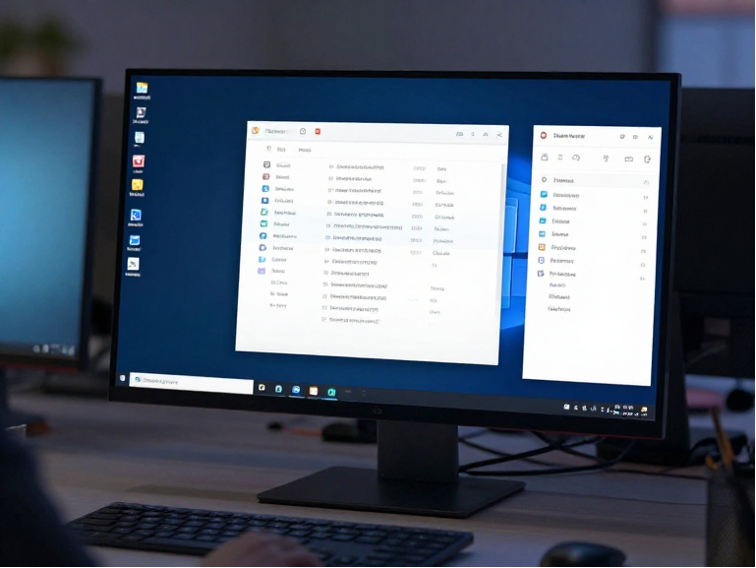
Under Windows, you can take advantage of the OS’s window-snap capability. On a Mac, you’ll have equivalent functionality via Mission Control. Furthermore, many coding environments (such as VS Code) permit multiple panes, and you can download programs such as PowerToys (for Windows) and Rectangle (Mac) to further split your screen into zones. Browser dev tools and platforms like GitHub will also be heavily utilized.
7. Don’t Feel Pressured to Spend a Lot of Money
You can start small with your multi-screen configuration and expand as required. Perhaps you currently only code using your laptop, and can simply purchase a small portable display to supplement this.
Multi-Screen Setup Options Based on Budget
| Level of Spend | Setup | Who it’s suited to |
| Minimal | Notebook and 1 portable monitor | Novice/University student |
| Intermediate | 1 Large desktop monitor and 1 portable monitor | Self-employed coder, etc. |
| Significant | 2+ large desktop monitors and 1 portable monitor | Experienced developer, heavy multi-tasker |
However, before committing to further hardware, you should assess the surface area on your current desk, number of outputs on your PC and expected demand from your new screens. As discussed earlier, you may decide to simply buy a couple of smaller screens rather than go for a maximalist approach.
Conclusion
To create an optimized multi-screen workspace, you’ll need to select one or more displays, populate them with useful programs, and ensure you have the supporting infrastructure in place. As noted, you can achieve this fairly cheaply by supplementing your main display with a portable monitor. In doing so, you can continue to code, view and troubleshoot your pages and reference external content. Identify the current shortcomings of your coding environment and begin to fill those.
FAQ’s
How many screens should I have?
Two will be sufficient for most developers. You may want to add a third if you need to have more programs readily-to-hand.
Will a portable screen be helpful for my development?
Absolutely. You can utilize it to display extra source, browser, CLI and note content. And as noted, it’s great if you don’t have a fixed location to code.
What screen size should I aim for?
Around 24-27″ is widely regarded as the optimum size for your main coding monitor. You can reduce this (or increase it) for any supplementary displays.
Do I need to buy a 4K monitor?
Not at all. 1080p and 2K screens will work perfectly fine for many coding use-cases, although a 4K panel can give you finer detail and increased area.
Are there any other things I should know about a coding screen?
See our list in section 4.
Can I attach multiple external displays to my laptop?
Yes, assuming it has the requisite quantity of video outputs. Be sure to research your machine’s capabilities before investing in new monitors.



Table of Contents
- 1. Why Have a Multi-Screen Workspace?
- 2. Which Monitors Should You Buy?
- 3. Assign Each Screen a Role
- 4. Consider Buying a Dedicated "Programming" Screen
- 5. Consider Other Elements of Your Workspace
- 6. Take Advantage of OS Features and Programs
- 7. Don't Feel Pressured to Spend a Lot of Money
- Conclusion
- FAQ's