
Text Compare



If you are stuck choosing between options and your thoughts feel scattered, GoogieHost’s Text to Compare tool will guide you like a smart assistant that instantly brings clarity, so you don’t need to juggle messy notes or switch between tabs; you just simply need this tool where you paste your text and watch it transform into a clean, side-by-side comparison that is much easier to read and even easier to decide from. It is quick, distraction-free, and built for real users who want straightforward answers without overcomplications.
It is like turning confusion into confident decisions in just a few clicks.
GoogieHost’s Text to Compare tool keeps things simple and practical with its clean two-window layout, where you can place both texts side by side and instantly spot the differences. With many options like Sample for quick testing and Reset to start fresh, it is designed for smooth, no-hassle use. Being a completely free, browser-based tool, it works instantly without downloads and quickly highlights changes.
Who Benefits from the Text Compare
Some users are benefiting from using this tool. Let's see that.
- Developers and code reviewers benefit greatly from this tool as it helps them quickly spot even the smallest changes between code versions, making debugging, updates, and collaboration much smoother without manually scanning lines. This even helps them to ensure the code quality without wasting time on manual checks. It simplifies collaboration by making differences clear and easy to understand.
- Writers, editors, and students benefit by comparing drafts side by side, allowing them to spot edits and errors and improve clarity in their writing. It makes the revision process more structured and ensures that important changes are not overlooked.
- Professionals handling important documents, contracts, or translations find this tool especially valuable for verifying accuracy and consistency. Highlighting the differences between versions helps them detect unintended changes, maintain correctness, and handle important documents with greater confidence and efficiency.
How do I Use the Text Compare?
Now, let's see how we can use this tool:
Step 1. Start by opening your web browser and visiting the GoogieHost official website, then navigate to the “Text to Compare” tool from their free tools section.
Step 2. Once the tool loads, you will see two separate text boxes (windows) placed side by side; these are where you will need to paste the content you want to compare.
 placed side by side.jpg)
Step 3. Copy the first piece of text (original version, code, or document) and paste it into the left side of the box.
Step 4. Next, copy the second piece of text (edited or updated version) and paste it into the right side of the box.
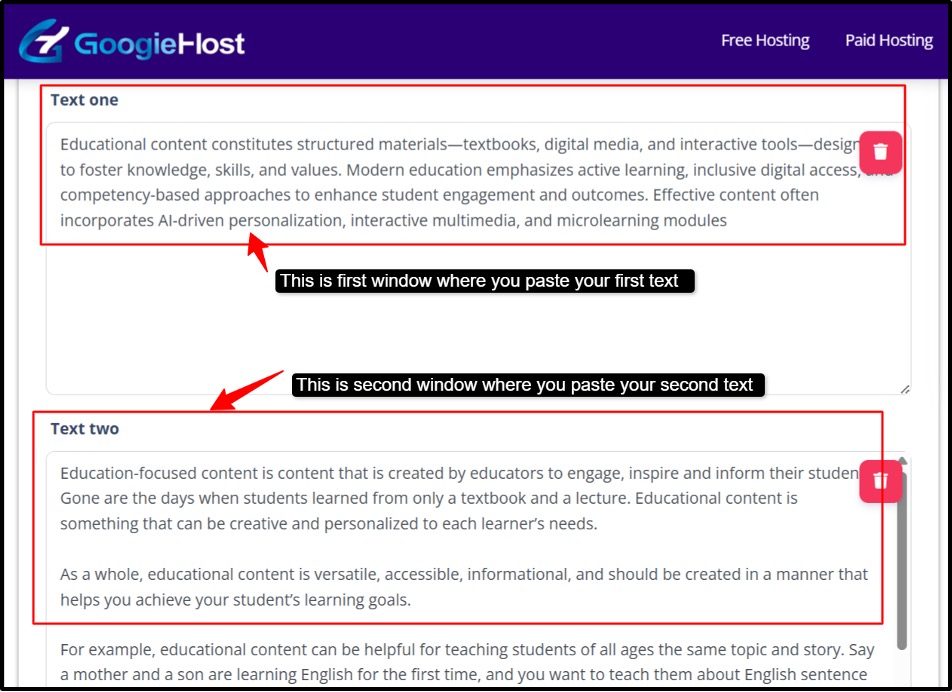
Step 5. If you want to quickly understand how the tool works, you can click on the “Sample” option to auto-fill boxes with example text.
Step 6. After adding both texts, simply wait or click the compare action, and the tool will automatically process the inputs.
Step 7. The tool will then highlight the difference between the two texts, making it easy to identify additions, deletions, or changes.
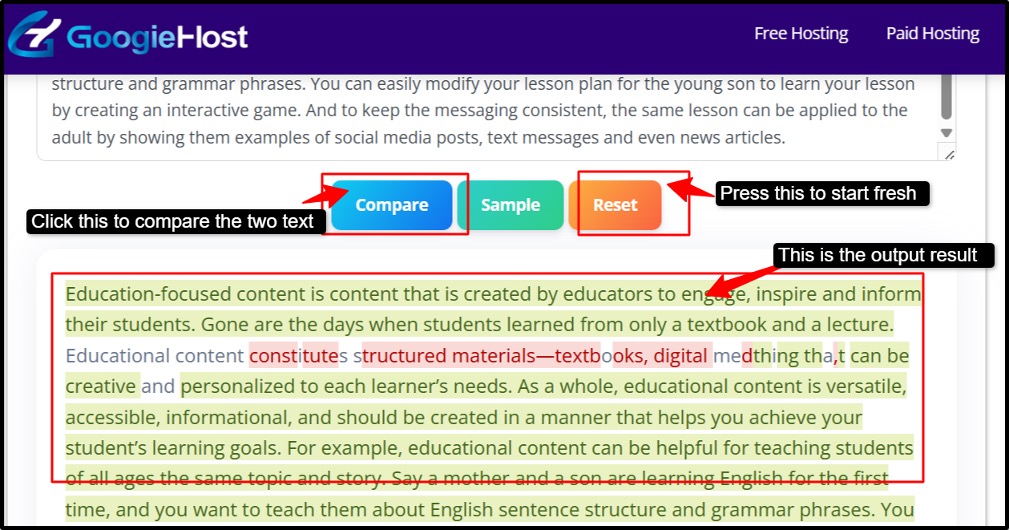
Step 8. Carefully review the highlighted sections to understand what has been modified, removed, or added between the two versions.
Step 9. If you want to start over or compare new content, click on the “Reset” button to clear both text boxes instantly.
Repeat the same process as needed with different texts, making it a quick and efficient way to compare documents, code, or any written content directly in your browser without any installation costs.
Benefits of Using GoogieHost’s Text Compare
Let's move to some of the benefits of this tool:
- The tool offers instant in-browser comparison without any sign-up, which means you can start using it immediately without creating an account or downloading anything. This saves a lot of time and makes it highly convenient, especially when you need quick results on the go.
- Its clear two-pane layout makes comparison simple and visually effective, as both texts appear side-by-side, with built-in actions like “Sample” and “Reset” buttons where users can easily test the tool or start fresh without any confusion, keeping the workflow smooth and user-friendly.
- It is very much accessible through localized pages, and the tool ensures global usability by supporting users from different regions and languages. This makes it more inclusive and practical for a wide range of users across the globe.
- Since this tool is a part of GoogieHost’s free tool suite, users can seamlessly explore and use other related tools in one place. This creates a complete and efficient environment for handling multiple text or SEO-related tasks without switching platforms.
Why Choose GoogieHost’s Text Compare?
What could be the number of reasons as to why you should choose this tool? So let's find out:
- GoogieHost’s Text to Compare stands out for its simple, focused interface that removes all unnecessary clutter and keeps the experience straightforward. You don’t need any technical knowledge to use it, just paste your text into the two boxes, and the tool does the rest. This makes it perfect for both beginners and regular users who want a quick, no-distraction workflow without dealing with complex settings or features.
- The second strong reason is its ability to visually highlight additions and deletions between the two texts. You don't need to manually read line by line; the tool will clearly mark what has been added and what has been removed or changed, helping you instantly understand the differences. This visual clarity is especially useful for reviewing documents, checking edits, or comparing code efficiently.
- Finally, it is completely free to use from any modern browser, which means you can access it anytime, anywhere. Just use it on your phone, laptop, or desktop. There is no need for installation, subscriptions, or sign-ups, making it a highly accessible and convenient solution for anyone who needs quick and reliable text comparison.
FAQs
Q1. How do I use the Text Compare tool?
Ans. To use the GoogieHost Text to Compare tool, simply open it in your browser and paste your two texts into the side-by-side boxes. The tool instantly compares them and highlights any differences, such as additions or deletions, making changes easy to spot. You can also use the "Sample" option to test it or "Reset" to clear everything and start again.
Q2. Can I use Text Compare for code files?
Ans. Yes, you can definitely use the Text to Compare tool for coding files. It works well for comparing different versions of code, helping you quickly spot the changes like added lines, removed sections, or modified logic. This makes it useful for debugging, reviewing updates, or collaborating with others.
Q3. Is my text safe when using Text Compare?
Ans. In most cases, tools like GoogieHost’s Text to Compare are safe for general use because they work directly in your browser and don’t require sign-ups or data storage. However, since it is still a web-based tool, you should avoid pasting highly sensitive information like passwords, confidential contracts, or private data unless the site clearly states its privacy and data-handling practices. For regular text, drafts, or code comparisons, it is generally safe and convenient to use.
Q4. Can I compare large documents?
Ans. Yes, you can compare large documents, but there are practical limits. Browser-based tools like GoogieHost's Text to Compare handle moderately large text quite well, but if the content is extremely long (like full books or very large codebases), you may notice slower performance or incomplete comparisons depending on your device and browser. For best results, try breaking very large documents into smaller sections and comparing them step-by-step.
Q5. Does the tool support case-sensitive comparison?
Ans. The tool generally does not include a specific case-sensitive option, so it may treat words like “Text” and “text” as the same. If you need strict case-sensitive comparison, you may have to manually review differences or use a more advanced tool that offers this feature.
Q6. Do I need to download any software to use Text Compare?
Ans. No, you don’t need to download any software to use the Text to Compare tool. It is a completely browser-based tool, which means you can access and use it directly online without installation. Just open it in any modern browser, paste your content, and start comparing instantly, making it quick, lightweight, and hassle-free to use.

Aman Singh
CREATIVE HEAD
Enjoy the little things in life. For one day, you may look back and realize they were the big things. Many of life's failures are people who did not realize how close they were to success when they gave up.