
TheOnionHost login has been offering data services at affordable prices, while still maintaining a high level of service and support. It has industry-leading reliability of service.
We provide you with a detailed process to get started effortlessly and clearly as a member of The Onion Host.
Here we provide you with a step-by-step tutorial on accessing The Onion Host for a fruitful journey.
How To Upload Your Website Files On cPanel Through File Manager In TheOnionHost?
Step 1: Enter TheOnionHost home page.
Step 2: Log in to your cPanel account
Step 3: Click on the Files icon from the many tabs and then click on File Manager
Step 4: In the upper right-hand corner, find the Settings icon and click on it.
Step 5: In Settings, click on Web Root
Step 6: Click on show hidden files and press enter to Go.
Step 7: Open the folder in that you’d like to upload files by clicking on it.
Step 8: Finally, Click Upload from the top toolbar.
If Also you want to know about HostDare login: Activate Affiliate Account, Refund Policy
How To Reset The PHP Version To The Default Version, Using cPanel?
Step 1: Start by entering the official home page of TheOnionHost
Step 2: Log in to your account
Step 3: Login to your cPanel
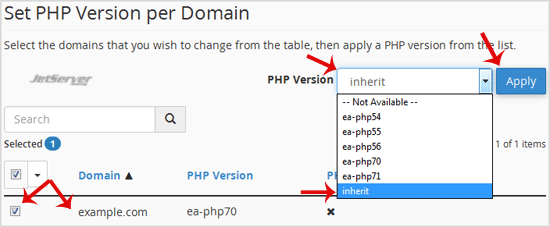
Step 4: Go to the Software section and click on MultiPHP Manager Icon.
Step 5: On scrolling down you will find an option to select your domain from the left side. Select your domain.
Step 6: You will find the option for PHP Version with a drop-down menu on the right side.
Step 7: Click on Inherit from the list of options on the drop down menu.
Step 8: Finally click on the Apply button.
How To Access Your Email Account From DirectAdmin?
Initially, there are two methods on how you can access your email account from Direct Admin.
Option 1:
This is an automatic login method.
Step 1: Start by logging in to your TheOnionHost home account.
Step 2: Then log in to your DirectAdmin
Step 3: Find the Email Manager section and click on the Email Accounts icon. You can also find it by entering Email Accounts in the navigation filter.

Step 4: Find your email address under the Account tab on the right-hand side.
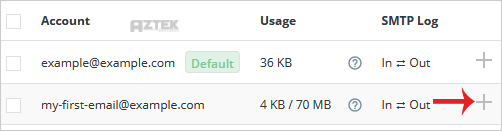
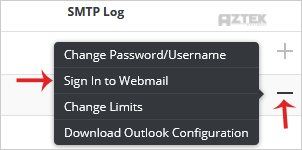
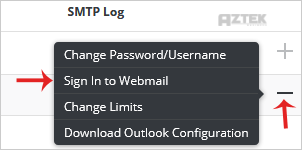
Step 5: Click on the Plus icon alongside the email address and sign in to the Webmail option.
Do you want more information about the Flaunt7 Login Client Area: How to access cPanel and Dashboard?
Option 2:
This method will require username input and password to login.
Step 1: Start by logging in to your TheOnionHost home account.
Step 2: Then login to your DirectAdmin
Step 3: Under the Extra Features section, select your preferred webmail. Options might include Squirrelmail or Roundcube Icon. You can also type Webmail in the navigation filter box for the options list to appear.
Step 4: Enter your username and password. You can enter your email address in your username.
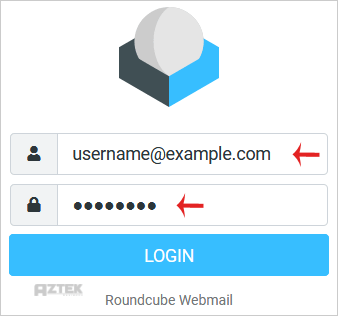
Step 5: Click on the login button.
How To Install Vanilla Forum Via Softaculous In cPanel?
Step 1: Get logged in to your cPanel.
Step 2: Click on Softaculous Apps Installer.
Step 3: In the Search text box, type vanilla and press Enter.
Step 4: Click on Install.
Step 5: Full fill in the necessary selection process, required for Choose Protocol list box, Choose Domain list box, Directory text box, Site Name text box, Admin Username, Password and Email text box, Database Name text box, Backup Location list box, Automated backups list box and Backup Rotation list box,
Step 6: For Advanced options click on the Advanced Options icon.
Step 7: Finally, click Install.
If Also you want to know How To HostPapa Login: cPanel Login, Client Area
How To Change The Password Of The FTP Account In cPanel?
To change your FTP account password in cPanel, follow the following steps:
Step 1: Begin by entering the homepage of TheOnionHost login to your account.
Step 2: Then login to your cPanel account with the login details provided to you while creating your account.
Step 3: On the menu tabs, Click on Files.
Step 4: Find the FTP Accounts from the many options given under the Files section in the cPanel.
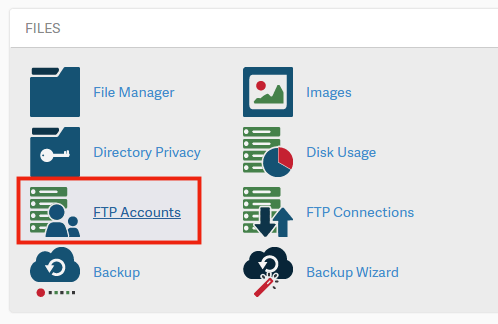
Step 5: A settings menu will open up, containing a login fill-up page, Page Size option and many other options. Click on the Change Password option on the left-hand side of the page.
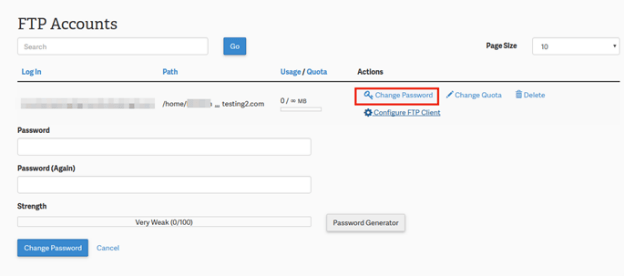
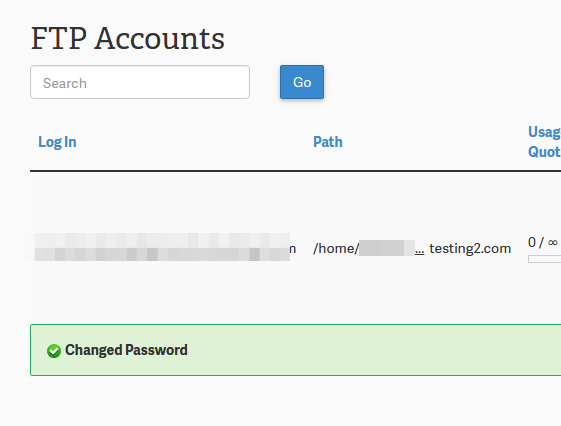
Step 6: Type your new password and on the confirmation, click on Change Password.
How To Login To Plesk In TheOnionHost?
You will require your server name to login to Plesk in Theonionhost login.
Step 1: Go to your browser address bar and type: https://<your domain name or the server IP address>:8443
Step 2: A login page will pop up where you need to enter your username and password
Step 3: Hit Login.
Conclusion:
TheOnionHost login provides a secure and reliable hosting experience to clients around the globe. With its amazing uptime and web hosting features, it provides the best services to its customers.
Navigating TheOnionHost becomes incredibly simple once you understand where each tool and setting lives inside cPanel, DirectAdmin, or Plesk. This guide walked you through the most common tasks from uploading website files to managing emails and resetting PHP versions so you can manage your hosting account with confidence.
Whether you’re a beginner or an experienced user, TheOnionHost login panel gives you all the essential features to keep your website running smoothly and securely.